How to Uninstall Kodi Repositories the Right Way

Learn how to uninstall a Kodi repository safely, remove its saved source URL separately, and check which installed add-ons or dependencies you still need.
Kodi 18 “Leia” is an older version of the free Kodi media center, not the current release. You can still find its installers in Kodi’s official archive, but the last Leia update was Kodi 18.9 in October 2020. If you specifically need Leia for a compatible device or legacy add-on, use the official archive, back up your settings first, and avoid third-party download sites. For a new installation, Kodi recommends its current stable version instead.
Kodi 18.0 was released in January 2019, replacing the 17.x “Krypton” series. Leia is a completed, legacy release line: it is not a beta, nightly build, or upcoming update. Its final point release, 18.9, addressed networking and playback-related problems. See Kodi’s original 18.0 announcement and 18.9 release notes.
The normal Kodi download page offers supported stable and development builds for modern platforms. It also links to older releases in the official mirror archive. Kodi explicitly warns that older builds are not recommended for everyday use.
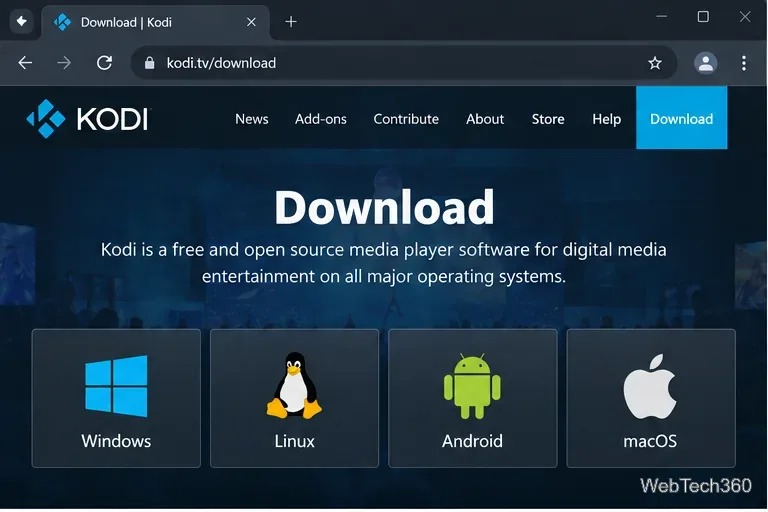
Open the official download page and identify your operating system: Windows, Linux, Android, or macOS, for example. If you do not have a specific reason to use Leia, choose the stable version offered there. If you need Kodi 18, follow the “Older Releases” link rather than selecting a development build. Development builds are for testing newer software, not for retrieving 18.9.
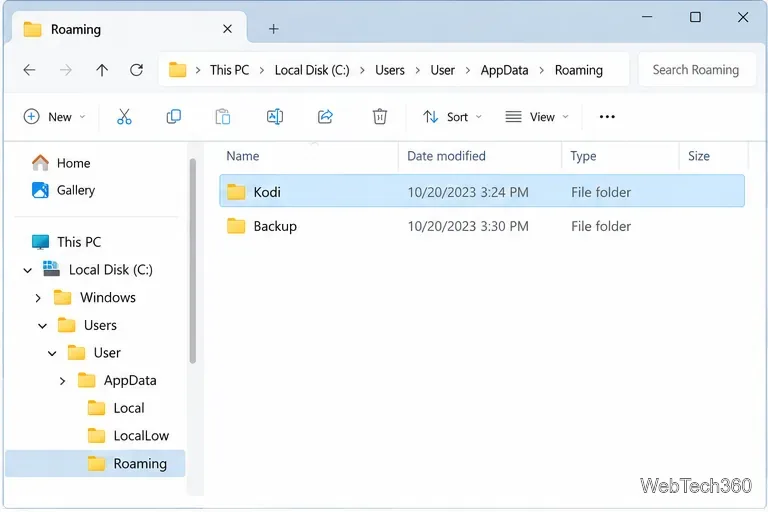
Close Kodi before copying files. On a standard Windows desktop installation, press Win + R, enter %APPDATA%, and copy the entire Kodi folder to a separate backup location. On macOS, the Kodi data folder is under ~/Library/Application Support/Kodi; on many Linux systems it is ~/.kodi. Android access varies by device and OS version. Kodi also provides a Backup add-on through its official repository. Consult the Kodi backup guide for platform-specific locations.
A full data-folder copy preserves settings, databases, installed add-ons, and artwork, but not media files stored elsewhere. Do not assume a backup from a much newer Kodi version can be restored safely into Leia; database and add-on formats can differ.
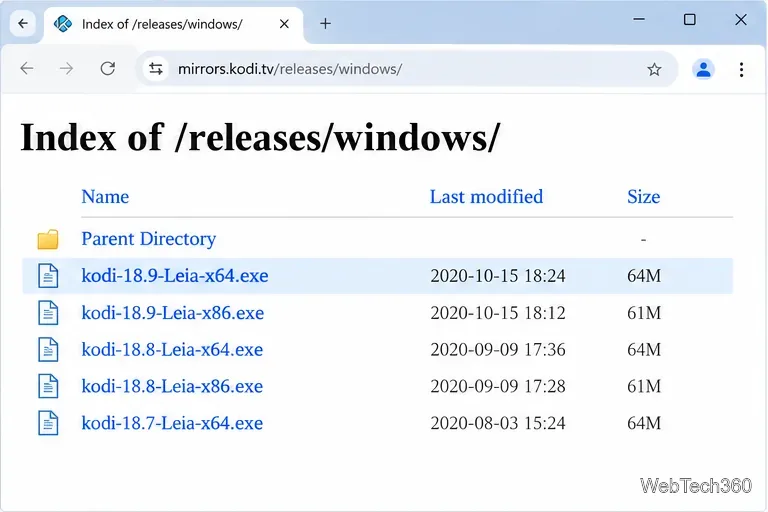
In Kodi’s archive, open the folder matching your platform and processor. For example, the official Windows 64-bit directory lists kodi-18.9-Leia-x64.exe. Choose 32-bit or ARM packages only when they match your hardware. Do not install a Windows executable on Android or use a random “Kodi Leia” download supplied by an unofficial add-on site.
Some older packages may not run properly on modern operating systems. Check compatibility before replacing a working installation. Store and app-marketplace versions normally deliver the currently distributed release, not a selectable historical version.
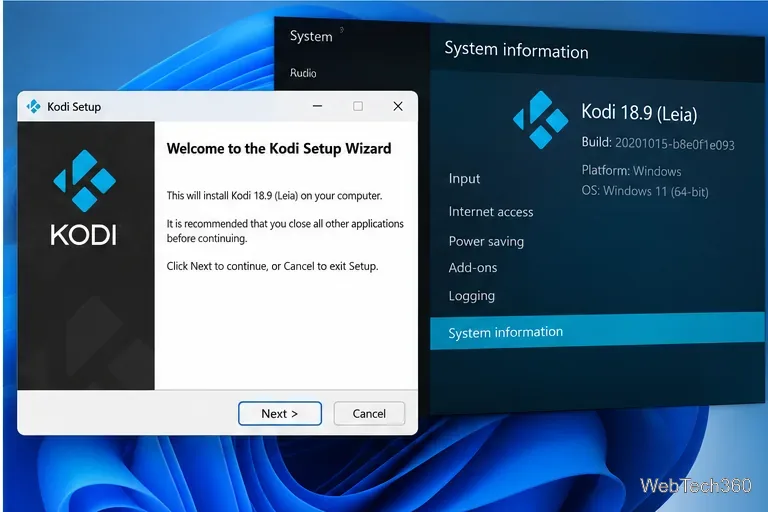
Quit Kodi, run the verified installer, and follow its prompts. For an in-place Windows update, Kodi’s installation guide says point releases typically install over an existing version, but large version changes deserve additional care. Avoid installing 18.9 directly over a much newer Kodi profile: keep your backup intact and use a separate test environment if needed.
After launch, open Settings → System information to check the installed Kodi version. Confirm that your local media plays and that essential add-ons and skins still work. If something breaks, close Kodi before restoring a compatible backup.
Leia was a substantial upgrade over Krypton, especially for gaming, media libraries, and TV-related features:
These changes are described in Kodi’s 18.0 release announcement. The 18.9 maintenance update primarily fixed problems caused by third-party HTTP/SSL changes, along with a handful of navigation, memory, input, and Android video-rendering issues.
Only if you have a specific compatibility need. Kodi 18 no longer receives ongoing feature or maintenance releases, so legacy add-ons, metadata providers, and protected streaming integrations may stop functioning as external services change. Kodi 19 also introduced major Python add-on compatibility changes, making add-on testing important when moving between versions.
If an add-on fails after the change, check whether its developer supports Leia, update it from a trusted repository, or use a newer compatible Kodi release. If media playback fails, first test a local file you own, then verify audio/video settings and any required PVR back end. A VPN is not a substitute for software updates, trustworthy add-ons, or legitimate media access.
For most people installing Kodi today, the right choice is the latest stable release from kodi.tv. The archived Leia installer is best kept for legacy setups and controlled compatibility testing.
Learn how to uninstall a Kodi repository safely, remove its saved source URL separately, and check which installed add-ons or dependencies you still need.
Find the safest way to watch live tennis with Kodi: learn what iPlayer WWW can stream, how to find licensed coverage, and which add-ons to avoid.
Learn how to watch movies on Kodi from your computer, USB drive, or NAS, add online video services, and fix missing titles with clear setup steps.
Set a Kodi Master Lock PIN, protect selected menus, and create a separate kids’ profile with media sources you choose.
Find the authorized stream for your country, check whether its provider supports Kodi, and watch a boxing PPV on your TV without relying on outdated add-ons.
Compare five Kodi skins in the official Omega catalog, then follow the current Settings path to install one, customize it, or switch back.
Looking for the 1Channel Kodi add-on? Learn why old PrimeWire installation guides are unreliable and how to install a supported video add-on safely.
Enable Kodi’s Chorus2 web interface, control your media from any browser, and learn how to connect remotely without exposing Kodi to the Internet.
Follow the original Nemesis Kodi installation process, learn what changed with Stream Army, and avoid outdated repository and PIN instructions.
Download Kodi safely on Windows using the official installer or Microsoft Store, then add your media library and set up trusted add-ons.








