How to Uninstall Kodi Repositories the Right Way

Learn how to uninstall a Kodi repository safely, remove its saved source URL separately, and check which installed add-ons or dependencies you still need.
If Kodi is not working, first narrow down what is failing: the app itself, one add-on, an online source, or a particular video. Quit and reopen Kodi, then restart the device once. Next, test a local media file you own and compare it with the failing add-on or network location. That quick comparison often points to the right cause before you change settings or erase data.
A newer Kodi release can fix bugs, but add-ons can lag behind it. Check Settings > System information for your version and platform. For a stable installation, use the stable release offered by Kodi or the trusted app store where you installed it. As of October 24, 2026, the latest stable release in Kodi’s notes is 21.3 “Omega”; Kodi 22 “Piers” was still labeled Release Candidate 1 on October 10, a testing build that may contain unresolved bugs.
Back up Kodi’s data folder before updating, and use the same trusted distribution channel when possible. Start with Kodi’s official download page; review the 21.3 release notes and 22 RC 1 notes before choosing a build.
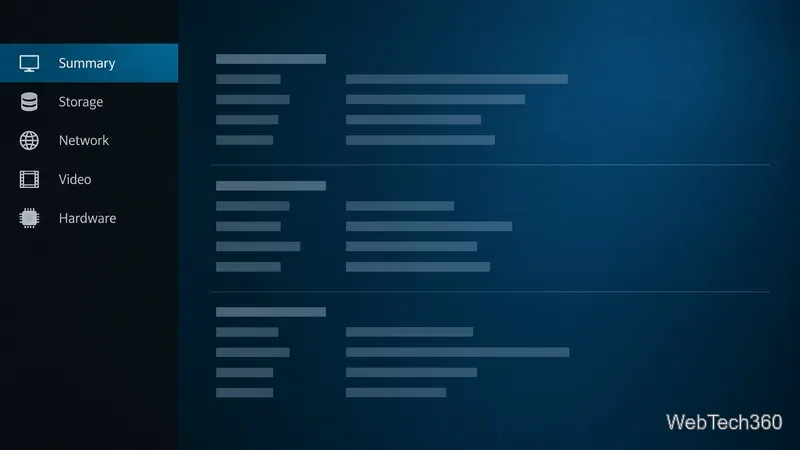
If Kodi’s home screen works but one add-on fails, suspect its server, a missing dependency, or compatibility. In the Add-ons manager, review My add-ons and Available updates, then update it from its repository. If the failure followed a change, temporarily disable that add-on or skin and test again.
Team Kodi maintains Kodi’s built-in repository. For ZIP or third-party add-ons, you must check compatibility yourself; Kodi warns that unknown add-ons can access device data. Remove repositories you no longer trust and skip unverified “repair” tools. See the Add-on manager guide and official repository documentation.
Kodi is media-center software, not the remote service behind every add-on. If a local video plays but an online stream, network share, or library path does not, check the internet connection, NAS or computer reachability, folder path, and saved credentials. Test the source on another device; if it fails there too, it may be down. Wait before reinstalling Kodi.
Buffering is not automatically a cache problem. Kodi says cache changes cannot speed up a slow or busy server, and “zero cache” does not improve playback. Check network details, test another source you are authorized to access, and consult the Kodi cache guide.
Low free storage can block updates or cause add-ons and artwork downloads to fail. Check Settings > System information > Storage, then free space through the device’s operating system or remove unused add-ons and downloads. Artwork and some add-ons can accumulate data; do not delete random folders or run an unofficial cache cleaner.
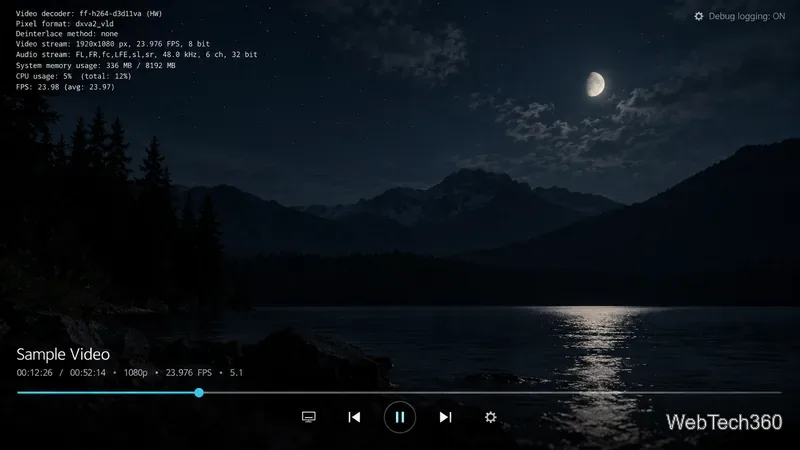
If high-resolution video stutters, freezes, or shows a blank picture, the device may not support that file’s codec or hardware-decoding path. Compare it with a lower-resolution local file and review Kodi’s playback settings. Change one advanced setting at a time, and revert it if the picture gets worse. See Kodi’s video playback settings reference.
Crashes after installing a build, changing skins, or adding extensions can come from conflicting configuration. Switch to the default Estuary skin, disable recent add-ons one at a time, and test. Kodi recommends isolating the cause by temporarily removing user data or an add-on.
Back up Kodi’s data folder before a clean start or reinstall. Resetting user data removes settings, add-ons, databases, and library entries, although media files stored elsewhere remain. A full backup can reintroduce the faulty setting, so restore selectively if the problem returns. Follow the platform-specific Kodi backup guide before removing data.
Enable debug logging, reproduce the problem once, and check the log for the first relevant error. It can help separate startup, add-on, playback, and network failures. If you share it with the Kodi community, follow forum guidance and avoid exposing personal information. Use the official debug-log instructions.
Use the least disruptive checks first: restart, isolate the add-on or source, update from an official channel, check storage and playback compatibility, and test a clean profile only after backing up.
Learn how to uninstall a Kodi repository safely, remove its saved source URL separately, and check which installed add-ons or dependencies you still need.
Find the safest way to watch live tennis with Kodi: learn what iPlayer WWW can stream, how to find licensed coverage, and which add-ons to avoid.
Learn how to watch movies on Kodi from your computer, USB drive, or NAS, add online video services, and fix missing titles with clear setup steps.
Set a Kodi Master Lock PIN, protect selected menus, and create a separate kids’ profile with media sources you choose.
Find the authorized stream for your country, check whether its provider supports Kodi, and watch a boxing PPV on your TV without relying on outdated add-ons.
Compare five Kodi skins in the official Omega catalog, then follow the current Settings path to install one, customize it, or switch back.
Looking for the 1Channel Kodi add-on? Learn why old PrimeWire installation guides are unreliable and how to install a supported video add-on safely.
Enable Kodi’s Chorus2 web interface, control your media from any browser, and learn how to connect remotely without exposing Kodi to the Internet.
Follow the original Nemesis Kodi installation process, learn what changed with Stream Army, and avoid outdated repository and PIN instructions.
Download Kodi safely on Windows using the official installer or Microsoft Store, then add your media library and set up trusted add-ons.








