How to Uninstall Kodi Repositories the Right Way

Learn how to uninstall a Kodi repository safely, remove its saved source URL separately, and check which installed add-ons or dependencies you still need.
First check whether your Fire TV can run Kodi’s Android build, then separate an app problem from a network or add-on failure. Try low-risk fixes first; clear data or reinstall only after backing up because those steps can remove settings. Fire TV menu labels vary by model.
| Symptom | First check |
|---|---|
| Kodi will not install | Confirm device model, operating system, and APK source. |
| Kodi freezes | Force stop the app and clear its cache. |
| Video buffers | Test the Fire TV’s internet connection in another app. |
| One add-on fails | Check that add-on or content source. |
Kodi’s published Fire TV instructions use its Android app on Android-based Fire OS devices. Amazon now lists some newer sticks, including the 2025 Fire TV Stick 4K Select and 2026 Fire TV Stick HD, as running Vega OS; Kodi’s download page lists Android, but not Vega OS. The standard Android APK steps therefore do not apply to those Vega models. In Settings, open My Fire TV or Device & Software > About and confirm the model and OS. Compare them with Amazon’s Fire TV device list and Kodi’s official downloads. If the device reports Vega OS, do not rename an APK or install an unofficial package.
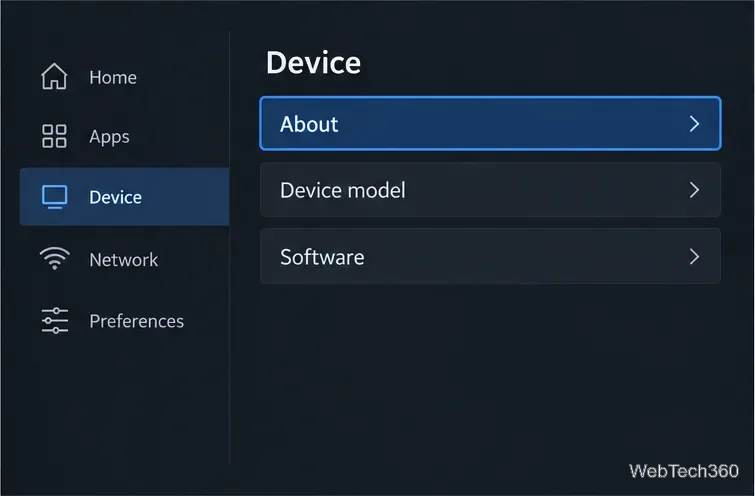
Try another online app on the same Fire TV. If it also fails, focus on the network. In Settings, open Network, confirm the Wi-Fi connection, then toggle Wi-Fi off and on or reconnect. Improve reception by moving the device or router, and restart the router if several devices are affected. Use Amazon’s Fire TV Wi-Fi guide for model-specific steps.
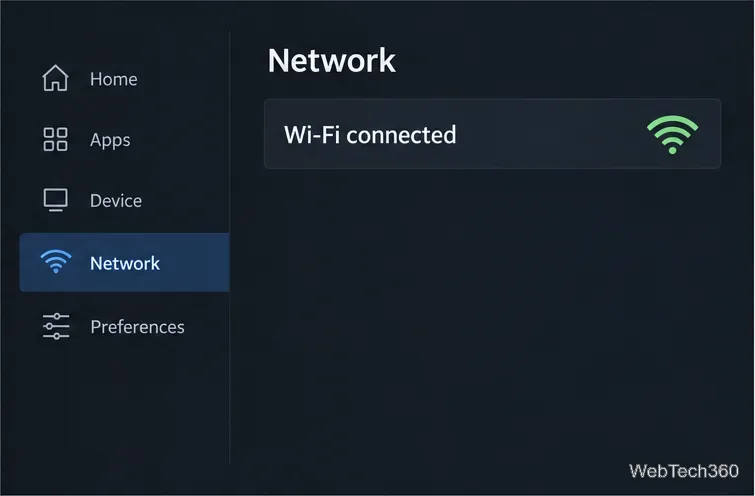
Use Settings > My Fire TV or Device & Software > Restart. If the menu is frozen, unplug the Fire TV power adapter for about one minute, then reconnect it. Restart the router too if other devices have trouble. See Amazon’s restart steps.
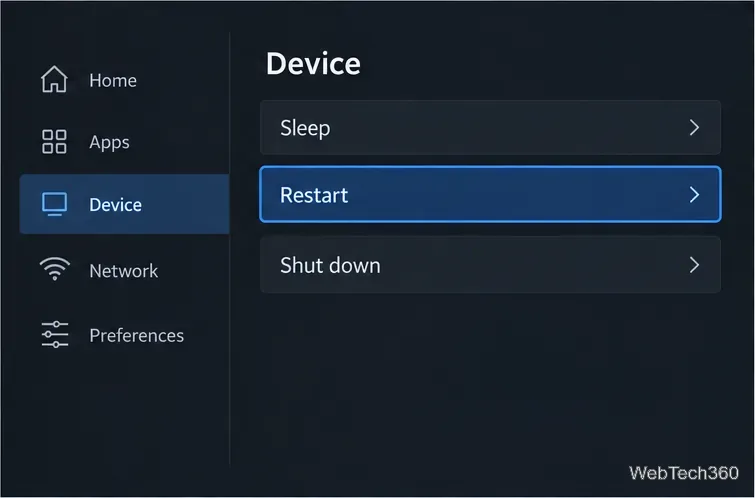
Open Settings > Applications > Manage Installed Applications > Kodi. Choose Force stop, reopen Kodi, and test. If needed, return and choose Clear cache. Do not choose Clear data unless you are prepared to reset Kodi’s local settings. Amazon’s app cache instructions describe the Fire TV controls.
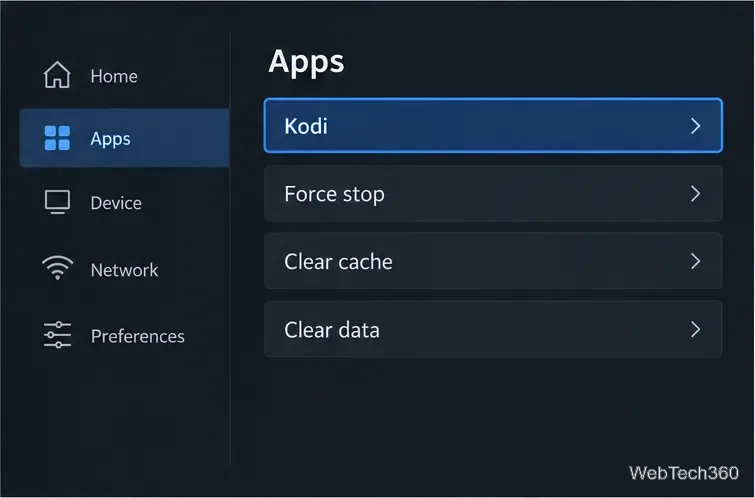
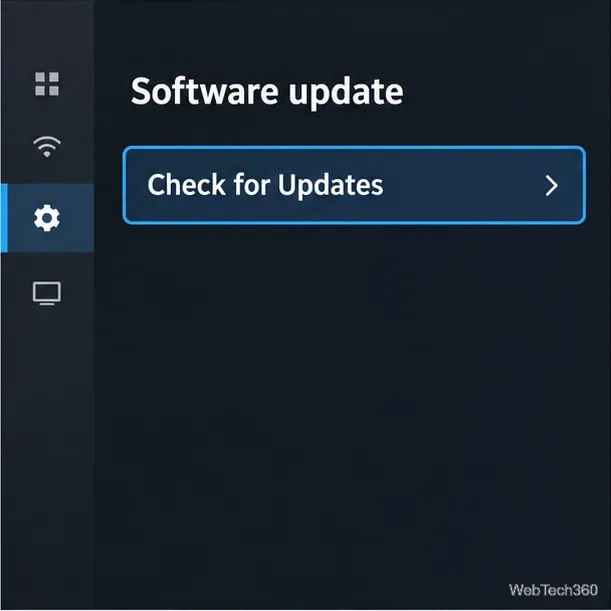
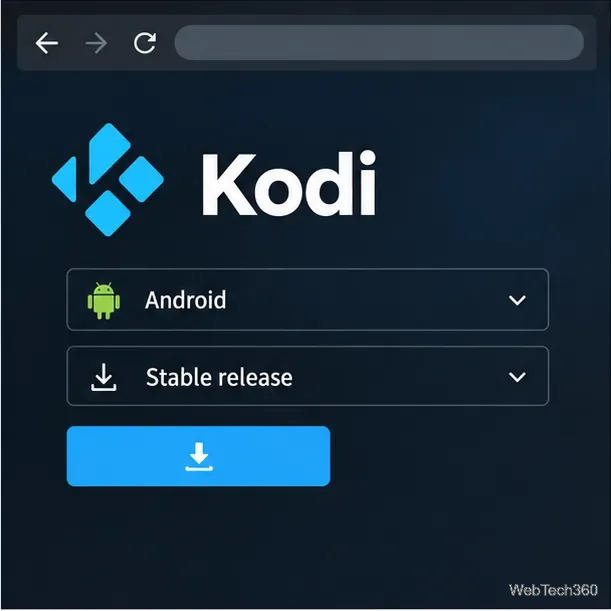
Check Fire TV updates under Settings > My Fire TV or Device & Software > About > Check for Updates. If Kodi opens, update it from the official Kodi site and select a stable release; Kodi recommends stable builds for regular use. Avoid nightly or prerelease builds while troubleshooting. The Kodi Android guide explains package choices.
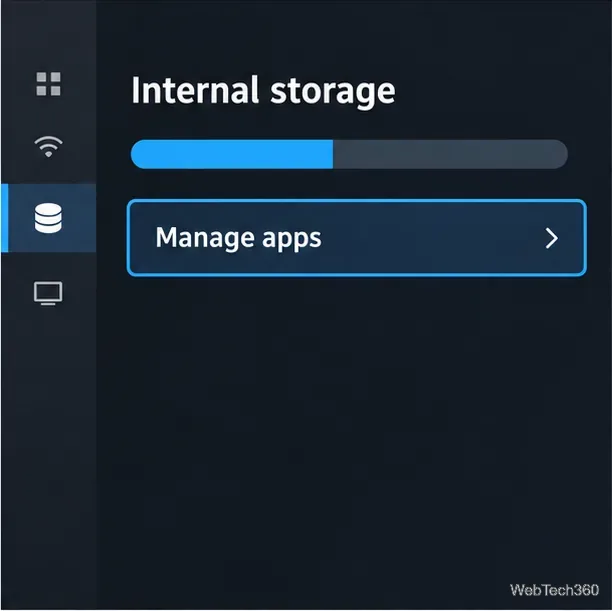
If Fire TV reports low space or an update will not install, open Manage Installed Applications and remove apps you recognize but no longer use. You can also clear cache for other large apps. Avoid unfamiliar cleaner utilities and do not remove Kodi data as a shortcut. Follow Amazon’s app removal steps.
Reinstall only if Kodi still crashes after the earlier checks. Back up settings, profiles, library details, and sources you want to keep, then verify the backup is stored elsewhere. Uninstall Kodi from the installed-apps menu. On a compatible Fire OS device, download the stable Android build from Kodi’s official download page and follow its Fire TV installation guide. Kodi warns that uninstalling its Android app removes userdata and settings.
If Kodi’s menus respond and a local media file you own plays, but one online add-on errors, the app may be fine. Check whether that add-on is enabled and current, whether its source is reachable, and whether the provider is available in your region. Kodi does not include media; its official downloads page explains that users supply their own content and that third-party plug-ins may connect to outside services. Reinstalling Kodi is unlikely to fix a failure limited to one source.
If Kodi still will not launch after these checks, save the exact error text and contact Kodi or Amazon support. A Fire TV factory reset is a last resort, not a routine Kodi fix.
Learn how to uninstall a Kodi repository safely, remove its saved source URL separately, and check which installed add-ons or dependencies you still need.
Find the safest way to watch live tennis with Kodi: learn what iPlayer WWW can stream, how to find licensed coverage, and which add-ons to avoid.
Learn how to watch movies on Kodi from your computer, USB drive, or NAS, add online video services, and fix missing titles with clear setup steps.
Set a Kodi Master Lock PIN, protect selected menus, and create a separate kids’ profile with media sources you choose.
Find the authorized stream for your country, check whether its provider supports Kodi, and watch a boxing PPV on your TV without relying on outdated add-ons.
Compare five Kodi skins in the official Omega catalog, then follow the current Settings path to install one, customize it, or switch back.
Looking for the 1Channel Kodi add-on? Learn why old PrimeWire installation guides are unreliable and how to install a supported video add-on safely.
Enable Kodi’s Chorus2 web interface, control your media from any browser, and learn how to connect remotely without exposing Kodi to the Internet.
Follow the original Nemesis Kodi installation process, learn what changed with Stream Army, and avoid outdated repository and PIN instructions.
Download Kodi safely on Windows using the official installer or Microsoft Store, then add your media library and set up trusted add-ons.








