How to Uninstall Kodi Repositories the Right Way

Learn how to uninstall a Kodi repository safely, remove its saved source URL separately, and check which installed add-ons or dependencies you still need.
If Kodi runs slowly, first identify what is slow: menus, video playback, or the internet stream. Restart Kodi, check for updates, and then use the six fixes below. A sluggish menu usually needs different attention than a video that repeatedly stops to buffer.
Quick diagnosis: slow navigation often points to a demanding skin or background add-ons; pauses with a loading spinner suggest a network or source problem; and choppy motion without a spinner can indicate video decoding or display settings. Try one change at a time so you know what actually helps.
Kodi 21.3 “Omega,” released in December 2025, includes fixes for library scans, network streams, and crashes. As of October 29, 2026, Kodi 22 “Piers” RC1 was a prerelease, so it is not the default choice for a primary media center. Read the Kodi 21.3 release notes before updating an older setup.
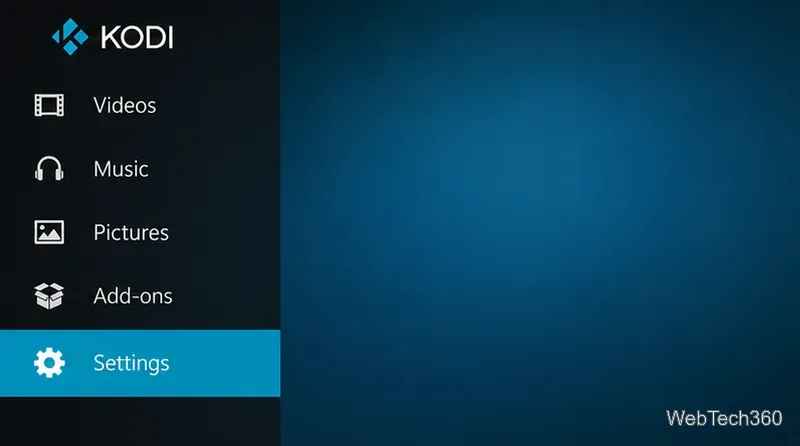
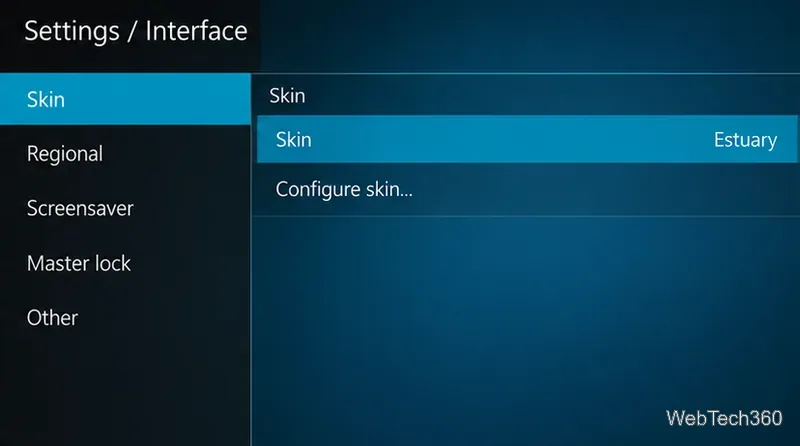
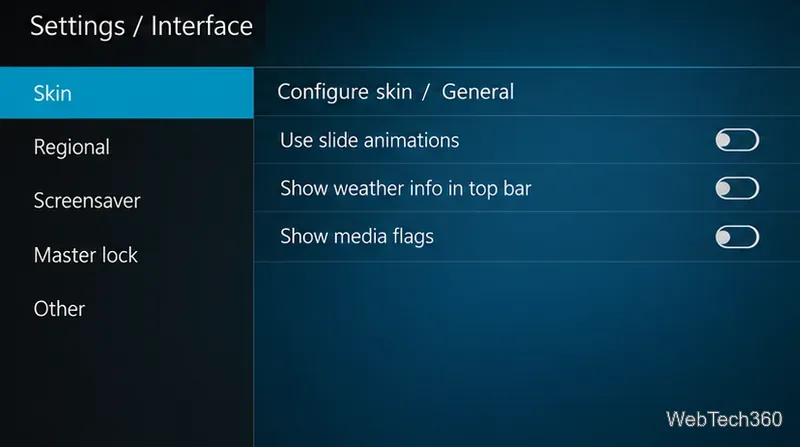
Large animated backgrounds, extra widgets, and elaborate layouts can make lower-powered devices feel sluggish. Kodi’s built-in Estuary skin is a sensible baseline.
The available controls depend on the active skin. These steps are based on Kodi’s skin settings and Estuary options. They reduce interface work but will not fix a weak internet connection.
Try a known-good local video first. If it plays smoothly but internet content buffers, test the connection, reduce the stream quality, or use Ethernet instead of congested Wi-Fi. A remote server or add-on source can also be slow even when your own connection is fast.
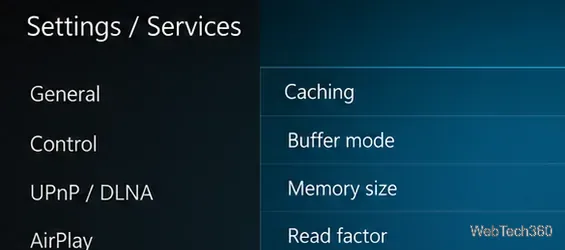
On Kodi 21 and later, open Settings → Services → Caching after changing the settings level to Advanced. Kodi provides Buffer mode, Memory size, and Read factor controls. Start with defaults; raising memory use indiscriminately can hurt devices with little free RAM. The official caching documentation explains each option.
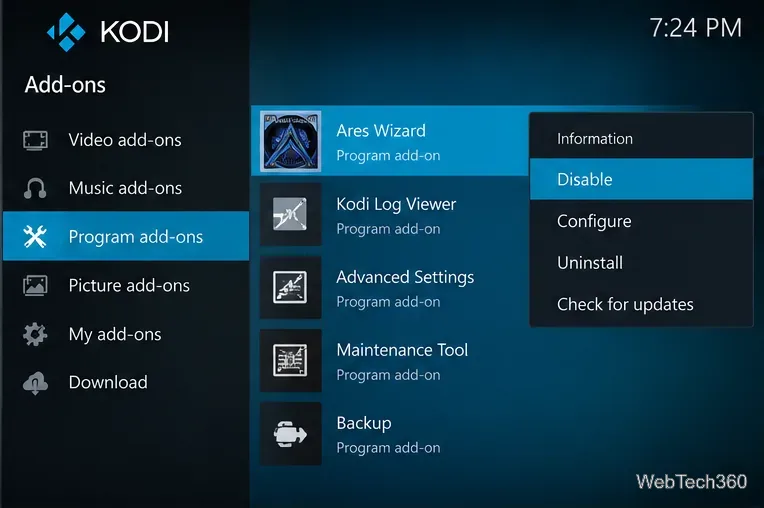
Important: older instructions that edit cache parameters in advancedsettings.xml or use Ares Wizard to generate them are outdated: Kodi moved these controls into its settings interface in version 21.
Go to Add-ons → My add-ons, review installed add-ons, and disable or uninstall anything you no longer use. In Settings → System → Add-ons, inspect Running and Manage dependencies if those options are available at your settings level. Remove only dependencies identified as orphaned.
Prefer add-ons from the official repository, keep automatic updates enabled, and avoid old maintenance wizards or untrusted “speed booster” builds. The Kodi add-on settings guide explains background add-ons and dependency management.
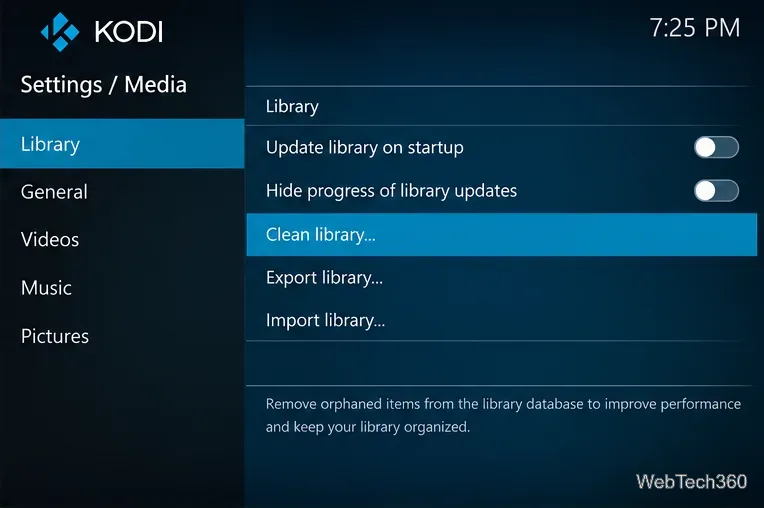
If Kodi slows down right after opening, check Settings → Media → Library. Turn off Update library on startup when your collection rarely changes, then update it manually when you add files. After correctly removing obsolete entries, use Clean library to clear orphaned database records.
Back up first and check that external drives or network shares are connected. Clean library manages the database; it is not a general-purpose video-cache cleaner. See Kodi’s library settings reference.
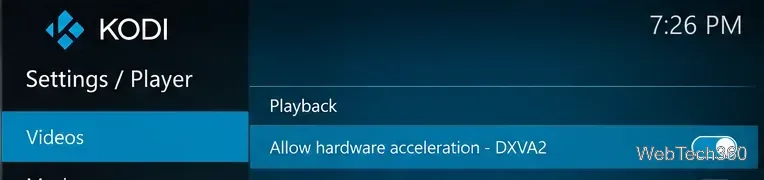
When local videos stutter despite a healthy connection, test a lower-resolution file. In Settings → Player → Videos, inspect the video processing options. Hardware acceleration settings vary by platform and can help supported codecs, but toggling them at random may cause new problems. The official playback reference lists platform-specific options.
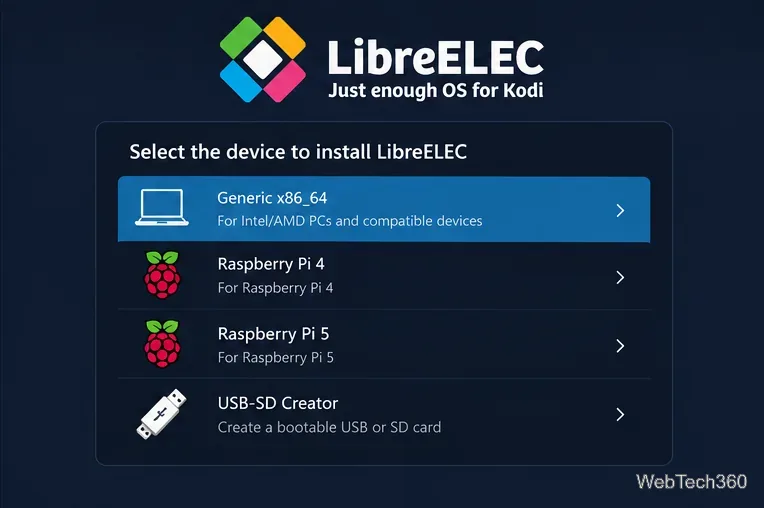
If your device is consistently overloaded, free storage, close competing apps, or try Kodi on better-supported hardware. For a dedicated, compatible mini-PC or Raspberry Pi media center, LibreELEC is an alternative operating system that runs Kodi without a full desktop environment. Check LibreELEC device and installation guidance before replacing an existing OS; back up data because preparing installation media can erase a drive.
Test the same file in another player. If it fails there too, investigate the file, network, or device; if only Kodi fails, capture a log using Settings → System → Logging → Enable debug logging and check the Kodi logging guide. Turn debug logging off afterward. A factory reset should be a last resort after backing up the Kodi data folder, not a routine speed tweak.
Finally, a VPN does not automatically make Kodi faster or stop buffering. It can add overhead, and it cannot compensate for unsupported video codecs, slow hardware, or an unreliable source.
Learn how to uninstall a Kodi repository safely, remove its saved source URL separately, and check which installed add-ons or dependencies you still need.
Find the safest way to watch live tennis with Kodi: learn what iPlayer WWW can stream, how to find licensed coverage, and which add-ons to avoid.
Learn how to watch movies on Kodi from your computer, USB drive, or NAS, add online video services, and fix missing titles with clear setup steps.
Set a Kodi Master Lock PIN, protect selected menus, and create a separate kids’ profile with media sources you choose.
Find the authorized stream for your country, check whether its provider supports Kodi, and watch a boxing PPV on your TV without relying on outdated add-ons.
Compare five Kodi skins in the official Omega catalog, then follow the current Settings path to install one, customize it, or switch back.
Looking for the 1Channel Kodi add-on? Learn why old PrimeWire installation guides are unreliable and how to install a supported video add-on safely.
Enable Kodi’s Chorus2 web interface, control your media from any browser, and learn how to connect remotely without exposing Kodi to the Internet.
Follow the original Nemesis Kodi installation process, learn what changed with Stream Army, and avoid outdated repository and PIN instructions.
Download Kodi safely on Windows using the official installer or Microsoft Store, then add your media library and set up trusted add-ons.








