How to Uninstall Kodi Repositories the Right Way

Learn how to uninstall a Kodi repository safely, remove its saved source URL separately, and check which installed add-ons or dependencies you still need.
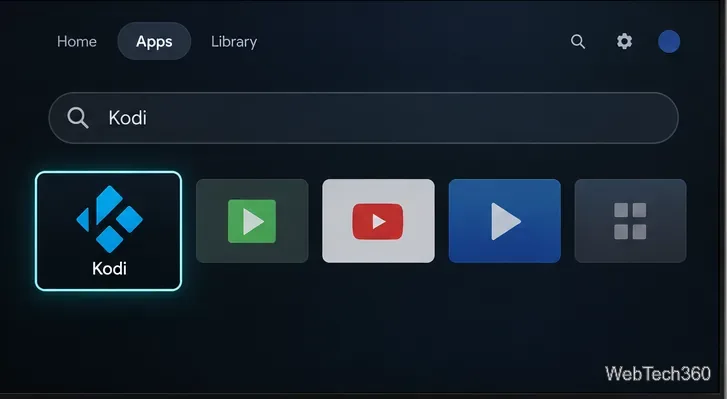
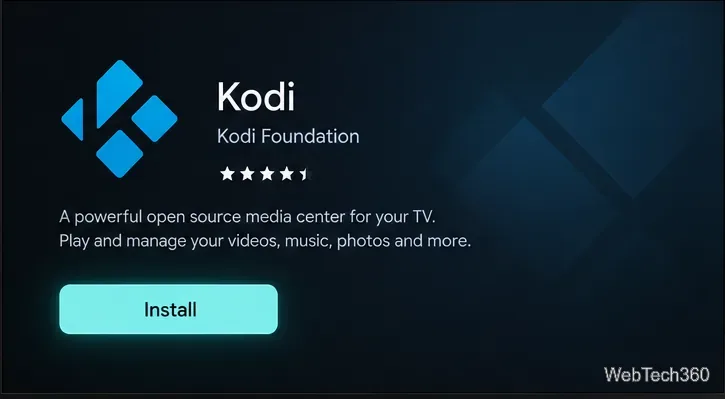
Yes, you can run Kodi on some smart TVs, but the installation method depends on the TV’s operating system and model. The simplest option is Google Play on compatible Android TV or Google TV sets. Kodi also has a webOS build for supported LG TVs. If your TV is unsupported, connect a Kodi-compatible streaming device or computer by HDMI. Kodi is a media player; it does not supply movies or channels.
Find the model and operating system under Settings > About or System; menu names vary. “Smart TV” alone does not confirm Kodi support, so check the manufacturer’s specifications.
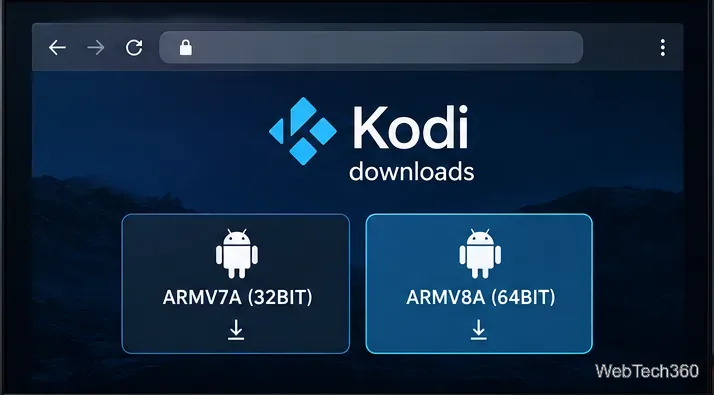
Kodi’s Android download page currently lists stable version 21.3 “Omega.” Its webOS page lists Kodi 21; the official guide supports webOS 4 or later, except K5LP-based TVs. Confirm your exact model before starting.
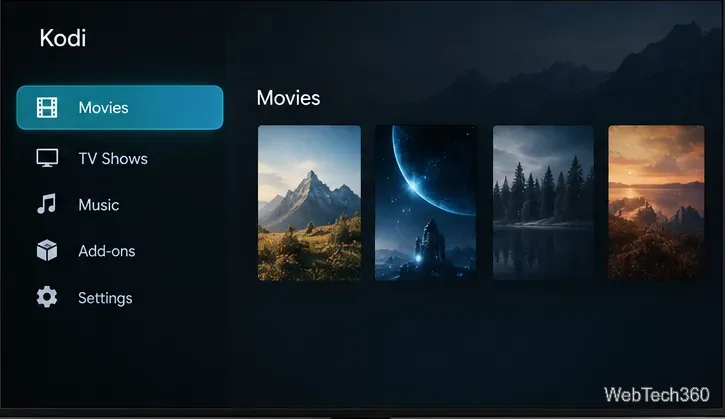
Kodi can organize video, music, and pictures from local or network storage. Its official app includes no media. Add-ons can extend Kodi, but use sources you trust and only access content you are authorized to watch.
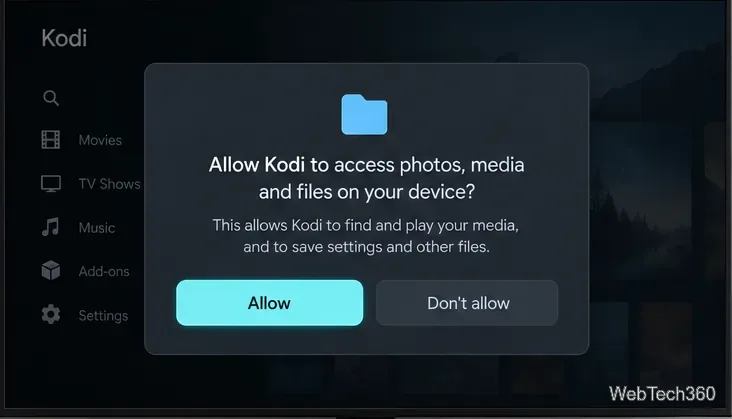
An empty Movies or TV Shows library does not mean installation failed: Kodi does not ship with media or populate the library automatically. Add a local folder or a network share through Kodi’s media-source controls. For network folders, check that sharing is enabled and the TV can reach the computer. If local files do not appear, revisit Kodi’s file permissions.
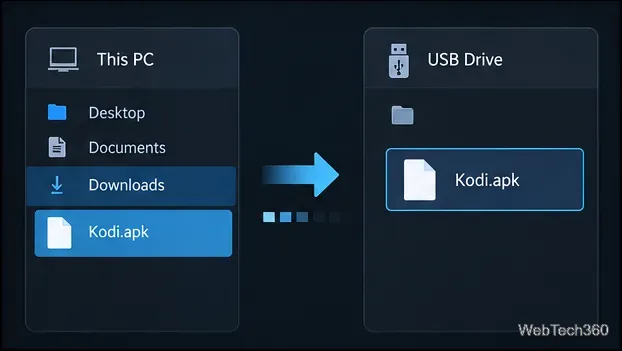
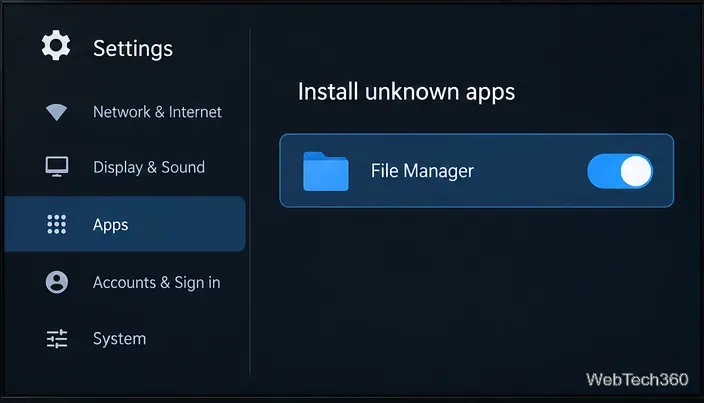
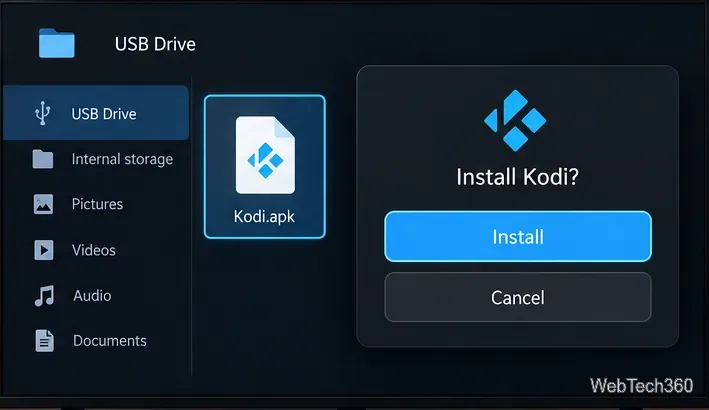
Use this method only if your TV runs Android and its manufacturer permits APK installs. Menu names and available options vary.
LG webOS: Kodi has a webOS build, but it is not distributed through the LG Content Store. Supported TVs require Developer Mode and a Kodi webOS installation package. Check your model and follow the official Kodi webOS installation guide; download only from the Kodi webOS download page.
Samsung Tizen and other unsupported systems: Kodi’s official downloads do not list a Tizen build, and an Android APK will not work on Tizen. Use an external streaming box or small computer that supports Kodi, connected to an HDMI input. The TV then acts as the display.
For setup details, use Kodi’s official Android installation guide. Kodi’s official version contains no content, and Team Kodi does not endorse watching copyrighted material without permission. Keep the app updated through Google Play or the official Kodi page for your device.
Learn how to uninstall a Kodi repository safely, remove its saved source URL separately, and check which installed add-ons or dependencies you still need.
Find the safest way to watch live tennis with Kodi: learn what iPlayer WWW can stream, how to find licensed coverage, and which add-ons to avoid.
Learn how to watch movies on Kodi from your computer, USB drive, or NAS, add online video services, and fix missing titles with clear setup steps.
Set a Kodi Master Lock PIN, protect selected menus, and create a separate kids’ profile with media sources you choose.
Find the authorized stream for your country, check whether its provider supports Kodi, and watch a boxing PPV on your TV without relying on outdated add-ons.
Compare five Kodi skins in the official Omega catalog, then follow the current Settings path to install one, customize it, or switch back.
Looking for the 1Channel Kodi add-on? Learn why old PrimeWire installation guides are unreliable and how to install a supported video add-on safely.
Enable Kodi’s Chorus2 web interface, control your media from any browser, and learn how to connect remotely without exposing Kodi to the Internet.
Follow the original Nemesis Kodi installation process, learn what changed with Stream Army, and avoid outdated repository and PIN instructions.
Download Kodi safely on Windows using the official installer or Microsoft Store, then add your media library and set up trusted add-ons.








