How to Uninstall Kodi Repositories the Right Way

Learn how to uninstall a Kodi repository safely, remove its saved source URL separately, and check which installed add-ons or dependencies you still need.
For a new Kodi appliance, LibreELEC is the best default for most people: it is a maintained, minimal system with current images for Raspberry Pi boards, including the Pi 5. Choose OSMC if you want Kodi plus a broader Debian-based system and its package options. OpenELEC is the legacy choice; its official GitHub releases page currently lists no packaged releases, so it is hard to recommend for a fresh build. Your hardware and need for extra software decide the rest.
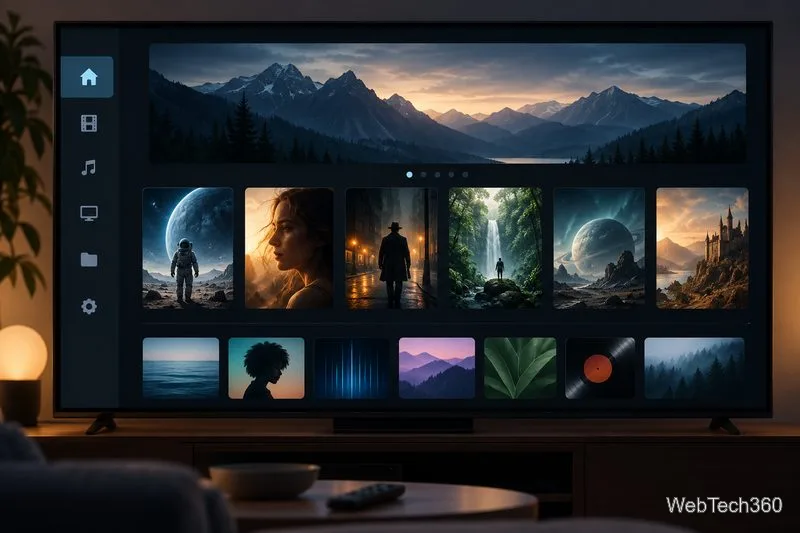
Kodi is the media-center application. LibreELEC, OpenELEC, and OSMC are operating-system projects that package Kodi for particular devices. The OS handles startup, hardware, networking, and updates; Kodi is the screen you use to browse and play your media. That shared goal makes the interfaces feel related, but it does not make hardware support or maintenance interchangeable.
Here is the short version:
| System | Best fit | Main trade-off |
|---|---|---|
| LibreELEC | A dedicated Kodi box, including current Raspberry Pi and generic PC builds | Designed to keep the system focused on Kodi |
| OSMC | Kodi with Debian package access, OSMC tools, or OSMC hardware | Device support varies; its official page says Pi 5 support is planned |
| OpenELEC | Maintaining or exploring an older installation | Its official GitHub releases page has no packaged releases |
LibreELEC describes itself as a minimalist “just enough OS” for running Kodi. It boots straight into the media center rather than a general-purpose desktop. Current images cover Raspberry Pi 2 through 5, the 400, other supported boards, and generic 64-bit PCs; choose the file for your exact model.
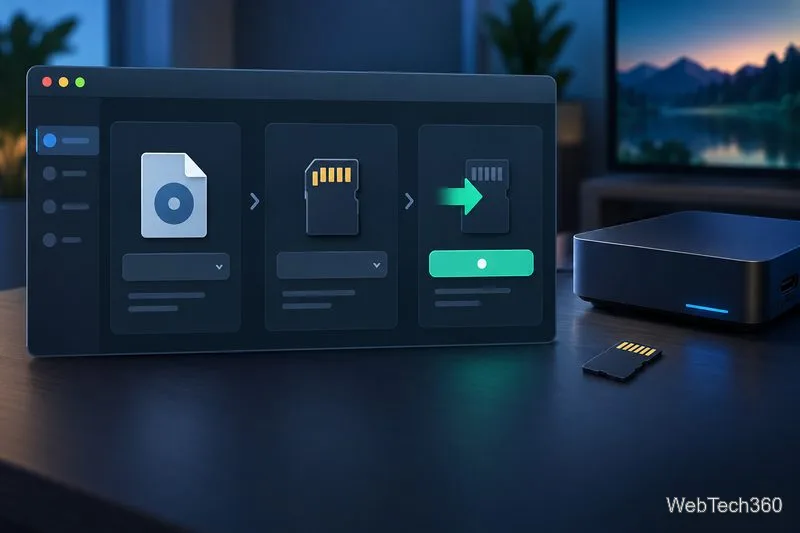
For a first install, the project’s USB-SD Creator can download an image and write bootable media. It is available for Windows and macOS; the download page currently marks the Linux creator unavailable. LibreELEC also documents manual image downloads for supported platforms. Once installed, Kodi’s familiar menus and add-on ecosystem remain the main interface.
Minor updates can install automatically within a major release; major upgrades require more care because Kodi add-ons may break. You can manage updates in settings. For a “turn on the TV and use Kodi” setup, LibreELEC is usually the easiest recommendation.
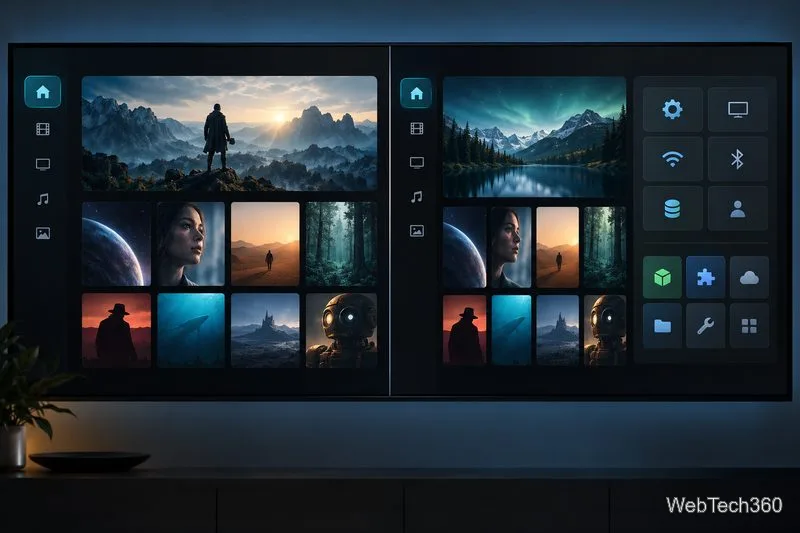
OSMC is a Debian-based Linux distribution that ships Kodi as its main application. Its FAQ says it manages updates, hardware, and system resources, with Debian packages and an App Store available. Choose it if you want to customize the device or use OSMC’s Vero hardware; it is less constrained to Kodi alone.
OSMC’s installer covers supported devices, but check the list before choosing a board. Its download page lists Raspberry Pi, Vero, and first-generation Apple TV. The support page says Pi 5 support is planned and recommends at least Pi 2 plus a stable power supply. On compatible hardware, choose OSMC when flexibility matters more than the simplest Kodi-only setup.
OpenELEC was an early “just enough OS” for Kodi; LibreELEC forked it in 2016. LibreELEC’s migration notes warn that older installs can have small boot partitions, add-ons incompatible with newer Kodi versions, and accumulated files. They recommend backing up Kodi data and note that a clean install may be preferable.
An existing OpenELEC box does not automatically stop working, but old download and upgrade instructions should not be treated as current. The official OpenELEC GitHub releases page currently lists no packaged releases. For a new build, use a project with current images and installation guidance.
Confirm the board model and download its matching image. Writing it erases the target SD card or USB drive, so copy off anything stored there first. Keep media on a separate drive or network share and back up Kodi settings and library data you want to preserve. Use the current installer, then test network, remote, storage, and media files.
In short, LibreELEC is the default for a dedicated Kodi player, OSMC is the flexible option on supported hardware, and OpenELEC is a legacy system to maintain carefully. None of these operating systems supplies a streaming catalog or changes a service’s access rules; add only services and media you are entitled to use.
Official references: LibreELEC Raspberry Pi downloads, LibreELEC downloads, LibreELEC update and migration notes, OSMC FAQ, OSMC supported devices, and OSMC downloads.
Learn how to uninstall a Kodi repository safely, remove its saved source URL separately, and check which installed add-ons or dependencies you still need.
Find the safest way to watch live tennis with Kodi: learn what iPlayer WWW can stream, how to find licensed coverage, and which add-ons to avoid.
Learn how to watch movies on Kodi from your computer, USB drive, or NAS, add online video services, and fix missing titles with clear setup steps.
Set a Kodi Master Lock PIN, protect selected menus, and create a separate kids’ profile with media sources you choose.
Find the authorized stream for your country, check whether its provider supports Kodi, and watch a boxing PPV on your TV without relying on outdated add-ons.
Compare five Kodi skins in the official Omega catalog, then follow the current Settings path to install one, customize it, or switch back.
Looking for the 1Channel Kodi add-on? Learn why old PrimeWire installation guides are unreliable and how to install a supported video add-on safely.
Enable Kodi’s Chorus2 web interface, control your media from any browser, and learn how to connect remotely without exposing Kodi to the Internet.
Follow the original Nemesis Kodi installation process, learn what changed with Stream Army, and avoid outdated repository and PIN instructions.
Download Kodi safely on Windows using the official installer or Microsoft Store, then add your media library and set up trusted add-ons.








