How to Uninstall Kodi Repositories the Right Way

Learn how to uninstall a Kodi repository safely, remove its saved source URL separately, and check which installed add-ons or dependencies you still need.
If you want to listen to podcasts on Kodi, the classic Apple iTunes Podcasts add-on may not be available in a current installation. Kodi’s older wiki page still documents the add-on’s catalog search, genre browsing, and “My Podcasts” list, but the currently published Omega music add-ons catalog lists RSS Podcasts instead. Check your own Kodi repository first; if the Apple add-on is missing, use RSS Podcasts with a show’s feed URL or an OPML subscription file.
The Apple iTunes Podcasts add-on was a Kodi browser for audio and video podcasts. Its archived Kodi wiki page says it could search by podcast name, browse genres, and keep a “My Podcasts” list. That page was last edited in 2021 and links the add-on to older Kodi repository generations. Kodi’s published Omega catalog currently includes RSS Podcasts, which has a different workflow: it imports podcasts from direct feed URLs, OPML files, gPodder, or Nextcloud Gpoddersync. It does not provide the same built-in Apple catalog search.
Kodi add-ons are tied to release branches, so availability can differ by the version installed on your device. The built-in repository is the safest place to check compatibility. If Apple iTunes Podcasts does not appear there, do not assume a ZIP file from an unfamiliar site will work with your version.
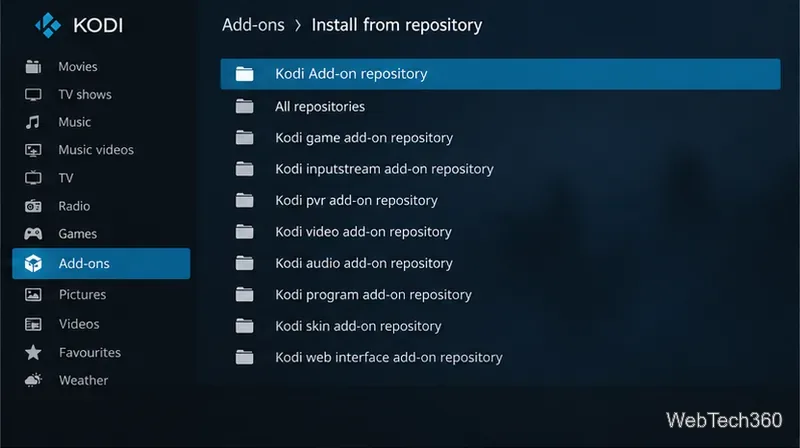
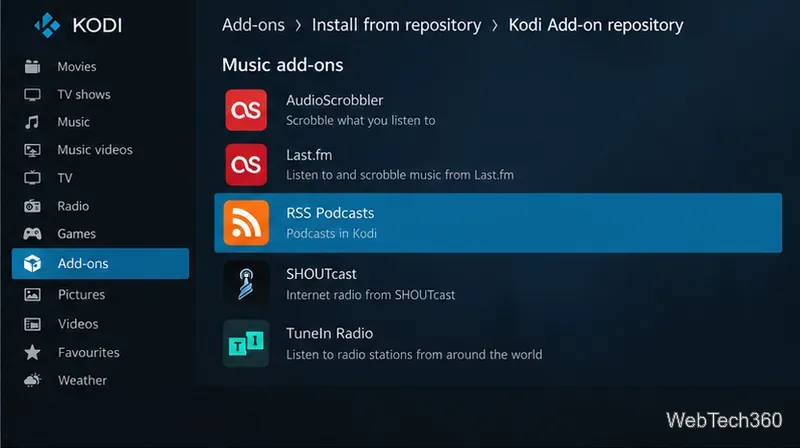
Some skins show an open-box icon for the add-on browser, while other versions place the same options under Settings. If the name is not listed, the old instructions no longer match your repository branch. Kodi’s repository guide explains that the built-in browser presents add-ons compatible with each release.
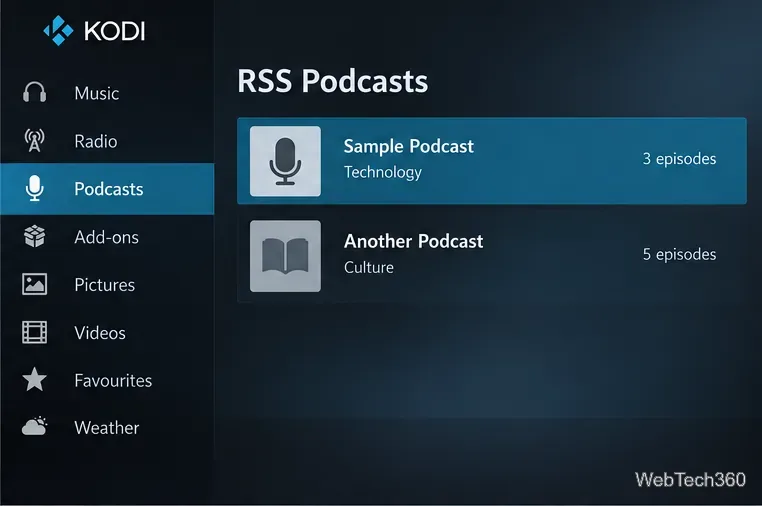
If the Apple add-on is absent, RSS Podcasts is the current official-repository option for adding feeds. Kodi’s Omega listing describes support for direct podcast URLs, OPML files, gPodder, and Nextcloud Gpoddersync, plus categories for organizing shows.
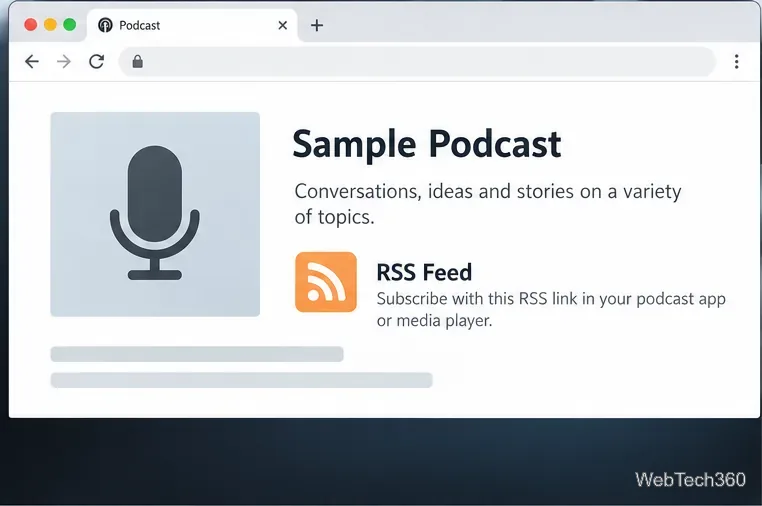
Find the show’s public RSS feed on the podcast publisher’s website. Look for a link labeled RSS or Podcast feed. A show page in Apple Podcasts or another directory is not necessarily the feed itself; if the publisher provides an OPML file, you can import that instead.
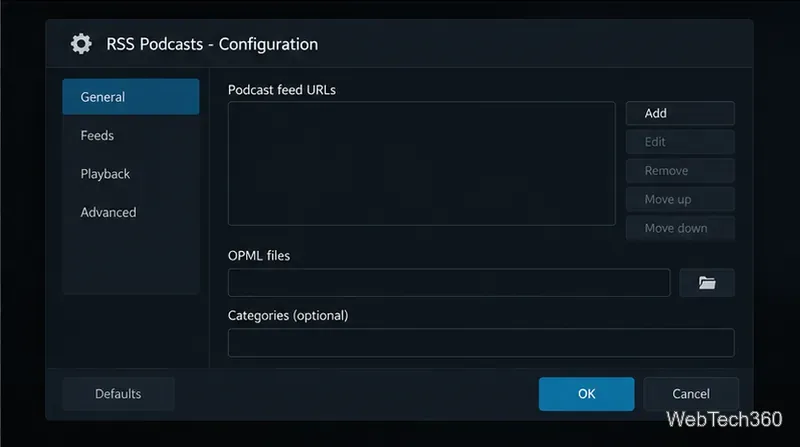
In RSS Podcasts settings, add the feed URL or browse to an OPML file. The add-on also supports subscriptions from gPodder and Nextcloud Gpoddersync. If you manage several shows, use the available categories to keep them organized. Save the settings, then open RSS Podcasts from Kodi’s Add-ons list and select the show you added.
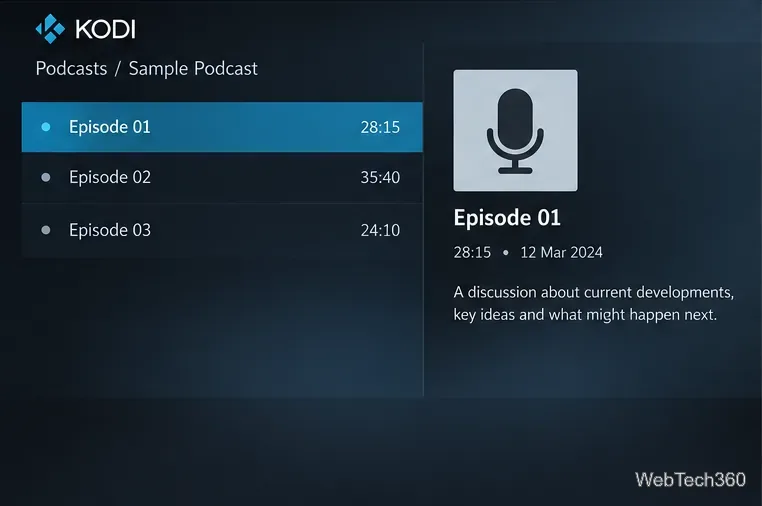
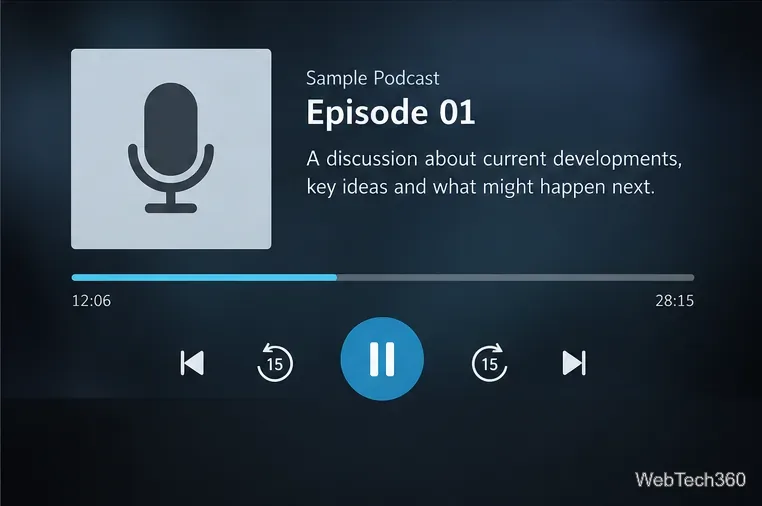
Choose an episode to open its details, then select it to start playback. The episode list, artwork, dates, and descriptions depend on the information supplied by each podcast feed. Kodi streams the episode from the feed’s media link, so an internet connection and a working publisher server are required.
You do not need the desktop iTunes app to use a podcast RSS feed in Kodi. The main limitation is discovery: the legacy Apple add-on browsed a catalog, while RSS Podcasts expects you to bring a feed URL or OPML list.
Learn how to uninstall a Kodi repository safely, remove its saved source URL separately, and check which installed add-ons or dependencies you still need.
Find the safest way to watch live tennis with Kodi: learn what iPlayer WWW can stream, how to find licensed coverage, and which add-ons to avoid.
Learn how to watch movies on Kodi from your computer, USB drive, or NAS, add online video services, and fix missing titles with clear setup steps.
Set a Kodi Master Lock PIN, protect selected menus, and create a separate kids’ profile with media sources you choose.
Find the authorized stream for your country, check whether its provider supports Kodi, and watch a boxing PPV on your TV without relying on outdated add-ons.
Compare five Kodi skins in the official Omega catalog, then follow the current Settings path to install one, customize it, or switch back.
Looking for the 1Channel Kodi add-on? Learn why old PrimeWire installation guides are unreliable and how to install a supported video add-on safely.
Enable Kodi’s Chorus2 web interface, control your media from any browser, and learn how to connect remotely without exposing Kodi to the Internet.
Follow the original Nemesis Kodi installation process, learn what changed with Stream Army, and avoid outdated repository and PIN instructions.
Download Kodi safely on Windows using the official installer or Microsoft Store, then add your media library and set up trusted add-ons.








