How to Uninstall Kodi Repositories the Right Way

Learn how to uninstall a Kodi repository safely, remove its saved source URL separately, and check which installed add-ons or dependencies you still need.
Made in Canada (MiC) is no longer a working, maintained Kodi add-on. If it still appears in your library but cannot open streams, reinstalling its old repository is unlikely to help. For live TV, Canadian programming, and sports, the practical replacements are CBC, CBC Sports, Pluto.tv PVR Client, IPTV Simple Client, and Catch-Up TV & More.
These options do different jobs. None guarantees every channel or live hockey game that MiC once listed, and access depends on each broadcaster’s rights, your location, and the stream provider.
Made in Canada was a third-party IPTV add-on popular for Canadian and international channels. Development ended years ago, and its old links and playlists should be treated as obsolete. There is no verified, actively supported replacement repository for the original project. Avoid websites offering a mysterious “new MiC” ZIP file: unknown repositories can introduce unsafe dependencies or altered add-ons.
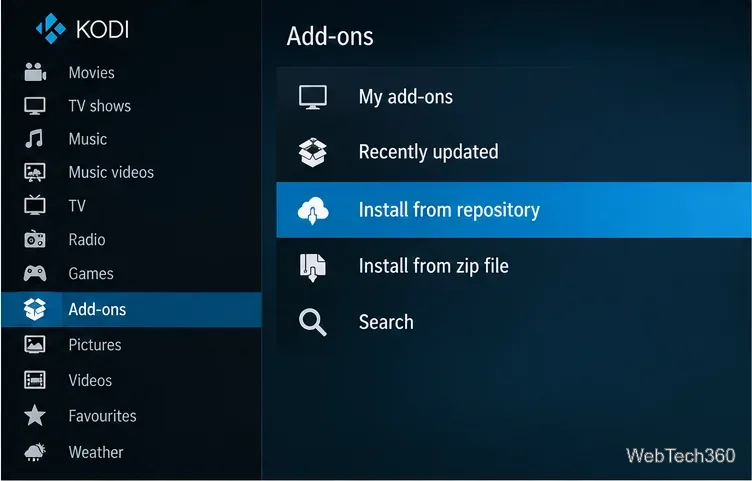
Use the built-in repository whenever possible. Kodi’s Kodi’s security settings documentation explains that Unknown sources is needed for ZIP installations outside its official repository—not for the options listed below.
The Canadian Broadcasting Corp (CBC) video add-on brings online CBC content into Kodi. It is the closest match if you mainly opened MiC for Canadian shows, information, or broadcaster programming rather than an all-in-one international IPTV list. Kodi lists the CBC plug-in in its official Omega catalog, with an update dated March 8, 2026. See Kodi’s CBC listing.
Availability is governed by CBC’s content rights. Do not assume every program or live CBC television feed can be watched outside Canada.
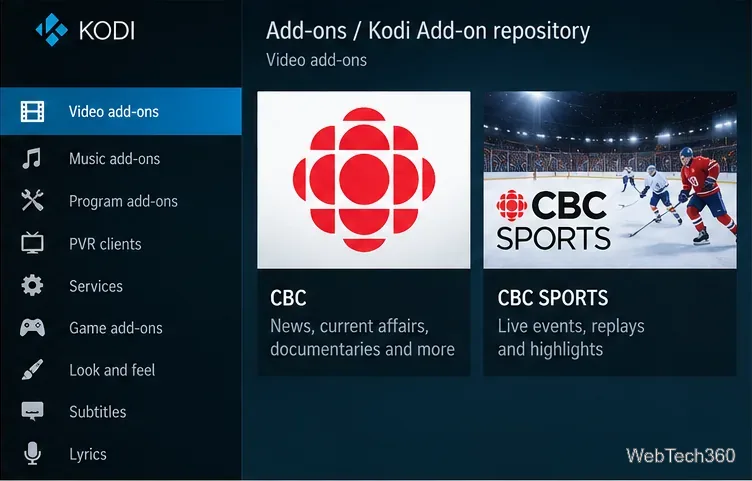
CBC Sports is a better starting point for sports than an unsupported playlist add-on. Its Kodi catalog description covers live events, replays, and highlights, and explicitly marks the streams as restricted to Canada. Check Kodi’s CBC Sports listing for the published add-on and version compatible with your installation.
It is not a subscription replacement for every NHL, NBA, or international sports broadcast. Which events are offered depends on CBC’s current rights and schedule; a missing game does not necessarily mean the add-on is broken.
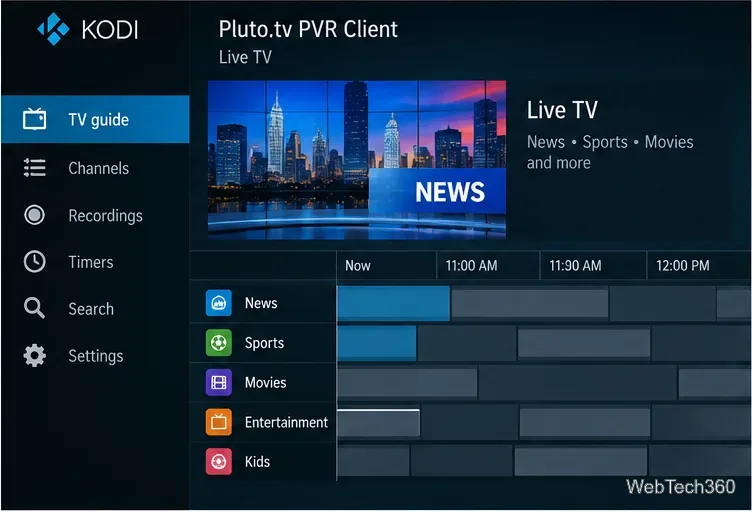
For the familiar experience of flipping between live channels, try Pluto.tv PVR Client. Pluto TV’s official service page describes free, ad-supported channels covering news, movies, entertainment, and sports. The Kodi PVR client presents supported streams through Kodi’s Live TV interface and guide.
Important distinction: although it appears in Kodi’s official add-on repository, the PVR client is volunteer-developed and not officially affiliated with Pluto TV, according to Kodi’s Pluto.tv PVR Client listing. Channel selections and regional availability vary, and the client may behave differently from Pluto’s own apps.
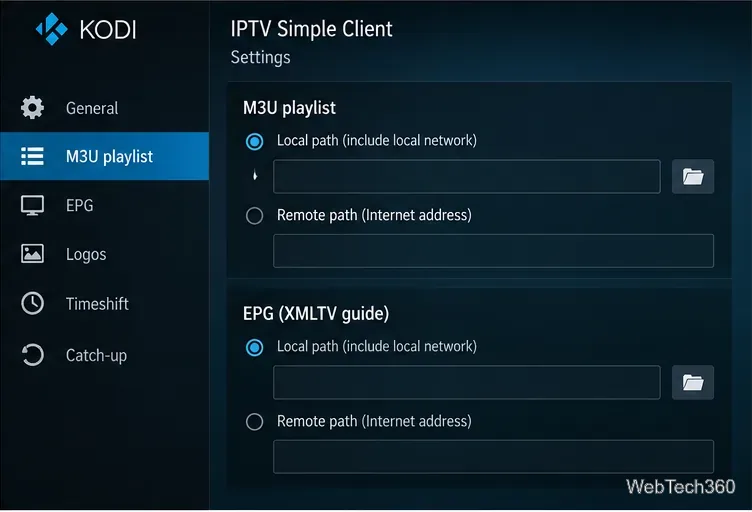
IPTV Simple Client is the most flexible option when you already receive a legitimate IPTV playlist from a provider. It supports M3U channel playlists and optional XMLTV electronic program guide data. It does not include channels or grant streaming rights; you must supply working sources. Find technical details in Kodi’s IPTV Simple Client listing and the Kodi’s IPTV Simple setup documentation.
This is a useful replacement for MiC’s channel-list workflow, but it will not turn an expired or unlicensed playlist into a working service.
Catch-Up TV & More gathers on-demand programs and certain live feeds from supported broadcaster websites. It is helpful if you previously used MiC for international channels rather than specifically Canadian sports. The add-on is listed in Kodi’s official repository; see Kodi’s Catch-Up TV & More listing. Available services, sign-in requirements, and playback rights differ by country, so check a channel before relying on it.
You do not need to reset Kodi or enable unknown repositories to switch to these options. The exact placement of menus can vary slightly by Kodi version and skin.
No. Kodi does not require a VPN for official add-ons. A VPN may encrypt traffic between your device and its VPN server, but it does not guarantee anonymity, fix dead streams, or make unauthorized access lawful. Prefer verified repositories and broadcaster-approved services over claims that a VPN is essential for every Kodi session.
Best fit: Choose CBC for Canadian TV, CBC Sports for the events it carries in Canada, Pluto.tv PVR Client for free channel browsing, IPTV Simple Client for a licensed playlist, or Catch-Up TV & More for participating international broadcasters. These are more practical starting points than attempting to revive Made in Canada.
Learn how to uninstall a Kodi repository safely, remove its saved source URL separately, and check which installed add-ons or dependencies you still need.
Find the safest way to watch live tennis with Kodi: learn what iPlayer WWW can stream, how to find licensed coverage, and which add-ons to avoid.
Learn how to watch movies on Kodi from your computer, USB drive, or NAS, add online video services, and fix missing titles with clear setup steps.
Set a Kodi Master Lock PIN, protect selected menus, and create a separate kids’ profile with media sources you choose.
Find the authorized stream for your country, check whether its provider supports Kodi, and watch a boxing PPV on your TV without relying on outdated add-ons.
Compare five Kodi skins in the official Omega catalog, then follow the current Settings path to install one, customize it, or switch back.
Looking for the 1Channel Kodi add-on? Learn why old PrimeWire installation guides are unreliable and how to install a supported video add-on safely.
Enable Kodi’s Chorus2 web interface, control your media from any browser, and learn how to connect remotely without exposing Kodi to the Internet.
Follow the original Nemesis Kodi installation process, learn what changed with Stream Army, and avoid outdated repository and PIN instructions.
Download Kodi safely on Windows using the official installer or Microsoft Store, then add your media library and set up trusted add-ons.








