How to Uninstall Kodi Repositories the Right Way

Learn how to uninstall a Kodi repository safely, remove its saved source URL separately, and check which installed add-ons or dependencies you still need.
The Magic Dragon is an unofficial Kodi video add-on previously used to browse movies, TV shows, and other on-demand video links. The usual installation method is to add a trusted third-party repository, install its ZIP file, and then install the add-on from that repository. There is a catch: as of October 28, 2026, we could not verify a currently maintained, developer-controlled repository offering The Magic Dragon. The original MaverickTV installation address should not be treated as a working download source.
Magic Dragon is not an add-on distributed through Kodi's official repository. Older guides mention MaverickTV, followed by other third-party repositories, but repository names and contents can change or disappear. Before installing anything, look for a current announcement from the add-on's actual maintainer, a clear repository download location, and a stated compatibility version. We could not confirm all three for Magic Dragon at the time of this update.
If you find only reposted ZIP files, shortened download links, or a guide that provides no identifiable developer, stop rather than guessing a replacement URL. The steps below explain the process if a legitimate source becomes available; they are not confirmation that Magic Dragon can currently be installed.
These instructions follow Kodi's standard add-on workflow using the default-style interface. The wording or layout may look slightly different on a TV device, custom skin, or another Kodi version.
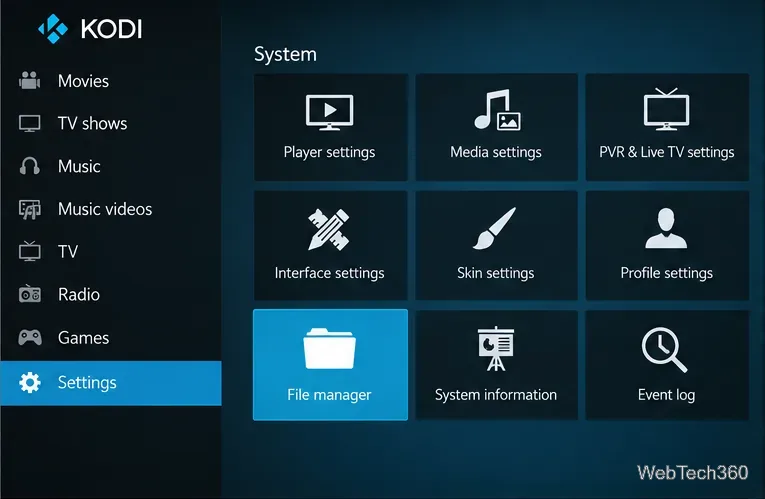
From Kodi's home screen, open Settings (gear icon) > File manager > Add source. Choose <None> and enter only the address published by the repository's verified maintainer. Give the source a recognizable name and select OK. If the maintainer provides a signed or otherwise authenticated ZIP that you already downloaded, you can skip adding a network source and use the saved file in step 3.
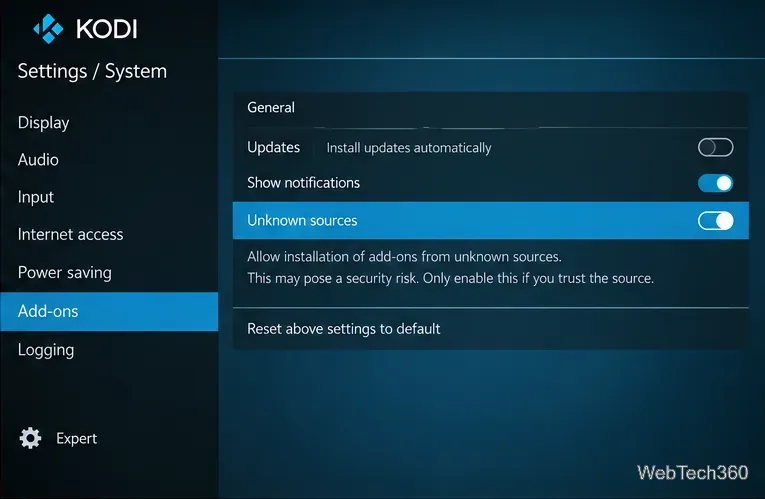
Go to Settings > System > Add-ons and turn on Unknown sources if you have decided to trust the source. Kodi displays a warning because add-ons outside its official repository may access data on your device. Read the warning before accepting it. You can turn the setting off again after installation. See Kodi's official explanation of Unknown sources.
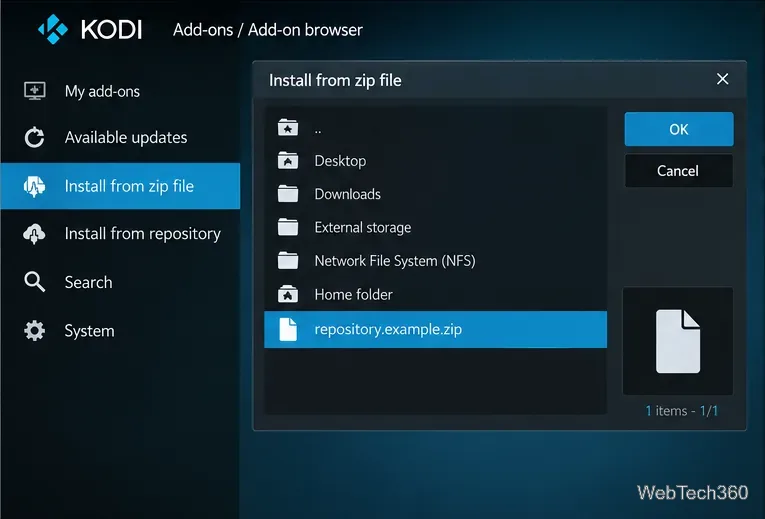
Return to Add-ons, open the package/open-box icon for the Add-on browser, and select Install from zip file. Browse to the source you added or to the trusted ZIP saved on your device. Select the repository ZIP and wait for Kodi's installation notification. Do not install a similarly named file from an unrelated site. Kodi documents this process in its Add-on manager guide.
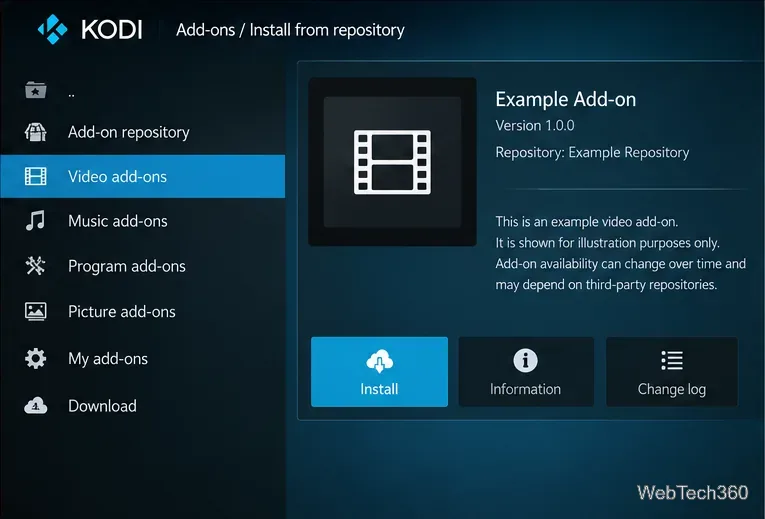
In the Add-on browser, choose Install from repository > [verified repository name] > Video add-ons. Select The Magic Dragon only if it is actually listed, check its details and dependencies, then choose Install. After Kodi confirms installation, the add-on should appear under Add-ons > Video add-ons. If there is no Magic Dragon entry, the repository does not currently provide it; there is no safe reason to install random packages to force the result.
The original article directed readers to https://mavericktv.net/mavrepo and a file named like repository.maverickrepo-x.x.zip. Those are historical references, not recommended installation instructions. The Maverick repository was reported to have shut down in 2019, and the old Kodi 16/17 menu guidance is outdated. A stale URL may produce a connection error, an empty directory, or no repository at all. Changing https to http does not solve the underlying problem or establish that a source is trustworthy.
Older versions of Magic Dragon displayed categories for movies, series, and other video collections, with a search option and artwork for many entries. Some users found the simple menu convenient, while long or inconsistently organized submenus could make browsing tedious. Those observations describe the add-on historically; they do not establish that its categories, search, or playback links function on current Kodi versions.
Third-party catalogs can contain broken sources or streams offered without the rights holder's permission. Kodi itself is a media player, and installing an add-on does not grant rights to stream copyrighted material. Use content you own or have permission to access.
A VPN can encrypt traffic between your device and its VPN server, but it does not authenticate a third-party add-on, make unlicensed streams legal, or guarantee anonymity. The old article's VPN discounts, speed claims, and promises of complete protection were promotional and are not a prerequisite for installation. Prioritize a trustworthy repository and lawful content over any VPN sales pitch.
Bottom line: Kodi still supports repository ZIP installation, but an up-to-date, verifiable Magic Dragon download source has not been established here. If Magic Dragon is missing, browse Install from repository > Kodi Add-on repository for officially distributed video add-ons instead of reviving obsolete MaverickTV links.
Learn how to uninstall a Kodi repository safely, remove its saved source URL separately, and check which installed add-ons or dependencies you still need.
Find the safest way to watch live tennis with Kodi: learn what iPlayer WWW can stream, how to find licensed coverage, and which add-ons to avoid.
Learn how to watch movies on Kodi from your computer, USB drive, or NAS, add online video services, and fix missing titles with clear setup steps.
Set a Kodi Master Lock PIN, protect selected menus, and create a separate kids’ profile with media sources you choose.
Find the authorized stream for your country, check whether its provider supports Kodi, and watch a boxing PPV on your TV without relying on outdated add-ons.
Compare five Kodi skins in the official Omega catalog, then follow the current Settings path to install one, customize it, or switch back.
Looking for the 1Channel Kodi add-on? Learn why old PrimeWire installation guides are unreliable and how to install a supported video add-on safely.
Enable Kodi’s Chorus2 web interface, control your media from any browser, and learn how to connect remotely without exposing Kodi to the Internet.
Follow the original Nemesis Kodi installation process, learn what changed with Stream Army, and avoid outdated repository and PIN instructions.
Download Kodi safely on Windows using the official installer or Microsoft Store, then add your media library and set up trusted add-ons.








