Matrix Kodi Add-on Install Guide: Availability, Safety, and Setup

Short answer: the Matrix IPTV add-on described in older Kodi guides cannot currently be verified as available from a maintained publisher source. The old instructions identify a third-party Illuminati repository and a SportsDevil dependency, but an archived guide and an old repository address do not confirm that the add-on still works or is safe to install. Kodi’s current release announcement lists Kodi 21.3 “Omega” as the stable release line, so compatibility with newer Kodi versions also needs confirmation.

This Matrix add-on is separate from Kodi 19’s “Matrix” codename and from the official Kodi add-on named Matrix, which is a visualization. I could not confirm a current publisher-maintained repository listing for the IPTV add-on. For that reason, this guide does not repeat the legacy repository URL as a working download source or promise that Matrix can be installed today.

Before proceeding, review the Kodi 21.3 release announcement, Kodi’s add-on security settings, and the official Matrix visualization entry. Kodi’s wiki identifies its official repository as the trusted repository and warns that enabling unknown sources permits third-party add-ons to access personal data.

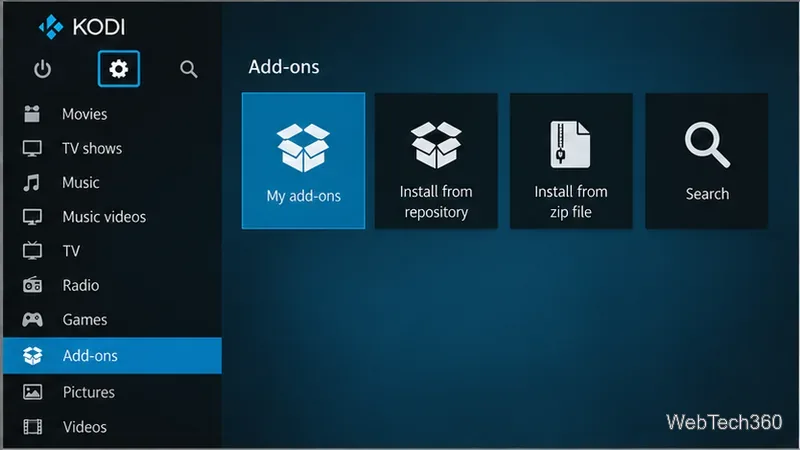
Kodi Add-ons screen with the Settings gear and options for installing from a repository or ZIP file.
This illustrative Kodi view shows where the add-on installation controls appear; it is not a screenshot of Matrix or a successful installation.

How to install a repository safely in Kodi

The steps below explain Kodi’s current general workflow. They apply to Matrix only if its publisher provides a working, maintained repository and confirms compatibility. Kodi menu wording can vary slightly by version, skin, and device.

  1. Verify the publisher and release. Find the add-on from its maintainer’s own site or source repository. Confirm the repository domain, release date, supported Kodi versions, and any published checksum or signature. Do not rely on reposted ZIP files, shortened links, old channel lists, or claims copied from a past review. If you cannot verify who maintains the Matrix package, stop here.
  2. Check Kodi compatibility and the content source. Confirm the add-on explicitly supports your Kodi version. The Matrix name alone does not establish compatibility: older Kodi add-ons can stop working after Kodi updates. Also confirm that any IPTV service or playlist gives you permission to watch the streams in your location. A VPN does not grant rights to a stream or make unauthorized access lawful.
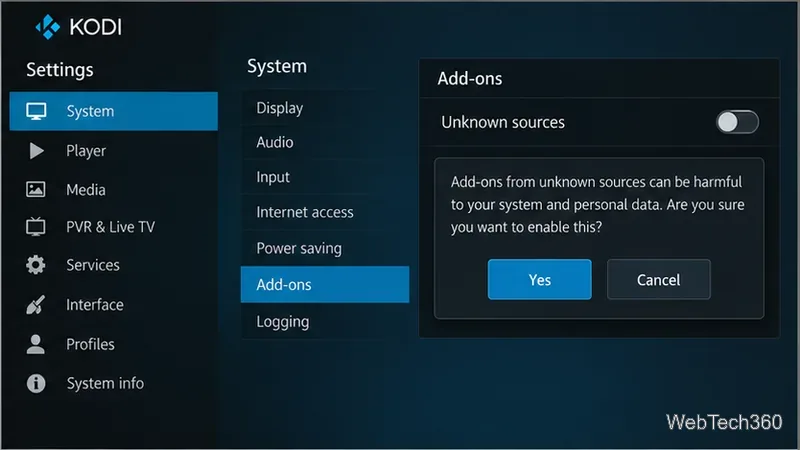
  3. Enable unknown sources only if the repository is trustworthy. In Kodi, open Settings → System → Add-ons and turn on Unknown sources only when you understand the risk and have verified the publisher. Read Kodi’s confirmation before accepting. Turn the setting off again after installing the repository if you do not need it for other add-ons.
Kodi System Add-ons settings with the Unknown sources warning dialog and Yes and Cancel buttons.
Kodi warns that add-ons from unknown sources can harm the system and personal data. Enable this only for a source you have independently verified.
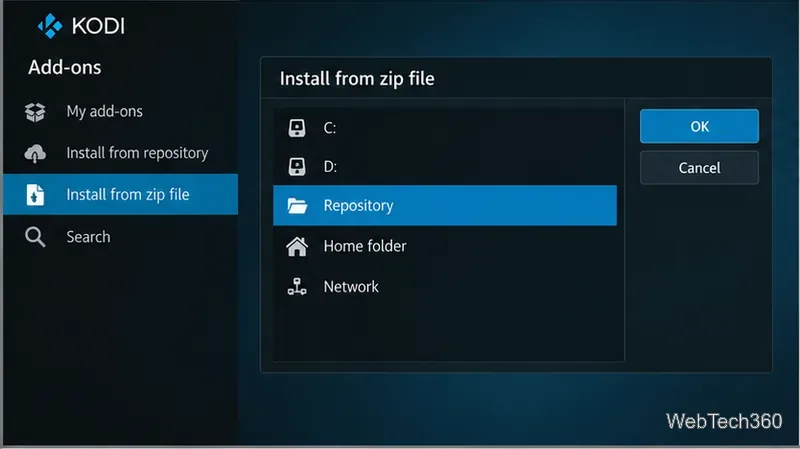
  1. Add the publisher’s source or select its ZIP. If the maintainer documents a Kodi repository address, open Settings → File manager → Add source, enter that exact address, and give the source a recognizable name. Then go to Add-ons, open the browser (the open-box icon), choose Install from zip file, and select the repository ZIP from that source. If the maintainer instead supplies a ZIP download, save it to a location Kodi can access and select that file. Never substitute an old Matrix address or a mirror just because it appears in a search result.
Kodi Install from zip file browser with a generic Repository folder selected.
Choose only a repository ZIP or source supplied by a publisher you trust; this example contains no Matrix download.
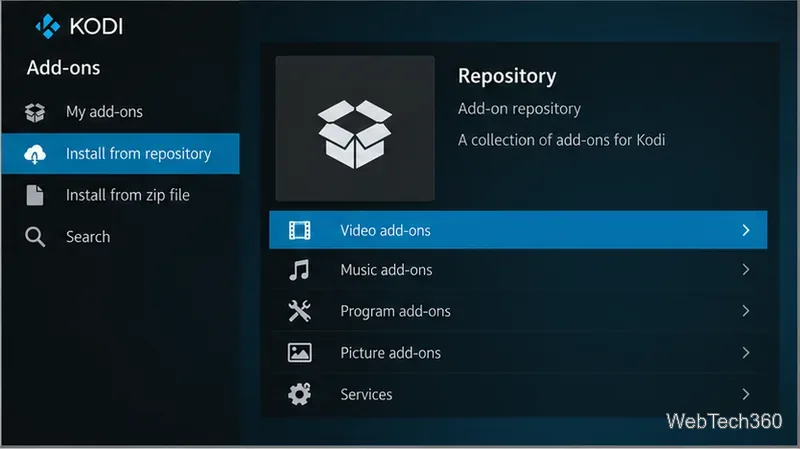
  1. Find the add-on and review its details. After Kodi reports that the repository is installed, open Add-ons → Install from repository, select the repository you just added, and browse to Video add-ons. Open Matrix only if it is actually listed. Check the author, version, compatibility notes, and dependencies on the information screen before choosing Install. If Matrix is missing, dependencies fail, or the publisher cannot explain what a dependency does, stop rather than installing replacement files from another site.
Kodi Install from repository page with Video add-ons highlighted.
After a repository is installed, review its add-on categories and verify the publisher and version before installing anything.

If Matrix is unavailable, use Kodi’s official IPTV client

For live television from a service you are authorized to use, Kodi documents PVR IPTV Simple Client in its official repository. Install it through Settings → Add-ons → Install from repository → PVR clients. It can read a provider-supplied M3U playlist and EPG data; it does not provide channels or a subscription by itself. Ask your licensed provider for the correct playlist and setup details.

Common installation problems

  • “Could not connect” or an empty source: recheck the exact URL against the publisher’s current documentation. If it is not currently published or the host is unavailable, do not keep trying random mirror addresses.
  • Dependency or compatibility errors: the add-on may be outdated for your Kodi version. Do not install an old resolver such as SportsDevil from an unrelated repository to force it to run.
  • The add-on installs but shows no channels: installation does not guarantee that a service has working streams. The provider must supply an authorized source, and the add-on must still be maintained.

Bottom line: Matrix was described as a simple IPTV add-on, but its old channel list, quality claims, and installation path are not reliable evidence of present-day availability. Install it only if a current, verifiable publisher source appears and confirms support for your Kodi release. Otherwise, use Kodi’s official repository and a licensed IPTV source.

Leave a Comment

How to Uninstall Kodi Repositories the Right Way

How to Uninstall Kodi Repositories the Right Way

Learn how to uninstall a Kodi repository safely, remove its saved source URL separately, and check which installed add-ons or dependencies you still need.

Live Tennis on Kodi: Best Add-Ons and Legal Ways to Watch

Live Tennis on Kodi: Best Add-Ons and Legal Ways to Watch

Find the safest way to watch live tennis with Kodi: learn what iPlayer WWW can stream, how to find licensed coverage, and which add-ons to avoid.

How to Watch Movies on Kodi: A Complete Beginner’s Tutorial

How to Watch Movies on Kodi: A Complete Beginner’s Tutorial

Learn how to watch movies on Kodi from your computer, USB drive, or NAS, add online video services, and fix missing titles with clear setup steps.

How to Turn On Kodi Parental Controls and Lock a Kids’ Profile

How to Turn On Kodi Parental Controls and Lock a Kids’ Profile

Set a Kodi Master Lock PIN, protect selected menus, and create a separate kids’ profile with media sources you choose.

How to Watch Boxing PPV Streams on Kodi—Legally and Reliably

How to Watch Boxing PPV Streams on Kodi—Legally and Reliably

Find the authorized stream for your country, check whether its provider supports Kodi, and watch a boxing PPV on your TV without relying on outdated add-ons.

5 Best Kodi Skins and How to Change Kodi’s Look in Minutes

5 Best Kodi Skins and How to Change Kodi’s Look in Minutes

Compare five Kodi skins in the official Omega catalog, then follow the current Settings path to install one, customize it, or switch back.

1Channel Kodi Add-on: Can You Still Install It for Movies and TV Shows?

1Channel Kodi Add-on: Can You Still Install It for Movies and TV Shows?

Looking for the 1Channel Kodi add-on? Learn why old PrimeWire installation guides are unreliable and how to install a supported video add-on safely.

How to Control Kodi With the Web Interface, at Home or Away

How to Control Kodi With the Web Interface, at Home or Away

Enable Kodi’s Chorus2 web interface, control your media from any browser, and learn how to connect remotely without exposing Kodi to the Internet.

Nemesis Kodi Add-on: How to Install It and Check Availability

Nemesis Kodi Add-on: How to Install It and Check Availability

Follow the original Nemesis Kodi installation process, learn what changed with Stream Army, and avoid outdated repository and PIN instructions.

How to Download and Set Up Kodi on Windows

How to Download and Set Up Kodi on Windows

Download Kodi safely on Windows using the official installer or Microsoft Store, then add your media library and set up trusted add-ons.