How to Uninstall Kodi Repositories the Right Way

Learn how to uninstall a Kodi repository safely, remove its saved source URL separately, and check which installed add-ons or dependencies you still need.
Midian was a third-party Kodi video add-on from the Where The Monsters Live repository. Older descriptions list movies, TV, fitness, documentaries, music, comedy, kids’ programming, webcams, themed playlists, and Fluxus TV. Its current availability is unverified, so there is no confirmed working download source to recommend.
As of October 27, 2026, Midian is not listed in Kodi’s semi-maintained directory of unofficial repositories, and we could not verify an active source from its maintainer. That does not prove the repository is offline, but older addresses should not be assumed to work. Follow the install steps below only if you confirm a current HTTPS repository address and a Kodi-compatible ZIP package directly with the maintainer.
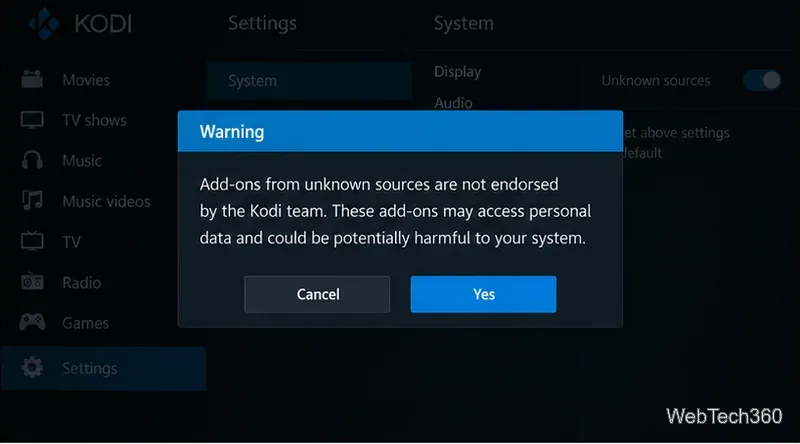
Kodi warns that third-party add-ons are not endorsed by Team Kodi and may access personal data. Install only software you trust and streams you are authorized to view. If the publisher or package cannot be verified, stop rather than trying a mirror.
The older menu grouped playlists under names such as At the Gym, Documentaries, Fluxus TV, Grab Bag, Helping Hands, Holiday Club, Humour Me, Mad About Music, Movie Time, Tot Spot, and TV Time. Descriptions included workouts, webcams, movies, television, kids’ shows, music, and comedy. This is a historical overview, not confirmation that those menus or streams still work.
The breadth also meant uneven reliability: playlists relied on external sources that could move, disappear, require authorization, or be restricted by region. The legacy article’s item counts and speed claims are omitted because they have not been verified for a current release.
Kodi’s menu labels vary by skin and device. Its add-on manager guide documents the standard repository and ZIP workflow. Confirm the repository’s owner and compatibility before starting.
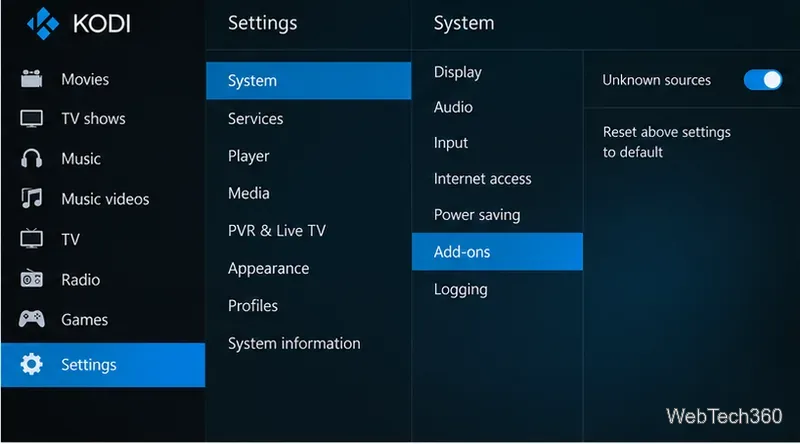
From the home screen, open Settings > System > Add-ons. Locate Unknown sources. If it is already on, continue to Step 3; otherwise, switch it on only for a source you trust.
Review the warning about untrusted add-ons and possible access to personal data. Select Yes only if you accept that risk and have verified the repository owner. Otherwise cancel and keep the setting off.
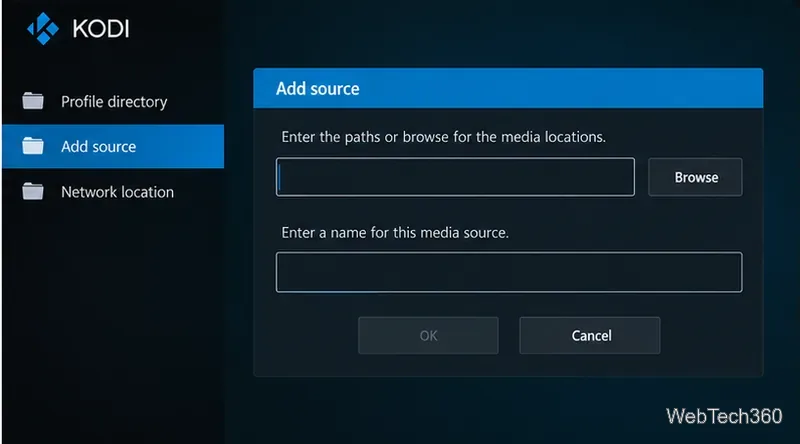
Open Settings > File manager > Add source. Enter the maintainer-confirmed HTTPS address, select OK, and assign a recognizable source name. If you cannot confirm the address, do not continue.
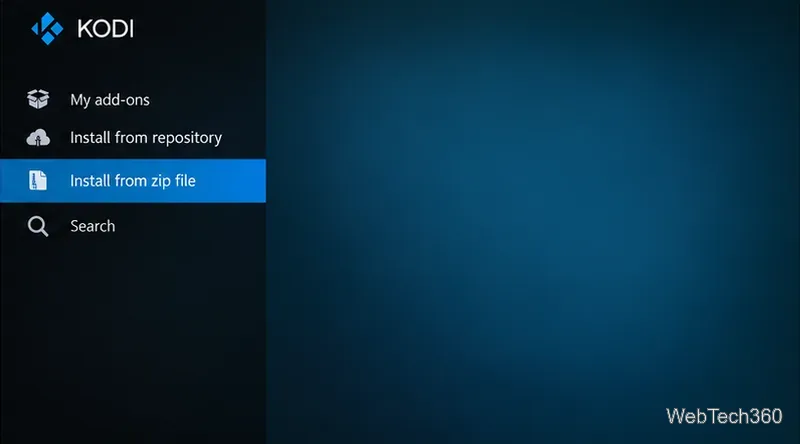
Return home, select Add-ons, and open the add-on browser. Choose Install from zip file. If Kodi prompts you to enable Unknown sources, return to Step 1, then reopen the installer.
Select the source name created in Step 3. If it fails to load, shows an unexpected domain, or lists unrelated files, cancel and check the address with the maintainer.
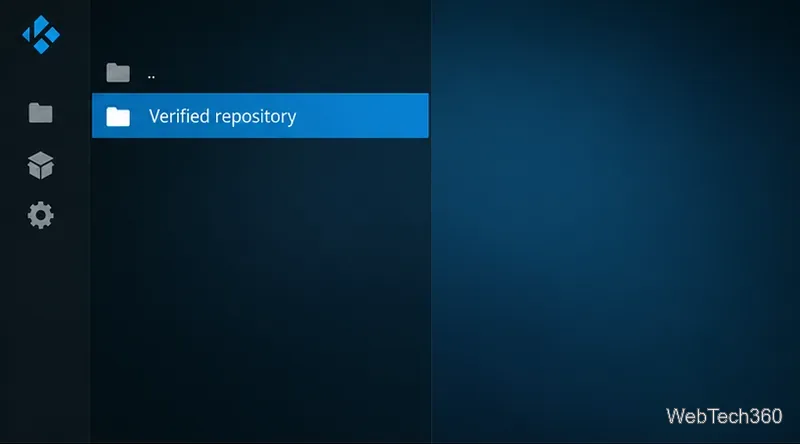
Choose the repository ZIP named by the maintainer; filenames may change, so do not rely on an old one. Wait for Kodi’s confirmation. If installation fails, check compatibility instead of trying an unverified package.
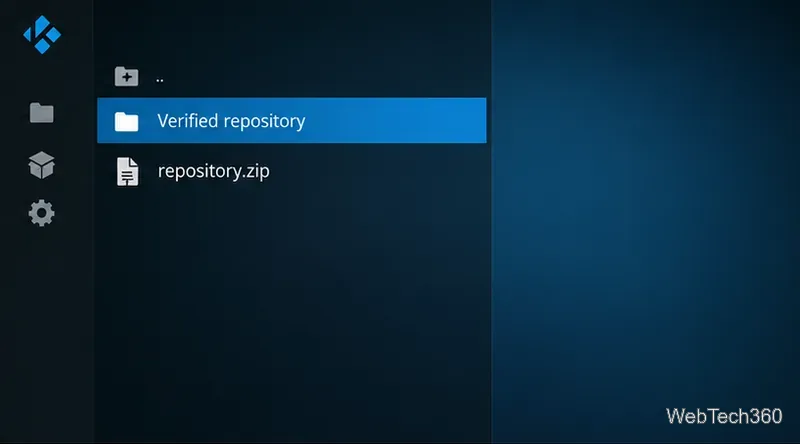
Choose Install from repository, open the repository, then select Video add-ons. If Midian is absent, treat it as unavailable from that source or incompatible with your Kodi version.
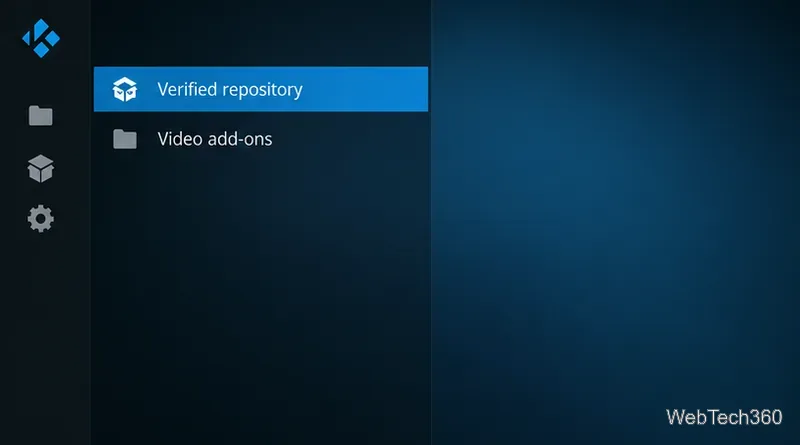
If Midian appears, review its publisher, version, and dependencies before choosing Install. Accept dependencies only from the verified repository. After Kodi confirms installation, find it under Add-ons > Video add-ons.
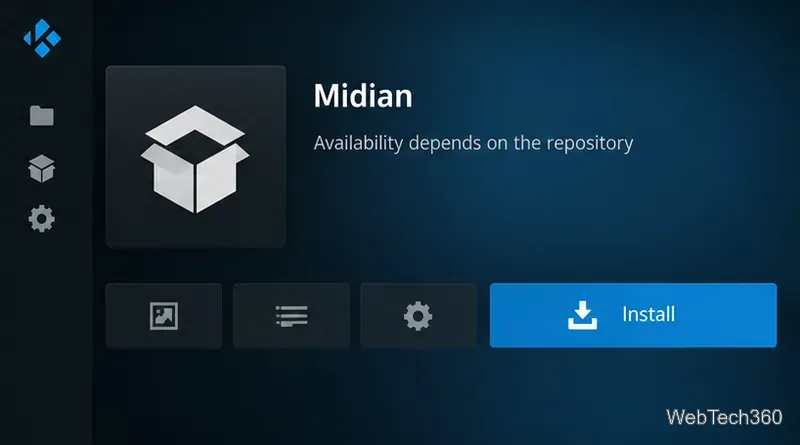
For a safer option, browse add-ons in Kodi’s built-in official repository. If Midian’s maintainer publishes a verifiable, compatible source again, the steps above describe the standard installation path.
Learn how to uninstall a Kodi repository safely, remove its saved source URL separately, and check which installed add-ons or dependencies you still need.
Find the safest way to watch live tennis with Kodi: learn what iPlayer WWW can stream, how to find licensed coverage, and which add-ons to avoid.
Learn how to watch movies on Kodi from your computer, USB drive, or NAS, add online video services, and fix missing titles with clear setup steps.
Set a Kodi Master Lock PIN, protect selected menus, and create a separate kids’ profile with media sources you choose.
Find the authorized stream for your country, check whether its provider supports Kodi, and watch a boxing PPV on your TV without relying on outdated add-ons.
Compare five Kodi skins in the official Omega catalog, then follow the current Settings path to install one, customize it, or switch back.
Looking for the 1Channel Kodi add-on? Learn why old PrimeWire installation guides are unreliable and how to install a supported video add-on safely.
Enable Kodi’s Chorus2 web interface, control your media from any browser, and learn how to connect remotely without exposing Kodi to the Internet.
Follow the original Nemesis Kodi installation process, learn what changed with Stream Army, and avoid outdated repository and PIN instructions.
Download Kodi safely on Windows using the official installer or Microsoft Store, then add your media library and set up trusted add-ons.








