How to Uninstall Kodi Repositories the Right Way

Learn how to uninstall a Kodi repository safely, remove its saved source URL separately, and check which installed add-ons or dependencies you still need.
The Noobsandnerds Kodi add-on repository is no longer a dependable installation source. The original Noobsandnerds project stopped operating in 2018, and its old repository address cannot be verified as a working, maintained source. If you came looking for a current Noobsandnerds repo ZIP, there is no trustworthy installation link to recommend. You can still understand how it used to be installed, check whether a copy remains on your device, and install supported add-ons through Kodi itself.
Noobsandnerds, sometimes written “Noobs and Nerds” or “NaN,” was a community-run collection of third-party Kodi add-ons. Older guides highlighted movie and television plug-ins such as Elysium, cartoons, educational videos, sports replays, and maintenance utilities. These descriptions are historical, not a current catalog. An add-on that once appeared in the repository should not be assumed to work, receive security updates, or offer authorized content today.
Kodi itself is free, open-source media center software. A repository is a distribution and update channel for add-ons; it is not a subscription or a library of licensed movies. Kodi includes an official repository and also permits separately maintained third-party repositories. The distinction matters because installing an unknown repository gives code from outside Team Kodi a route onto your device.
Not through a confirmed official source. Historical instructions used the address https://nan.aftermathwizard.net/nanrepo/, named the source “Noobsandnerds,” and then selected a Noobsandnerds repository ZIP using Add-ons → Install from zip file. That was the old procedure; the address is included for identification only, not as a working download recommendation. Its availability and ownership have not been verified.
Do not replace the address with an unfamiliar mirror just because a video or forum post promises a working copy. A resurrected repository or archived ZIP might have different contents or outdated dependencies. For modern Kodi, the supported approach is to select an add-on directly from the official repository or from a developer whose identity, release files, and maintenance you can verify.
The four steps below use Kodi’s default Estuary-style navigation. Menu placement can differ with a custom skin. They do not require turning on Unknown sources.
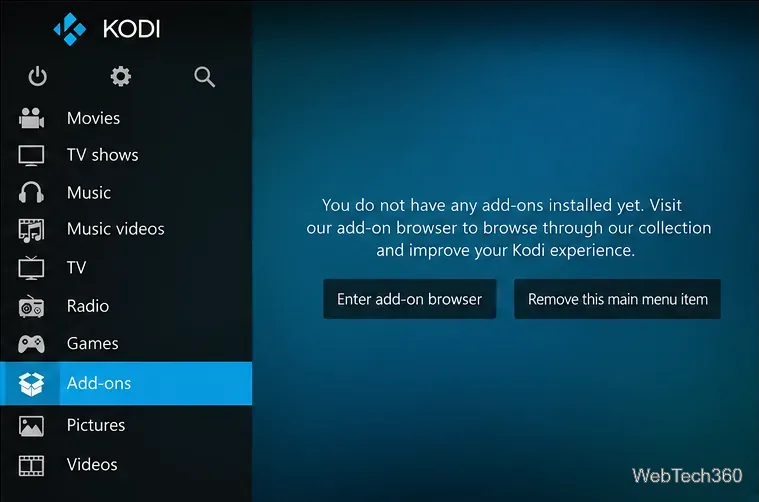
Launch Kodi and select Add-ons from the home menu. If this is a new installation, choose Enter add-on browser. Otherwise, open the box-shaped add-on browser icon near the top of the Add-ons area.
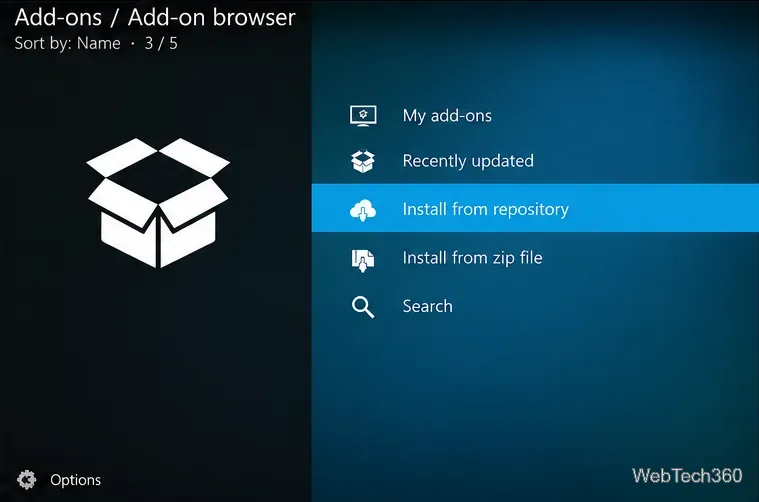
In the add-on browser, select Install from repository. Kodi normally includes the official Kodi add-on repository already; there is no need to enter a web address or install a third-party ZIP. If you have multiple repositories installed, choose the official Kodi Add-on repository.
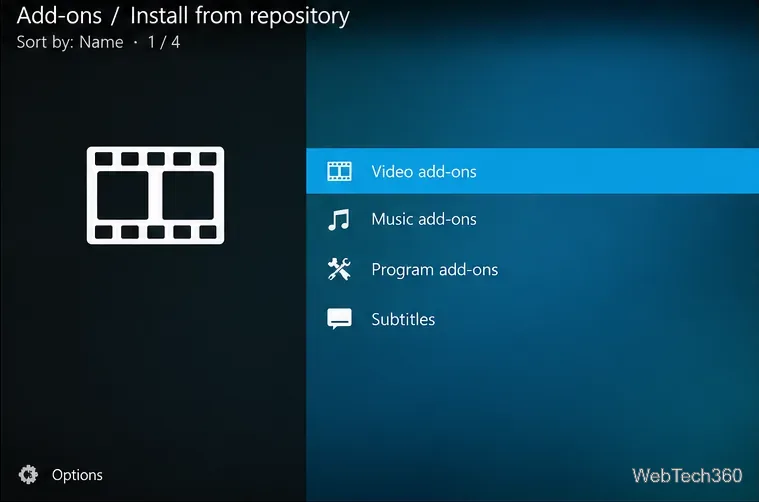
Open the relevant category—such as Video add-ons, Music add-ons, Subtitles, or Program add-ons. Select an add-on, read its description and dependencies, and choose Install. Available titles depend on your Kodi version and platform. Follow the add-on’s setup instructions if it requires an account or access to a service you already subscribe to.
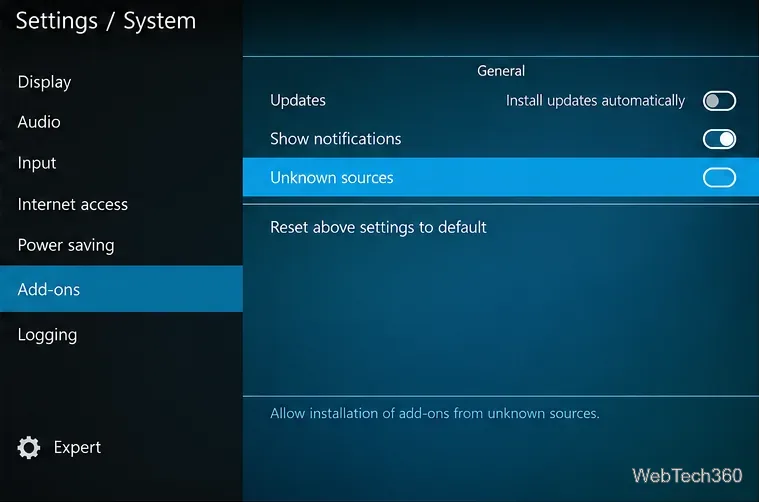
Go to Settings → System → Add-ons and check Unknown sources. Leave it off unless you have a specific, independently verified developer ZIP that you genuinely need. Kodi warns that enabling this setting permits third-party add-ons to access data on the device. You do not need this setting for the official repository.
If an old installation still displays Noobsandnerds, it does not prove that its servers are active. In Kodi, open Add-ons → My add-ons → Add-on repositories, select the Noobsandnerds entry if present, and choose Uninstall. Then review individual add-ons you installed from that repository and remove any that are unsupported, broken, or unnecessary. Removing the repository does not necessarily uninstall every add-on previously obtained from it.
If you previously created a source shortcut, open Settings → File manager, find the Noobsandnerds source, and use its context menu to remove that source. This removes the saved location in Kodi, not files from unrelated media folders. If you cannot find a repository entry, there may be nothing left to uninstall.
For the current menu structure, consult the Kodi Add-on manager documentation and Kodi Add-ons settings reference. Kodi also explains why the official repository is the safer default and cautions against unverified third-party installs in its security guidance.
No. A VPN is not required to install Kodi or use its official add-on repository. A VPN may encrypt traffic between your device and its VPN provider, but it does not validate an add-on’s code, prevent every malware risk, guarantee anonymity, or make unauthorized streaming lawful. Check the rights and terms of each media service rather than treating a VPN as a substitute for a trustworthy source.
Bottom line: The original Noobsandnerds installation steps describe a retired Kodi repository. Avoid unverified replacement ZIPs, remove obsolete entries if they remain on your system, and use Kodi’s built-in repository for a maintained and better-documented setup.
Learn how to uninstall a Kodi repository safely, remove its saved source URL separately, and check which installed add-ons or dependencies you still need.
Find the safest way to watch live tennis with Kodi: learn what iPlayer WWW can stream, how to find licensed coverage, and which add-ons to avoid.
Learn how to watch movies on Kodi from your computer, USB drive, or NAS, add online video services, and fix missing titles with clear setup steps.
Set a Kodi Master Lock PIN, protect selected menus, and create a separate kids’ profile with media sources you choose.
Find the authorized stream for your country, check whether its provider supports Kodi, and watch a boxing PPV on your TV without relying on outdated add-ons.
Compare five Kodi skins in the official Omega catalog, then follow the current Settings path to install one, customize it, or switch back.
Looking for the 1Channel Kodi add-on? Learn why old PrimeWire installation guides are unreliable and how to install a supported video add-on safely.
Enable Kodi’s Chorus2 web interface, control your media from any browser, and learn how to connect remotely without exposing Kodi to the Internet.
Follow the original Nemesis Kodi installation process, learn what changed with Stream Army, and avoid outdated repository and PIN instructions.
Download Kodi safely on Windows using the official installer or Microsoft Store, then add your media library and set up trusted add-ons.








