How to Uninstall Kodi Repositories the Right Way

Learn how to uninstall a Kodi repository safely, remove its saved source URL separately, and check which installed add-ons or dependencies you still need.
Oculus was a third-party Kodi video add-on, not an official Kodi repository. Older instructions describe installing it from Trademark’s TMB source, but that source could not be verified as a working download in an October 2026 check. There is no confirmed current Oculus package to recommend. This guide explains what the old instructions actually installed, how Kodi handles ZIP packages, and whether Oculus is worth seeking out today.
The original guide used https://tmbkodi.com/repo and selected a file called plugin.video.oculus.1.7.zip from a repository.tmb folder. That filename identifies an add-on package, not proof that a maintained Oculus repository was installed. The older source did not return a usable repository listing during our check, and no current release or compatibility statement from its developer could be confirmed.
Do not treat a mirror or a similarly named ZIP as an official replacement. If you cannot establish the publisher, current version, download origin, and file integrity, the sensible choice is not to install it.
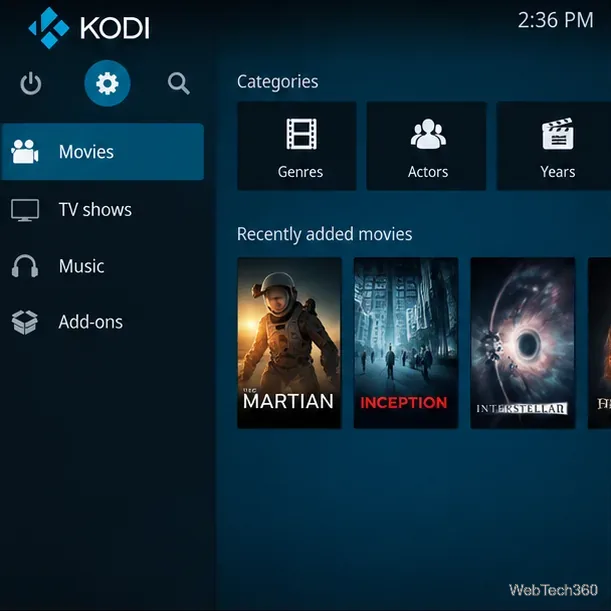
Check the publisher’s current website or source-code project, confirm that the ZIP is intended for your Kodi version, and back up your configuration. Kodi’s official documentation warns that enabling Unknown sources permits third-party add-ons to access personal data on the device. The setting is not a security endorsement.
As of October 2026, Kodi’s download page lists version 21.3 “Omega” as a recommended release for Windows; Kodi 22 “Piers” had reached a release candidate. Legacy Oculus packages from the 2017-era guide should not be assumed compatible with either. Consult the official Kodi downloads and add-on settings reference before proceeding.
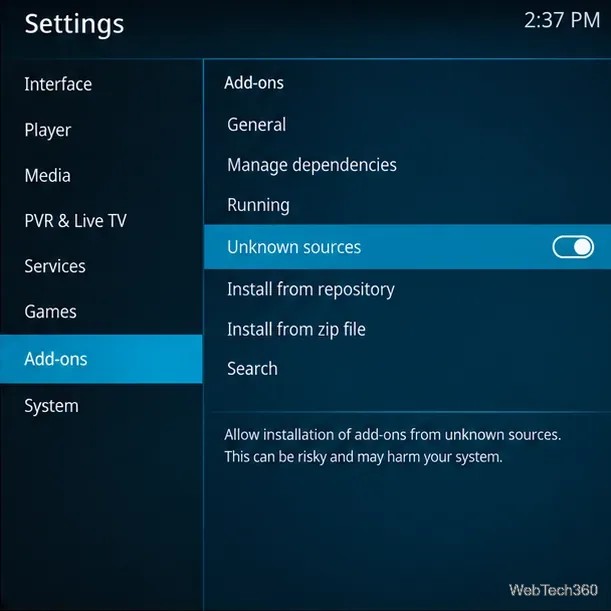
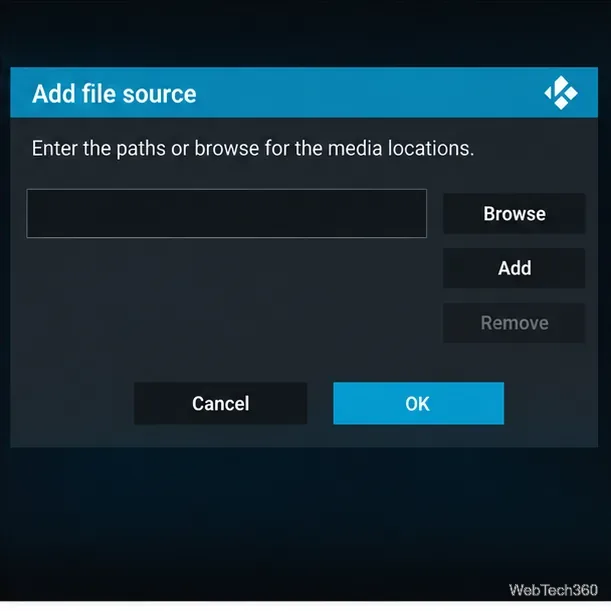
These are the general Kodi installation steps, not confirmation that Oculus currently works. Menu positions may vary by skin or release, and the interface views below are examples rather than evidence of a successful Oculus installation.
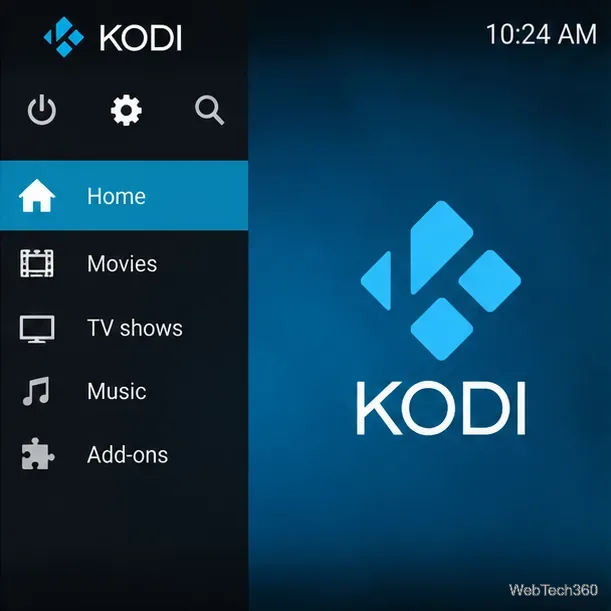
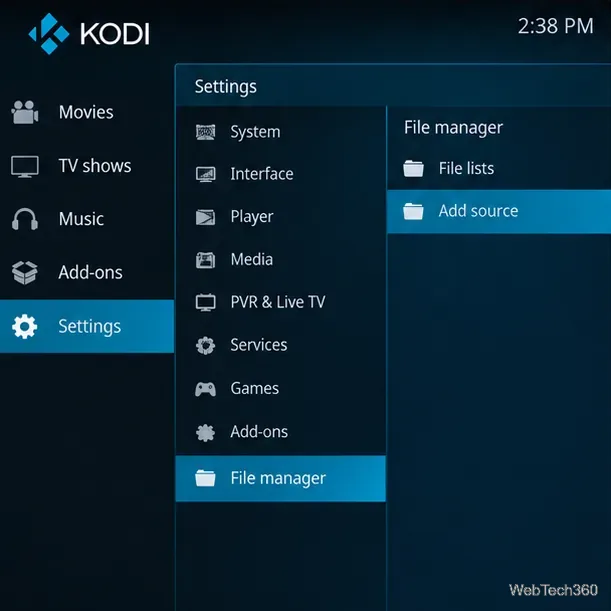
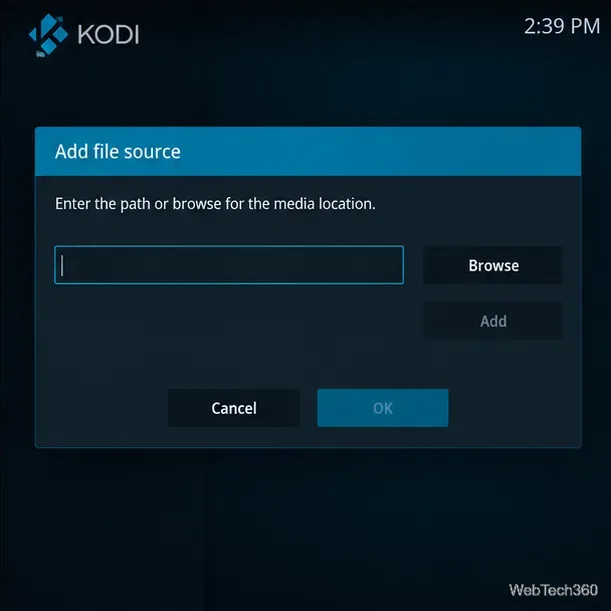
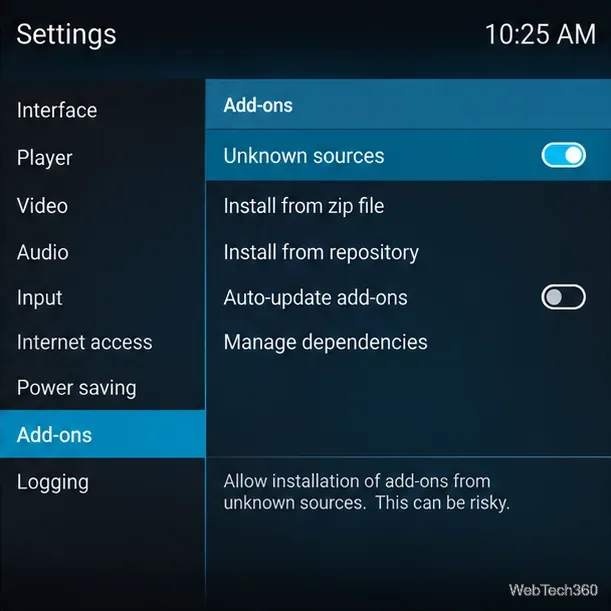
plugin.video. usually indicates a video add-on; a repository package commonly begins repository.. Do not confuse the two.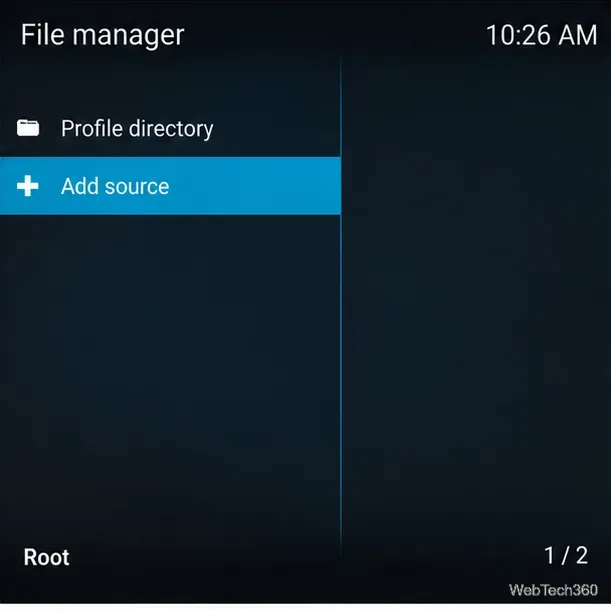
At its original release, Oculus was described as a movie-and-TV browsing add-on with genre lists (including action, comedy, documentary, horror, and animation), actor-focused collections, new and popular titles, and TV categories. The old guide also mentioned Trakt listings and an Acestream/IPTV link, while acknowledging that some entries were not working. These are historical descriptions, not a verified current feature list.
Even the original assessment noted confusing menu organization, slow metadata loading, missing information for some titles, and searches returning no playable source. Claims that links were reliable or videos streamed smoothly reflected that article’s old experience; they should not be projected onto current Kodi versions or present-day services.
Our assessment: Oculus is primarily of historical interest unless its original maintainer publishes a verifiable, maintained release. A large catalog inside an add-on does not guarantee that its links are authorized, available, secure, or functional.
For dependable extensions, start with Install from repository > Kodi Add-on repository. Kodi explains the distinction between official and private packages in its add-ons overview. Third-party add-ons are not vetted by Kodi, and a VPN neither makes unauthorized streams lawful nor makes untrusted add-on code safe.
Learn how to uninstall a Kodi repository safely, remove its saved source URL separately, and check which installed add-ons or dependencies you still need.
Find the safest way to watch live tennis with Kodi: learn what iPlayer WWW can stream, how to find licensed coverage, and which add-ons to avoid.
Learn how to watch movies on Kodi from your computer, USB drive, or NAS, add online video services, and fix missing titles with clear setup steps.
Set a Kodi Master Lock PIN, protect selected menus, and create a separate kids’ profile with media sources you choose.
Find the authorized stream for your country, check whether its provider supports Kodi, and watch a boxing PPV on your TV without relying on outdated add-ons.
Compare five Kodi skins in the official Omega catalog, then follow the current Settings path to install one, customize it, or switch back.
Looking for the 1Channel Kodi add-on? Learn why old PrimeWire installation guides are unreliable and how to install a supported video add-on safely.
Enable Kodi’s Chorus2 web interface, control your media from any browser, and learn how to connect remotely without exposing Kodi to the Internet.
Follow the original Nemesis Kodi installation process, learn what changed with Stream Army, and avoid outdated repository and PIN instructions.
Download Kodi safely on Windows using the official installer or Microsoft Store, then add your media library and set up trusted add-ons.








