How to Uninstall Kodi Repositories the Right Way

Learn how to uninstall a Kodi repository safely, remove its saved source URL separately, and check which installed add-ons or dependencies you still need.
The PlayersKlub Kodi add-on was once distributed as a third-party IPTV option advertised with more than 700 channels. The original installation guide relied on a PlayersKlub repository, a $5 monthly subscription, and shared free login details. Those claims are historical, not confirmed current offers. As of October 27, 2026, we could not verify that the old repository address still provides an authentic, compatible PlayersKlub package. The safe approach is to install it only if you already have a repository link or ZIP supplied and authenticated by the actual service operator.
Possibly, but only with a trustworthy, working distributor and an add-on compatible with your Kodi version. The old source address, theplayersklub.us/playersklub/, no longer provides a repository we could verify; it redirected away from the original directory during our check. We also could not validate the old theplayersklub.tv subscription link. Sites using similar names are not proof that they operate the original service. Do not enter payment information or reuse credentials on an unverified replacement domain.
Likewise, the original “700+ channels,” ad-supported free access, shared username/password, and $5 price should not be treated as current. The channel catalog, authorization to distribute channels, subscription terms, and platform compatibility must come from a verified provider. Kodi itself does not supply a PlayersKlub subscription or certify this third-party service. For how repositories work, see the Kodi explanation of third-party add-ons.
These are the current general Kodi installation steps, not confirmation that a working PlayersKlub download exists. The menu wording below follows Kodi’s documented Add-on manager; skins and versions may arrange items differently.
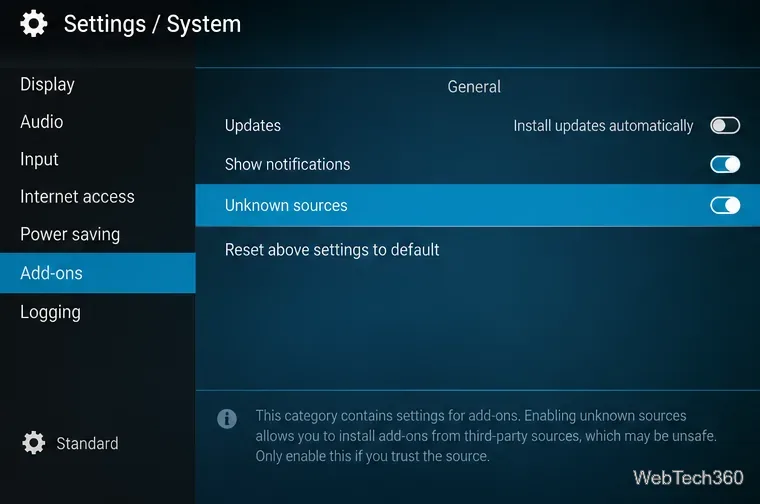
Open Settings > System > Add-ons. When you need to install a repository ZIP from a trusted provider, turn on Unknown sources and review Kodi’s warning. Leave this off if you do not have a verified package. Kodi warns that third-party add-ons can access data on your device; the setting is not a recommendation to install unknown software. See Kodi add-on security settings.
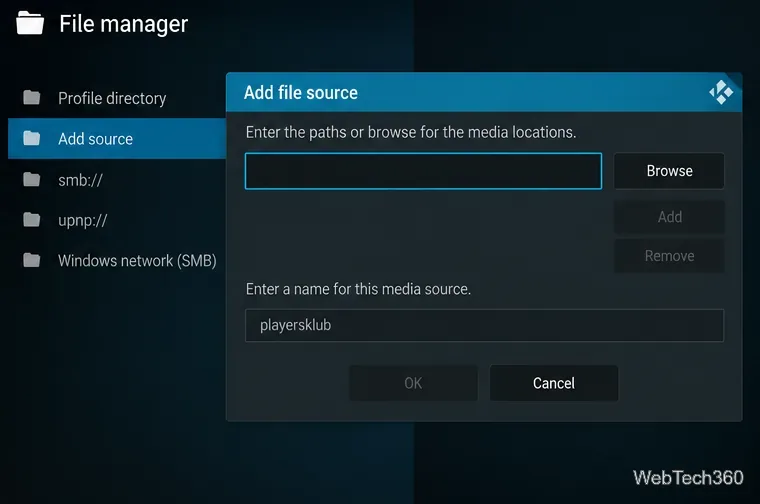
If the verified operator supplies a repository URL, open Settings > File manager > Add source. Enter that exact HTTPS address and give it a recognizable name, such as playersklub. If the operator instead provides a ZIP already downloaded to your device, you can skip adding a network source and select the local ZIP later. Do not use the old theplayersklub.us URL as a current installation instruction.
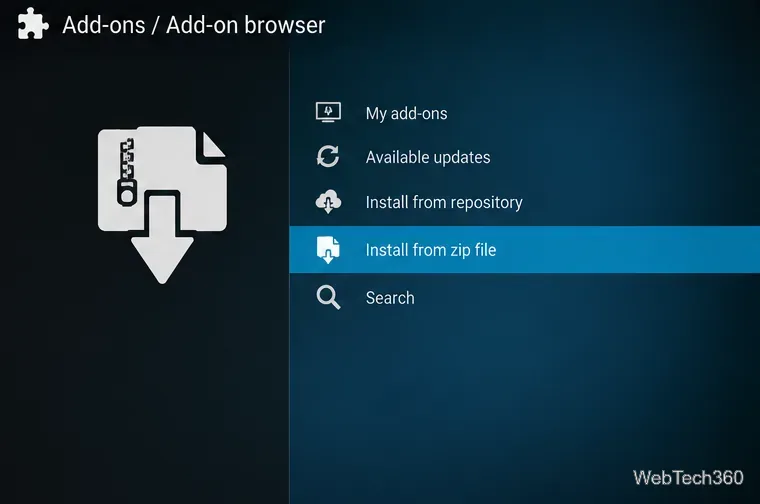
Return to Add-ons and open the Add-on browser (the open-box icon in Kodi’s default interface). Select Install from zip file, browse to your authenticated source or local storage, and choose the exact repository ZIP supplied by the operator. Read any installation or dependency warning. If there is no valid ZIP, stop here rather than downloading an anonymous copy from a mirror. Kodi documents this ZIP and repository workflow in its Kodi Add-on manager documentation.
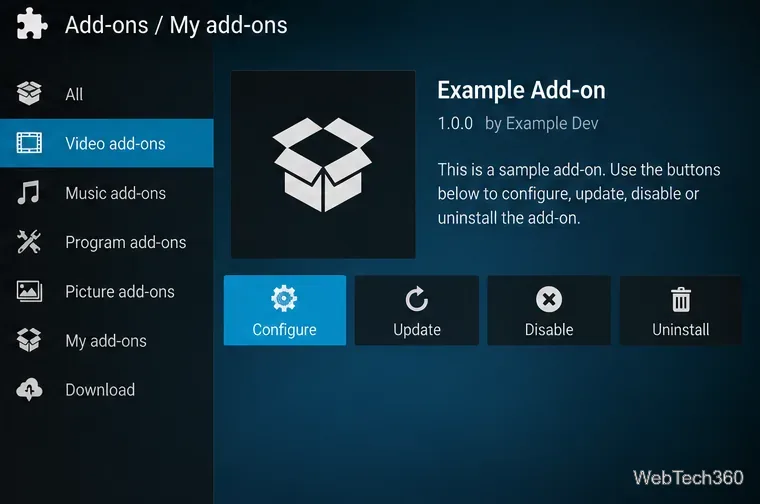
If Kodi successfully installs the repository, use Install from repository, select the verified provider repository, open Video add-ons, and choose the PlayersKlub add-on if it is actually listed. Select Install. After installation, go to Add-ons > My add-ons > Video add-ons to find its settings or launch option. Enter only credentials issued directly by the verified operator; ignore shared passwords copied from old articles. Disable Unknown sources again when you no longer need it.
Do not install an unknown ZIP solely to reproduce the old guide. If your legitimate TV provider offers an authorized M3U playlist, Kodi’s PVR IPTV Simple Client is an officially documented way to use a playlist and, when provided, an electronic program guide. You can find it through Install from repository > PVR clients. It does not provide channels by itself and is not a substitute for PlayersKlub account verification. See Kodi PVR IPTV Simple Client documentation.
Bottom line: Kodi still supports installing third-party video add-ons, but the PlayersKlub-specific repository, advertised catalog, prices, and shared login in the old instructions cannot be responsibly presented as verified today. Use the steps above only after confirming an authentic source and the rights to view the channels offered.
Learn how to uninstall a Kodi repository safely, remove its saved source URL separately, and check which installed add-ons or dependencies you still need.
Find the safest way to watch live tennis with Kodi: learn what iPlayer WWW can stream, how to find licensed coverage, and which add-ons to avoid.
Learn how to watch movies on Kodi from your computer, USB drive, or NAS, add online video services, and fix missing titles with clear setup steps.
Set a Kodi Master Lock PIN, protect selected menus, and create a separate kids’ profile with media sources you choose.
Find the authorized stream for your country, check whether its provider supports Kodi, and watch a boxing PPV on your TV without relying on outdated add-ons.
Compare five Kodi skins in the official Omega catalog, then follow the current Settings path to install one, customize it, or switch back.
Looking for the 1Channel Kodi add-on? Learn why old PrimeWire installation guides are unreliable and how to install a supported video add-on safely.
Enable Kodi’s Chorus2 web interface, control your media from any browser, and learn how to connect remotely without exposing Kodi to the Internet.
Follow the original Nemesis Kodi installation process, learn what changed with Stream Army, and avoid outdated repository and PIN instructions.
Download Kodi safely on Windows using the official installer or Microsoft Store, then add your media library and set up trusted add-ons.








