How to Uninstall Kodi Repositories the Right Way

Learn how to uninstall a Kodi repository safely, remove its saved source URL separately, and check which installed add-ons or dependencies you still need.
The Playlist Loader Kodi add-on was designed to organize playlists from more than one source in a single Kodi menu; it does not provide the streams. The old installation guide points to a third-party repository that is not verified here as a current, supported source. If your goal is to manage authorized IPTV channels, Kodi’s official PVR IPTV Simple Client is a better-supported route. For movies or music already in your library, Kodi’s built-in playlist tools are usually enough.
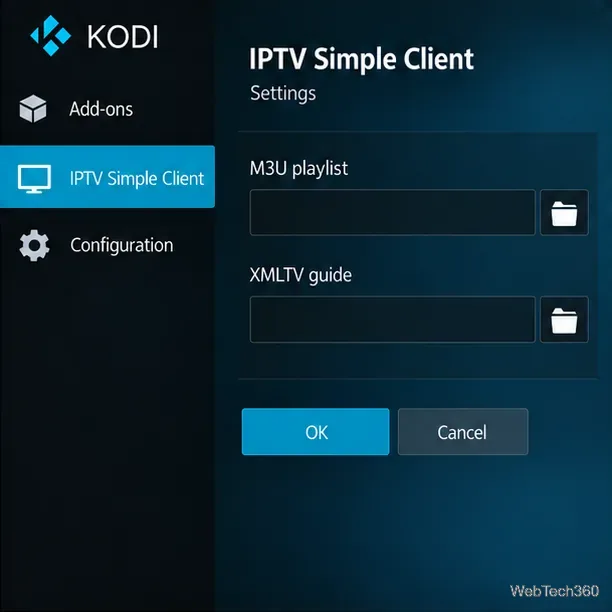
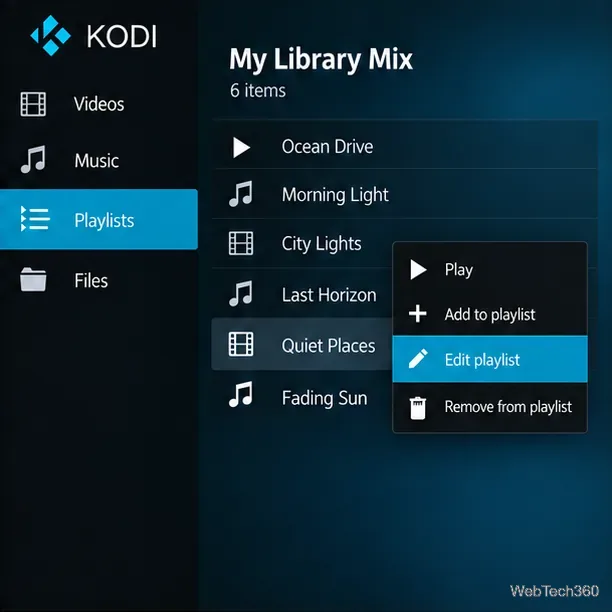
The images are simplified Kodi-style UI illustrations; labels may vary by version and skin.
Playlist Loader is a third-party video add-on intended to collect and organize playlist entries so you can open lists from one place. Older documentation describes adding a remote playlist by URL or a playlist file stored on the device, then naming the list and optionally choosing a logo. The add-on is an organizer: it does not create channels, host video, or grant permission to watch copyrighted material. Use only playlist files and streams you are authorized to access.
The original setup instructions use the Kodil repository address kdil.co/repo/. That address should not be treated as a current install source without independently confirming who controls it and what ZIP it serves. Kodi’s documentation says its official repository is the trusted repository enabled by default. Kodi also warns that add-ons installed from ZIP files after enabling Unknown sources can access personal data on the device. See Kodi’s add-on installation guidance and Unknown sources settings.
The Playlist Loader source tree I reviewed on GitHub declares the older xbmc.python 2.1.0 dependency. Kodi’s Python 3 migration notes explain that Kodi 19 runs add-ons on Python 3; treat this older dependency as a compatibility warning. Check the source, release history, and Kodi version support before installing a fork; the old Kodil procedure alone does not establish compatibility.
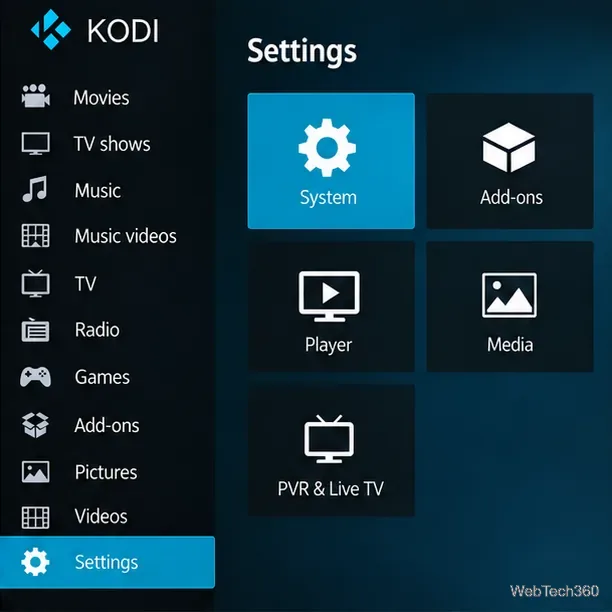
If you have an M3U playlist from a legitimate TV provider, install Kodi’s PVR IPTV Simple Client from the official repository. Kodi documents support for M3U as the live-TV source and XMLTV as an optional electronic program guide (EPG) source. The client handles IPTV through Kodi’s Live TV/PVR section; it is different from Playlist Loader.
tvg-id values with the channel IDs in the XMLTV file; Kodi can use tvg-name when an ID is not supplied. Reopen the client settings and refresh or restart Kodi after correcting a source.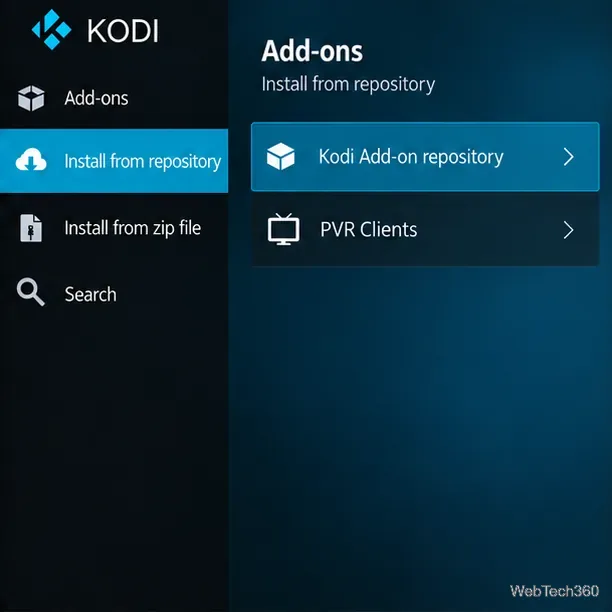
For music or videos stored in your Kodi library, use a built-in playlist instead of installing a third-party add-on. A hand-picked list is useful when you want specific items in a chosen order. In Kodi’s Music section, open Playlists and select New Playlist; to change an existing music playlist, highlight it and use the context menu’s Edit playlist command. Kodi’s basic playlist documentation explains the editor and supported file paths.
If you want a list that updates automatically, create a Smart Playlist with rules such as genre, year, artist, or rating. Kodi’s GUI instructions for Smart Playlists show how to name a list and define its filters. Kodi does not provide the same built-in playlist editor for its video library; use the queue method or create a compatible playlist file outside Kodi. Keep media paths consistent across devices so a copied playlist can still find its files.
Back up local playlists, keep their file paths stable, and use URLs and guide files from providers you are authorized to access. Before reinstalling an add-on after a Kodi update, check the maintainer’s release notes and Kodi version support. For a ZIP install, verify the source and dependencies, and turn Unknown sources off when you are done.
Playlist Loader may still work in a verified build, but the old Kodil directions do not establish compatibility. Kodi’s official IPTV client and built-in playlists are more supportable options for current setups.
Learn how to uninstall a Kodi repository safely, remove its saved source URL separately, and check which installed add-ons or dependencies you still need.
Find the safest way to watch live tennis with Kodi: learn what iPlayer WWW can stream, how to find licensed coverage, and which add-ons to avoid.
Learn how to watch movies on Kodi from your computer, USB drive, or NAS, add online video services, and fix missing titles with clear setup steps.
Set a Kodi Master Lock PIN, protect selected menus, and create a separate kids’ profile with media sources you choose.
Find the authorized stream for your country, check whether its provider supports Kodi, and watch a boxing PPV on your TV without relying on outdated add-ons.
Compare five Kodi skins in the official Omega catalog, then follow the current Settings path to install one, customize it, or switch back.
Looking for the 1Channel Kodi add-on? Learn why old PrimeWire installation guides are unreliable and how to install a supported video add-on safely.
Enable Kodi’s Chorus2 web interface, control your media from any browser, and learn how to connect remotely without exposing Kodi to the Internet.
Follow the original Nemesis Kodi installation process, learn what changed with Stream Army, and avoid outdated repository and PIN instructions.
Download Kodi safely on Windows using the official installer or Microsoft Store, then add your media library and set up trusted add-ons.








