How to Uninstall Kodi Repositories the Right Way

Learn how to uninstall a Kodi repository safely, remove its saved source URL separately, and check which installed add-ons or dependencies you still need.
Plex for Kodi lets you browse and play media from your Plex Media Server without leaving Kodi. Install the add-on from Kodi’s official repository, open it, and link your Plex account to see your available libraries. Here is the current installation path, what the add-on does well, and where it falls short.
Kodi is the playback application; Plex Media Server organizes your movie, TV, and other personal-media libraries on a separate computer or compatible NAS. The add-on acts as a Plex client inside Kodi—it does not turn Kodi into a Plex server.
If the server is not configured yet, follow Plex’s official server quick-start guide first. The examples below use Kodi’s familiar default-style menus; wording and layout can vary with your Kodi version and skin.
For compatible Kodi versions, the official listing is Plex for Kodi in the Kodi add-on catalog. You normally do not need a ZIP download, an unofficial repository, or the Unknown sources setting. Kodi documents the general process in its add-on manager guide.
Launch Kodi and choose Add-ons from the home menu.
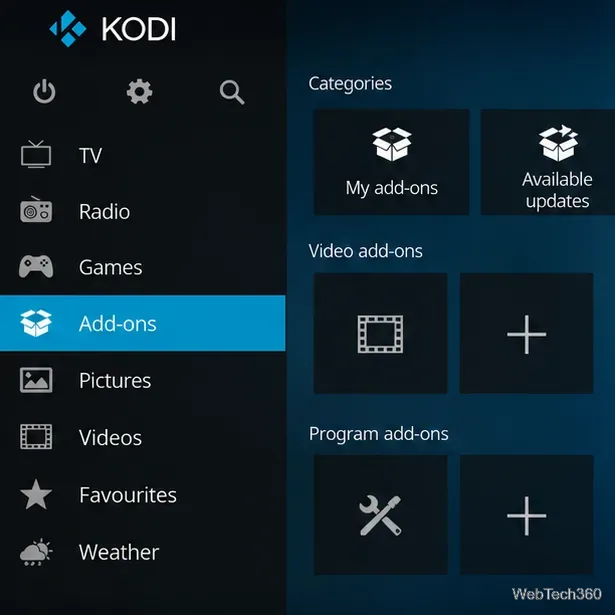
Choose Enter add-on browser or the open-box icon. On some skins, Get more appears inside an add-on category instead.
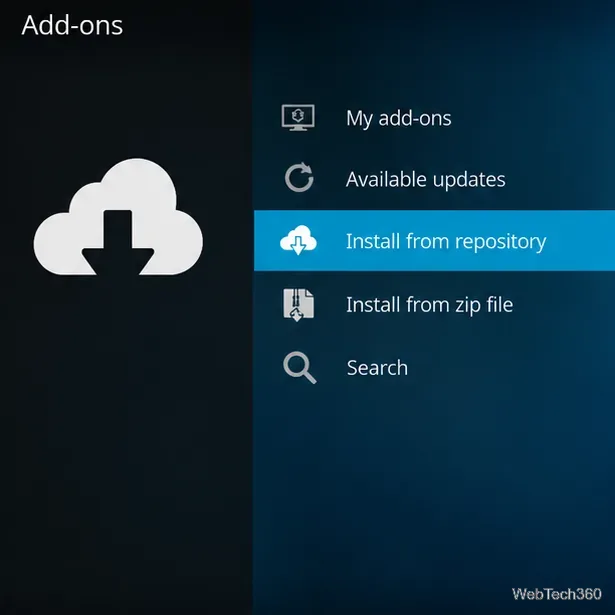
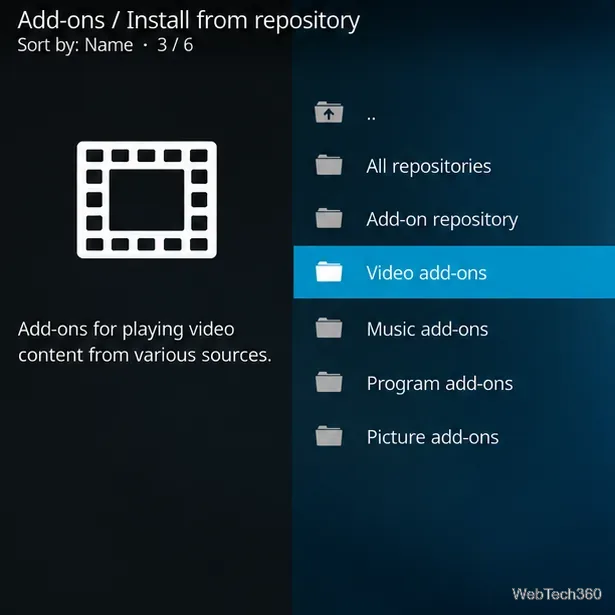
Select Install from repository. If more than one repository is configured, choose Kodi Add-on repository, then open Video add-ons. Kodi may open the default repository automatically.
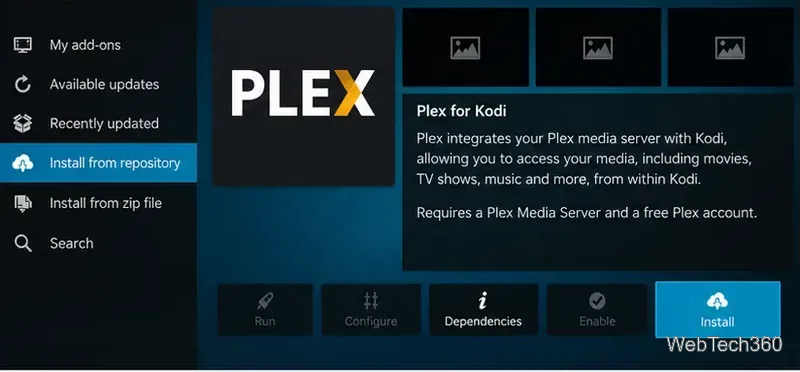
Scroll to Plex or use the add-on search feature. Open its information page. Check the publisher and description before proceeding, especially if you have third-party repositories installed.
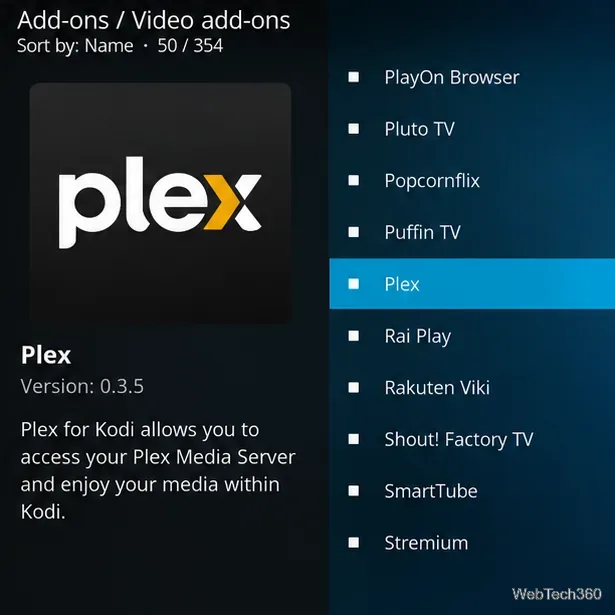
Press Install and let Kodi download the add-on and any required dependencies. When installation finishes, the action should change to Open or Run. You can also find it under your installed add-ons.
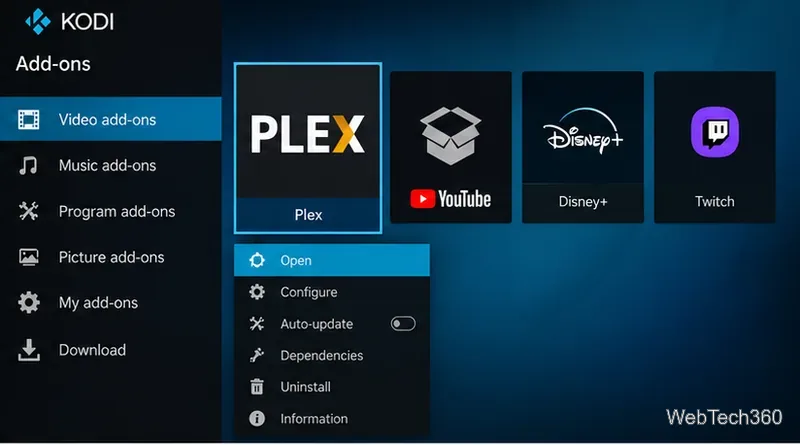
Return to Add-ons → Video add-ons, select Plex, and open it. Its interface may differ from Kodi’s usual library browsing experience.
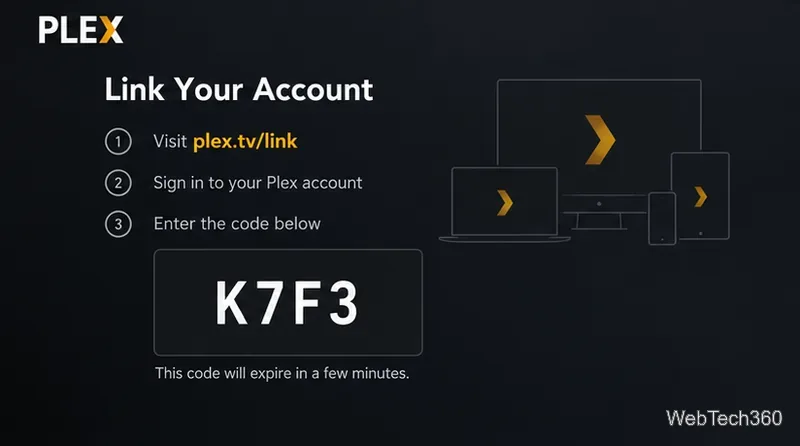
When prompted, select Sign In. On a phone or computer browser, open Plex’s device-link page, sign in to your Plex account, and enter the short code displayed on the Kodi device. Use your own current code; the code shown below is only an example.
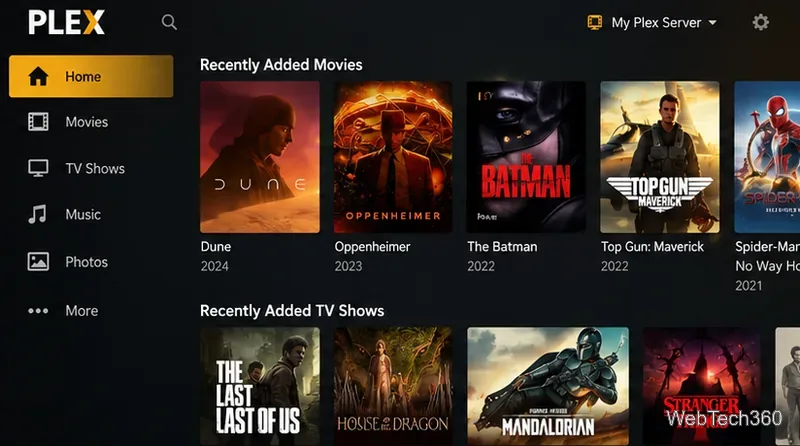
After authorization, return to Kodi. If your account has access to multiple servers, choose the right one, then open a movie or TV library. Artwork, recent items, and available sections depend on the media configured on that server.
The best reason to install it is convenience. If you already run Plex Media Server but prefer Kodi on your TV box, you can reach the same centrally maintained media collection without switching apps. Plex handles library organization and supplies metadata; Kodi remains the application you launch on that device.
There are trade-offs. The add-on depends on access to a working Plex server, and library changes generally belong in Plex rather than the Kodi interface. Playback quality can also depend on file compatibility, your network, and whether the server needs to transcode. Unlike Kodi’s native local-file playback, this arrangement introduces a server connection that must remain available.
Compatibility matters: Kodi’s Omega catalog lists the official add-on as version 0.3.5, dated April 6, 2024. That listing confirms its presence for Omega, not that every newer Kodi build will work identically. Check the Plex project repository and your Kodi add-on catalog if you encounter compatibility problems. The separate Plex server plug-in ecosystem is not the same as this Kodi add-on; Plex has been removing support for older server plug-ins.
For connections outside your home network, read Plex’s remote streaming guidance rather than assuming remote playback works on every account or network.
Important deletion warning: If media deletion is enabled on your Plex server, deleting an item through a supported Plex app can also delete the actual source file—not just hide it from the library. The available controls vary by app and account permissions. Read the confirmation carefully and consult Plex’s official deletion explanation before using destructive library actions.
Bottom line: Plex for Kodi is a practical bridge for people who already maintain Plex libraries and want to keep using Kodi as their TV interface. If your media lives only on the Kodi device and you do not need central management, Kodi’s built-in library may be simpler.
Learn how to uninstall a Kodi repository safely, remove its saved source URL separately, and check which installed add-ons or dependencies you still need.
Find the safest way to watch live tennis with Kodi: learn what iPlayer WWW can stream, how to find licensed coverage, and which add-ons to avoid.
Learn how to watch movies on Kodi from your computer, USB drive, or NAS, add online video services, and fix missing titles with clear setup steps.
Set a Kodi Master Lock PIN, protect selected menus, and create a separate kids’ profile with media sources you choose.
Find the authorized stream for your country, check whether its provider supports Kodi, and watch a boxing PPV on your TV without relying on outdated add-ons.
Compare five Kodi skins in the official Omega catalog, then follow the current Settings path to install one, customize it, or switch back.
Looking for the 1Channel Kodi add-on? Learn why old PrimeWire installation guides are unreliable and how to install a supported video add-on safely.
Enable Kodi’s Chorus2 web interface, control your media from any browser, and learn how to connect remotely without exposing Kodi to the Internet.
Follow the original Nemesis Kodi installation process, learn what changed with Stream Army, and avoid outdated repository and PIN instructions.
Download Kodi safely on Windows using the official installer or Microsoft Store, then add your media library and set up trusted add-ons.








