How to Uninstall Kodi Repositories the Right Way

Learn how to uninstall a Kodi repository safely, remove its saved source URL separately, and check which installed add-ons or dependencies you still need.
Can you still install the Plexus Kodi add-on? You can install a compatible Plexus ZIP through Kodi’s add-on browser, but the familiar Plexus 0.1.8 instructions are outdated. The original Plexus project was discontinued, and its author archived the repository in March 2018. There is no verified, actively maintained release of that original project for current Kodi versions. If you have an old ZIP, check compatibility before enabling third-party installation.
Plexus was a utility for playing AceStream and SopCast peer-to-peer (P2P) streams through Kodi. It was not a catalog of movies, shows, or live channels. Other add-ons could pass compatible links to Plexus, which then worked with the relevant streaming engine. Its usefulness depended on the operating system, the streaming engine, and the specific Plexus build.
The 0.1.8 update described in older installation articles was a TVADDONS build. Its add-on manifest identifies version 0.1.8 and declares an xbmc.python 2.1.0 dependency. Meanwhile, the original developer’s Plexus repository is explicitly labeled discontinued and read-only. These are historical sources, not evidence of a working new update.
This matters because Kodi 19 and later use Python 3 for Python-based add-ons. A legacy package written for Python 2 may fail to install, appear as incompatible, or fail after installation. Kodi explains the change in its Python 3 migration guidance. A repository listing or an old tutorial cannot establish compatibility with Kodi 21, 22, or another recent build.
These are the current Kodi installation-menu steps, not a claim that the discontinued Plexus package works on your device. Proceed only if you have obtained a Plexus build from a maintainer you trust, checked its release information, and verified support for your Kodi and operating-system versions. Do not download an unverified “Plexus latest” ZIP just to follow these steps.
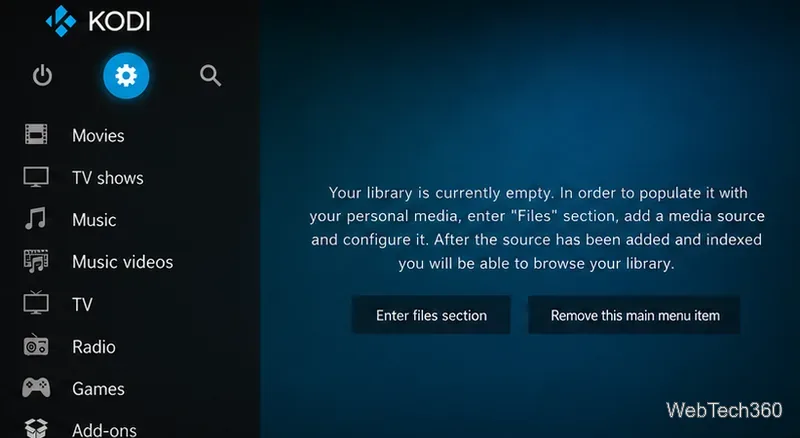
From Kodi’s home screen, open Settings (the gear icon), then System information to check the installed version. Compare it with the maintainer’s stated requirements. If no current compatibility statement or trustworthy source is available, stop here rather than installing a legacy package.
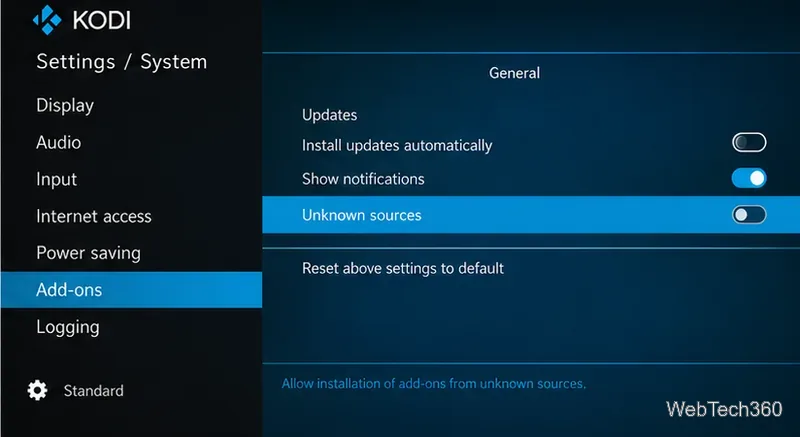
In Kodi, go to Settings > System > Add-ons and locate Unknown sources. If your verified package is not in Kodi’s official repository, you must enable this option before installing its ZIP. Read the warning: Kodi notes that third-party add-ons can access personal information stored on the device. Consider turning the option off again after installation.
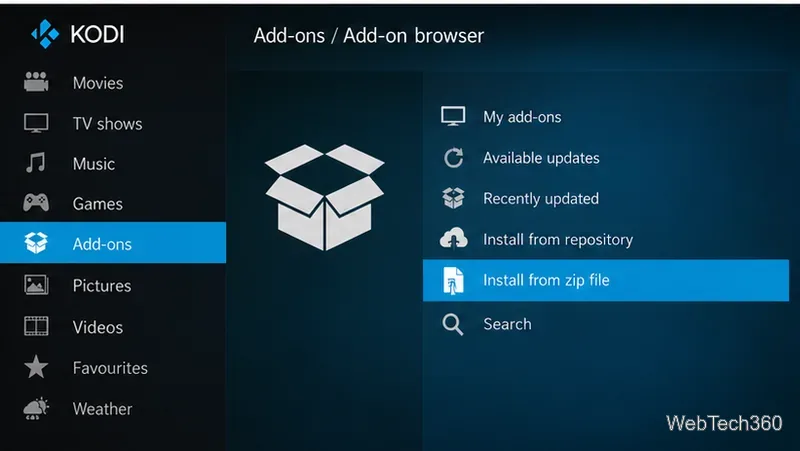
Return to the home screen, choose Add-ons, open the Add-on browser (open-box icon), and select Install from zip file. Browse to the verified ZIP saved on your device or an accessible network share, then select it. If you installed a repository ZIP rather than the add-on itself, use Install from repository, choose that repository, and look for Plexus under its listed category. Do not assume it will be present.
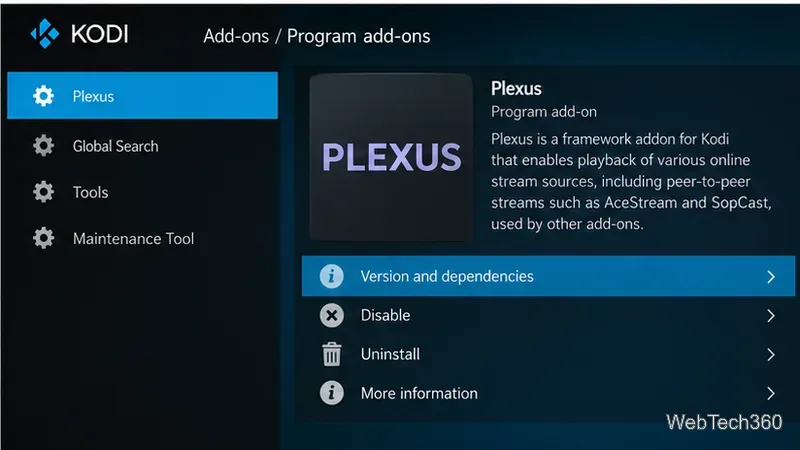
If installation succeeds, open Add-ons > My add-ons and find Plexus in its listed category, commonly Program add-ons for historical builds. Open its information page to see the installed version and available controls. Any first-run prompts or engine configuration depend on that particular build; follow the maintainer’s documentation rather than assuming the old AceStream or SopCast setup still applies.
Earlier guides instructed readers to add https://fusion.tvaddons.co, install an xbmchub repository ZIP, and select Plexus from TVADDONS.CO. That workflow reflects the historical distribution route, not a verified installation path today. We cannot confirm that the old endpoint offers a maintained Plexus build compatible with current Kodi releases, so we do not recommend entering it as a current download source.
The same caution applies to claims that Plexus automatically supports Windows, Android, Linux, macOS, or iOS. Compatibility has to be established for a specific add-on version and its P2P engine, not inferred from an old platform list.
For a specific error, use Kodi’s official log-file instructions to examine the debug log. Remove passwords, account details, and other personal data before sharing logs. If a trusted, compatible build cannot be identified, uninstall the obsolete add-on and use maintained add-ons from Kodi’s official repository for legitimate media sources.
Plexus is not required for Kodi itself. It was an optional bridge for particular P2P streaming workflows. P2P connections can expose your IP address to peers, and streams may be unauthorized depending on the content and jurisdiction. A VPN does not grant permission to view copyrighted material, guarantee anonymity, or make an obsolete add-on secure. Only use streams you are entitled to access.
Bottom line: The Kodi ZIP-install process still exists, but the original Plexus update is historical. Verify a trustworthy, current maintainer and confirmed compatibility before trying to install Plexus; otherwise, do not rely on the old Fusion/0.1.8 procedure.
Learn how to uninstall a Kodi repository safely, remove its saved source URL separately, and check which installed add-ons or dependencies you still need.
Find the safest way to watch live tennis with Kodi: learn what iPlayer WWW can stream, how to find licensed coverage, and which add-ons to avoid.
Learn how to watch movies on Kodi from your computer, USB drive, or NAS, add online video services, and fix missing titles with clear setup steps.
Set a Kodi Master Lock PIN, protect selected menus, and create a separate kids’ profile with media sources you choose.
Find the authorized stream for your country, check whether its provider supports Kodi, and watch a boxing PPV on your TV without relying on outdated add-ons.
Compare five Kodi skins in the official Omega catalog, then follow the current Settings path to install one, customize it, or switch back.
Looking for the 1Channel Kodi add-on? Learn why old PrimeWire installation guides are unreliable and how to install a supported video add-on safely.
Enable Kodi’s Chorus2 web interface, control your media from any browser, and learn how to connect remotely without exposing Kodi to the Internet.
Follow the original Nemesis Kodi installation process, learn what changed with Stream Army, and avoid outdated repository and PIN instructions.
Download Kodi safely on Windows using the official installer or Microsoft Store, then add your media library and set up trusted add-ons.








