How to Uninstall Kodi Repositories the Right Way

Learn how to uninstall a Kodi repository safely, remove its saved source URL separately, and check which installed add-ons or dependencies you still need.
Pulsar for Kodi is a discontinued torrent-streaming add-on. You can still find its original installation package, but there is no verified, supported installation path for current Kodi releases. If you are trying to reinstall Pulsar or fix a “Pulsar has crashed, restarting” loop, start by checking compatibility instead of repeatedly restarting Kodi.
This guide explains the archived ZIP installation process, the most useful error checks, and why several popular older fixes are no longer advisable.
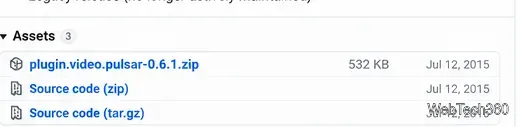
The original developer's Pulsar repository lists version 0.6.1 in its release archive. The project is no longer maintained. Its add-on manifest targets an older Kodi Python interface, while Kodi 19 and later use Python 3 for add-ons. That is a substantial compatibility barrier, not something a firewall exception or second restart can reliably fix.
Recommendation: treat these steps as a legacy reference, preferably on an isolated setup you already maintain. Do not downgrade a secure, working Kodi installation solely to run Pulsar, and do not install repackaged “fixed” builds from unverified sites.
Kodi still documents the general ZIP-install workflow, but the following procedure does not guarantee Pulsar will load on a modern device. Use it only if you understand the age and risks of the package.
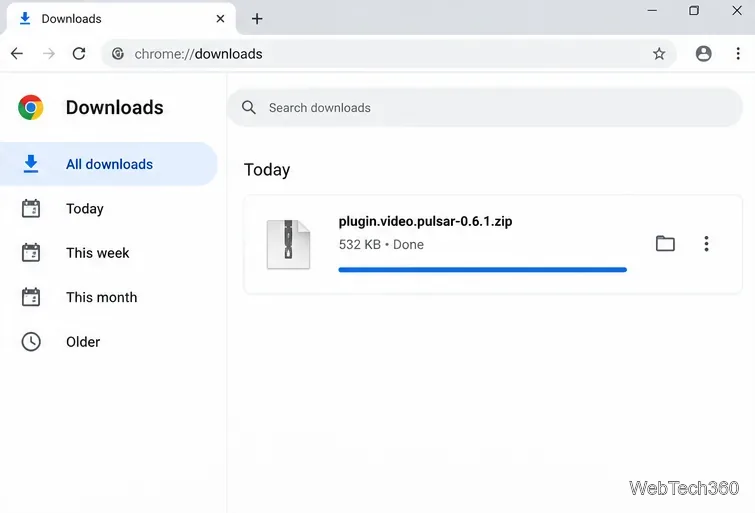
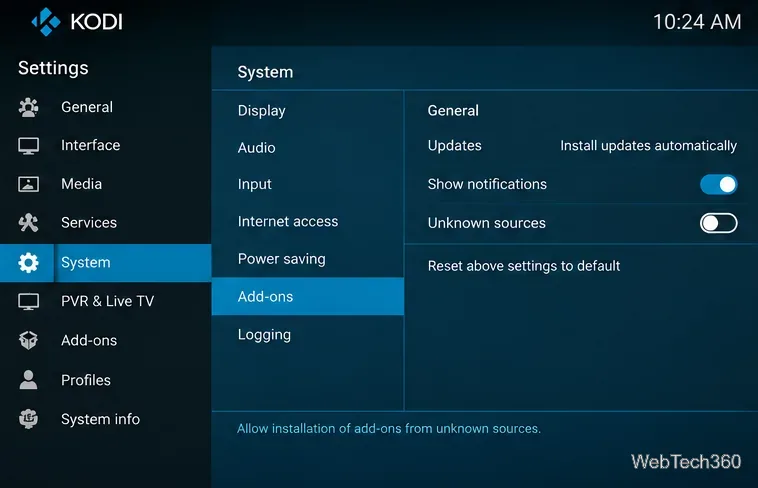
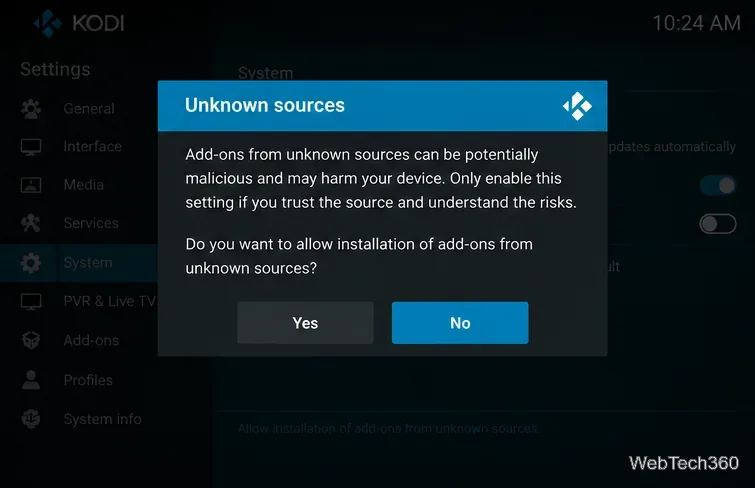
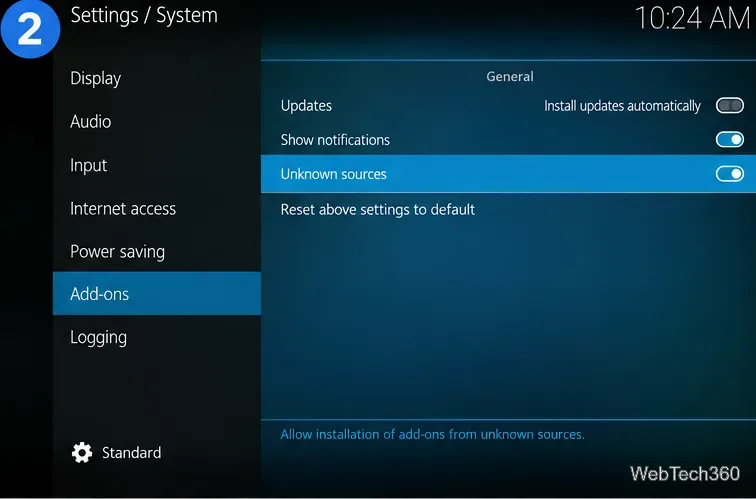
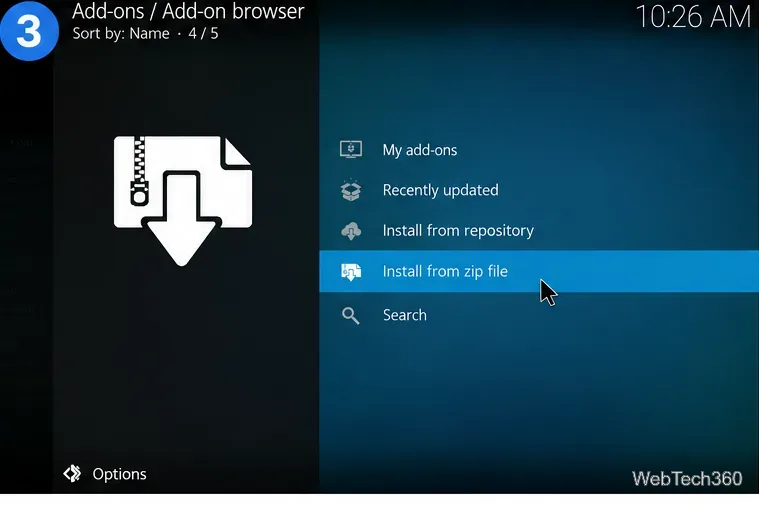
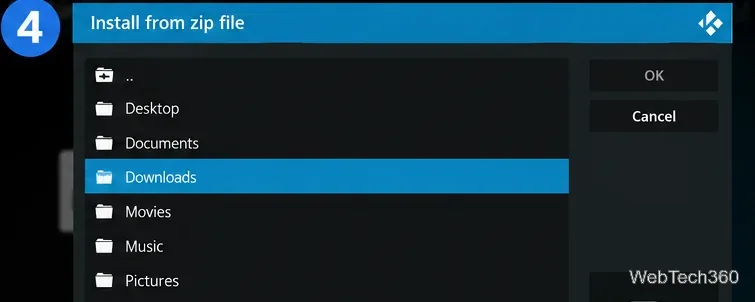
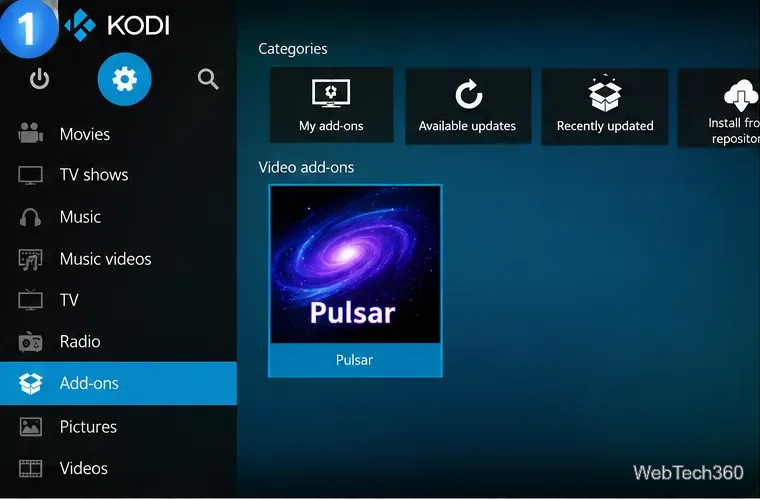
For the supported mechanics of ZIP installation, see the official Kodi add-on manager guide. Installing a downloaded ZIP without a repository may also mean losing automatic updates.
Pulsar was designed as a BitTorrent playback engine. The main add-on handled playback and buffering; separate provider add-ons searched outside sources and returned torrent or magnet links. Installing only Pulsar does not supply a guaranteed catalog of movies or TV shows. Its original documentation also explains that streaming a torrent can involve uploading data to peers and using local disk space.
The old instructions to add SuperRepo and “Pulsar MC's Provider Manager” cannot be verified as a current, reliable setup. Do not follow an unverified repository address or random provider bundle. Only access and share media you have the rights to use.
First, fully quit Kodi once and reopen it. If the loop returns, check the Kodi version and whether the add-on has an outdated Python dependency. The original Pulsar instructions required Kodi's application-control settings, but turning on every remote-control option is not a safe blanket fix.
In Settings > Services > Control, leave Allow remote control from applications on other systems disabled unless you have a specific, secured need for it. Kodi warns that this interface allows unauthenticated network control. Enabling the option for applications on this system should also be a deliberate local troubleshooting decision, not a substitute for a compatible add-on.
Make sure the downloaded file is a release package, not GitHub's source-code archive. Look for a specific “dependency not satisfied” message. On Kodi 19 or newer, a dependency referring to an obsolete Python runtime is a strong sign that the legacy package needs a developer port. Installing more unrelated repositories will not solve that underlying incompatibility.
Separate three problems: no compatible providers installed, a torrent with no available peers, and insufficient download space or storage permissions. A working menu does not establish that any provider or magnet link is valid. Avoid arbitrary firewall approvals for an unfamiliar executable, and do not disable security software merely to make an archived add-on run.
Enable Kodi debugging, reproduce the error once, and consult the official Kodi log-file instructions. On standard Windows installs, Kodi lists the log at %APPDATA%\Kodi\kodi.log. Inspect the first dependency, Python, permissions, or service-start error; repeatedly reopening Kodi rarely adds information. Remove private details before sharing any log.
Public source code is useful for transparency, but it does not prove that an old executable, a third-party build, or a provider is safe. BitTorrent peers may be able to observe participating IP addresses; a VPN does not make unauthorized sharing legal or guarantee anonymity.
For a dependable setup, install the current stable Kodi version from official Kodi download page and use supported add-ons from its official repository, along with locally stored or otherwise authorized media. Quasar was a historical Pulsar fork, not evidence that either legacy project is maintained or compatible with today's Kodi. If Pulsar fails because of its age, replacing it is generally safer than weakening Kodi's security settings.
Learn how to uninstall a Kodi repository safely, remove its saved source URL separately, and check which installed add-ons or dependencies you still need.
Find the safest way to watch live tennis with Kodi: learn what iPlayer WWW can stream, how to find licensed coverage, and which add-ons to avoid.
Learn how to watch movies on Kodi from your computer, USB drive, or NAS, add online video services, and fix missing titles with clear setup steps.
Set a Kodi Master Lock PIN, protect selected menus, and create a separate kids’ profile with media sources you choose.
Find the authorized stream for your country, check whether its provider supports Kodi, and watch a boxing PPV on your TV without relying on outdated add-ons.
Compare five Kodi skins in the official Omega catalog, then follow the current Settings path to install one, customize it, or switch back.
Looking for the 1Channel Kodi add-on? Learn why old PrimeWire installation guides are unreliable and how to install a supported video add-on safely.
Enable Kodi’s Chorus2 web interface, control your media from any browser, and learn how to connect remotely without exposing Kodi to the Internet.
Follow the original Nemesis Kodi installation process, learn what changed with Stream Army, and avoid outdated repository and PIN instructions.
Download Kodi safely on Windows using the official installer or Microsoft Store, then add your media library and set up trusted add-ons.








