How to Uninstall Kodi Repositories the Right Way

Learn how to uninstall a Kodi repository safely, remove its saved source URL separately, and check which installed add-ons or dependencies you still need.
Quasar can still be downloaded from its original Kodi project, but it is a legacy add-on—not a dependable installation for current Kodi. The newest release visible in the original archive is Quasar 0.9.78, dated April 13, 2017. This guide explains the historical ZIP installation process, Quasar Burst, and common errors, while making clear where modern compatibility cannot be guaranteed.
Quasar was a BitTorrent-based media engine built as a fork of Pulsar. Instead of waiting for an entire file to download, it attempted playback while downloading and sharing pieces with peers. It does not ship with a catalog of playable torrents: separate provider add-ons were needed. See Quasar’s original GitHub project for the project’s original design.
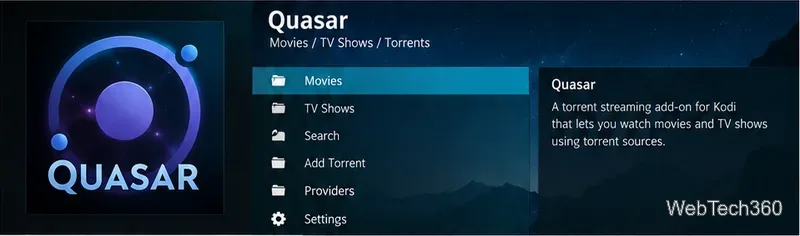
Expect compatibility problems on Kodi 19 and later. Kodi switched its Python add-on environment to Python 3 beginning with Kodi 19, while Quasar’s last original release predates that transition. The presence of a downloadable ZIP does not establish compatibility with Kodi 19, 20, 21, or later. Kodi documents the change in Kodi’s Python 3 migration notes.
Use these steps only if you are maintaining a compatible older setup, testing in an isolated environment, or researching how Quasar worked. Do not downgrade a secure, supported Kodi installation solely to run Quasar, and do not download repackaged “fixed” ZIPs from unfamiliar sites.
The original instructions used a platform-specific add-on package. They remain useful as an archive of the process, not a promise that installation will work today.
Open the original Quasar release archive. Under version 0.9.78, choose the ZIP matching the device architecture, such as plugin.video.quasar-0.9.78.windows_x64.zip for a 64-bit Windows system. Do not use GitHub’s generic Source code (zip) file; it is not the packaged add-on with its platform binary.
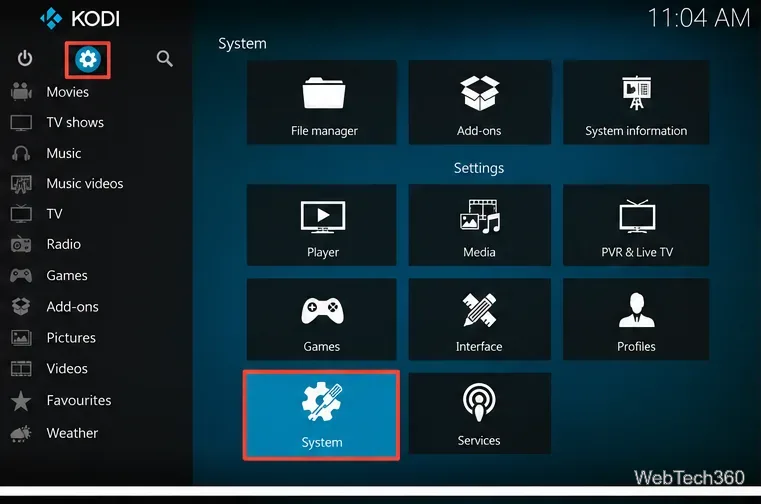
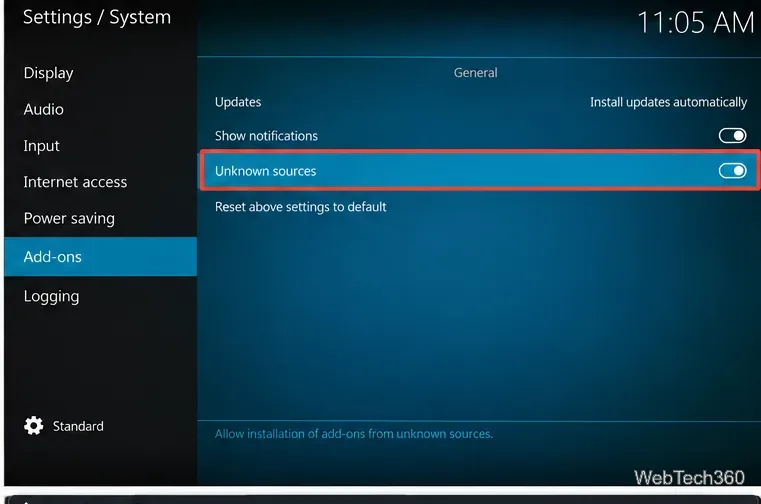
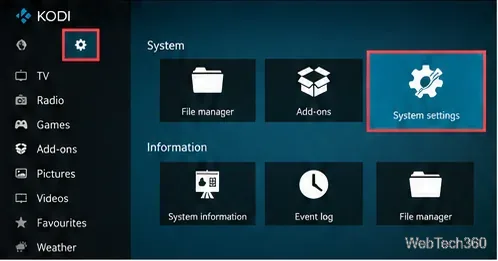
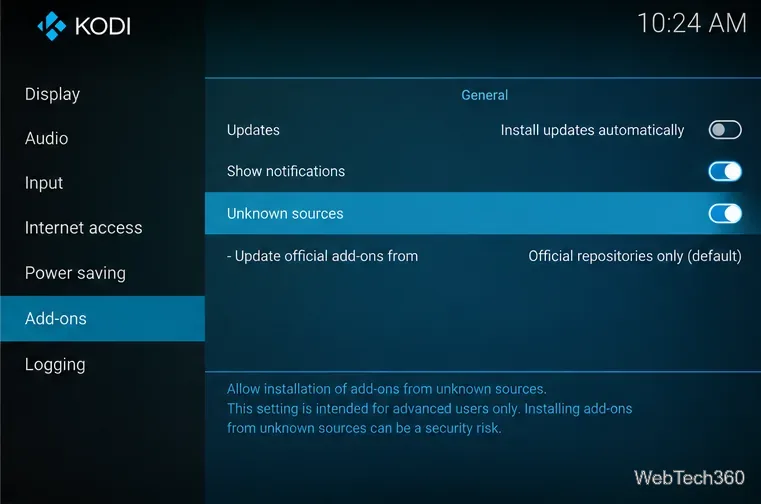
In Kodi, go to Settings > System > Add-ons and find Unknown sources. Kodi requires this for installing ZIPs outside its official repository. Read the warning first: third-party packages may access device data. Enable it only if you trust and have checked the exact package you intend to install.
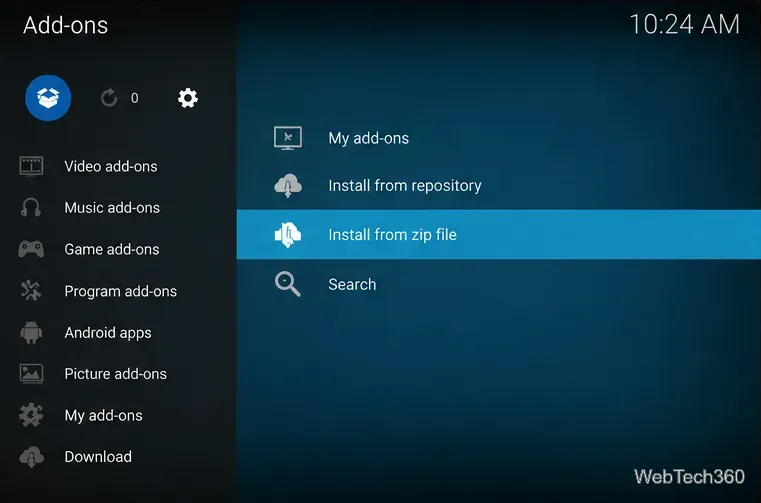
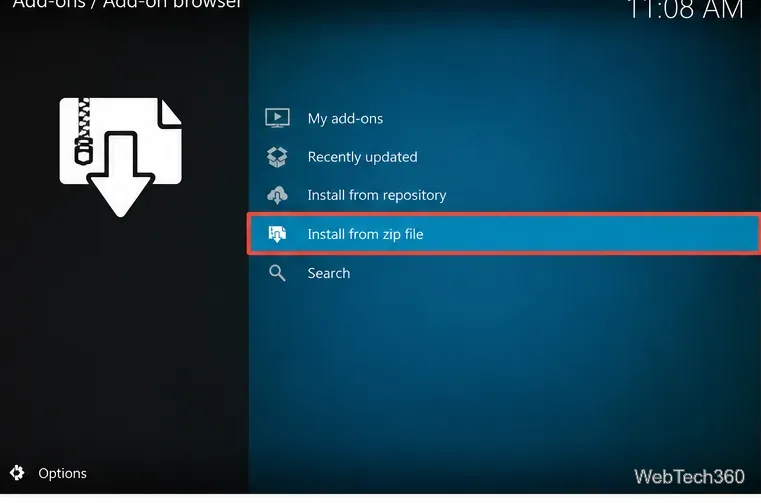
From Add-ons, open the add-on browser (the open-box icon) and choose Install from zip file. The exact presentation varies by Kodi skin and release; the workflow is described in Kodi’s official add-on installation guide.
Browse to the downloaded file and select it. Allow Kodi to report an installation result, then check My add-ons > Video add-ons. If it reports a missing dependency or an incompatible Python requirement, treat that as a compatibility warning rather than repeatedly forcing installation.
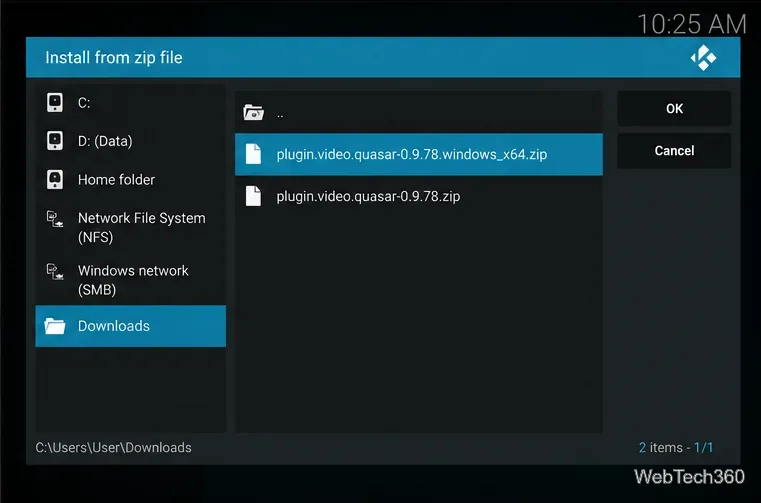
Quasar relied on provider scripts. Its companion Quasar Burst was distributed separately; Burst’s project documentation records the historical instructions and package naming. For a compatible legacy system, Burst used the same Add-ons > Install from zip file workflow, with a script.quasar.burst-*.zip package. The documentation is old, so do not assume its download endpoint or providers are maintained. Avoid unknown mirrors and do not add providers offering material you are not authorized to access.
Open Quasar’s add-on information or settings, look for its general Download path option, and choose a writable folder on a suitable local filesystem. Avoid FAT32 for large video files because it has a roughly 4 GB per-file limit. Confirm sufficient free storage: starting playback early does not eliminate disk usage, and the engine may continue uploading pieces while a torrent is active.
The original maintainer instructed users to check Settings > Services > Control and restart Kodi after changing the application-control options. You can inspect those options through Kodi settings:
First, fully exit Kodi and launch it again. On a legacy installation, check whether Allow remote control from applications on this system is available and required. The older project also requested Allow remote control from applications on other systems, but do not enable network-wide control merely to dismiss a prompt: Kodi notes that this grants unauthenticated control to clients on the local network. Consult Kodi’s application-control documentation, and never expose those interfaces to the Internet. If the message persists, the problem may be a binary or version incompatibility rather than a missed toggle.
If the reason remains unclear, enable Settings > System > Logging > Enable debug logging, restart Kodi, reproduce the issue, and review the log using Kodi’s official debug-log procedure. Remove personal details before sharing logs publicly.
Kodi itself is legitimate open-source media-center software. Quasar’s open-source code can be examined, but an old downloadable build should not automatically be considered safe, maintained, or compatible. With BitTorrent, peers can see participating network addresses, and uploading can occur during playback. Streaming copyrighted media without permission may violate applicable law. A VPN does not grant content rights or guarantee anonymity.
Bottom line: the original Quasar installation can be documented, but it is best treated as a legacy setup. On a current Kodi device, favor actively maintained add-ons and lawful sources over workarounds for obsolete binaries.
Learn how to uninstall a Kodi repository safely, remove its saved source URL separately, and check which installed add-ons or dependencies you still need.
Find the safest way to watch live tennis with Kodi: learn what iPlayer WWW can stream, how to find licensed coverage, and which add-ons to avoid.
Learn how to watch movies on Kodi from your computer, USB drive, or NAS, add online video services, and fix missing titles with clear setup steps.
Set a Kodi Master Lock PIN, protect selected menus, and create a separate kids’ profile with media sources you choose.
Find the authorized stream for your country, check whether its provider supports Kodi, and watch a boxing PPV on your TV without relying on outdated add-ons.
Compare five Kodi skins in the official Omega catalog, then follow the current Settings path to install one, customize it, or switch back.
Looking for the 1Channel Kodi add-on? Learn why old PrimeWire installation guides are unreliable and how to install a supported video add-on safely.
Enable Kodi’s Chorus2 web interface, control your media from any browser, and learn how to connect remotely without exposing Kodi to the Internet.
Follow the original Nemesis Kodi installation process, learn what changed with Stream Army, and avoid outdated repository and PIN instructions.
Download Kodi safely on Windows using the official installer or Microsoft Store, then add your media library and set up trusted add-ons.








