How to Uninstall Kodi Repositories the Right Way

Learn how to uninstall a Kodi repository safely, remove its saved source URL separately, and check which installed add-ons or dependencies you still need.
Real-Debrid works in Kodi through a compatible add-on. Create an account, authorize it in the add-on’s settings, and approve the device code on Real-Debrid’s official page. Menu names vary; there is no universal Real-Debrid installer. Use only media you are authorized to access. Real-Debrid’s terms prohibit copyright-infringing downloads.
Real-Debrid is a link-unrestricting service; Kodi is a media player. A compatible add-on can connect your account to supported links, but Real-Debrid is not a content catalog or a license to watch copyrighted material. Success depends on the add-on, your account, the host, and source availability. Review the current terms and API documentation.
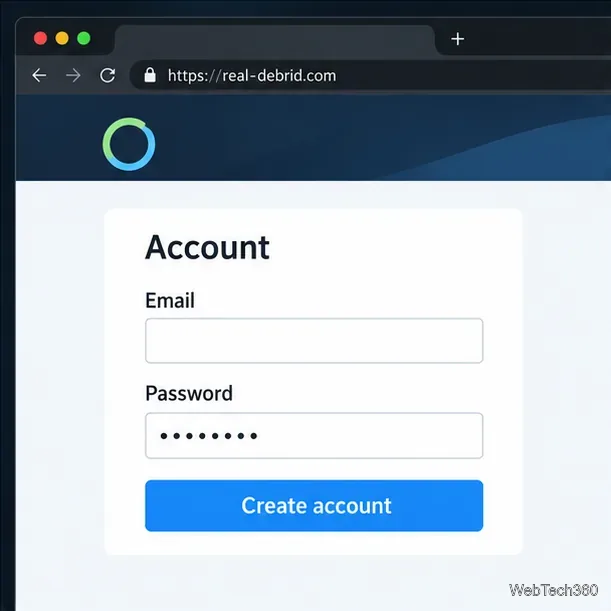
Open the official Real-Debrid website, register or sign in, and follow its prompts. Confirm your account meets the add-on’s requirements. Keep your password private; Real-Debrid limits account use to its holder.
In Kodi’s add-on browser, choose a media add-on whose maintainer documents Real-Debrid support. Prefer Kodi’s built-in catalog when it has a compatible option. Otherwise, use the developer’s official instructions and check Kodi-version compatibility. Support belongs to each add-on and can change between releases.
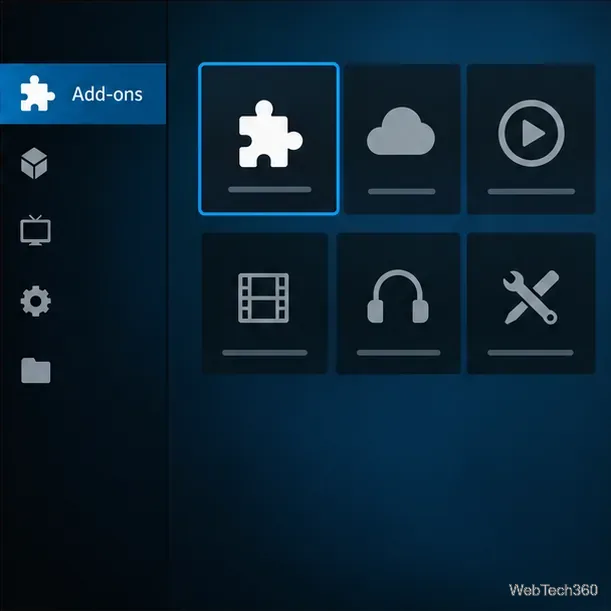
Open the add-on’s information or settings page from Kodi’s Add-ons area. Look for Accounts, Debrid services, or a similar section; names and locations vary. If Real-Debrid is missing, check whether the add-on currently supports it.
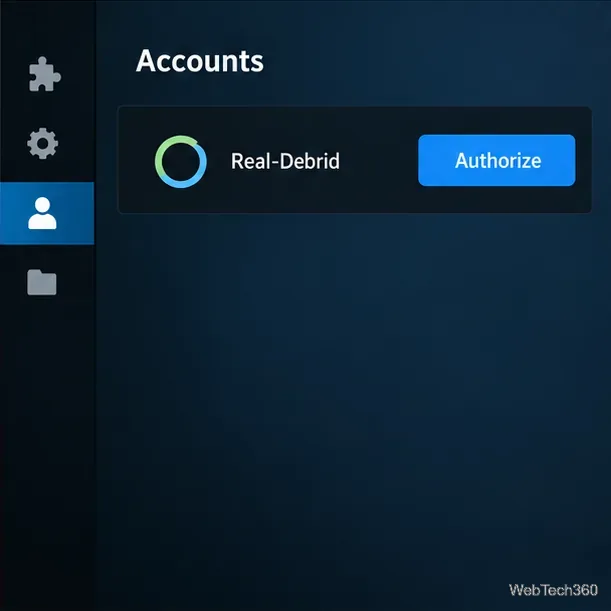
Select Real-Debrid, enable it if needed, and choose its authorize or pair action. Kodi should display a temporary device code. Keep the prompt open while you authorize. Use only controls documented by the add-on; Kodi has no universal priority value for this service.
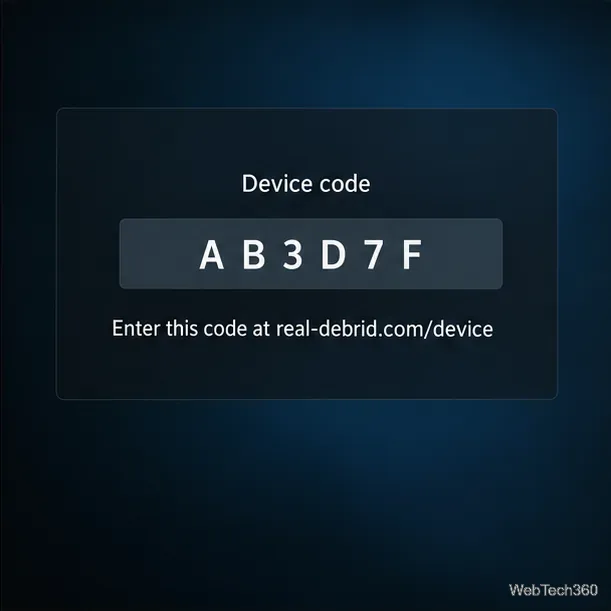
On a phone or computer, open real-debrid.com/device and sign in if asked. Confirm the domain before entering the code.
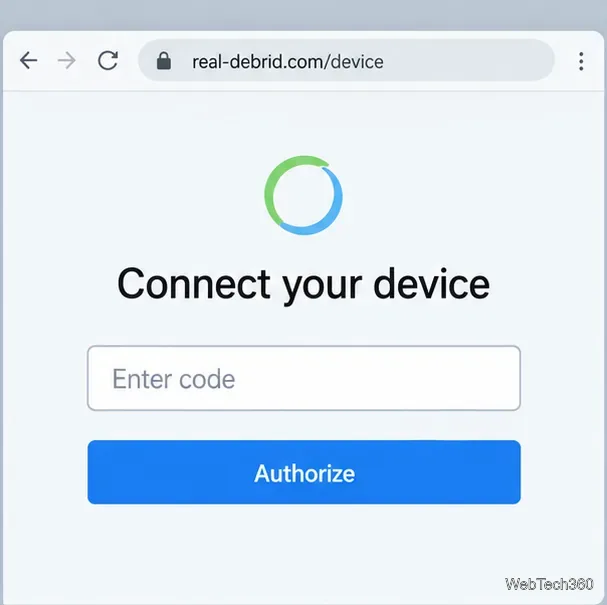
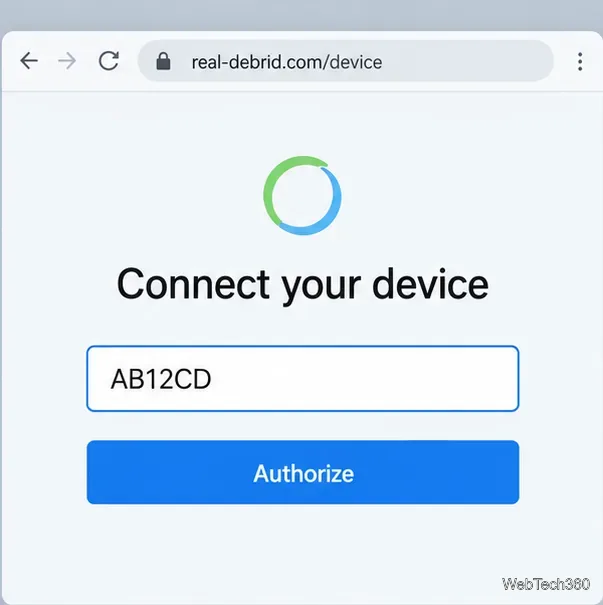
Enter Kodi’s code on the page and approve the connection. The device flow uses a temporary code, so submit it promptly. Keep the code and your account credentials private. Return to Kodi after the website confirms authorization.
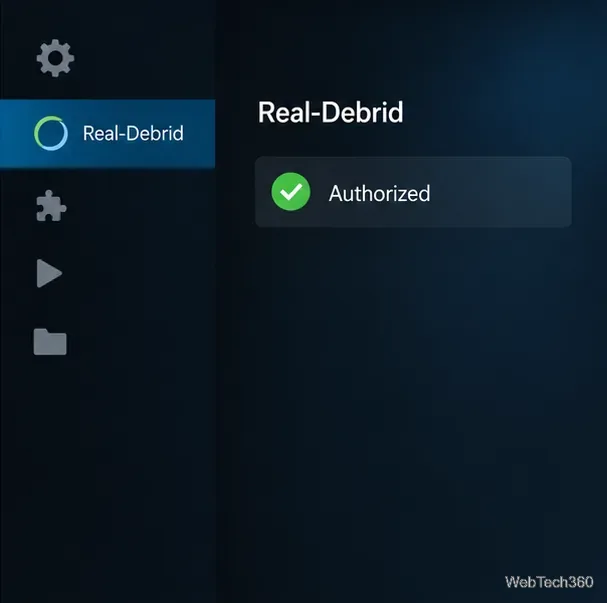
Return to the add-on settings and look for a connected or authorized status. The confirmation text varies by add-on. If the code expires, start again in Kodi and submit the new code.
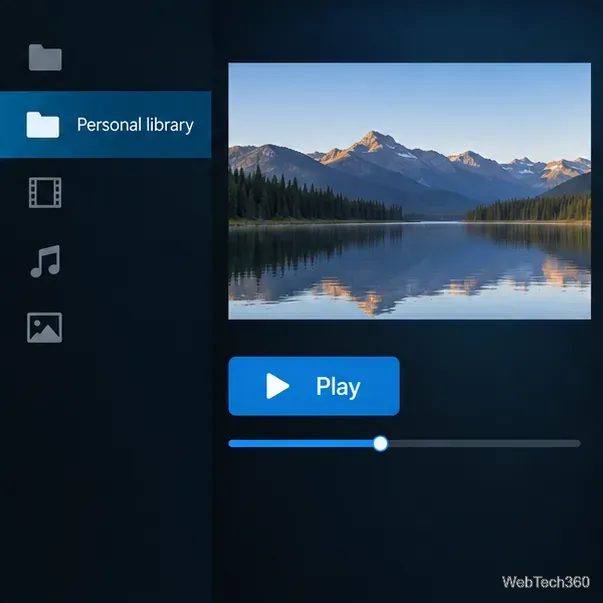
Test the add-on with a source you own, host, or are licensed to access. A local file can confirm Kodi playback, but it does not test Real-Debrid; use a supported link in the add-on to check the connection. Real-Debrid cannot restore an unavailable source or make unauthorized material lawful.
Real-Debrid’s terms restrict an account to its holder and prohibit account sharing and copyright-infringing downloads. Team Kodi maintains the official repository; separately installed add-ons have their own publishers. Read the add-on’s terms and access only material you are allowed to use.
Learn how to uninstall a Kodi repository safely, remove its saved source URL separately, and check which installed add-ons or dependencies you still need.
Find the safest way to watch live tennis with Kodi: learn what iPlayer WWW can stream, how to find licensed coverage, and which add-ons to avoid.
Learn how to watch movies on Kodi from your computer, USB drive, or NAS, add online video services, and fix missing titles with clear setup steps.
Set a Kodi Master Lock PIN, protect selected menus, and create a separate kids’ profile with media sources you choose.
Find the authorized stream for your country, check whether its provider supports Kodi, and watch a boxing PPV on your TV without relying on outdated add-ons.
Compare five Kodi skins in the official Omega catalog, then follow the current Settings path to install one, customize it, or switch back.
Looking for the 1Channel Kodi add-on? Learn why old PrimeWire installation guides are unreliable and how to install a supported video add-on safely.
Enable Kodi’s Chorus2 web interface, control your media from any browser, and learn how to connect remotely without exposing Kodi to the Internet.
Follow the original Nemesis Kodi installation process, learn what changed with Stream Army, and avoid outdated repository and PIN instructions.
Download Kodi safely on Windows using the official installer or Microsoft Store, then add your media library and set up trusted add-ons.








