How to Uninstall Kodi Repositories the Right Way

Learn how to uninstall a Kodi repository safely, remove its saved source URL separately, and check which installed add-ons or dependencies you still need.
Should you install Kodi on a smart TV? Yes, if Kodi is available for your TV’s exact operating system and model, and the built-in hardware handles your media smoothly. If installation requires sideloading, the app is missing from the store, or performance matters more than a tidy setup, a separate HDMI streaming device is usually the simpler long-term choice.
Kodi is a free, open-source media center for organizing and playing video, music, photos, and other media from local or network storage. It provides a TV-friendly library; it does not supply movies or channels. “Smart TV” is a category, not a single platform, so your operating system determines whether Kodi is a straightforward install.
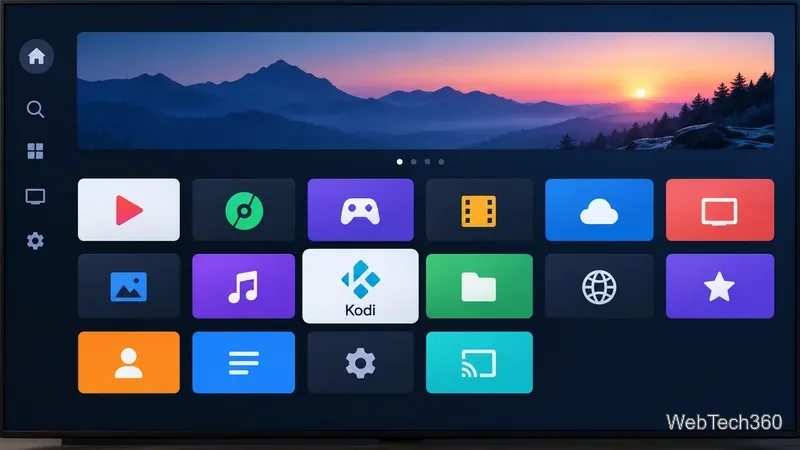
Start with the TV’s full model number and operating system, then check its own app store and Kodi’s current platform pages. Availability can differ between models from the same brand.
| TV platform | What to expect | Practical choice |
|---|---|---|
| Android TV or Google TV | Kodi has an Android build; the TV’s Play Store only shows apps compatible with that device. | Install the official listing if it appears in the TV’s Play Store. Don’t assume a phone-compatible app will work well on every television. |
| LG webOS | Kodi’s instructions say it is not in the LG Content Store. They describe sideloading with Developer Mode and list webOS 4 or later, except K5LP-based TVs, as supported hardware. | Consider it only if you are comfortable with the extra setup and have a supported model. |
| Samsung Tizen or Roku OS | Kodi’s official downloads list Android and webOS, but not Tizen or Roku OS. | Use an external device that runs a supported platform instead of relying on an unofficial package. |
| Amazon Fire TV | Kodi’s Fire TV guide uses sideloading; a Fire TV Stick is already an external player. | Follow Kodi’s current Fire TV instructions if you want Kodi on that hardware. |
Use Kodi’s official download page for current builds and stable-release guidance. On Android TV or Google TV, check the Google Play listing on your set. Google’s platform guide explains that app availability depends on device compatibility.
On a supported TV, Kodi can save you a separate box, outlet, HDMI input, and extra remote. Its TV-oriented interface works with the television’s remote, leaving fewer devices and cables around the screen.
Add media from USB, a computer, or network storage and browse it on the TV. Kodi also lets you adjust its skin and settings to fit how you watch.
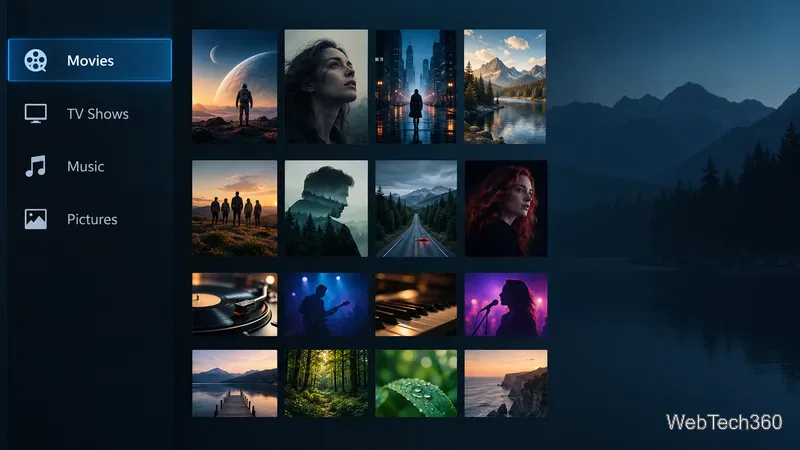
TV hardware is fixed: its processor, memory, storage, and software support cannot be upgraded separately. Ordinary streaming performance does not guarantee that Kodi will handle a large library or every high-resolution video, audio, or subtitle format smoothly. Kodi notes that Android performance varies by device.
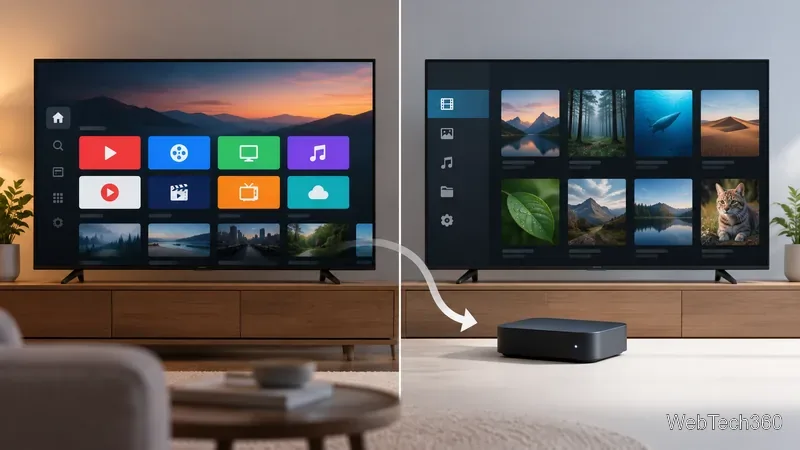
An external player can be replaced or moved without changing the TV, and you can choose it for the formats and connections you need. It adds a purchase, setup, cable, and possibly another remote. HDMI-CEC may let the TV remote control it if both devices support the feature.
A VPN is not needed to install Kodi or play your own local media. Kodi includes no content; use media and add-ons you are authorized to access. A VPN does not grant copyright permission or guarantee that a streaming service will allow a connection.
Install Kodi directly when your TV is supported, the app installs through a trusted route, and the set handles your library well. Treat webOS sideloading as an advanced option. If your platform is unsupported or slow, use an external player.
Learn how to uninstall a Kodi repository safely, remove its saved source URL separately, and check which installed add-ons or dependencies you still need.
Find the safest way to watch live tennis with Kodi: learn what iPlayer WWW can stream, how to find licensed coverage, and which add-ons to avoid.
Learn how to watch movies on Kodi from your computer, USB drive, or NAS, add online video services, and fix missing titles with clear setup steps.
Set a Kodi Master Lock PIN, protect selected menus, and create a separate kids’ profile with media sources you choose.
Find the authorized stream for your country, check whether its provider supports Kodi, and watch a boxing PPV on your TV without relying on outdated add-ons.
Compare five Kodi skins in the official Omega catalog, then follow the current Settings path to install one, customize it, or switch back.
Looking for the 1Channel Kodi add-on? Learn why old PrimeWire installation guides are unreliable and how to install a supported video add-on safely.
Enable Kodi’s Chorus2 web interface, control your media from any browser, and learn how to connect remotely without exposing Kodi to the Internet.
Follow the original Nemesis Kodi installation process, learn what changed with Stream Army, and avoid outdated repository and PIN instructions.
Download Kodi safely on Windows using the official installer or Microsoft Store, then add your media library and set up trusted add-ons.








