Stream Movies Legally on Kodi: 3 Safe Ways to Watch

You can stream movies legally on Kodi in three practical ways: play video files you have the rights to use, share that library with other devices on your home network, or install add-ons that connect to authorized online video sources. None of these requires a piracy build or a VPN. The key distinction is where the movie comes from—not whether you play it through Kodi.

Kodi is a free media center, not a subscription movie catalog. It does not supply films when first installed. Download it from the official Kodi website. The paths below reflect Kodi 21 (Omega) with the default Estuary interface; other skins may arrange the same controls differently.

1. Play movies from your own Kodi library

This is the simplest option for downloads, home videos, and other media you are permitted to store and play. Organize movie files in a clearly named folder before adding it to Kodi. Kodi can scan your files, match titles, and display artwork, but the match depends on filenames and metadata.

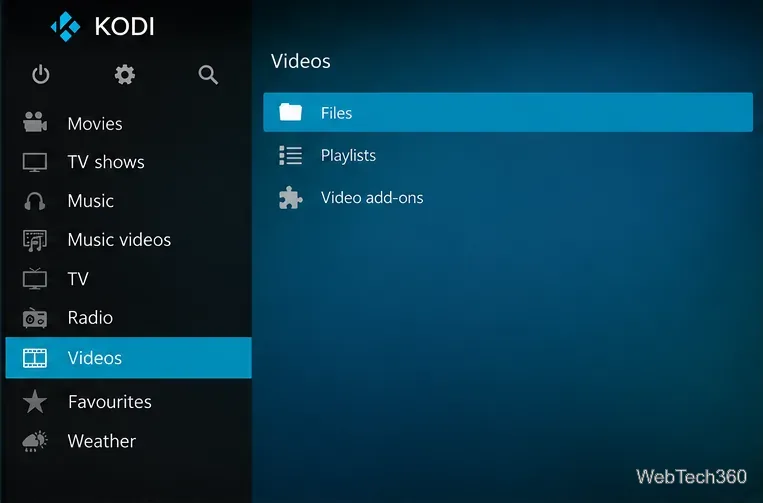
  1. Open the video source browser. On Kodi’s home screen, choose Videos > Files > Add videos..., then select Browse.
Kodi Videos screen with the Files entry highlighted.
Start in Videos, then open Files to add an existing movie folder.
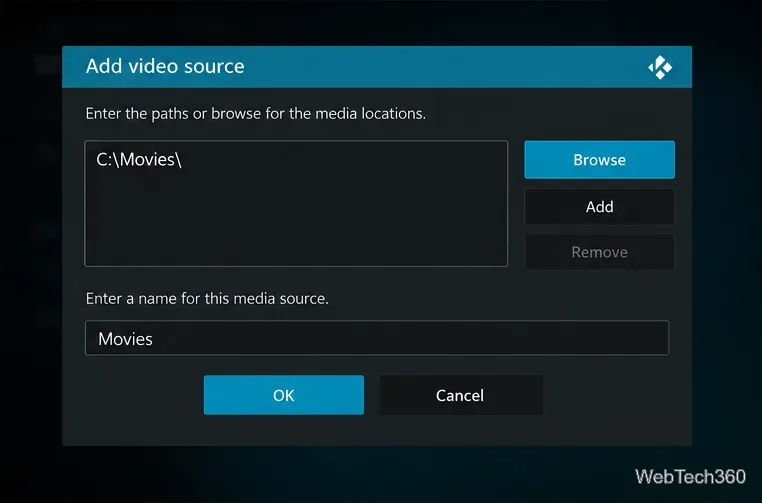
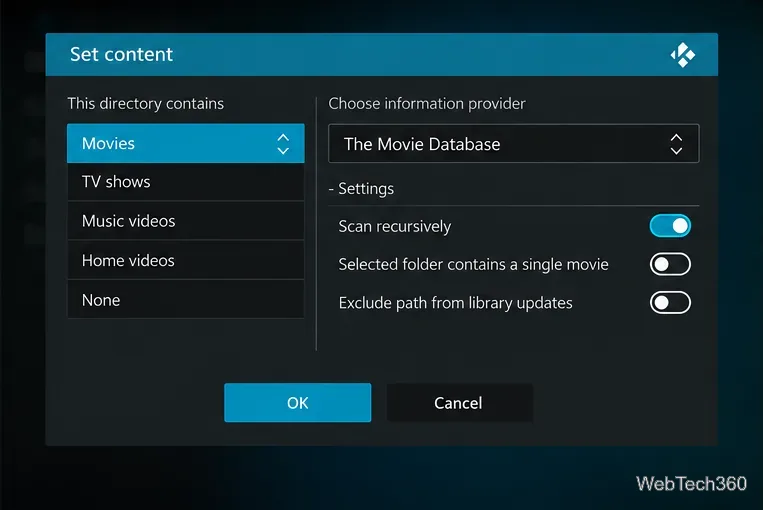
  1. Select and identify the folder. Browse to the folder that contains your movies, select OK, and give the source a recognizable name. In the Set content window, choose Movies under “This directory contains.”
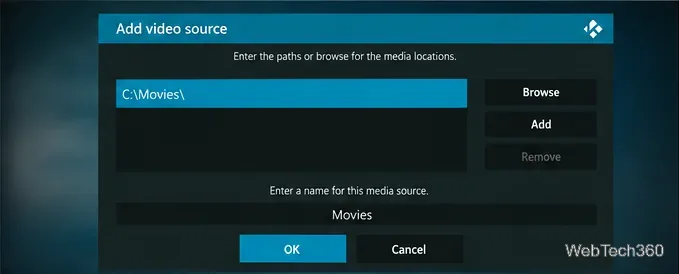
Kodi Add video source dialog with a sample Movies folder path and Browse button.
Choose the folder containing movies; the Windows path shown is only an example.
Kodi Set content window displaying Movies as the selected media type.
Set the content type to Movies so Kodi can organize titles in its library.
  1. Scan and watch. Confirm the content settings and allow Kodi to scan the folder. Open Movies to browse matched titles, or return to Videos > Files if you prefer to play a file directly without library metadata.

If posters or movie titles are wrong, check filenames and the source’s content settings before rescanning. The official adding video sources guide explains the scraper options.

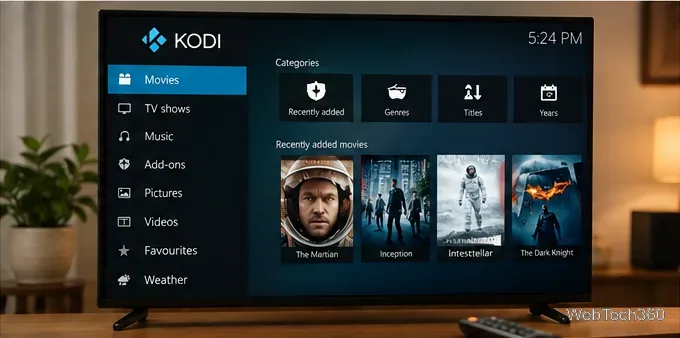
TV displaying a Kodi movie library with poster thumbnails and categories.
A movie library can organize scanned files into a poster-based browsing view.

2. Stream your library to another device over your home network

Kodi supports UPnP/DLNA sharing between devices on the same local network. It is useful when movies are stored on a desktop computer but you want to watch from another Kodi device. The first device needs an indexed movie library and must remain on and reachable while streaming.

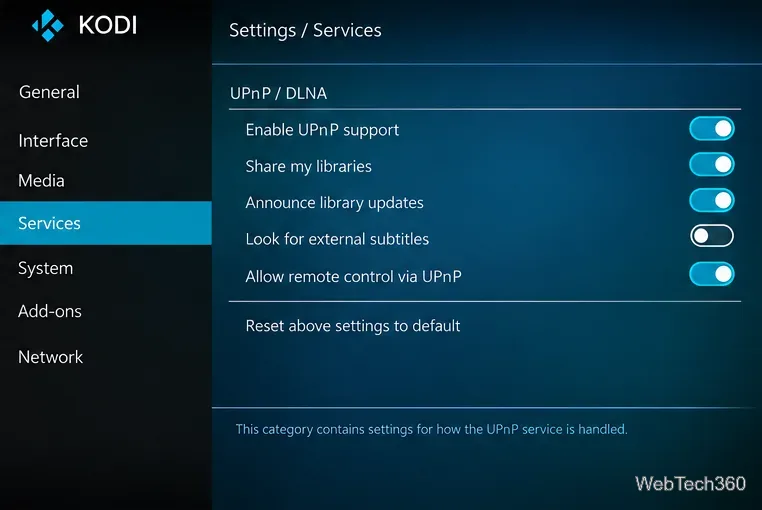
  1. Set up the server. On the device holding your movies, open Settings > Services > UPnP / DLNA. Turn on Enable UPnP support and Share my libraries. If necessary, first complete the movie-library scan described above.
Kodi Services settings with Enable UPnP support and Share my libraries switched on.
On the device storing your movies, enable UPnP support and library sharing.
  1. Prepare the second device. Connect both devices to the same trusted home network. Install Kodi on the playback device, then enable UPnP support in its Services settings so it can discover available servers.
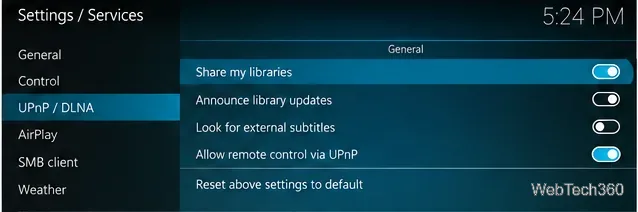
Kodi UPnP and DLNA Services settings displaying library sharing controls.
The UPnP/DLNA settings control whether a Kodi library is shared on the network.
  1. Find and play the shared movies. On the playback device, go to Videos > Files > Add videos... > Browse > UPnP Devices. Choose the server, confirm the source, and browse its shared movies.

Important limitation: UPnP is for browsing and playing shared items, not building a full independent Kodi movie library from a UPnP source. For a network folder you want to index as a library on each device, Kodi recommends a supported file-sharing protocol such as SMB instead. See the Kodi UPnP guide.

Keep UPnP sharing confined to a trusted local network. Kodi also warns about UPnP-related network security risks; you normally do not need to enable your router’s internet-facing UPnP features just to share media between Kodi devices at home.

3. Use video add-ons from Kodi’s official repository

For online viewing, the safer starting point is Kodi’s built-in repository rather than an unknown ZIP file, preloaded box, or third-party build. Its catalog includes add-ons for services and sites that distribute video through their own platforms. Availability and playable titles can vary by region, account, service changes, and Kodi version.

  1. Open the repository. From Add-ons, select the open-box icon and choose Install from repository. Select Kodi Add-on repository if more than one repository is listed, then open Video add-ons.
  2. Choose a legitimate source. Browse the listing, read the description, and select Install. Two examples listed for Kodi 21 are Internet Archive, which offers access to archived media, and Vimeo, which hosts videos from creators. Check each title’s rights and the provider’s terms; an add-on being official does not make every internet upload public-domain or available worldwide.
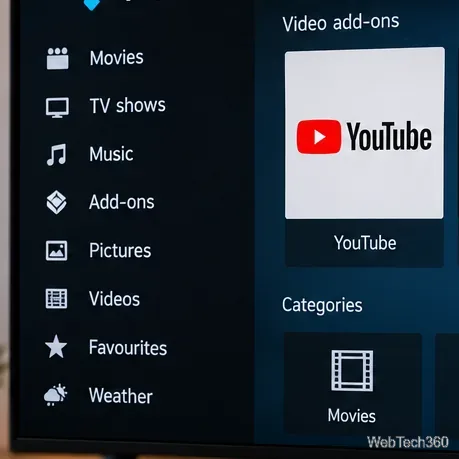
Kodi video add-ons area showing a YouTube video entry and navigation sidebar.
Video add-ons connect Kodi to online platforms; select content shared with permission.

Kodi’s add-on manager instructions cover installation and updates. There is no need to enable Unknown sources for add-ons installed from the official repository. Older recommendations for Viewster and SnagFilms should not be treated as working current options without fresh verification.

How to tell whether a Kodi movie stream is safe and legal

  • Check the rights: Use files you may lawfully possess and play, or videos offered by the rights holder or an authorized distributor. Owning a disc does not necessarily grant permission to circumvent copy protection or distribute copies; local rules differ.
  • Check the source: Prefer Kodi’s official download and repository. Avoid add-ons advertising brand-new paid releases for free without explaining their licensing.
  • Keep software updated: Apply stable Kodi and add-on updates, keep your device security protections active, and review unusual permissions.
  • Understand VPN limits: A VPN may protect traffic on some networks, but it cannot grant streaming rights, legitimize unauthorized content, or guarantee anonymity.

Kodi’s own legal guidance makes the distinction between the lawful media-player software and content supplied through it.

Quick fixes if movies do not appear

Local files missing? Revisit Videos > Files and confirm Kodi can access the selected folder. If the source is present but the Movies library is empty, check that the folder’s content type is set to Movies and rescan it.

Kodi Add video source dialog with a selected folder and OK confirmation.
Use the video source dialog to correct an unavailable or incorrectly selected folder.

UPnP server not listed? Verify both devices are on the same LAN, the server is running, the library was scanned, and UPnP support is enabled on the receiving device. Guest Wi-Fi networks and firewall rules may block discovery.

An online add-on has no playable movies? Check its provider page, sign-in requirements, regional availability, and recent updates. Switching to an unverified mirror is not a reliable or lawful fix.

Leave a Comment

How to Uninstall Kodi Repositories the Right Way

How to Uninstall Kodi Repositories the Right Way

Learn how to uninstall a Kodi repository safely, remove its saved source URL separately, and check which installed add-ons or dependencies you still need.

Live Tennis on Kodi: Best Add-Ons and Legal Ways to Watch

Live Tennis on Kodi: Best Add-Ons and Legal Ways to Watch

Find the safest way to watch live tennis with Kodi: learn what iPlayer WWW can stream, how to find licensed coverage, and which add-ons to avoid.

How to Watch Movies on Kodi: A Complete Beginner’s Tutorial

How to Watch Movies on Kodi: A Complete Beginner’s Tutorial

Learn how to watch movies on Kodi from your computer, USB drive, or NAS, add online video services, and fix missing titles with clear setup steps.

How to Turn On Kodi Parental Controls and Lock a Kids’ Profile

How to Turn On Kodi Parental Controls and Lock a Kids’ Profile

Set a Kodi Master Lock PIN, protect selected menus, and create a separate kids’ profile with media sources you choose.

How to Watch Boxing PPV Streams on Kodi—Legally and Reliably

How to Watch Boxing PPV Streams on Kodi—Legally and Reliably

Find the authorized stream for your country, check whether its provider supports Kodi, and watch a boxing PPV on your TV without relying on outdated add-ons.

5 Best Kodi Skins and How to Change Kodi’s Look in Minutes

5 Best Kodi Skins and How to Change Kodi’s Look in Minutes

Compare five Kodi skins in the official Omega catalog, then follow the current Settings path to install one, customize it, or switch back.

1Channel Kodi Add-on: Can You Still Install It for Movies and TV Shows?

1Channel Kodi Add-on: Can You Still Install It for Movies and TV Shows?

Looking for the 1Channel Kodi add-on? Learn why old PrimeWire installation guides are unreliable and how to install a supported video add-on safely.

How to Control Kodi With the Web Interface, at Home or Away

How to Control Kodi With the Web Interface, at Home or Away

Enable Kodi’s Chorus2 web interface, control your media from any browser, and learn how to connect remotely without exposing Kodi to the Internet.

Nemesis Kodi Add-on: How to Install It and Check Availability

Nemesis Kodi Add-on: How to Install It and Check Availability

Follow the original Nemesis Kodi installation process, learn what changed with Stream Army, and avoid outdated repository and PIN instructions.

How to Download and Set Up Kodi on Windows

How to Download and Set Up Kodi on Windows

Download Kodi safely on Windows using the official installer or Microsoft Store, then add your media library and set up trusted add-ons.