The BK Links Build for Kodi: What It Was and How to Set Up Kodi Safely

Short answer: BK Links was a third-party Kodi build distributed through the Stream Digital Wizard, but I could not verify a current, trustworthy download or a package compatible with today’s Kodi. The old directions use a third-party ZIP and a “Fresh Install” that resets Kodi. Treat the menu tour below as historical, not as a working install guide.

Kodi is a media player, not a source of movies or live channels. A build groups a skin, shortcuts, settings, and add-ons maintained by others. Kodi’s guide to builds and add-ons explains that official and third-party add-ons are different; add-ons that bypass paywalls or provide unauthorized access are excluded from Kodi’s repository.

As of October 25, 2026, Kodi’s latest stable release is v21.3 “Omega.” Kodi 22 “Piers” RC 1 remains a prerelease. Check the official download page and its v21.3 release note before installing.

What the BK Links menu offered

The old layout grouped shortcuts by media type. Those labels described add-on menus, not guaranteed catalogs, working streams, or content supplied by Kodi.

Legacy sectionWhat it surfaced
Movies and ShowsWidgets and shortcuts to video add-ons.
4K HubUHD-labeled links; playback depended on the source and device.
Sports and Live TVThird-party sports and IPTV add-on menus, not a Kodi broadcast service.
Kiddos, Music, Lounge, PreviewThemed collections and music feeds; destinations could require accounts or stop working.
Tools and SystemBuild maintenance and Kodi settings.

The old list included Neptune Rising, Placenta, and SportsDevil. These are not current recommendations: add-ons can disappear, change hands, lose compatibility, or request access you may not expect.

Recreate the useful parts with Kodi’s built-in tools

For a custom home screen, install Kodi from its official site and add only features you can verify. The steps below avoid the unverified BK Links wizard.

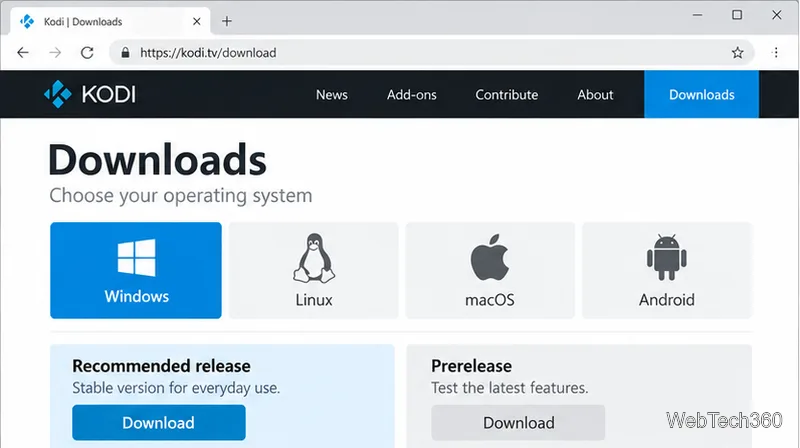
  1. Install Kodi’s recommended stable release. Select your platform on the Kodi download page. Use prereleases only if you want to test preview software.
    Kodi Downloads page with Windows selected and separate Recommended release and Prerelease download cards
    Kodi’s download page separates the recommended stable release from prerelease builds.
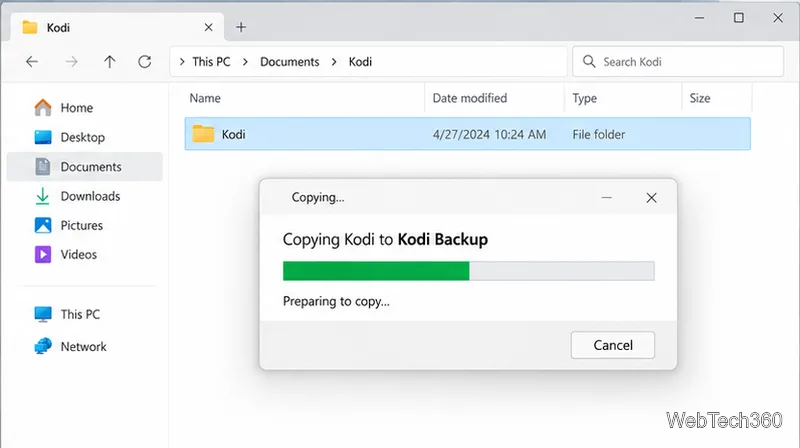
  2. Back up your existing setup. Copy Kodi’s data folder before changing it. That folder includes add-ons, skin, settings, and libraries; it does not contain your media files. Kodi’s backup guide notes that a full data-folder backup should not be moved between operating systems or major Kodi versions.
    Windows File Explorer showing the Kodi data folder being copied into a Kodi Backup folder
    Save a copy of Kodi’s profile data before you experiment with settings or add-ons.
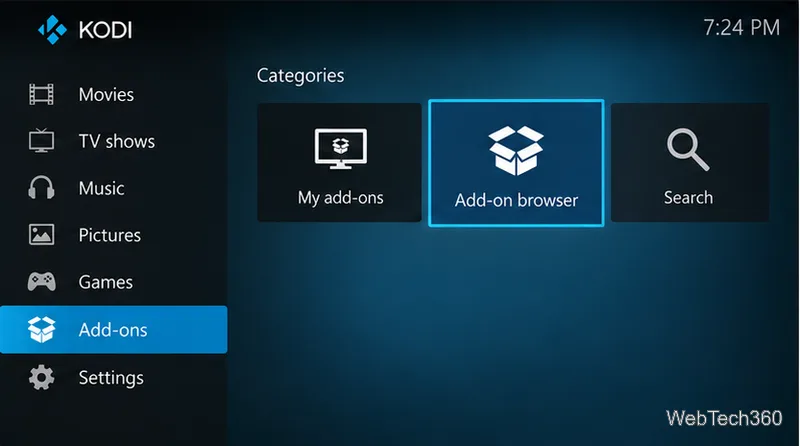
  3. Open the Add-on browser. From Kodi’s home screen select Add-ons, then the open-box icon.
    Kodi Estuary home screen with Add-ons selected and the Add-on browser tile highlighted
    Open the Add-on browser from the Add-ons section of Kodi’s home screen.
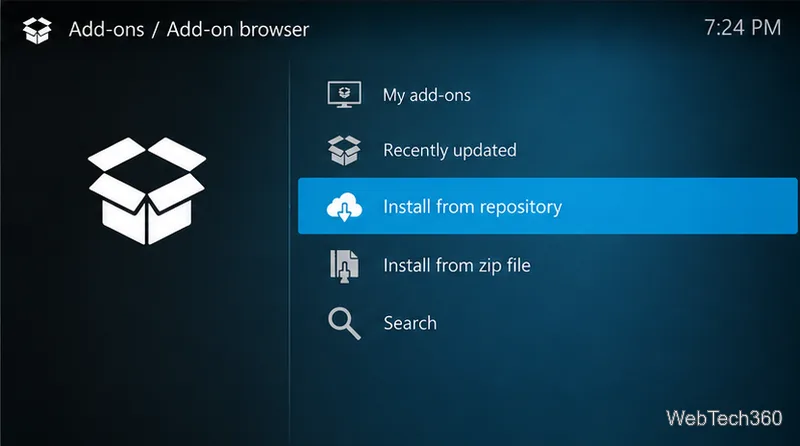
  4. Choose Install from repository. This opens the repository included with Kodi. Leave Unknown sources off unless you have checked a specific ZIP and its publisher. Kodi says ZIP installs require enabling that setting and warns that untrusted add-ons can change files or collect information.
    Kodi Add-on browser with Install from repository highlighted above Install from zip file
    Use the repository browser for a safer starting point than an unverified ZIP wizard.
  5. Install selectively. Browse the Kodi Add-on repository by category, check an add-on’s description and compatibility, then choose Install and review its dependencies. One-at-a-time installs make changes easier to track. See Kodi’s Unknown sources documentation.
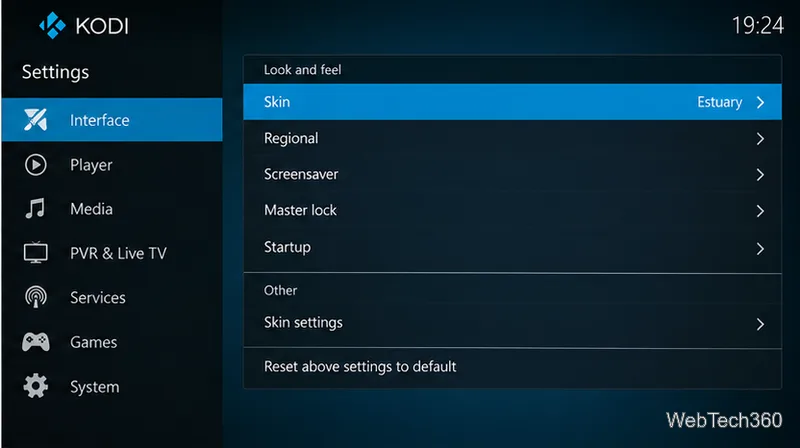
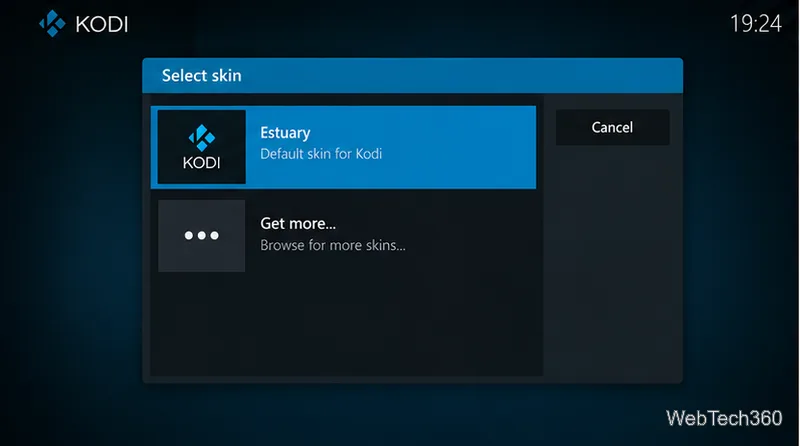
  6. Choose a skin. Open Settings > Interface > Skin. Use Get more… to browse skins in Kodi’s repository; Estuary is the default, and you can switch back. Follow the official skin steps.
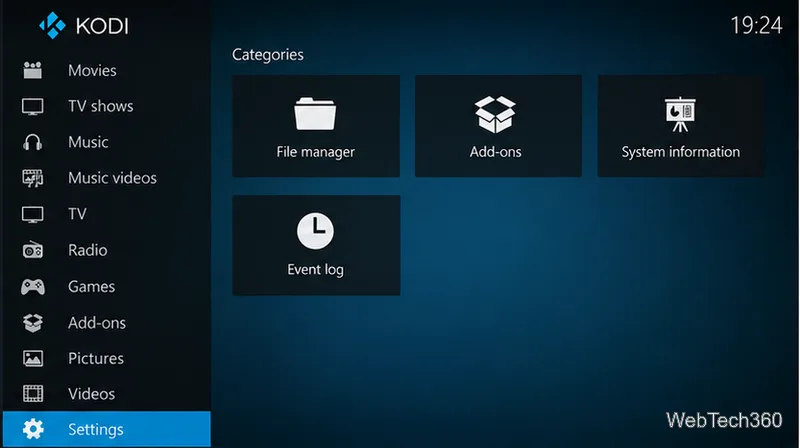
    Kodi Estuary home screen with Settings selected in the left navigation
    Kodi’s Settings menu is the starting point for changing the interface.
    Kodi Settings Interface page with Skin set to Estuary highlighted
    Open Interface settings and select Skin to view the installed interface.
    Kodi Select skin dialog showing Estuary and Get more choices
    The skin selector lets you keep Estuary or browse additional available skins.
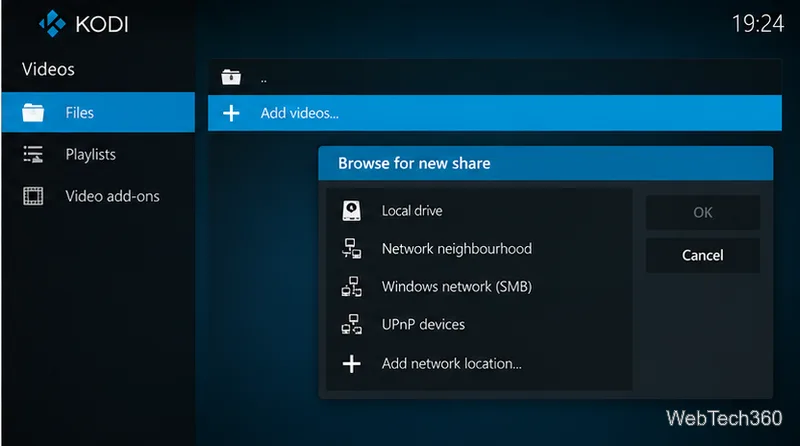
  7. Add your own video folders. Go to Videos > Files > Add videos… > Browse, then select a local folder or network share containing media you may access. Set its content type if you want Kodi to build a library. The video-source guide shows the flow.
    Kodi Videos Files screen with Add videos selected and the Browse for new share dialog open
    Add a local folder or network share to Kodi’s library using the Videos file browser.
  8. Save quick links in Favorites. Highlight a library item or add-on, open its context menu, and select Add to favorites. This gives you shortcuts without a large build. See Kodi’s Favorites guide.

Should you install BK Links now?

Only use a third-party build after confirming its publisher, download source, Kodi-version support, and every bundled add-on. I could not verify the BK Links distribution path described by the old instructions, so a current install sequence would be unreliable. Do not enable unknown sources just to inspect an unverified wizard, and choose a fresh-install option only if you mean to erase your Kodi configuration.

A stable Kodi release, a repository skin, a few compatible add-ons, and your own media library can reproduce the useful parts of the BK Links layout while keeping control over what is installed.

Leave a Comment

How to Uninstall Kodi Repositories the Right Way

How to Uninstall Kodi Repositories the Right Way

Learn how to uninstall a Kodi repository safely, remove its saved source URL separately, and check which installed add-ons or dependencies you still need.

Live Tennis on Kodi: Best Add-Ons and Legal Ways to Watch

Live Tennis on Kodi: Best Add-Ons and Legal Ways to Watch

Find the safest way to watch live tennis with Kodi: learn what iPlayer WWW can stream, how to find licensed coverage, and which add-ons to avoid.

How to Watch Movies on Kodi: A Complete Beginner’s Tutorial

How to Watch Movies on Kodi: A Complete Beginner’s Tutorial

Learn how to watch movies on Kodi from your computer, USB drive, or NAS, add online video services, and fix missing titles with clear setup steps.

How to Turn On Kodi Parental Controls and Lock a Kids’ Profile

How to Turn On Kodi Parental Controls and Lock a Kids’ Profile

Set a Kodi Master Lock PIN, protect selected menus, and create a separate kids’ profile with media sources you choose.

How to Watch Boxing PPV Streams on Kodi—Legally and Reliably

How to Watch Boxing PPV Streams on Kodi—Legally and Reliably

Find the authorized stream for your country, check whether its provider supports Kodi, and watch a boxing PPV on your TV without relying on outdated add-ons.

5 Best Kodi Skins and How to Change Kodi’s Look in Minutes

5 Best Kodi Skins and How to Change Kodi’s Look in Minutes

Compare five Kodi skins in the official Omega catalog, then follow the current Settings path to install one, customize it, or switch back.

1Channel Kodi Add-on: Can You Still Install It for Movies and TV Shows?

1Channel Kodi Add-on: Can You Still Install It for Movies and TV Shows?

Looking for the 1Channel Kodi add-on? Learn why old PrimeWire installation guides are unreliable and how to install a supported video add-on safely.

How to Control Kodi With the Web Interface, at Home or Away

How to Control Kodi With the Web Interface, at Home or Away

Enable Kodi’s Chorus2 web interface, control your media from any browser, and learn how to connect remotely without exposing Kodi to the Internet.

Nemesis Kodi Add-on: How to Install It and Check Availability

Nemesis Kodi Add-on: How to Install It and Check Availability

Follow the original Nemesis Kodi installation process, learn what changed with Stream Army, and avoid outdated repository and PIN instructions.

How to Download and Set Up Kodi on Windows

How to Download and Set Up Kodi on Windows

Download Kodi safely on Windows using the official installer or Microsoft Store, then add your media library and set up trusted add-ons.