How to Uninstall Kodi Repositories the Right Way

Learn how to uninstall a Kodi repository safely, remove its saved source URL separately, and check which installed add-ons or dependencies you still need.
Short answer: the Durex Build for Kodi cannot be installed reliably from a verified, current source. The old guide targeted Kodi 17-era software and linked to a Durex wizard address that could not be reached during this update. Rather than recommend an unverified ZIP mirror, this guide explains what the old build offered and shows how to set up Kodi with add-ons from its built-in repository.
The original instructions were written for the Jarvis and Krypton generations of Kodi. They rely on an old wizard package, legacy menu labels, and a Durex download address that is not currently verifiable. I could not confirm that a current Durex build is maintained or that any copy circulating elsewhere is authentic and compatible with supported Kodi releases. Treat copies on file-sharing sites or unofficial mirrors as untrusted.
Kodi’s current documentation explains that ZIP-installed add-ons come from outside its built-in repository and may access data stored on the device. Kodi also separates stable downloads from development releases. As of this update, Kodi 22 “Piers” is still identified as a prerelease, so choose the stable option for a regular media-center setup. See the official Kodi download page and the Kodi 22 release-candidate notice.
A Kodi build is a preconfigured collection of interface settings and add-ons; it does not grant rights to stream a movie, show, or live channel. The Kodi Foundation says its software ships without media and does not endorse pirated content. Use media you own or services you are authorized to access.
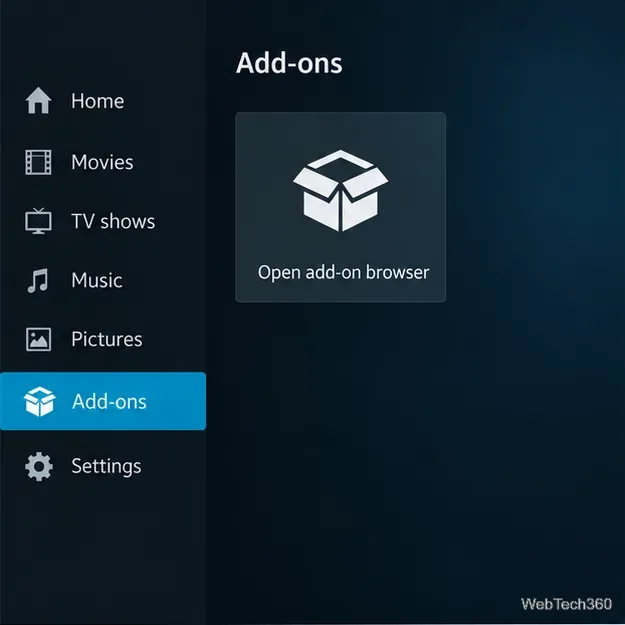
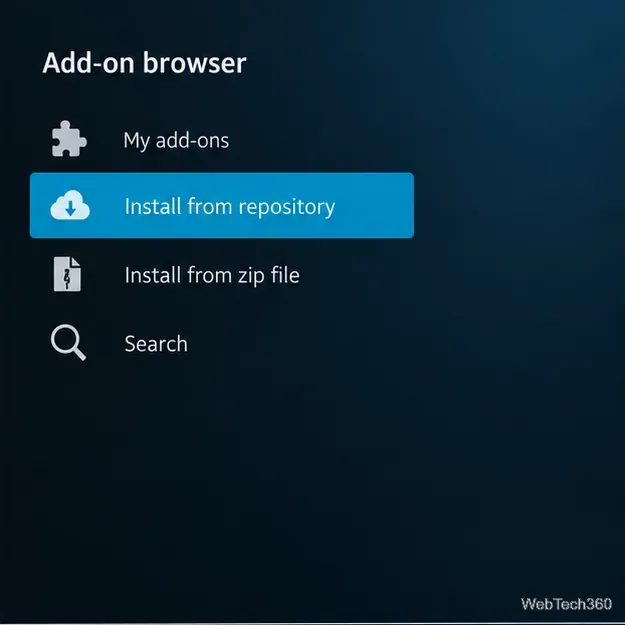
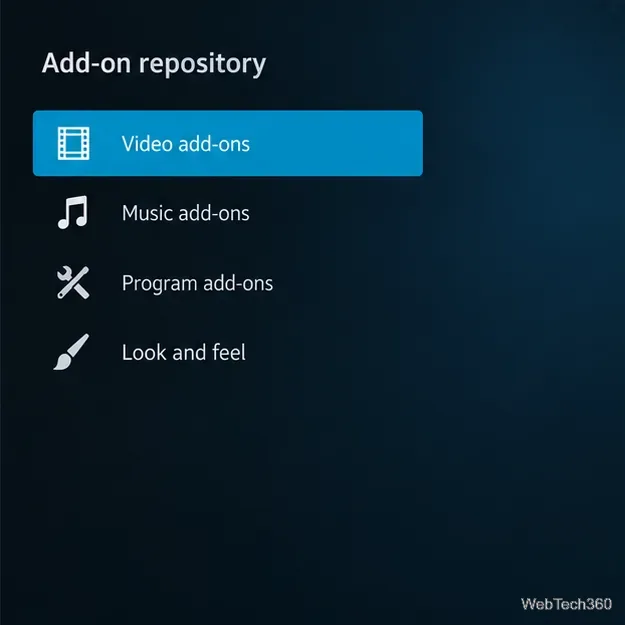
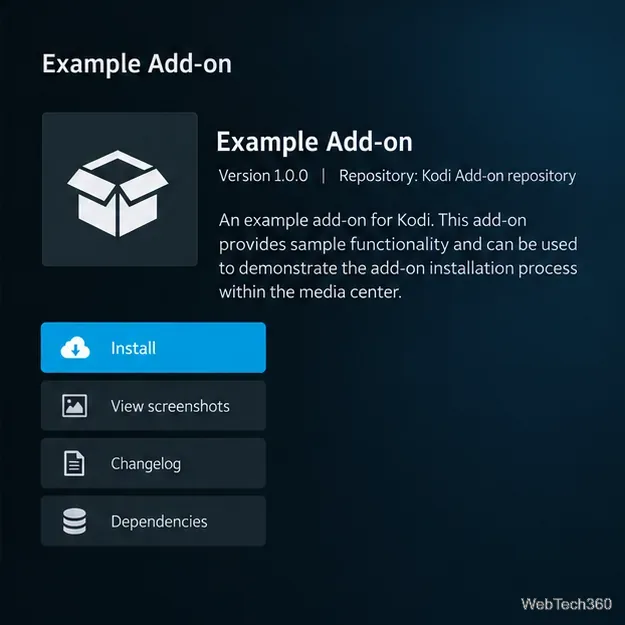
This is a current, verifiable way to customize Kodi. It does not install Durex, but it uses Kodi’s supported add-on browser and avoids the unverified wizard in the old tutorial. Menu names can vary a little by platform and skin.
The Durex guide described a home screen with a row of featured items, a main category ribbon, a second row of subcategories, add-on shortcuts, and a ticker along the bottom. Its sections included Movies, TV Shows, Family, Free TV, Sports, and Music. Those labels describe a historical interface, not a current catalog. The original article also named third-party add-ons such as Placenta and Elysium; their presence in an old build does not mean they still work, receive updates, or provide authorized streams.
In a current Kodi setup, Movies and TV Shows are library areas for media you add, while Music organizes a personal collection. Empty sections are normal until you add files or a compatible network source. Kodi’s official video-library guide explains how movie and TV libraries are built.
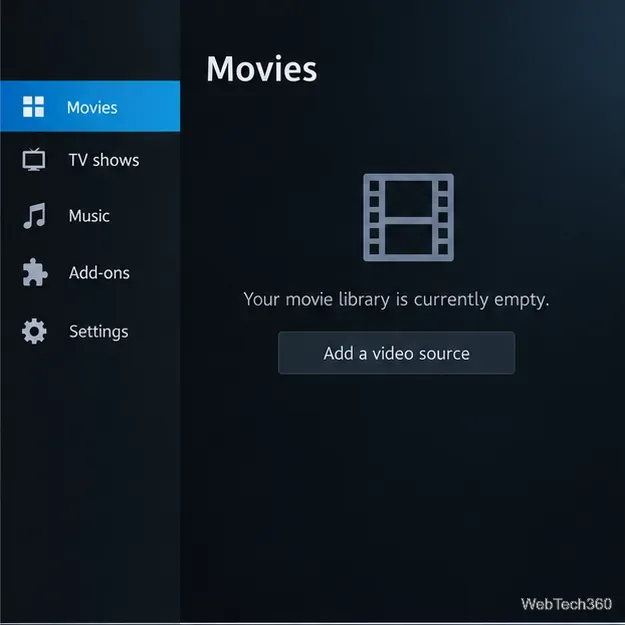
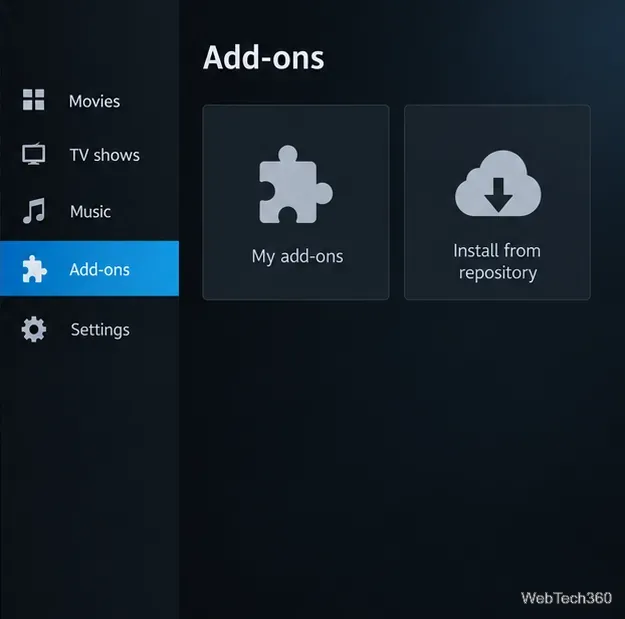
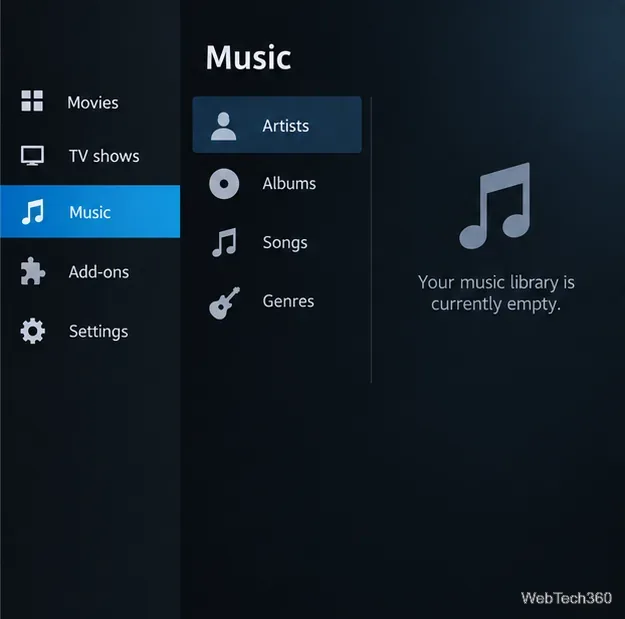
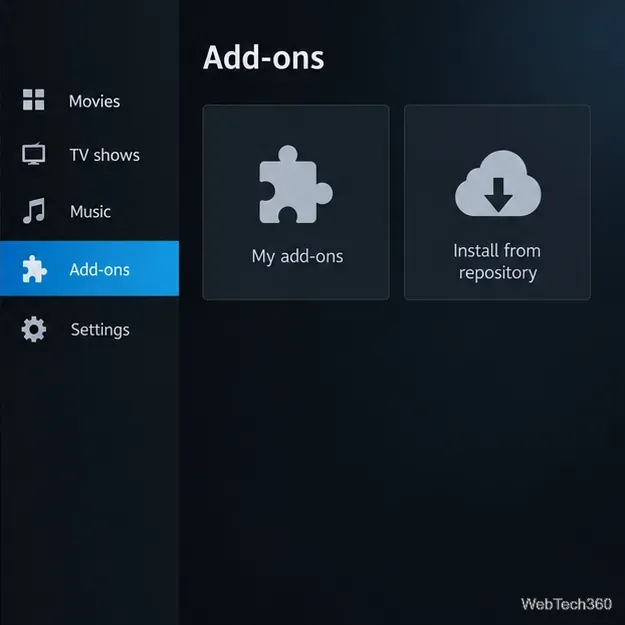
Do not downgrade Kodi just to reproduce a 2018 wizard walkthrough. Check that you installed Kodi from its official download page, then use the built-in repository path above. If an add-on is missing, unavailable, or incompatible, consult its maintainer’s documentation rather than searching for a repackaged ZIP. Leave Unknown sources off unless you have a specific, trusted package and understand the access Kodi warns about; official repository installs do not require enabling it. The current Kodi add-on settings guide explains that control.
Learn how to uninstall a Kodi repository safely, remove its saved source URL separately, and check which installed add-ons or dependencies you still need.
Find the safest way to watch live tennis with Kodi: learn what iPlayer WWW can stream, how to find licensed coverage, and which add-ons to avoid.
Learn how to watch movies on Kodi from your computer, USB drive, or NAS, add online video services, and fix missing titles with clear setup steps.
Set a Kodi Master Lock PIN, protect selected menus, and create a separate kids’ profile with media sources you choose.
Find the authorized stream for your country, check whether its provider supports Kodi, and watch a boxing PPV on your TV without relying on outdated add-ons.
Compare five Kodi skins in the official Omega catalog, then follow the current Settings path to install one, customize it, or switch back.
Looking for the 1Channel Kodi add-on? Learn why old PrimeWire installation guides are unreliable and how to install a supported video add-on safely.
Enable Kodi’s Chorus2 web interface, control your media from any browser, and learn how to connect remotely without exposing Kodi to the Internet.
Follow the original Nemesis Kodi installation process, learn what changed with Stream Army, and avoid outdated repository and PIN instructions.
Download Kodi safely on Windows using the official installer or Microsoft Store, then add your media library and set up trusted add-ons.








