How to Uninstall Kodi Repositories the Right Way

Learn how to uninstall a Kodi repository safely, remove its saved source URL separately, and check which installed add-ons or dependencies you still need.
The Titanium Kodi build was distributed through Supreme Builds Wizard, but there is no independently verified, currently maintained Titanium download we can recommend. The old installation instructions may help you recognize the original workflow; they should not be treated as proof that the repository or build still works. If your goal is a customized Kodi home screen, the official add-on repository is a safer starting point.
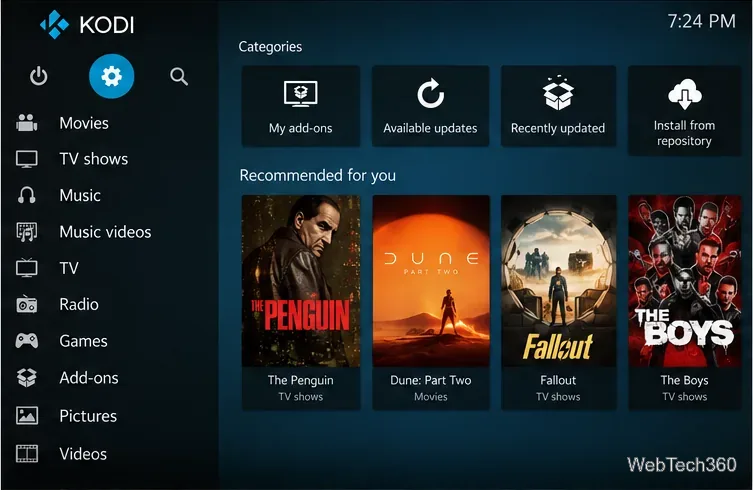
Titanium was a preconfigured package of a custom interface, menus, and third-party add-ons installed via the Supreme Builds Wizard. Older versions used the Xonfluence skin and grouped shortcuts under Movies, TV Shows, Live TV, Sports, Sports Replays, and Kids. That made the build attractive to people who wanted a ready-made layout rather than adding components one at a time.
Those features describe historical versions. Add-ons can disappear, stop receiving updates, or change the services they connect to. Claims in older reviews that Titanium is regularly updated, streams every sport, or reliably offers paid TV for free cannot be assumed true today.
As of October 28, 2026, Kodi's stable release is 21.3 Omega, while Kodi 22 Piers is still in prerelease testing. The original guide's recommendation to switch between Kodi 17.5 and 17.6 is obsolete. Get supported installation files from Kodi’s official download page.
The old Titanium instructions used https://repo.supremebuilds.com. We could not confirm a trustworthy, maintained Titanium distribution at that address or verify compatibility with Kodi 21.3. Kodi also lists Supreme build among builds outside its official support rules. That is a support and piracy-policy classification, not a claim that every file bearing the name contains malware. See Kodi’s official forum policy list.
Do not substitute a lookalike domain, random ZIP, shortened link, or video description for a verified publisher download. A repository name alone does not establish the file's origin or safety.
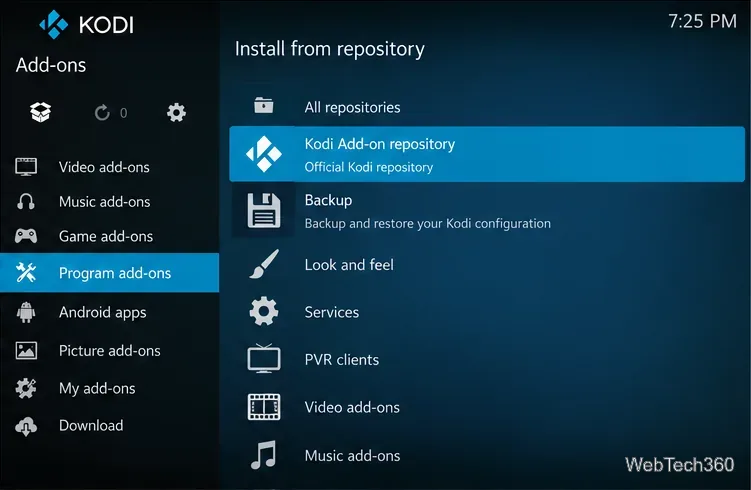
Installing a complete build can replace skins, menus, and add-on settings. In Kodi, open Settings → Add-ons → Install from repository → Kodi Add-on repository → Program add-ons → Backup and install the official Backup add-on. Configure a writable backup destination and run a backup before changing anything. Kodi's backup guide also explains how to copy the entire Kodi data folder.
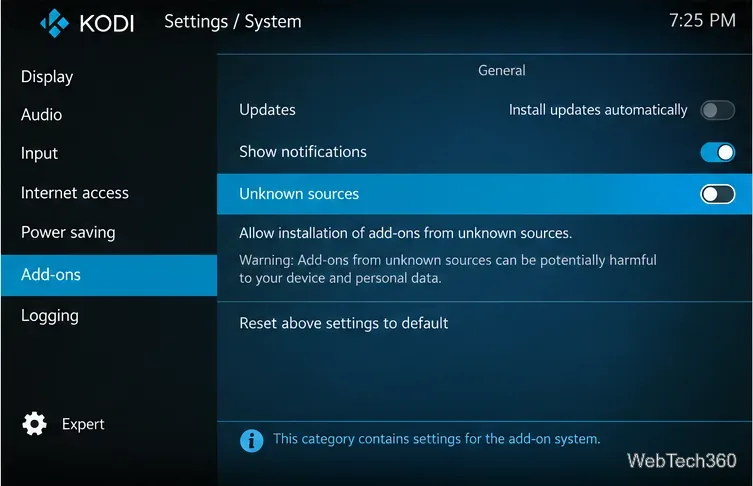
Third-party repository ZIPs normally require Settings → System → Add-ons → Unknown sources. Leave this option off unless you have verified the publisher and understand the risk. Kodi warns that add-ons from unknown sources may access personal data on your device. Enabling the switch does not verify any download; see Kodi’s add-on settings documentation.
The following is a historical reference, not a confirmed working installation for Kodi 21.3. Proceed with third-party installation only if the original publisher supplies a current, verifiable package and compatibility information. The menu images illustrate the sequence; they are not a record of a successful current Titanium install.
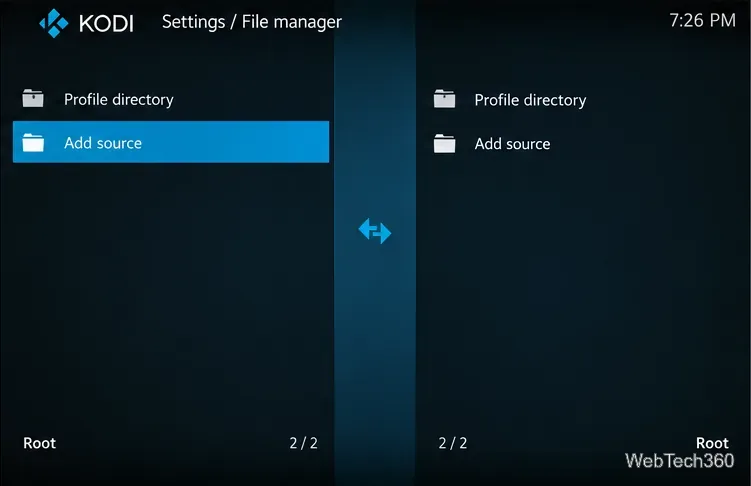
From Kodi's home screen, select the gear icon for Settings, then choose File manager. This is where older instructions began adding the Supreme Builds repository location.
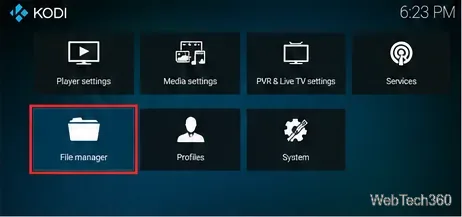
Inside File manager, select Add source. You can inspect existing entries here without installing anything. If you cannot verify a source's owner, stop rather than adding it.
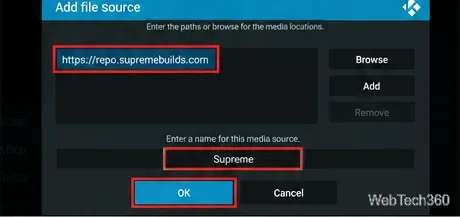
Earlier tutorials entered the historic Supreme Builds URL in the file-source dialog and assigned it a name such as Supreme. The image below shows that older example; do not take the URL shown as a currently verified download endpoint. Only use an address independently confirmed through the original developer's maintained channels.
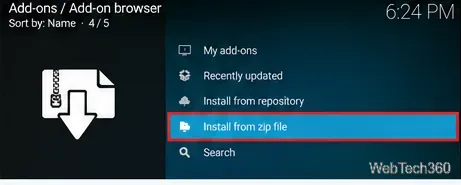
Older instructions then opened Add-ons → Add-on browser → Install from zip file and selected a file named like repository.supremebuilds-x.x.x.zip. Kodi can install repositories this way, but filenames can be copied or altered. Do not install an archive unless its source and contents are trustworthy.
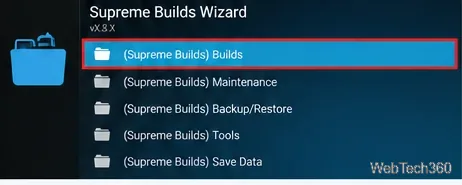
When the old repository worked, users selected Install from repository → Supreme Builds Repository → Program add-ons → Supreme Builds Wizard, then opened its Builds menu and chose Titanium. The wizard could replace substantial parts of the existing setup. We cannot verify that these entries still exist, or that a current download runs on Omega.
A VPN may protect traffic from local network observers and change the IP address visible to some services, but it does not make an unsafe repository trustworthy, guarantee anonymity, or grant permission to watch copyrighted streams. Kodi itself is legal media-center software; whether a particular source is authorized depends on the content and your rights to access it. For official guidance, read Kodi’s explanation of legal streaming and third-party add-ons.
Bottom line: Titanium's original menus and installation sequence are useful historical context, but a working, safe installation cannot be promised from the old Supreme Builds link. Back up Kodi, keep to a supported version, and install only add-ons and skins whose sources you can verify.
Learn how to uninstall a Kodi repository safely, remove its saved source URL separately, and check which installed add-ons or dependencies you still need.
Find the safest way to watch live tennis with Kodi: learn what iPlayer WWW can stream, how to find licensed coverage, and which add-ons to avoid.
Learn how to watch movies on Kodi from your computer, USB drive, or NAS, add online video services, and fix missing titles with clear setup steps.
Set a Kodi Master Lock PIN, protect selected menus, and create a separate kids’ profile with media sources you choose.
Find the authorized stream for your country, check whether its provider supports Kodi, and watch a boxing PPV on your TV without relying on outdated add-ons.
Compare five Kodi skins in the official Omega catalog, then follow the current Settings path to install one, customize it, or switch back.
Looking for the 1Channel Kodi add-on? Learn why old PrimeWire installation guides are unreliable and how to install a supported video add-on safely.
Enable Kodi’s Chorus2 web interface, control your media from any browser, and learn how to connect remotely without exposing Kodi to the Internet.
Follow the original Nemesis Kodi installation process, learn what changed with Stream Army, and avoid outdated repository and PIN instructions.
Download Kodi safely on Windows using the official installer or Microsoft Store, then add your media library and set up trusted add-ons.








