How to Uninstall Kodi Repositories the Right Way

Learn how to uninstall a Kodi repository safely, remove its saved source URL separately, and check which installed add-ons or dependencies you still need.
The TVADDONS Git Browser was built to find Kodi add-ons through GitHub and install them from developer repositories. Its old setup depended on the TVADDONS Fusion source and Indigo tool. I could not verify a current official release or setup instructions from TVADDONS, so treat that workflow as historical; do not add an old source address or download a ZIP from an unverified mirror.
For current installations, start with Kodi’s built-in repository. If an add-on is not listed, follow the maintainer’s current instructions and use only a Kodi-ready package from a source you can verify. The interface illustrations below show examples, not current TVADDONS listings.
The historical Git Browser offered searches by GitHub username, repository title, or add-on ID. GitHub hosts project files, but a GitHub repository is not automatically a Kodi repository. Kodi add-ons need a valid addon.xml manifest and the right package structure, as explained in Kodi’s add-on structure guide. GitHub’s Download ZIP option creates a source snapshot, which is not necessarily an installable Kodi package; see GitHub’s archive documentation.
The original workflow used Indigo to install Git Browser, and the old article said the tool did not manage add-on updates at that time. I could not verify whether a later maintained version changed that. Check the TVADDONS GitHub organization for a current announcement, but a project page alone does not prove that an add-on is maintained or compatible with your Kodi release.
Menu wording can vary by Kodi version, device, and skin. Kodi’s add-on manager guide and add-on settings reference document the ZIP and repository options.
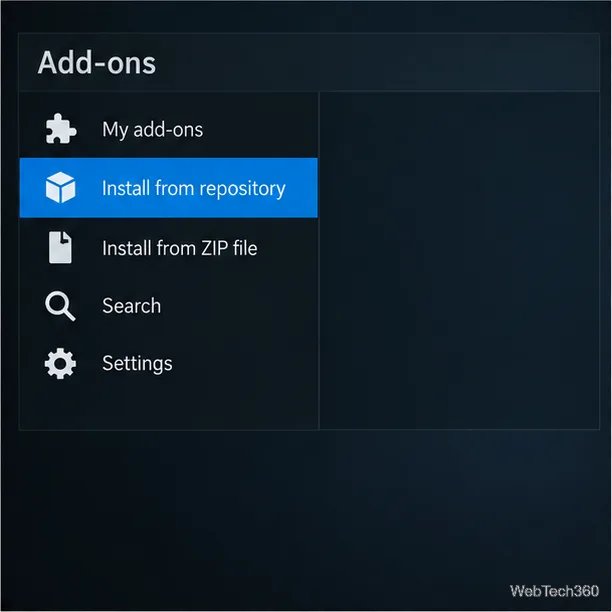
Search the official Kodi add-ons directory by name. In Kodi, open Add-ons > the add-on browser > Install from repository > Kodi Official Repository, then browse the relevant category. Kodi reviews official submissions, but it says that review is not foolproof; read its add-on safety guidance before using third-party sources.
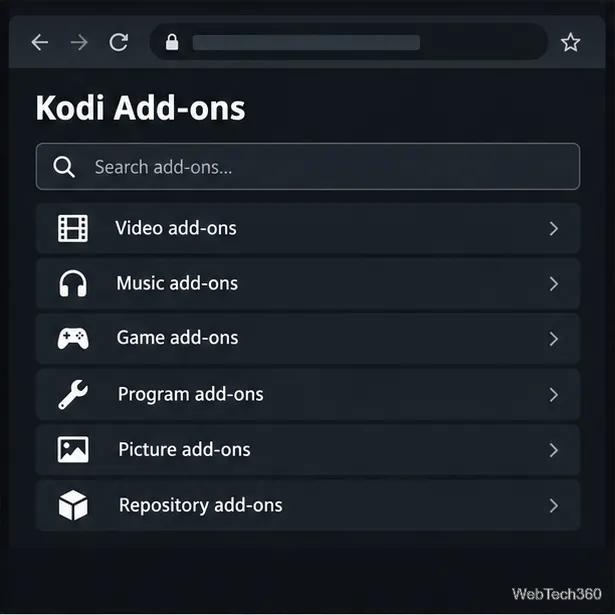
If the add-on is missing, go to the developer’s own site or project page. Confirm that the developer links to the repository, read its release and installation notes, and check support for your Kodi version and device. Do not trust a similarly named project found through general search, or assume GitHub hosting guarantees safety.
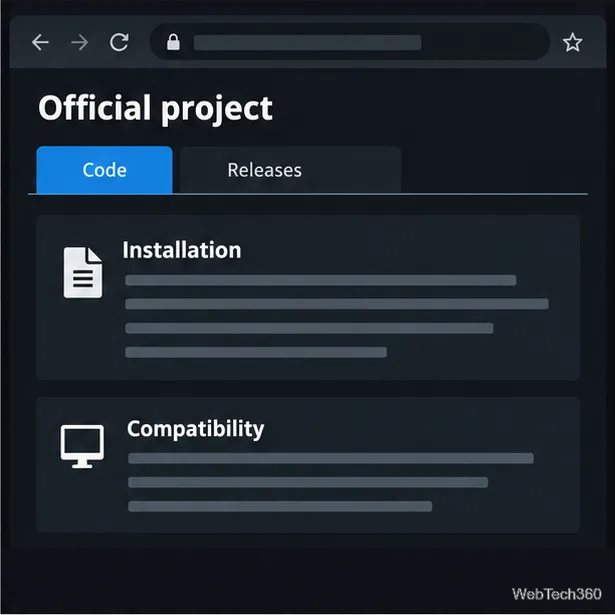
Use a ZIP that the maintainer explicitly identifies for Kodi. Check the release notes and required dependencies. Avoid unofficial mirrors, repacks, or generic source archives unless the developer’s instructions say to use them. If there is no current release or clear compatibility information, stop and ask the maintainer for a supported download.
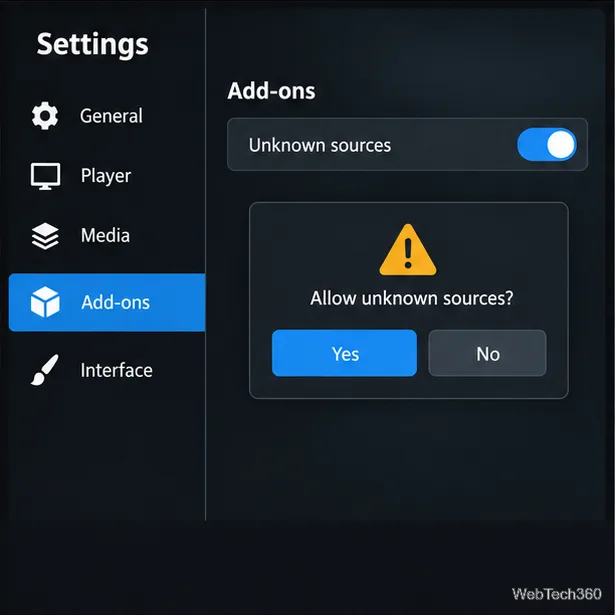
Kodi may prompt you to enable Unknown sources when you choose to install from a ZIP. The setting is also under Settings > System > Add-ons. Read the warning and proceed only if you trust the source. Kodi notes that third-party repositories may not use the same review process as its official repository.
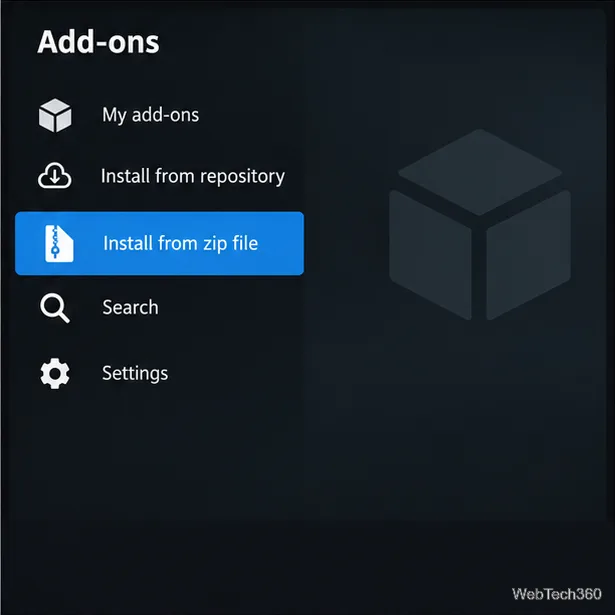
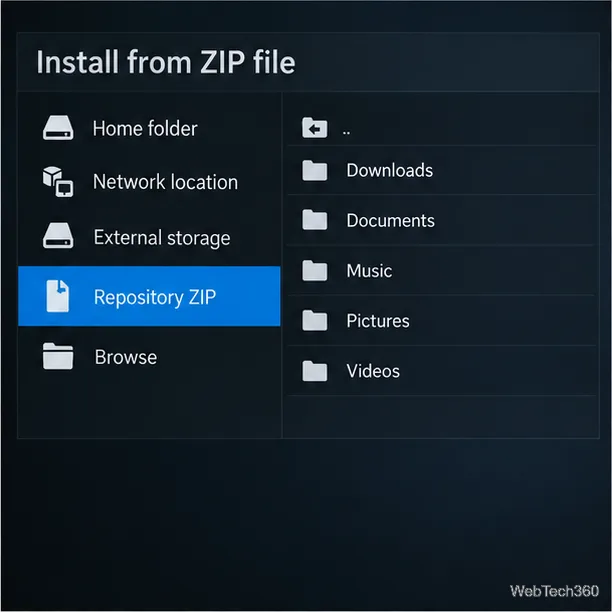
Open Add-ons > the add-on browser > Install from zip file. Browse to the location where you saved the maintainer’s package, select it, and wait for Kodi’s installation notification. Confirm that it is the documented Kodi ZIP, not just a source-code archive. If it fails, check package structure, compatibility, and dependencies instead of trying a random mirror.
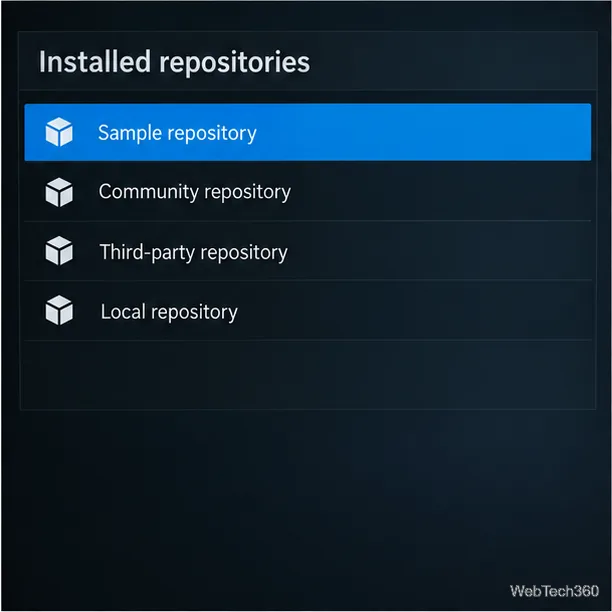
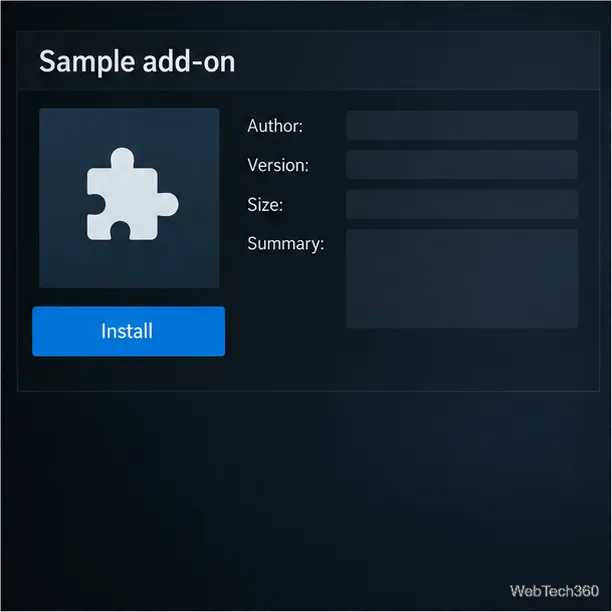
Choose Install from repository, select the source you just added, then open the relevant category and the add-on’s information page. Repository names vary, so make sure the selected source matches the maintainer you verified. Review the author and dependencies, then choose Install. Kodi can resolve required dependencies through a repository.
Repository-installed add-ons can receive updates through their configured repository. A standalone ZIP will not update itself unless the developer also supplies updates through a repository; Kodi explains these update paths. Check the source and update setting in Kodi, and remove add-ons whose maintainers no longer publish compatible releases.
TVADDONS’ Git Browser was a shortcut for searching GitHub, but I could not verify its old Indigo and Fusion route as a current, maintained option. Use Kodi’s built-in repository when possible. For external add-ons, verify the publisher, package, compatibility, and update path before installing.
Learn how to uninstall a Kodi repository safely, remove its saved source URL separately, and check which installed add-ons or dependencies you still need.
Find the safest way to watch live tennis with Kodi: learn what iPlayer WWW can stream, how to find licensed coverage, and which add-ons to avoid.
Learn how to watch movies on Kodi from your computer, USB drive, or NAS, add online video services, and fix missing titles with clear setup steps.
Set a Kodi Master Lock PIN, protect selected menus, and create a separate kids’ profile with media sources you choose.
Find the authorized stream for your country, check whether its provider supports Kodi, and watch a boxing PPV on your TV without relying on outdated add-ons.
Compare five Kodi skins in the official Omega catalog, then follow the current Settings path to install one, customize it, or switch back.
Looking for the 1Channel Kodi add-on? Learn why old PrimeWire installation guides are unreliable and how to install a supported video add-on safely.
Enable Kodi’s Chorus2 web interface, control your media from any browser, and learn how to connect remotely without exposing Kodi to the Internet.
Follow the original Nemesis Kodi installation process, learn what changed with Stream Army, and avoid outdated repository and PIN instructions.
Download Kodi safely on Windows using the official installer or Microsoft Store, then add your media library and set up trusted add-ons.








