How to Uninstall Kodi Repositories the Right Way

Learn how to uninstall a Kodi repository safely, remove its saved source URL separately, and check which installed add-ons or dependencies you still need.
Ultimate IPTV is an older third-party Kodi video add-on, but its familiar SuperRepo installation instructions are no longer a reliable way to set up live TV. The original guide targeted Kodi Krypton and promised thousands of channels collected from public playlists. As of October 2026, a maintained Ultimate IPTV package and a trustworthy, current installation route could not be verified. If you want live IPTV in Kodi today, the supported option is IPTV Simple Client with a playlist you are authorized to use.
Ultimate IPTV, attributed to WhiteCream in older repository records, presented lists of live-stream links organized into regional or themed folders. Unlike an on-demand movie service, it was built for tuning into a channel already broadcasting. The historical Ultimate IPTV repository metadata identifies the old plugin as plugin.video.uiptv, but an old add-on entry does not establish that it runs on recent Kodi releases.
Its main attraction was variety: international news, entertainment and regional channels in one place. Its drawbacks were equally important. Channel names and categories could be inconsistent, duplicate links were common, and the availability or authorization of third-party streams was not independently established. Claims that the streams were always high quality or dependable should not be treated as verified.
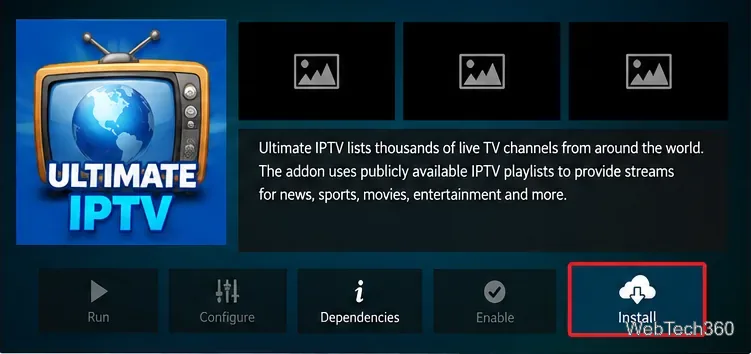
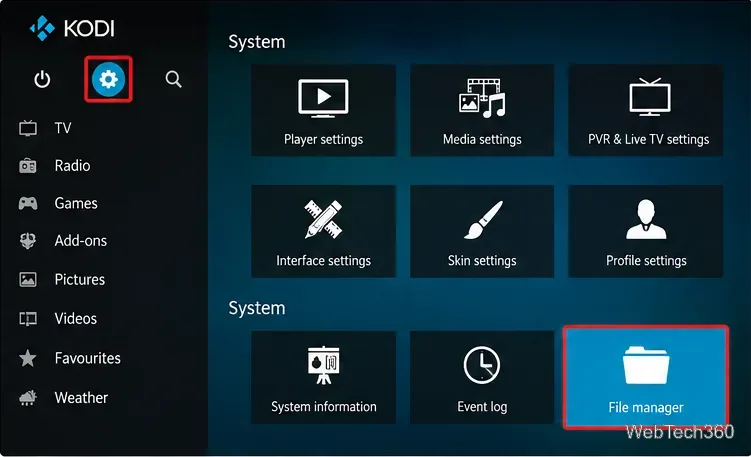
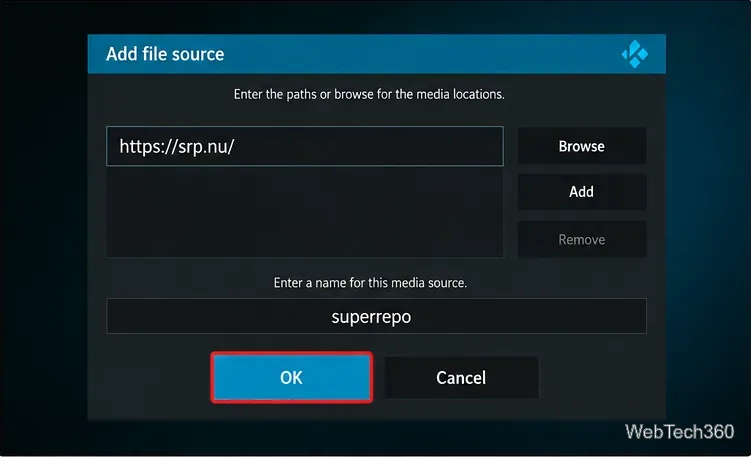
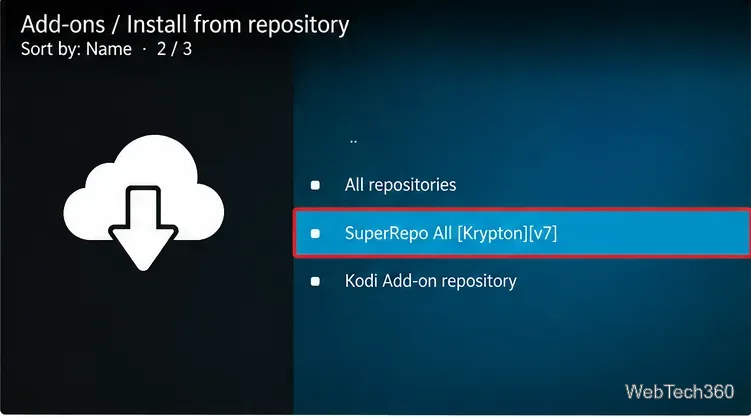
There is no verified up-to-date installation procedure to recommend. The original sequence used Settings → File Manager → Add source, entered https://srp.nu/, then looked under SuperRepo All [Krypton][v7] for Ultimate IPTV. Kodi Krypton is an older major version, and the old ZIP path and add-on dependencies should not be assumed compatible with modern Kodi. The source address is included here for historical identification, not as a recommended download.
If you find a supposed Ultimate IPTV ZIP elsewhere, do not install it simply because its name matches the old article. Verify who maintains it, its supported Kodi version, recent code changes and the origin of the download first. Kodi warns that enabling third-party Unknown sources grants additional trust to software outside its official repository; see Kodi’s explanation of Unknown sources.
Even if an old repository can be added, that alone does not prove the Ultimate IPTV add-on is present, maintained, safe or capable of playing a working channel. A blank list, dependency error or failed download is a reason to stop rather than hunt for random replacement ZIPs.
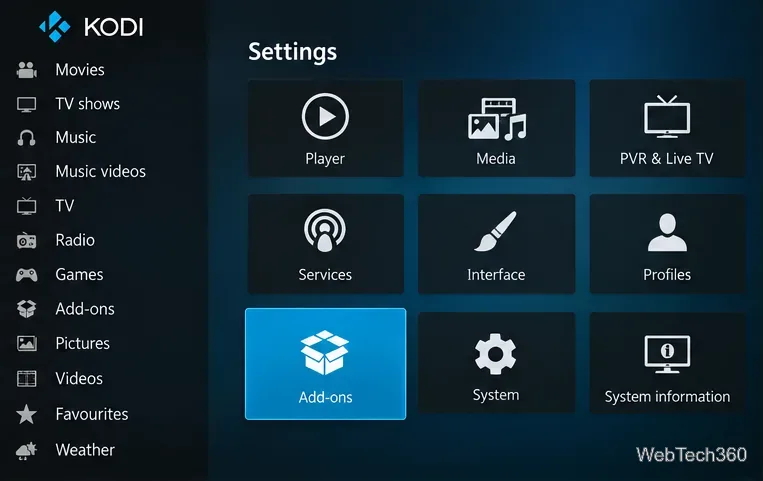
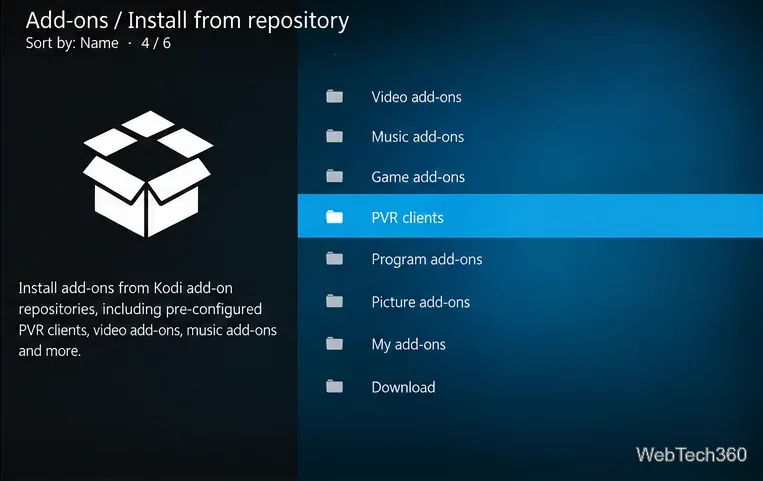
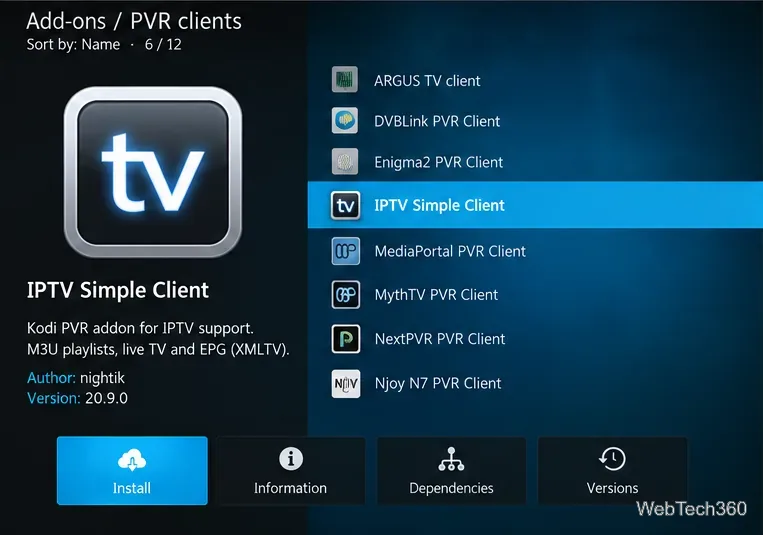
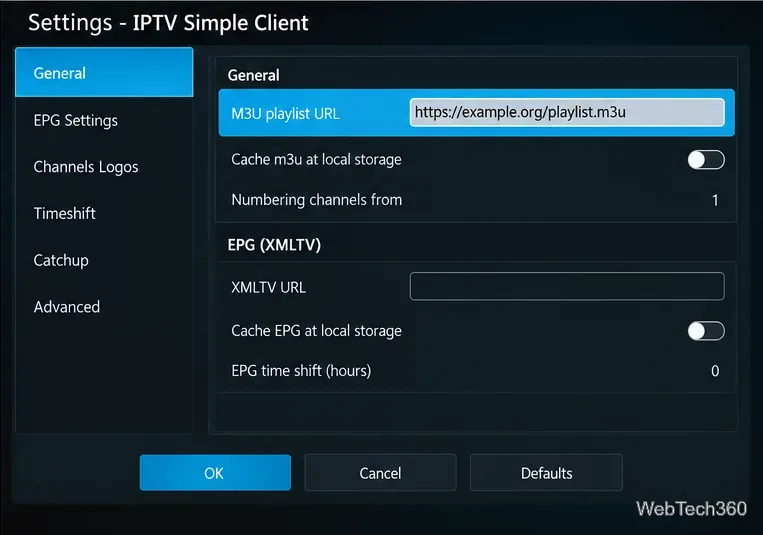
IPTV Simple Client is a different add-on, not an updated version of Ultimate IPTV. It plays live channels from an M3U playlist you provide and can display guide information supplied in XMLTV format. Kodi lists it among its PVR clients; consult Kodi’s IPTV Simple Client listing and Kodi’s official IPTV Simple Client installation instructions. You need a legitimately provided playlist or a channel source that allows this use; the add-on does not supply channels by itself.
| Feature | Ultimate IPTV (historical) | IPTV Simple Client |
|---|---|---|
| How channels are added | Aggregated third-party lists | Your own M3U playlist |
| Modern installation | Not verified | Available through Kodi’s repository |
| Channel organization | Older reports describe mixed regional lists | Determined by playlist groups and metadata |
| Program guide | No reliable current information | Supports XMLTV EPG data |
| Content rights | Unclear for individual linked streams | Depends on the playlist provider |
Our assessment: Ultimate IPTV is mainly useful as a historical reference, not a dependable installation recommendation. IPTV Simple Client is easier to verify and maintain because its IPTV Simple Client source repository is public and it is distributed by Kodi. Its main limitation is that you must locate a legitimate playlist; it cannot make unavailable channels appear.
IPTV technology is legal in many legitimate services, but an individual stream may be unauthorized or restricted by license and location. A VPN may provide connection privacy, but it does not grant viewing rights or make an unauthorized stream legal. For a stable setup, start with Kodi’s own add-on repository and a properly licensed IPTV source.
Version note: Kodi 22 “Piers” was at release-candidate stage in October 2026, so avoid treating early-release behavior as universal across installations. See Kodi’s Kodi 22 release-candidate announcement for release status.
Learn how to uninstall a Kodi repository safely, remove its saved source URL separately, and check which installed add-ons or dependencies you still need.
Find the safest way to watch live tennis with Kodi: learn what iPlayer WWW can stream, how to find licensed coverage, and which add-ons to avoid.
Learn how to watch movies on Kodi from your computer, USB drive, or NAS, add online video services, and fix missing titles with clear setup steps.
Set a Kodi Master Lock PIN, protect selected menus, and create a separate kids’ profile with media sources you choose.
Find the authorized stream for your country, check whether its provider supports Kodi, and watch a boxing PPV on your TV without relying on outdated add-ons.
Compare five Kodi skins in the official Omega catalog, then follow the current Settings path to install one, customize it, or switch back.
Looking for the 1Channel Kodi add-on? Learn why old PrimeWire installation guides are unreliable and how to install a supported video add-on safely.
Enable Kodi’s Chorus2 web interface, control your media from any browser, and learn how to connect remotely without exposing Kodi to the Internet.
Follow the original Nemesis Kodi installation process, learn what changed with Stream Army, and avoid outdated repository and PIN instructions.
Download Kodi safely on Windows using the official installer or Microsoft Store, then add your media library and set up trusted add-ons.








