How to Uninstall Kodi Repositories the Right Way

Learn how to uninstall a Kodi repository safely, remove its saved source URL separately, and check which installed add-ons or dependencies you still need.
Uncoded Aurora was a third-party Kodi add-on distributed through the Uncoded repository, with menus for movies, TV shows, and other streaming links. If you're looking for an Aurora install guide today, the crucial detail is that its original repository cannot currently be verified as a working download source. This walkthrough explains the historical installation process, where it may break, and how to avoid installing an untrusted replacement.
The older instructions pointed to https://start.uncoded.life/ and a repository archive named start.uncoded.zip. During an October 29, 2026 check, the repository address could not be retrieved. That does not establish whether the project is permanently discontinued, but it means there is no verified, working Aurora download to recommend here. We also could not confirm an Aurora release compatible with current Kodi versions.
For context, Kodi 21.3 “Omega” is the current stable branch, while Kodi 22 “Piers” reached release-candidate status in October 2026. See Kodi’s official download page and the Kodi 22 release-candidate announcement. An old add-on built for a different Kodi generation should not be assumed to work on either.
These five steps document the Kodi menus and original repository route. Only proceed with a ZIP if you can independently confirm its developer, integrity, and compatibility. The screenshots illustrate navigation, not a successful Aurora installation.
Start Kodi and select Add-ons from the home screen. The add-on browser lets you manage repositories, search installed add-ons, and review video add-ons. Note the installed Kodi version before attempting older extensions.
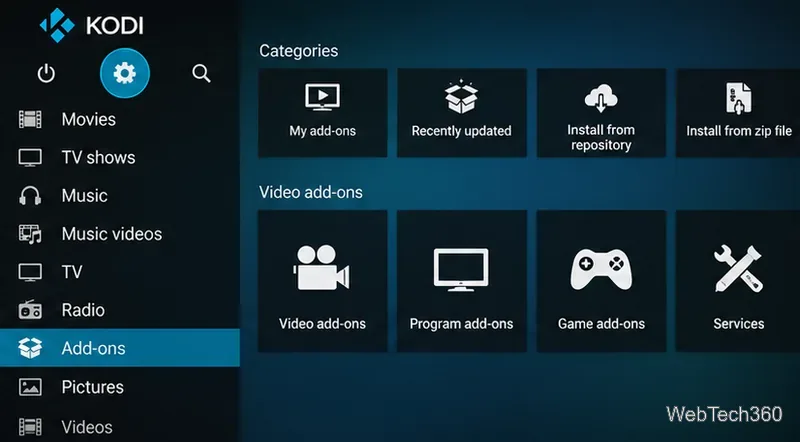
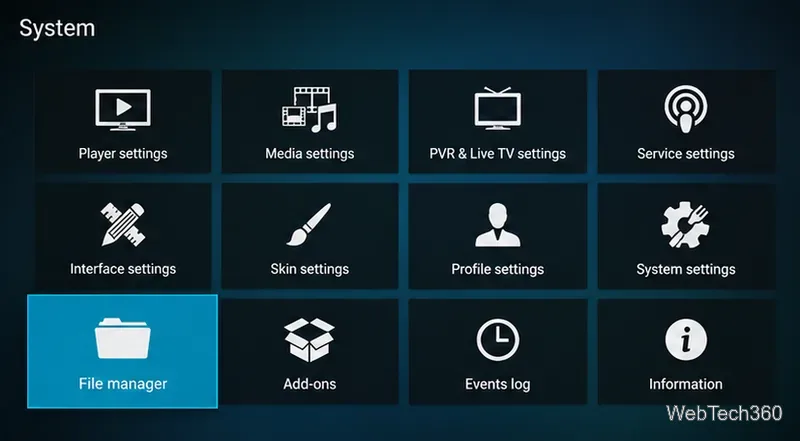
Select the Settings gear and open File manager. Kodi uses this tool to register a network or local media source. Its appearance can vary by skin, but the general path is the same.
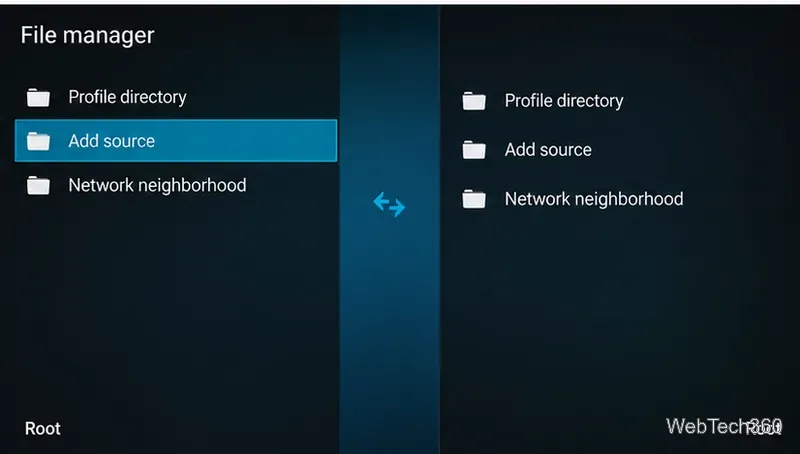
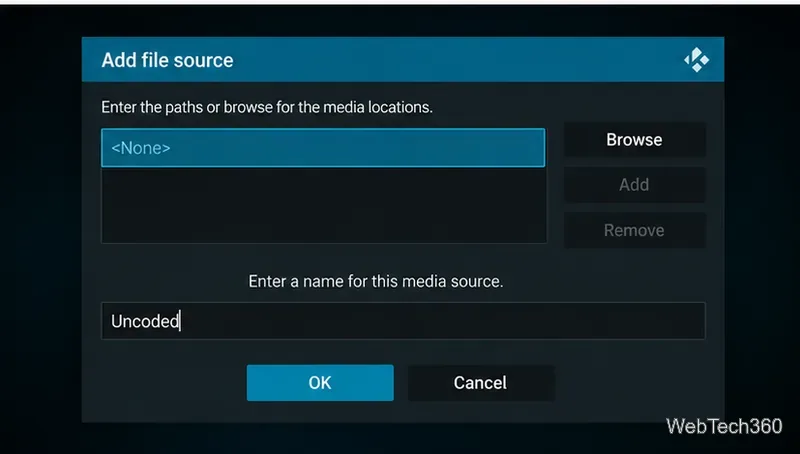
Choose Add source, then select the path field labeled <None>. The historical Aurora instructions used https://start.uncoded.life/ and the source name Uncoded. Because that location could not be retrieved during our check, treat it as a historical reference, not an active installation endpoint. If it remains unavailable, stop here rather than hunting for similarly named ZIP files on unrelated sites.
With an authentic, reachable source, return to Add-ons, open the add-on browser (box icon), and select Install from zip file. The original sequence selected the Uncoded source followed by start.uncoded.zip. Kodi may require you to enable Settings > System > Add-ons > Unknown sources first. Read the security warning carefully: third-party add-ons can access data on your device. Do not enable this setting merely to experiment with an unidentified archive.
If the repository installs successfully, choose Install from repository, select the verified Uncoded repository, then Video add-ons > Aurora > Install, provided Aurora actually appears. After a successful installation, an enabled video add-on is normally available in the corresponding Add-ons category. No such success is claimed for the historical Uncoded source today. Kodi's official add-on manager guide explains both ZIP and repository installation.
A missing, unreachable, or unresponsive host prevents Kodi from finding the repository archive. Recheck the entered address, but don't replace it with a lookalike download link. The original host was inaccessible during this article's check.
A repository can contain different add-ons over time. If Aurora is absent from Video add-ons, do not assume a renamed package is the same software. Obtain confirmation from the original maintainer before proceeding.
Older packages can depend on APIs or components unavailable in current Kodi builds. Check the add-on version and the specific error instead of repeatedly installing random dependencies. Kodi's debug-log documentation explains where to investigate installation problems; review logs for personal information before sharing them.
Historical descriptions of Aurora, a Covenant-derived streaming aggregator, showed movie and TV catalogs, filtering by genre and popularity, search, watchlists, calendar views, and optional Trakt-related menus. They also mentioned channel and sports-related integrations. These are historical interface descriptions, not verified current features or evidence that any associated stream works. Availability, playback quality, licensing, and safety all depend on external sources beyond Kodi itself.
Kodi is a legitimate open-source media center, but Team Kodi does not supply movies or TV channels with the application. Third-party repositories are outside the official add-on repository and can change without notice. Prefer vetted, authorized add-ons from Kodi's built-in repository, and use media or streaming services you have permission to access.
A VPN can protect traffic between your device and its VPN server, but it does not make unauthorized streaming legal or guarantee anonymity. No VPN purchase is necessary to navigate Kodi's add-on settings. For an overview of repository risks, consult the official Kodi wiki guidance on unofficial repositories.
Bottom line: Aurora's original installation path can still be explained, but it should not be presented as a working 2026 setup. Unless a trustworthy maintainer provides a verifiable, compatible release, avoid downloading a purported Aurora ZIP and use Kodi's official add-on catalog instead.
Learn how to uninstall a Kodi repository safely, remove its saved source URL separately, and check which installed add-ons or dependencies you still need.
Find the safest way to watch live tennis with Kodi: learn what iPlayer WWW can stream, how to find licensed coverage, and which add-ons to avoid.
Learn how to watch movies on Kodi from your computer, USB drive, or NAS, add online video services, and fix missing titles with clear setup steps.
Set a Kodi Master Lock PIN, protect selected menus, and create a separate kids’ profile with media sources you choose.
Find the authorized stream for your country, check whether its provider supports Kodi, and watch a boxing PPV on your TV without relying on outdated add-ons.
Compare five Kodi skins in the official Omega catalog, then follow the current Settings path to install one, customize it, or switch back.
Looking for the 1Channel Kodi add-on? Learn why old PrimeWire installation guides are unreliable and how to install a supported video add-on safely.
Enable Kodi’s Chorus2 web interface, control your media from any browser, and learn how to connect remotely without exposing Kodi to the Internet.
Follow the original Nemesis Kodi installation process, learn what changed with Stream Army, and avoid outdated repository and PIN instructions.
Download Kodi safely on Windows using the official installer or Microsoft Store, then add your media library and set up trusted add-ons.








