How to Uninstall Kodi Repositories the Right Way

Learn how to uninstall a Kodi repository safely, remove its saved source URL separately, and check which installed add-ons or dependencies you still need.
To access Kodi from another device, enable the built-in web server on the Kodi host, then open its local IP address and HTTP port in a browser on the same network. The interface lets you browse a library and control playback; playing video inside the browser depends on the interface, browser, and media format. This is local-network access, not public internet file sharing.
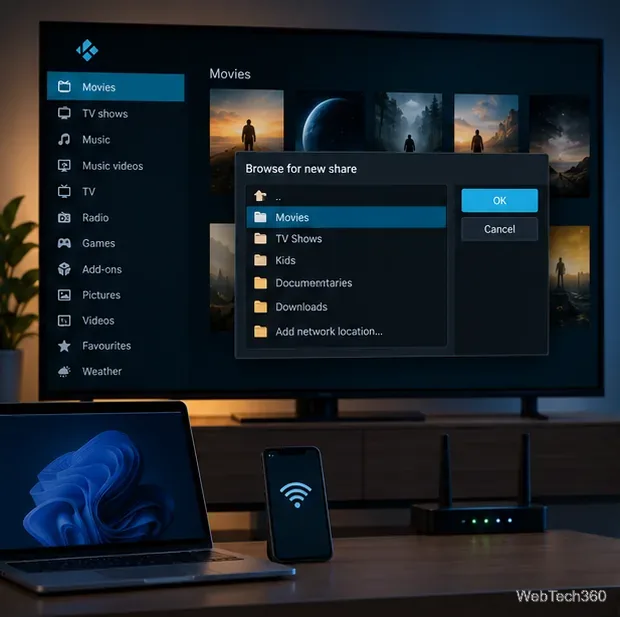
Kodi’s default web interface, Chorus2, can display movies, TV shows, and music in a browser and control Kodi remotely. It is not a general file manager for every drive on the host. Kodi’s web server serves files from configured sources, so add folders to Kodi first. See the official web-interface guide and web-server documentation.
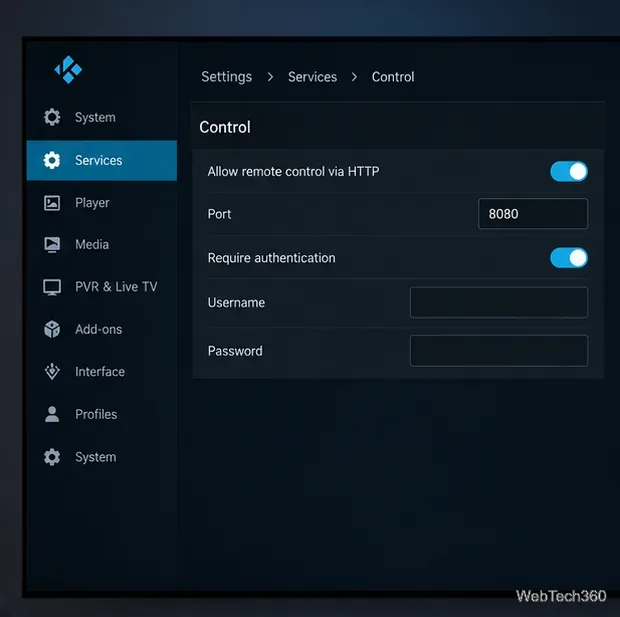
http://192.168.1.25:8080 if those are your host IP and port. Replace them with your own values, then sign in with the credentials you set.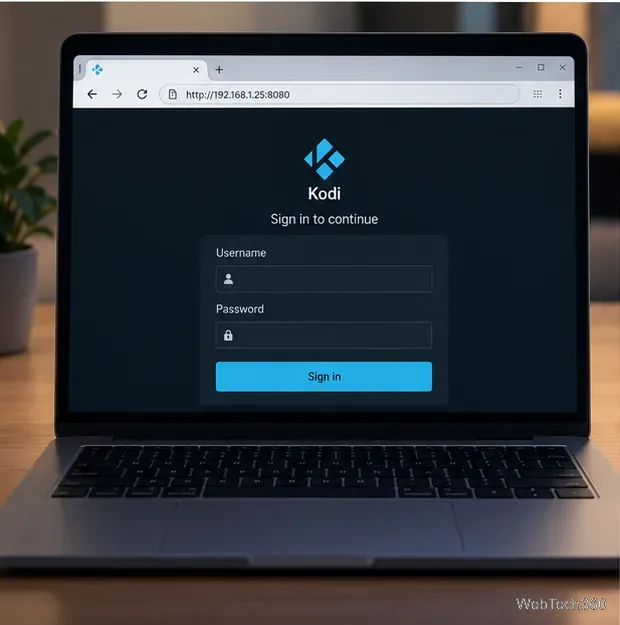
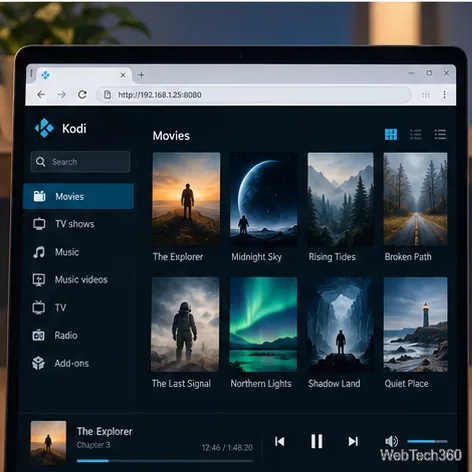
Choose Movies, TV Shows, Music, or another available section to find scanned items. If you select a title, check whether playback is set to run on the Kodi host or in the browser; those are different destinations. The official Chorus2 project says browser streaming depends on the file format and browser support. A video may play on the Kodi device even if the browser cannot decode it. For reliable access to files as ordinary folders, use a secured SMB share or NAS instead of treating Kodi’s web interface as file-server software.
Use the web interface only on a network you trust, keep authentication on, and do not forward Kodi’s web-server port through your router. Kodi warns against exposing this port to the internet. Its remote-access security recommendations also advise using a strong password and not exposing Kodi interfaces publicly. The web address uses HTTP, so a password does not encrypt traffic on an untrusted network. To connect while away from home, first use a VPN you control to reach your home network, then open Kodi’s private IP and port.
Once enabled and authenticated, Kodi can be browsed from another browser-capable device on your local network without installing Kodi on that second device.
Learn how to uninstall a Kodi repository safely, remove its saved source URL separately, and check which installed add-ons or dependencies you still need.
Find the safest way to watch live tennis with Kodi: learn what iPlayer WWW can stream, how to find licensed coverage, and which add-ons to avoid.
Learn how to watch movies on Kodi from your computer, USB drive, or NAS, add online video services, and fix missing titles with clear setup steps.
Set a Kodi Master Lock PIN, protect selected menus, and create a separate kids’ profile with media sources you choose.
Find the authorized stream for your country, check whether its provider supports Kodi, and watch a boxing PPV on your TV without relying on outdated add-ons.
Compare five Kodi skins in the official Omega catalog, then follow the current Settings path to install one, customize it, or switch back.
Looking for the 1Channel Kodi add-on? Learn why old PrimeWire installation guides are unreliable and how to install a supported video add-on safely.
Enable Kodi’s Chorus2 web interface, control your media from any browser, and learn how to connect remotely without exposing Kodi to the Internet.
Follow the original Nemesis Kodi installation process, learn what changed with Stream Army, and avoid outdated repository and PIN instructions.
Download Kodi safely on Windows using the official installer or Microsoft Store, then add your media library and set up trusted add-ons.








