How to Uninstall Kodi Repositories the Right Way

Learn how to uninstall a Kodi repository safely, remove its saved source URL separately, and check which installed add-ons or dependencies you still need.
USTVcatchup was a Kodi video add-on for browsing free, on-demand programs from US television networks. It focused on daytime shows, cooking, home improvement, documentaries, and kids’ TV. However, as of October 2026, a maintained release and trustworthy working installation source could not be verified. The old Fusion/TVADDONS setup method is outdated.
You can check an existing installation, or watch through broadcasters’ official sites and apps.
The original add-on organized links by network rather than by one giant catalog. Historic menus included ABC, NBC, Food Network, HGTV, PBS KIDS, Freeform, Travel Channel, Smithsonian Channel, SundanceTV, Cooking Channel, and DIY Network. It focused on catch-up episodes and clips, not a guaranteed live-TV package or an all-access library of new movies and premium dramas.
One Kodi menu for several broadcasters was convenient, but program descriptions and discovery tools were limited, and links could break as websites changed. Those listings are historical, not a verified catalog of playable streams.
There is no verified up-to-date USTVcatchup ZIP or repository URL to recommend. Instead of installing an unknown file, use the following checks. Menu wording can vary with your Kodi version and skin; the official Kodi add-on manager guide documents the underlying workflow.
From Kodi’s home screen, open Add-ons. If necessary, enter the add-on browser using the open-box icon. You can also reach add-on settings through the gear-shaped Settings menu.
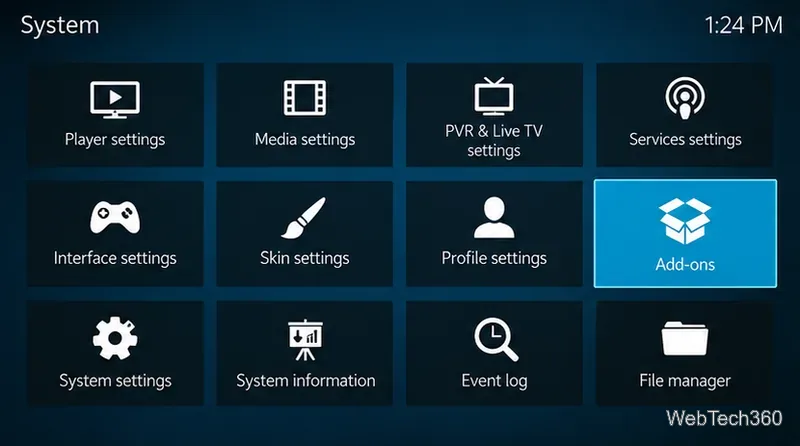
Use the add-on browser’s Search option and enter USTVcatchup. You can also look under My add-ons > Video add-ons to see whether an older installation is present. Kodi searches installed add-ons and repositories, not every third-party source.
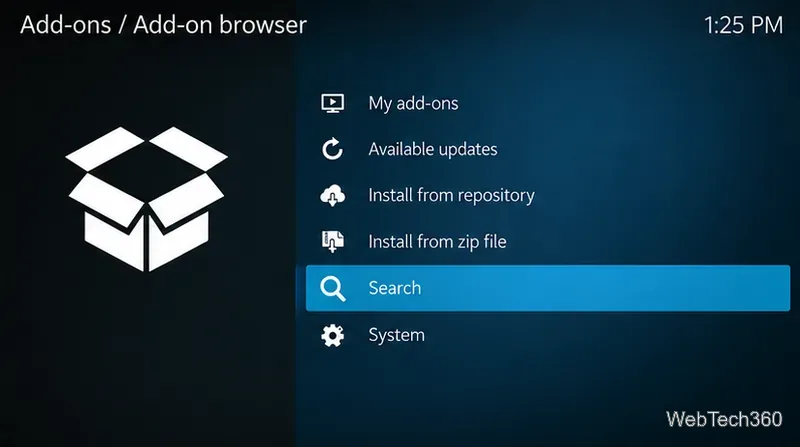
If you find an item with that name, inspect its author, repository, version, dependencies, and available updates. Do not assume a similarly named ZIP is legitimate. Kodi 19 and newer use Python 3 for add-ons, which can prevent older Python 2 add-ons from working; see Kodi’s Python 3 migration documentation. If you cannot confirm an actively maintained release from its developer, stop rather than installing it.
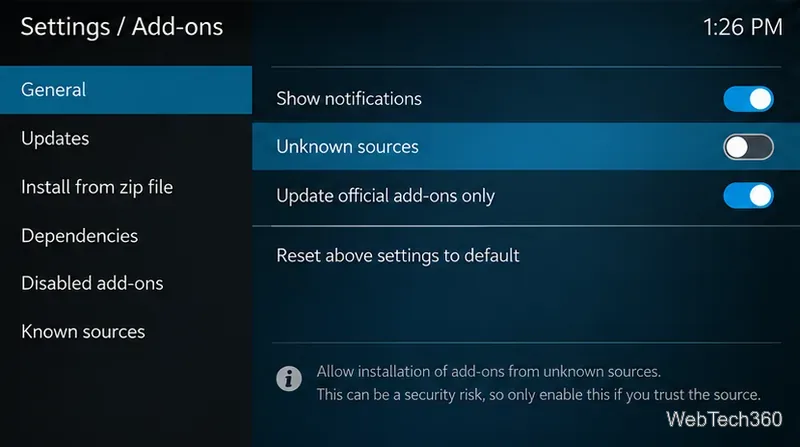
Under Settings > System > Add-ons, leave Unknown sources off for normal official-repository use. Third-party ZIP installation requires enabling it and accepting a warning, but that is not a reason to turn it on for an unverified USTVcatchup download. Kodi specifically cautions that third-party add-ons can access information on your device.
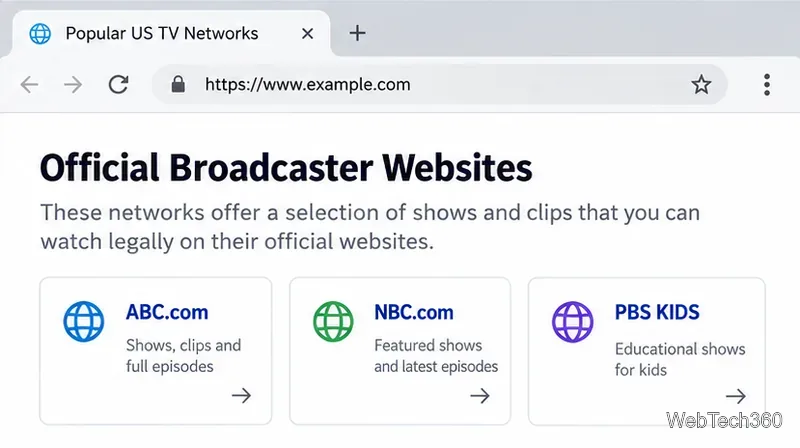
These verified broadcaster options match much of the original add-on’s appeal, though availability, logins, and geographic restrictions vary. They are not replacements that reproduce USTVcatchup inside Kodi.
Kodi itself is legal software, and watching a broadcaster’s authorized free video can be legitimate. But the origin, licensing, and permissions of a third-party stream must be checked; an add-on calling itself “free” does not establish those rights. Kodi’s official explanation of add-on legality distinguishes the Kodi application from independently supplied extensions.
Bottom line: USTVcatchup remains a useful name to recognize in old Kodi guides, but there is no verified current installation source to endorse here. Check your installed add-ons, avoid abandoned repository instructions, and go directly to the networks for programming that is available to you.
Learn how to uninstall a Kodi repository safely, remove its saved source URL separately, and check which installed add-ons or dependencies you still need.
Find the safest way to watch live tennis with Kodi: learn what iPlayer WWW can stream, how to find licensed coverage, and which add-ons to avoid.
Learn how to watch movies on Kodi from your computer, USB drive, or NAS, add online video services, and fix missing titles with clear setup steps.
Set a Kodi Master Lock PIN, protect selected menus, and create a separate kids’ profile with media sources you choose.
Find the authorized stream for your country, check whether its provider supports Kodi, and watch a boxing PPV on your TV without relying on outdated add-ons.
Compare five Kodi skins in the official Omega catalog, then follow the current Settings path to install one, customize it, or switch back.
Looking for the 1Channel Kodi add-on? Learn why old PrimeWire installation guides are unreliable and how to install a supported video add-on safely.
Enable Kodi’s Chorus2 web interface, control your media from any browser, and learn how to connect remotely without exposing Kodi to the Internet.
Follow the original Nemesis Kodi installation process, learn what changed with Stream Army, and avoid outdated repository and PIN instructions.
Download Kodi safely on Windows using the official installer or Microsoft Store, then add your media library and set up trusted add-ons.








