How to Recover Lost Partitions and Hard Disk Data Safely
Learn how to recover lost partitions and files with TestDisk and PhotoRec. Protect the source drive, scan safely, and save recovered data to another disk.
FlightGear is free to download from the official project site. As of October 25, 2026, it lists FlightGear 2024.1.7 as the latest stable release. Download the package for your computer and allow setup to get the matching simulator data if prompted. Those data files are larger than the application installer and include aircraft and scenery.
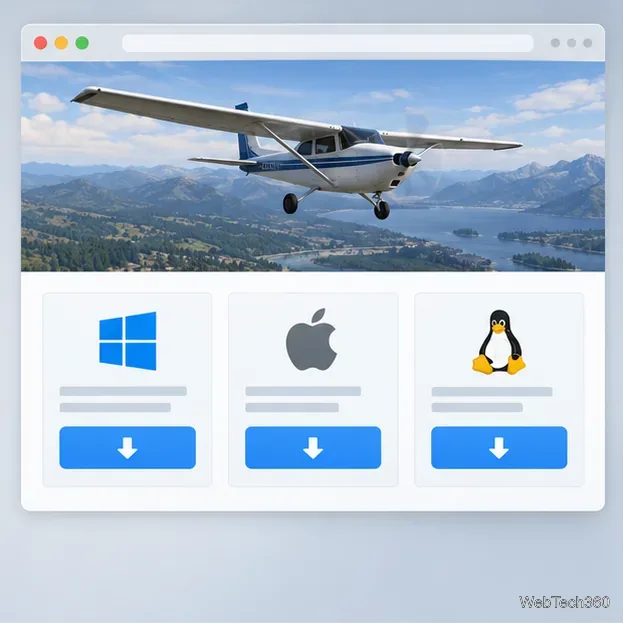
Open the official FlightGear download page and check the operating-system label before downloading. The current listings are:
| Computer | Official package | Compatibility note |
|---|---|---|
| Windows | Windows 10/11, 64-bit x86 installer (.exe) | Windows ARM64 is not currently supported by the official package. |
| macOS | Disk image (.dmg) | Requires macOS 11 or later. |
| Linux | x86_64 AppImage | Many Linux distributions also offer FlightGear through their package repositories. |
Choose a prebuilt package for your operating system; download the source code only if you plan to compile FlightGear. The listed installer size does not include every scenery download, so allow extra disk space for simulator data.
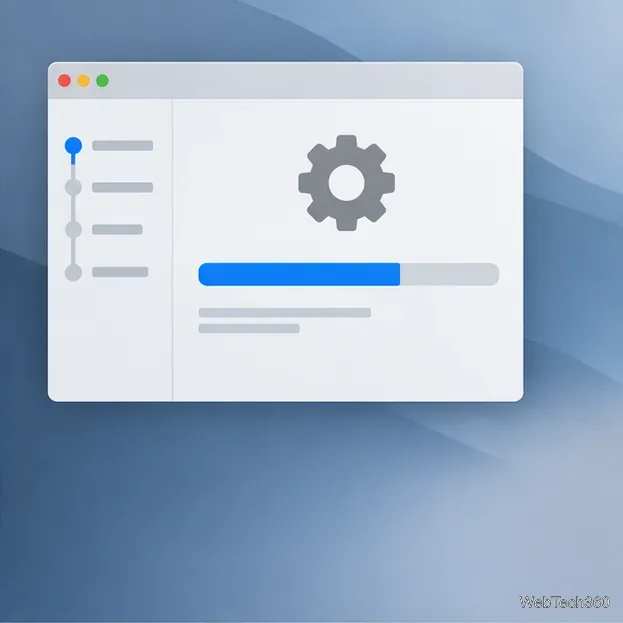
fgdata package separate. Accept the data download when prompted and leave it in a user-writable folder. On Windows, the update guide recommends a location under your user profile rather than Program Files.If the automatic download fails, follow the official data-package instructions: download the ZIP matching your exact FlightGear version, extract it somewhere permanent, then launch the simulator and use Choose folder to select it.
Open the graphical Qt launcher to choose an aircraft and starting location.
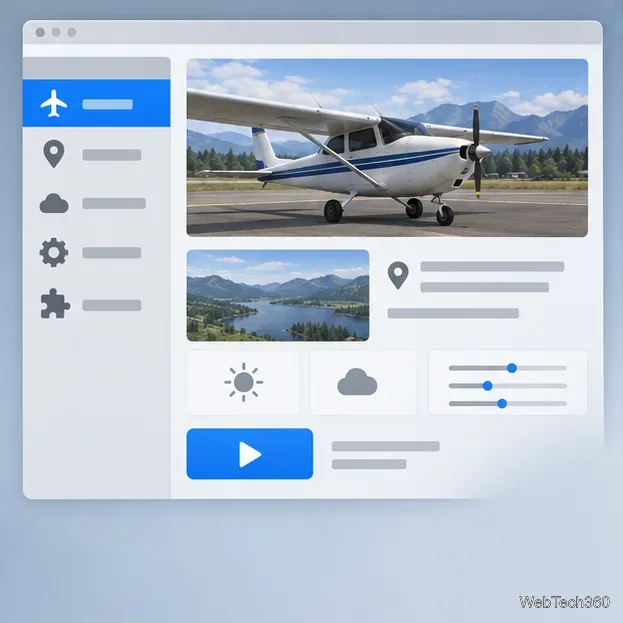
FlightGear focuses on flight simulation rather than arcade action. A small single-engine plane is a simpler starting point than an airliner. Aircraft start-up procedures vary, so check the aircraft help or bundled manual if the engine does not start. Begin with the default keyboard and mouse controls, then configure a joystick or yoke later if you have one.
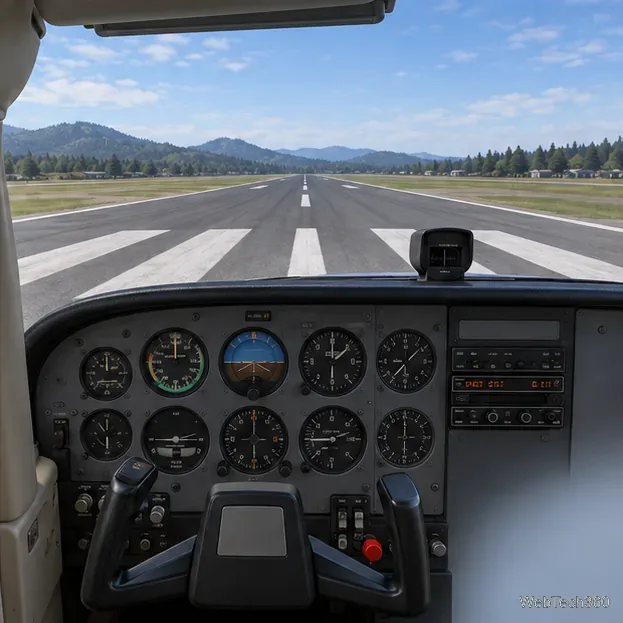
FlightGear does not install detailed scenery for the whole world at once. The 2024.1 beginner guide lists Keflavik and Hilo (the Cessna 172P tutorial airport) among the included areas. TerraSync can download scenery for places you visit, so connect to the internet and give it time to load terrain or buildings.
The launcher’s aircraft catalog includes light planes, airliners, helicopters, gliders, and historic aircraft. Detail and compatibility vary across volunteer-maintained models. Start with an aircraft for your release; the official aircraft guide covers add-on installation.
Yes. The official FlightGear release is free and open source; no paid activation or subscription is required. Donations are optional. A paid third-party bundle is not necessary to download the simulator, so check what extras or support it actually includes.
For current packages and more help, visit the FlightGear download page or its new-user guide and official FAQ.
Learn how to recover lost partitions and files with TestDisk and PhotoRec. Protect the source drive, scan safely, and save recovered data to another disk.
Scan QR codes on Linux with CoBang using a webcam or image file. See installation options, setup steps, and fixes for Flatpak camera access.
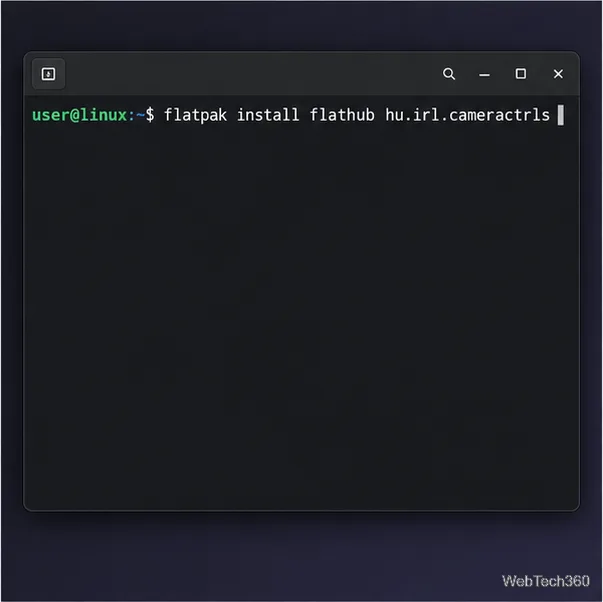
Change webcam settings on Linux with Cameractrls: tune exposure, color, flicker reduction, and other supported controls, then check compatible video modes.
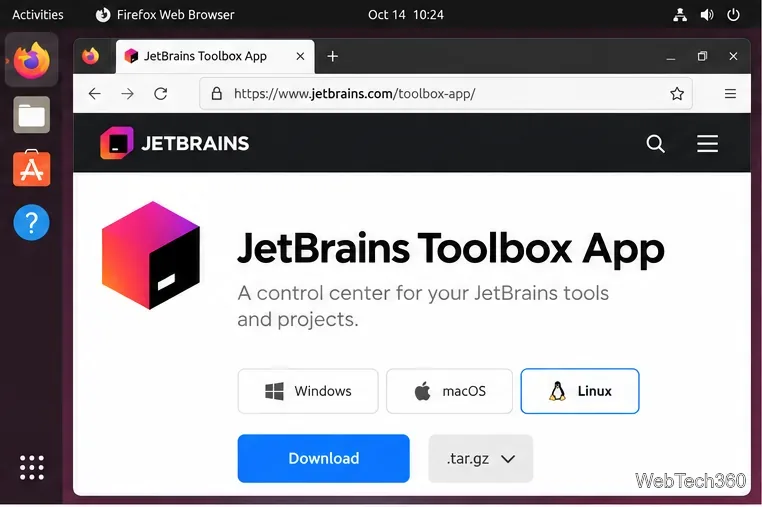
Install PhpStorm on Linux with JetBrains Toolbox or the standalone tar.gz archive, plus Snap and Arch AUR options. Java is already bundled.
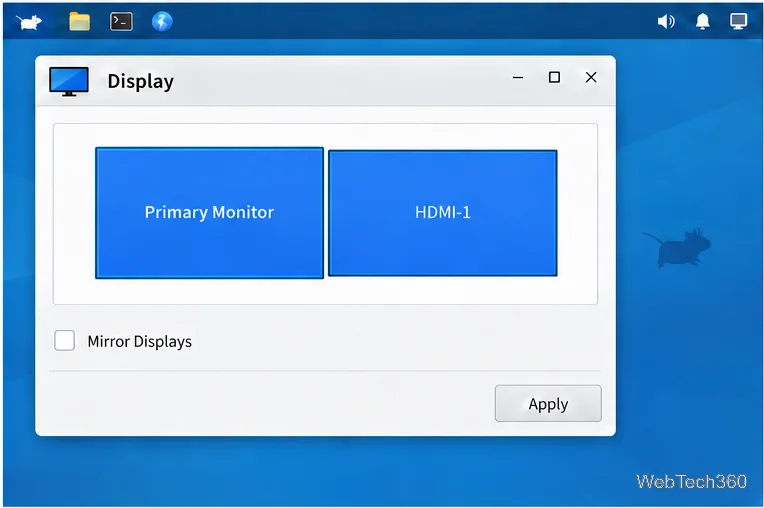
Create a separate XFCE 4 panel for each display, assign the second panel to the right output, position and size it, and add the launchers and status items you need.
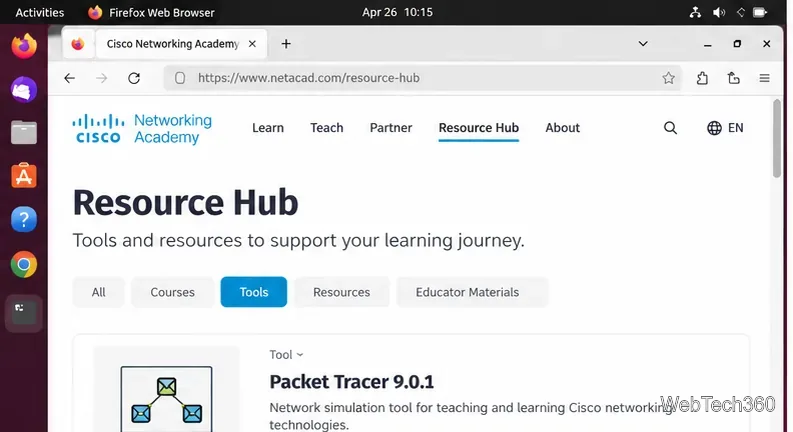
Download Cisco Packet Tracer 9.0.1 for Ubuntu 64-bit, install the DEB package with APT, accept the license in Terminal, and sign in to start a lab.
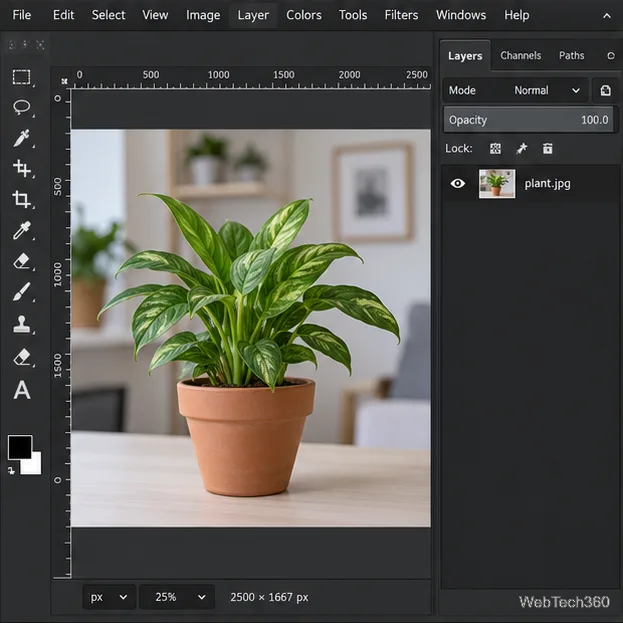
Remove a photo background on Linux with GIMP: trace a subject, delete the selected background, keep transparency, and export a reusable PNG.
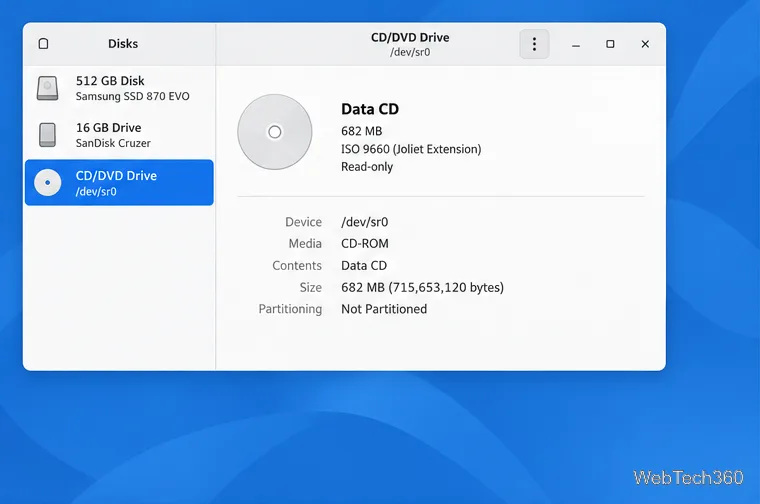
Create a CD-ROM ISO on Linux with GNOME Disks or dd. Identify the optical drive, monitor the copy, verify the image, and know when a damaged or audio disc needs another tool.
Download FlightGear for free from the official site. Compare Windows, macOS, and Linux packages, install the data files, and start your first flight.
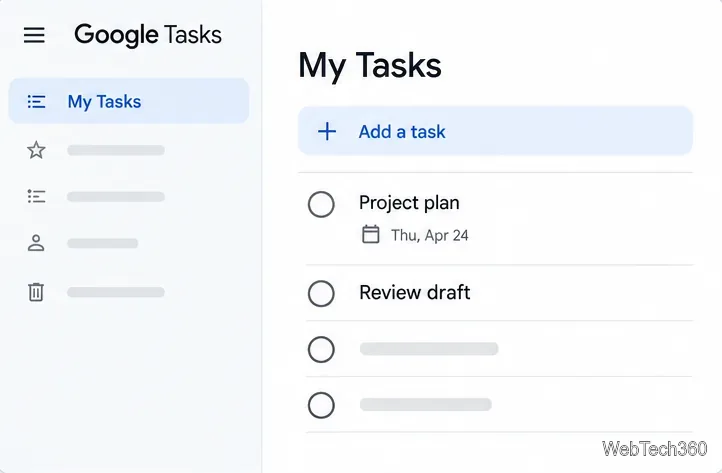
Open Google Tasks in a browser, add a Chrome shortcut or app-style launch, and manage dated to-dos through Calendar and Gmail.