How to Recover Lost Partitions and Hard Disk Data Safely
Learn how to recover lost partitions and files with TestDisk and PhotoRec. Protect the source drive, scan safely, and save recovered data to another disk.
For most Linux users, the simplest way to install PhpStorm is with JetBrains Toolbox: unpack the Toolbox App, launch it, and click Install next to PhpStorm. You can also install the standalone Linux archive directly, use the official Snap package, or build the Arch User Repository (AUR) package. PhpStorm includes JetBrains Runtime, so you do not need to install Java separately.
JetBrains lists x86_64 and ARM64 processors, a four-core CPU, 8 GB of total RAM with 3 GB available to the IDE, and 10 GB of disk space as the current desktop requirements. Its tested Linux list includes Ubuntu 24.04 and 26.04 LTS, Fedora 43 and 44, Debian 13, and Amazon Linux 2023, with GNOME or KDE Plasma and glibc 2.28 or later. Check the PhpStorm installation guide if you use another distribution. The download page offers separate Linux builds for ARM64 and other supported systems, so select the one that matches your processor.
Choose one installation method. Toolbox is easiest to update and roll back; the archive gives you control over its folder; Snap is convenient where snapd is enabled; and AUR is for Arch-based systems comfortable with community packages.
~/Downloads.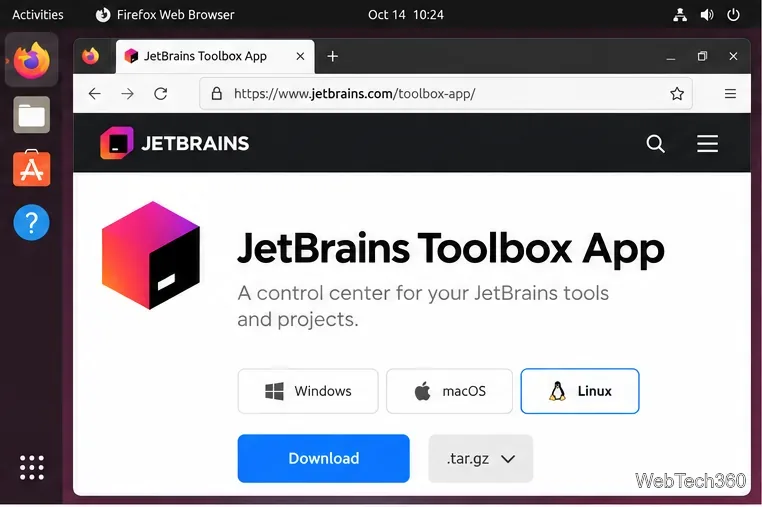
mkdir -p ~/apps/jetbrains-toolbox
tar -xzf ~/Downloads/jetbrains-toolbox-*.tar.gz -C ~/apps/jetbrains-toolbox
cd ~/apps/jetbrains-toolbox
./bin/jetbrains-toolbox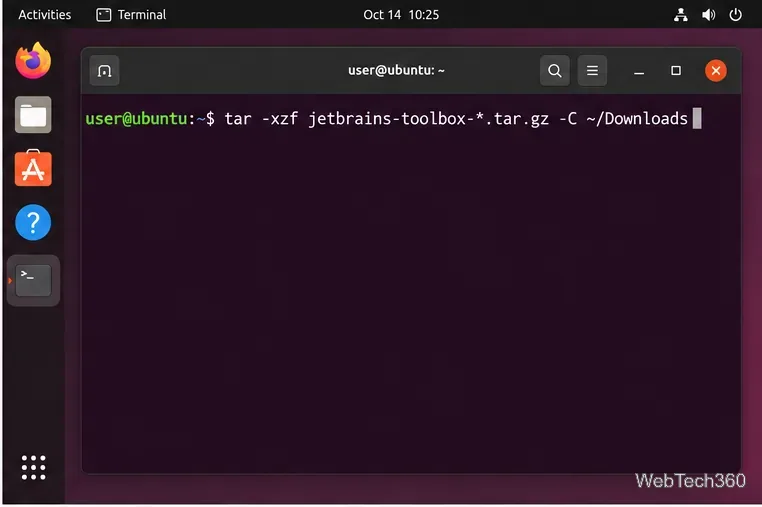
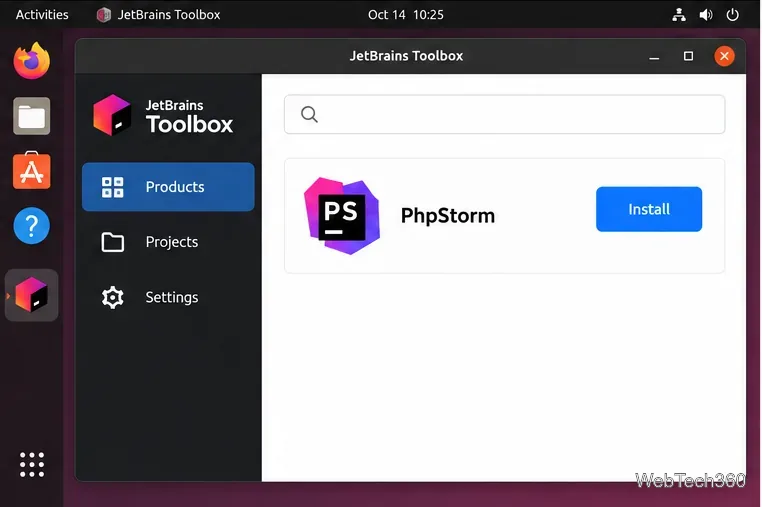
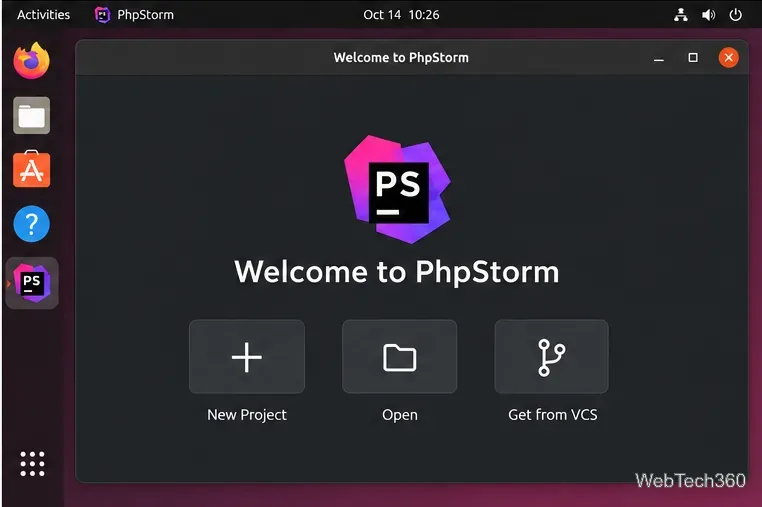
Toolbox creates a desktop entry on first launch. If you install PhpStorm through the standalone archive instead, you can create one inside the IDE from Tools > Create Desktop Entry.
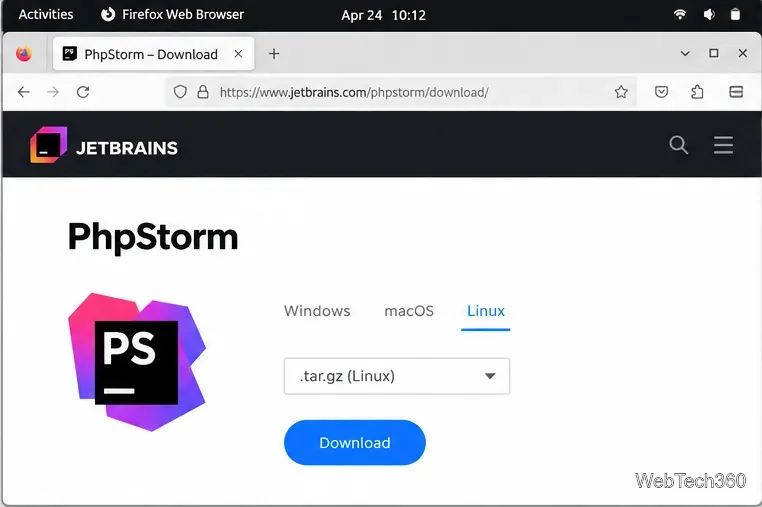
Use this method if you prefer to keep the IDE in a folder you choose. On the PhpStorm download page, select Linux and download the .tar.gz archive for your processor. Do not unpack a new version over an existing installation; use a clean directory for each version.
The following commands create a folder in your home directory, extract the archive there, and start the launcher. If the wildcard matches more than one download or installation, substitute the exact filename and folder name.
mkdir -p ~/apps
tar -xzf ~/Downloads/PhpStorm-*.tar.gz -C ~/apps
~/apps/PhpStorm-*/bin/PhpStorm.sh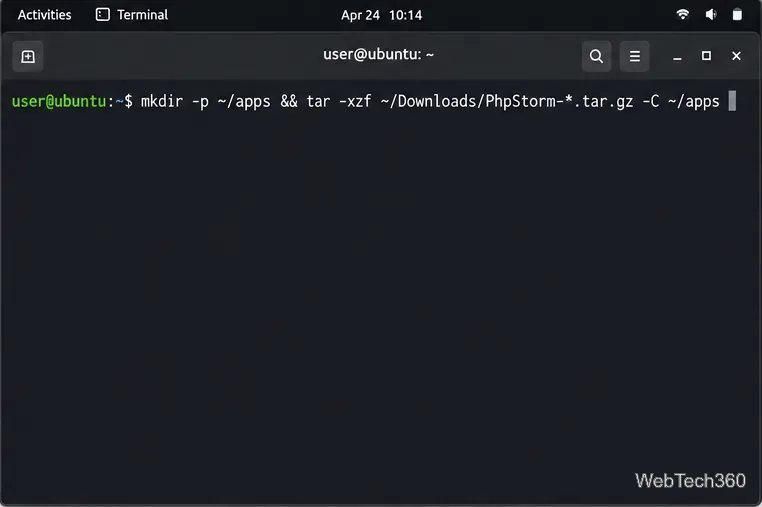
The standalone installation can run without root access when placed under your home directory. For a shared system installation, JetBrains documents extracting the archive to /opt; that location requires administrator permission. See JetBrains’ first-run guide for launch and welcome-screen options.
If snapd is installed and running on your distribution, install the stable Snap from a terminal:
sudo snap install phpstorm --classic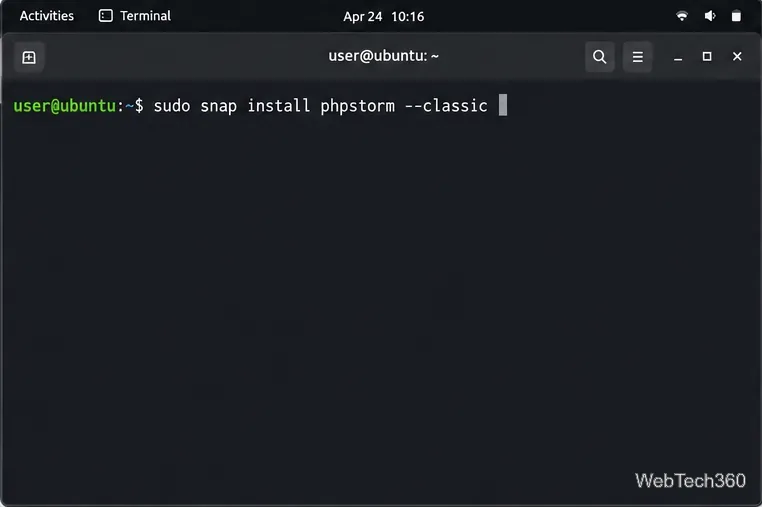
Launch it with phpstorm or from the application menu. The --classic flag is required by this package. JetBrains notes that the Snap can have performance, file-management, or Chromium debugging issues; if those affect your setup, try the Toolbox App instead. See the verified PhpStorm listing in Snap Store for current channels and setup details.
The phpstorm AUR package is maintained outside Arch’s official repositories. Review its build files before installing, because an AUR PKGBUILD is a shell script. Install the build tools, clone the package, inspect the PKGBUILD, then build and install it as your normal user:
sudo pacman -S --needed base-devel git
git clone https://aur.archlinux.org/phpstorm.git
cd phpstorm
less PKGBUILD
makepkg -si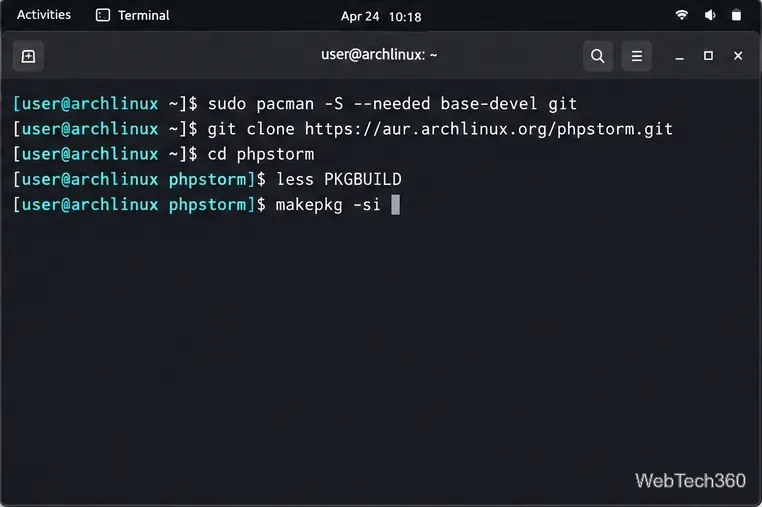
Press q to leave less. Read the file and check for unexpected changes before continuing. Do not run makepkg with sudo; it installs required dependencies with permission when needed. Arch’s makepkg guidance explains the build process and safety requirements.
Java is bundled, but PhpStorm is an IDE rather than the PHP runtime. To run or debug PHP code, install PHP locally or configure a remote interpreter, then add it under Settings > PHP. JetBrains explains the steps in its guide to configuring a local PHP interpreter. If the launcher will not start, first check that you downloaded the correct CPU architecture and that your Linux libraries meet the current system requirements.
Learn how to recover lost partitions and files with TestDisk and PhotoRec. Protect the source drive, scan safely, and save recovered data to another disk.
Scan QR codes on Linux with CoBang using a webcam or image file. See installation options, setup steps, and fixes for Flatpak camera access.
Change webcam settings on Linux with Cameractrls: tune exposure, color, flicker reduction, and other supported controls, then check compatible video modes.
Install PhpStorm on Linux with JetBrains Toolbox or the standalone tar.gz archive, plus Snap and Arch AUR options. Java is already bundled.
Create a separate XFCE 4 panel for each display, assign the second panel to the right output, position and size it, and add the launchers and status items you need.
Download Cisco Packet Tracer 9.0.1 for Ubuntu 64-bit, install the DEB package with APT, accept the license in Terminal, and sign in to start a lab.
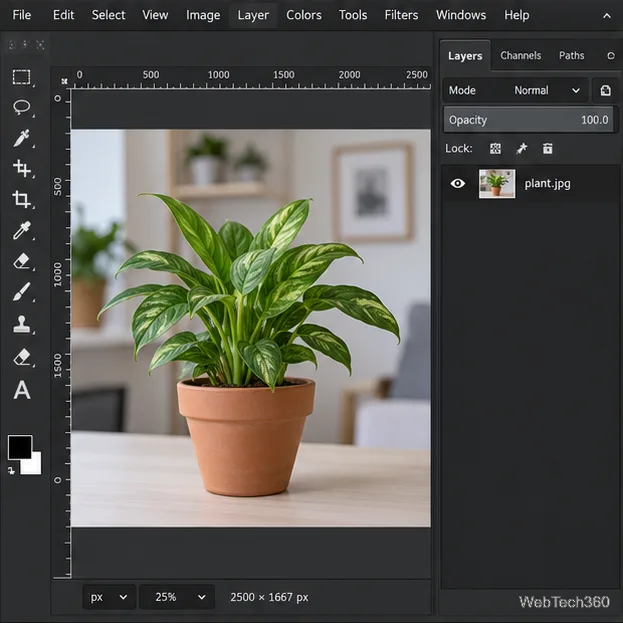
Remove a photo background on Linux with GIMP: trace a subject, delete the selected background, keep transparency, and export a reusable PNG.
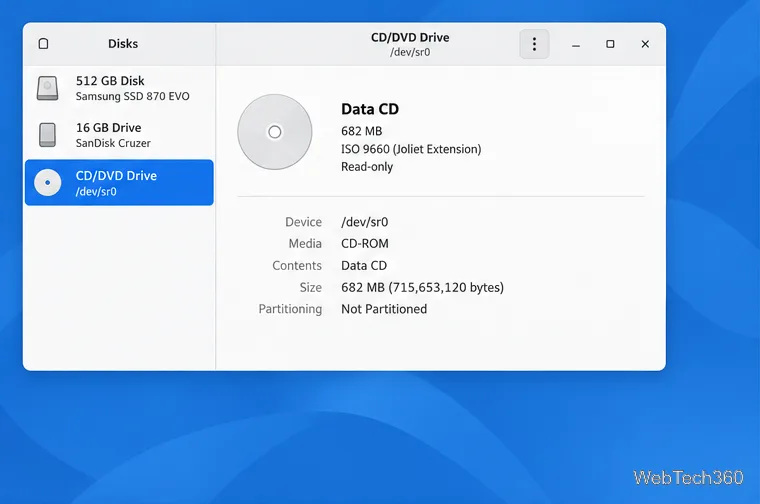
Create a CD-ROM ISO on Linux with GNOME Disks or dd. Identify the optical drive, monitor the copy, verify the image, and know when a damaged or audio disc needs another tool.
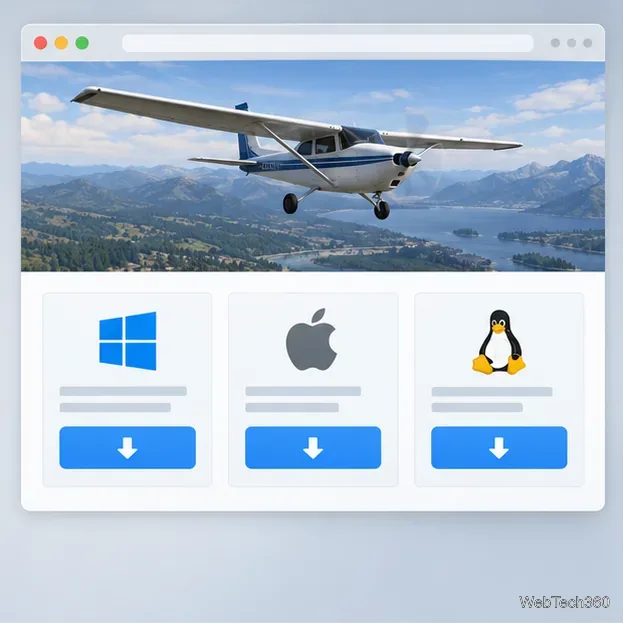
Download FlightGear for free from the official site. Compare Windows, macOS, and Linux packages, install the data files, and start your first flight.
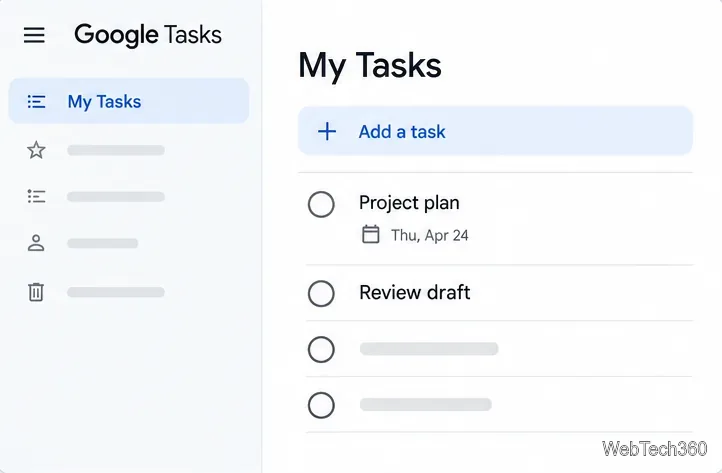
Open Google Tasks in a browser, add a Chrome shortcut or app-style launch, and manage dated to-dos through Calendar and Gmail.