How to Recover Lost Partitions and Hard Disk Data Safely
Learn how to recover lost partitions and files with TestDisk and PhotoRec. Protect the source drive, scan safely, and save recovered data to another disk.
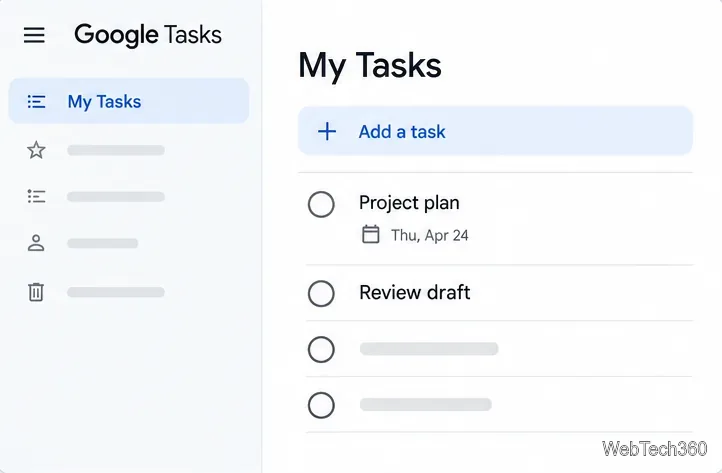
Google Tasks desktop application usually means opening the service in a browser. On a computer, go to tasks.google.com or open Tasks from Google Calendar. Google’s current desktop instructions point users to Tasks in Calendar in a browser; the Google Tasks app download is for mobile devices. The older Adobe AIR client described in previous versions of this article is not needed to access your current Google task lists. For current steps, see Google’s Tasks overview and computer guide. If you want an app-like launch, Chrome may let you install the site as a web app or create a shortcut.
Visit Google Tasks on the web and sign in to the Google Account that contains your lists. The browser view is useful when you want to focus on tasks without keeping Gmail open. It syncs with the same account you use on other devices, so edits you make there appear in Tasks elsewhere.
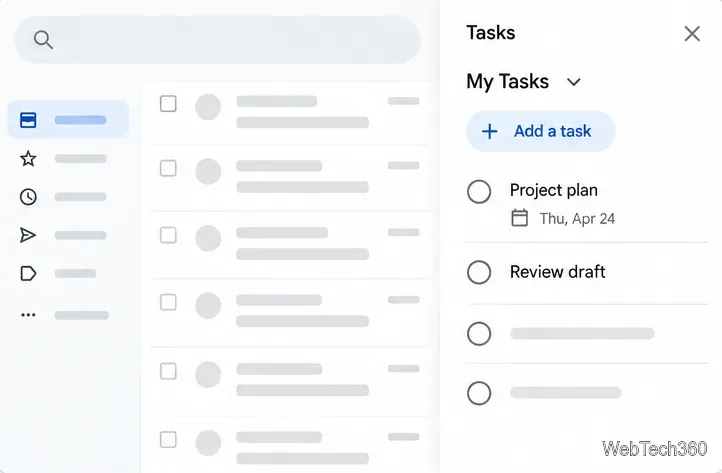
You can also open Tasks inside Google Workspace. In Calendar, select the Tasks icon near the top right to switch to the task view. In Gmail, Calendar, Chat, Drive, or a file in Docs, Sheets, or Slides, use the Tasks icon in the side panel. If the panel is hidden, select Show side panel at the lower-right of the Workspace window. Work or school accounts may have Tasks access controlled by an administrator.
For a faster launch, first open tasks.google.com in Chrome. Open the three-dot menu and choose Cast, save, and share. If Chrome shows Install page as app, select it and follow the prompts. Some websites also show an Install icon in the address bar. The option depends on whether Chrome offers an installable web app for the page; it may not appear on every site or setup.
If there is no install option, choose Create shortcut from the same menu, name it Google Tasks, and select Create. A shortcut gives you a quick way to return to the service, but it is not a separate native Google Tasks program. Depending on your Chrome and operating-system setup, it may open in a regular browser window. In another browser, bookmark the page or pin it to your favorites bar.
Google’s Chrome web app instructions explain installation, while its shortcut instructions cover a standard website shortcut. Neither method brings back the older Adobe AIR client.
In Tasks, choose a list and select Add a task, then enter a clear action such as “Review the project draft.” Open the task to add a description, choose a list, set a date and time, or add subtasks. Use separate lists for distinct areas of work, such as personal errands and a project, so the main list stays easy to scan.
If an email contains something you need to do, open it in Gmail and select Add to Tasks at the top. If that control is not visible, open the email’s More menu and choose Add to Tasks. You can also use the Tasks side panel to add a task without leaving the message or document you are working on.
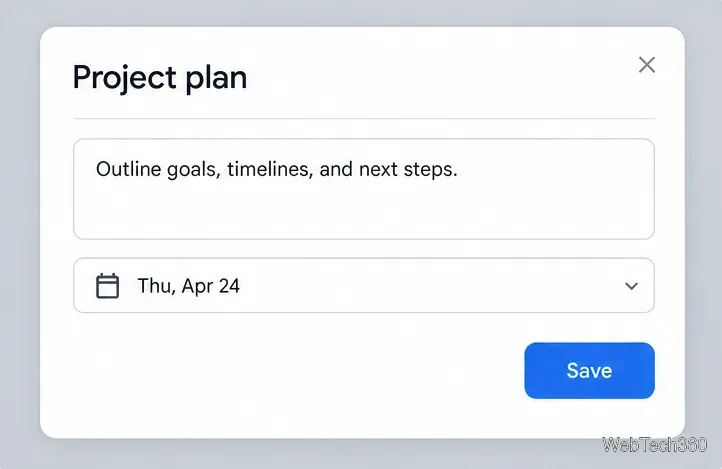
For a large item, split it into subtasks from the task options menu. You can reorder tasks in a list and move a task to another list. To finish one, click its circle. These controls work from the browser view and the Workspace side panel; the layout can differ slightly by product.
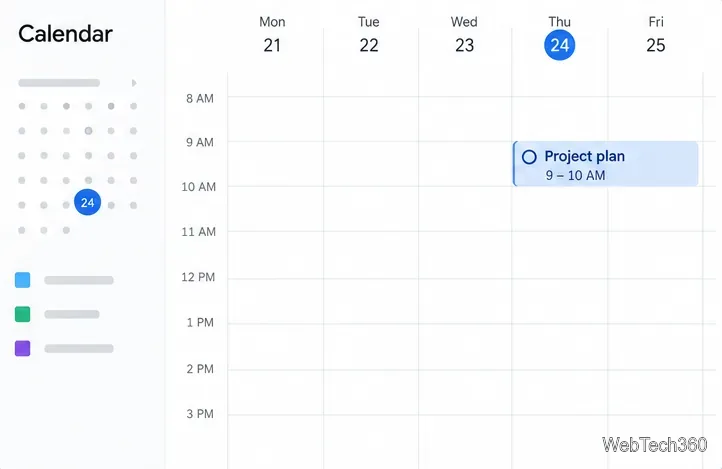
A task with a date appears in Calendar, so you can compare it with meetings and other scheduled work. Add a time when you want the task to occupy a specific time slot; use a due date when you only need to remember the day it is expected. Google’s desktop help says a deadline appears in Calendar’s all-day section. It also documents notifications for scheduled tasks and deadline reminders, so check the date and time before saving if a reminder matters.
Repeating tasks can be set from the date and time options. One limitation: Google says tasks that have subtasks cannot repeat. For a task that is part of a recurring routine, either keep it simple or create its subtasks in a separate list or task.
Learn how to recover lost partitions and files with TestDisk and PhotoRec. Protect the source drive, scan safely, and save recovered data to another disk.
Scan QR codes on Linux with CoBang using a webcam or image file. See installation options, setup steps, and fixes for Flatpak camera access.
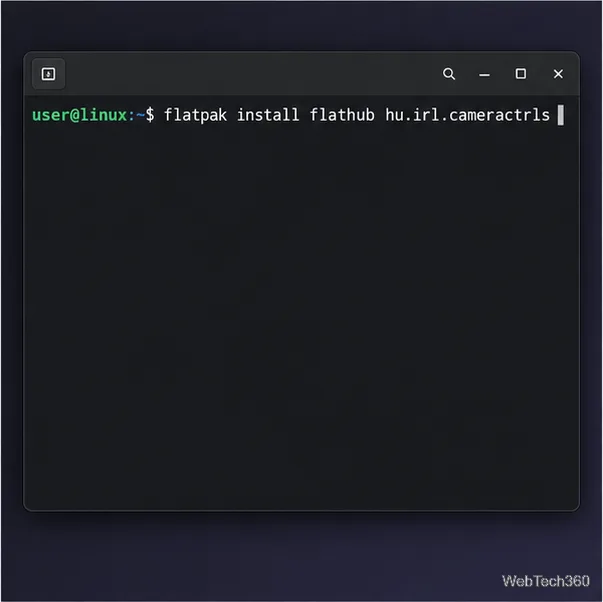
Change webcam settings on Linux with Cameractrls: tune exposure, color, flicker reduction, and other supported controls, then check compatible video modes.
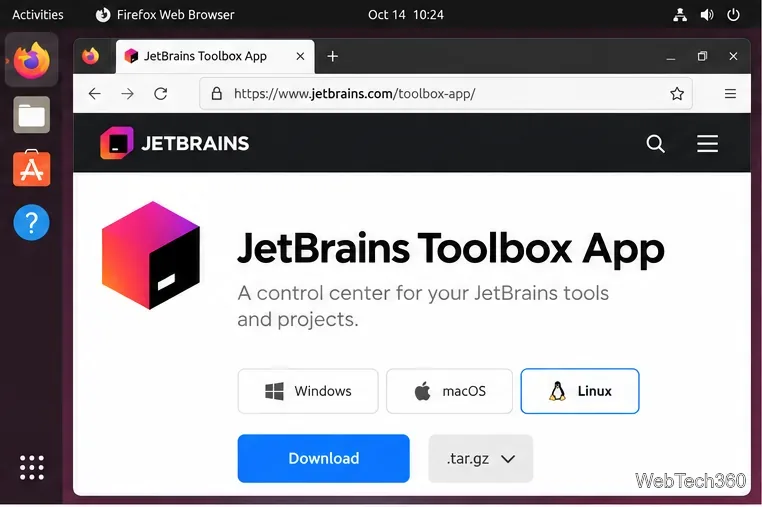
Install PhpStorm on Linux with JetBrains Toolbox or the standalone tar.gz archive, plus Snap and Arch AUR options. Java is already bundled.
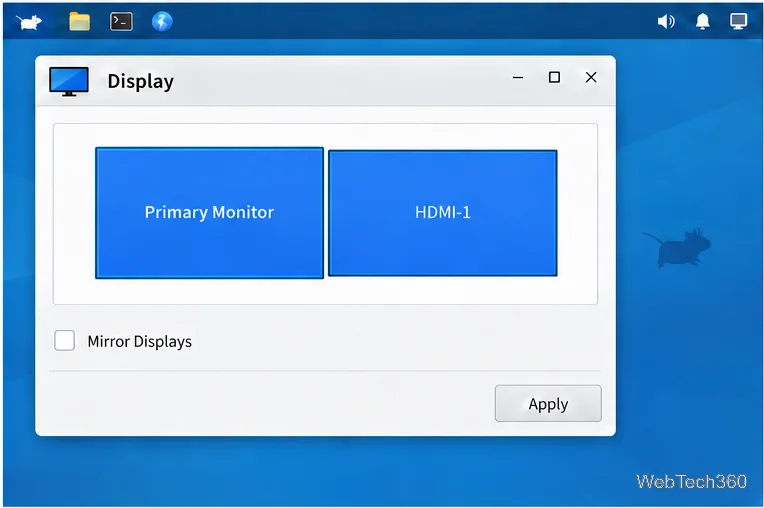
Create a separate XFCE 4 panel for each display, assign the second panel to the right output, position and size it, and add the launchers and status items you need.
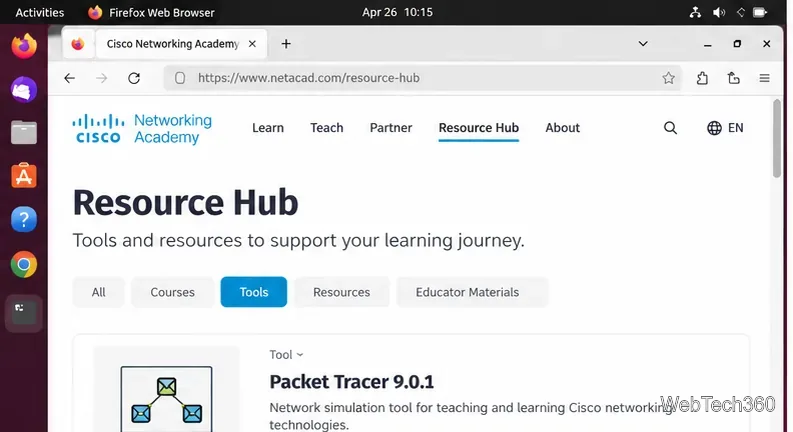
Download Cisco Packet Tracer 9.0.1 for Ubuntu 64-bit, install the DEB package with APT, accept the license in Terminal, and sign in to start a lab.
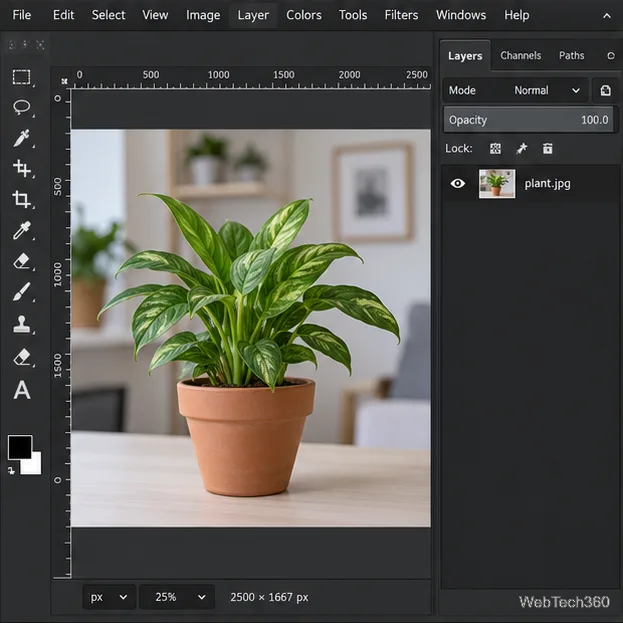
Remove a photo background on Linux with GIMP: trace a subject, delete the selected background, keep transparency, and export a reusable PNG.
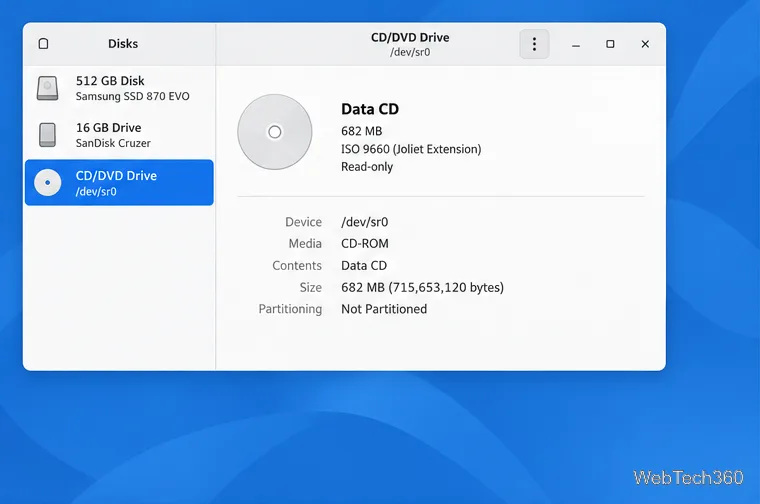
Create a CD-ROM ISO on Linux with GNOME Disks or dd. Identify the optical drive, monitor the copy, verify the image, and know when a damaged or audio disc needs another tool.
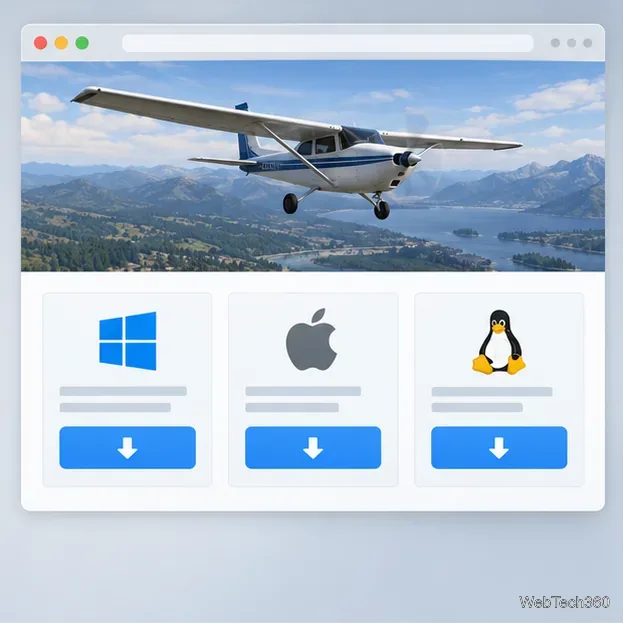
Download FlightGear for free from the official site. Compare Windows, macOS, and Linux packages, install the data files, and start your first flight.
Open Google Tasks in a browser, add a Chrome shortcut or app-style launch, and manage dated to-dos through Calendar and Gmail.