How to Recover Lost Partitions and Hard Disk Data Safely
Learn how to recover lost partitions and files with TestDisk and PhotoRec. Protect the source drive, scan safely, and save recovered data to another disk.
To back up a readable data CD-ROM as an ISO on Linux, use GNOME Disks or copy the optical drive to a file with dd. In GNOME Disks, select the CD/DVD drive, choose Create Disk Image, and save the result with an .iso extension. In a terminal, first identify the optical device (often /dev/sr0), then copy it to a new ISO file. Do not guess the device name: check it before running the command.
This guide covers ordinary data CDs that the drive can read. An ISO is not a track-aware audio CD rip, and a direct copy may fail on damaged or recordable discs with read errors. Use a dedicated CD ripper for audio, or GNU ddrescue for recovery work.
GNOME Disks may already be installed. If it is missing, install the gnome-disk-utility package with your distribution's package manager. Common commands are sudo apt install gnome-disk-utility on Debian or Ubuntu, sudo dnf install gnome-disk-utility on Fedora, sudo pacman -S gnome-disk-utility on Arch Linux, and sudo zypper install gnome-disk-utility on openSUSE. Menu wording can vary a little by release.
Insert the CD-ROM and open Disks. Select the physical CD/DVD drive in the left sidebar. Check that the selected device is the optical drive with your disc, rather than a hard drive, USB stick, or individual volume.
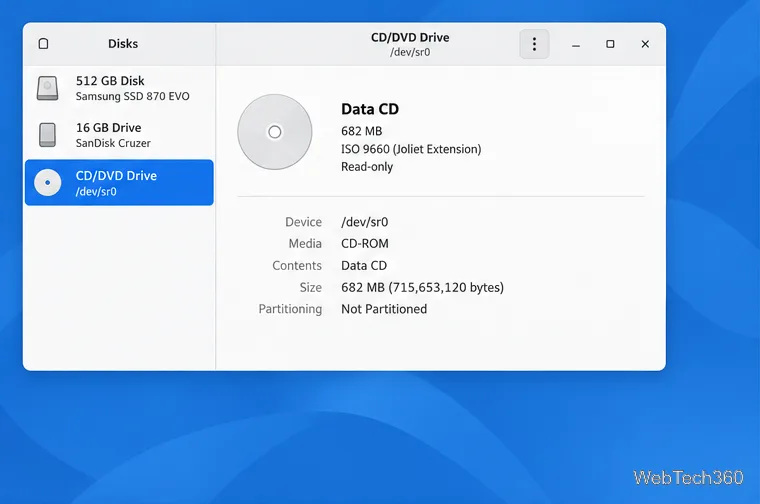
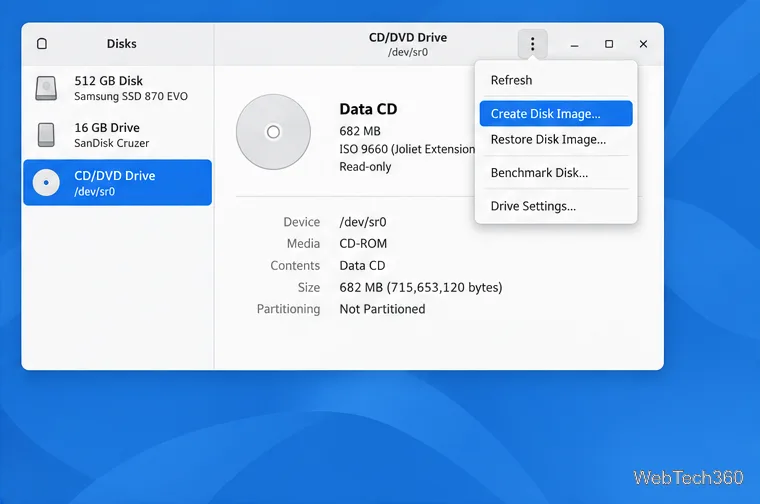
Open the drive's three-dot menu and choose Create Disk Image…. This starts the image-saving flow for the selected device.
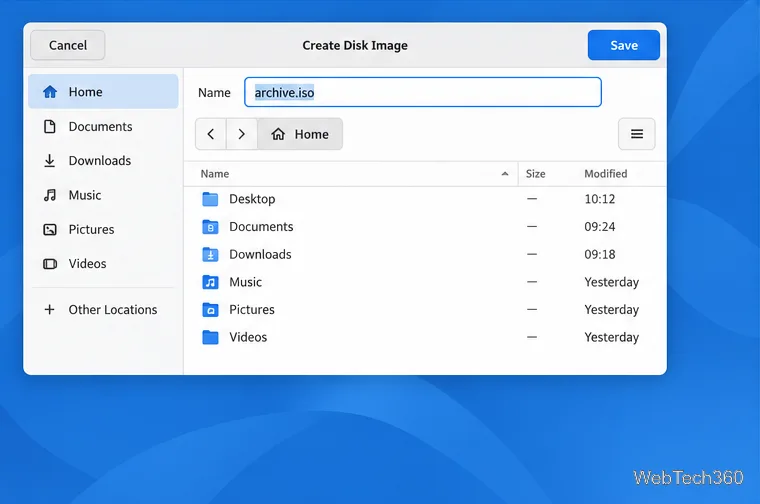
In the save dialog, choose a folder and enter a clear filename such as archive.iso. Keep the .iso extension, make sure the destination has enough free space for the disc, and click Save.
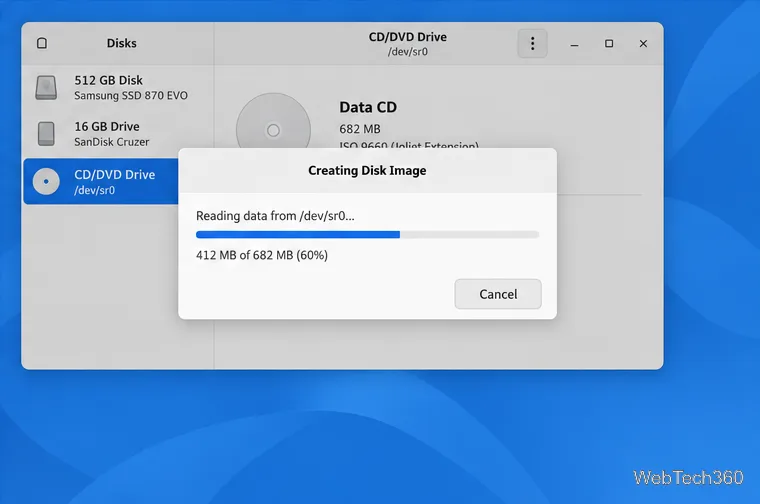
Wait for the progress dialog to finish before ejecting the disc. When it closes, open the folder you chose and confirm that the new ISO file is there. Copy it to separate storage if you want a backup that survives damage to the computer's main drive.
The terminal method uses GNU dd to read the optical drive as a block device and write those bytes to a regular file. The status=progress option displays transfer progress in GNU Coreutils.
With the CD-ROM inserted, list the block devices:
lsblk -p -o NAME,TYPE,SIZE,MOUNTPOINTSFind the row whose type is rom, commonly /dev/sr0. If your computer has more than one optical drive, use the row and size that match the inserted disc. Some systems use a different /dev/srN path; substitute the exact path shown on your machine.
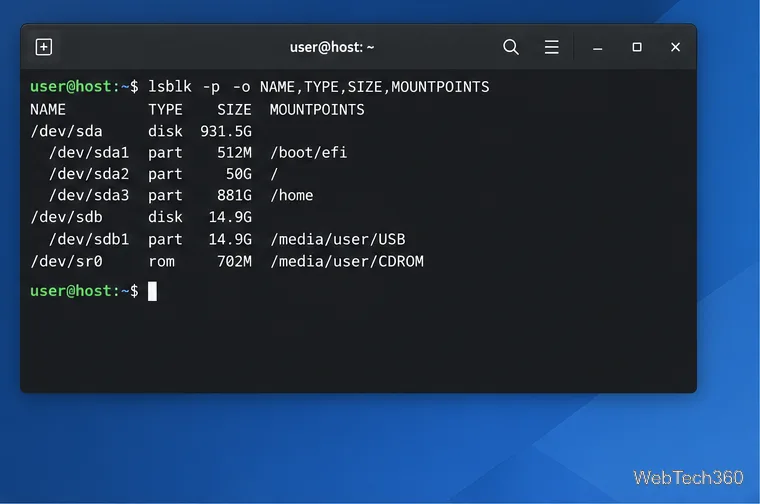
Run dd with the optical drive as the input and a new ISO filename as the output:
sudo dd if=/dev/sr0 of="$HOME/archive.iso" bs=2048 status=progressReplace /dev/sr0 if your optical drive has another name. Pick a destination filename that does not already contain a file you need: dd overwrites its output path. If your account can already read the device, you can omit sudo.
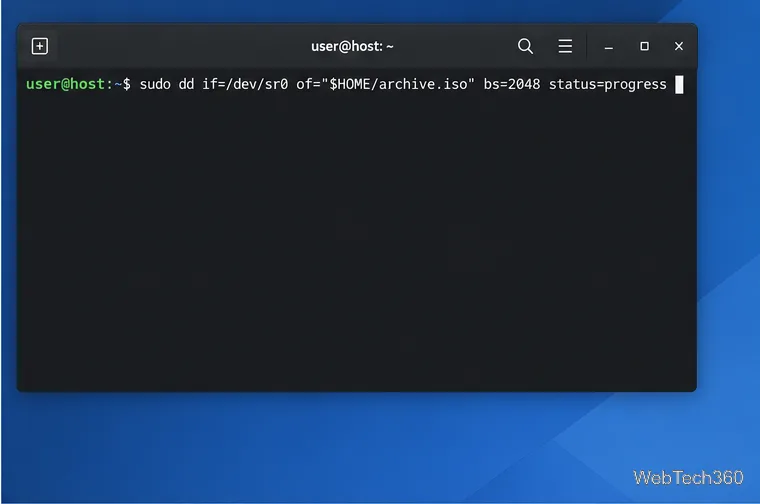
Let the command run until it returns to the shell prompt. The progress status is informational; do not eject the disc while it is being read. A read error means the resulting file may be incomplete. If the file was created by sudo, it may be owned by root; you can give it back to your account with sudo chown "$USER" "$HOME/archive.iso".
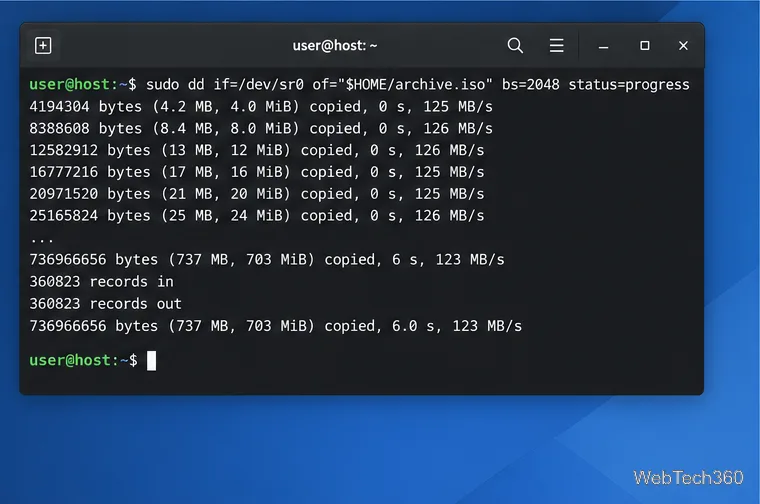
Check that Linux recognizes the saved file as an ISO image:
file "$HOME/archive.iso"For a typical data CD, the result should identify an ISO 9660 CD-ROM filesystem. The exact label in the output comes from the disc. If the command reports only generic data, or dd reported an input/output error, do not treat the file as a verified backup.
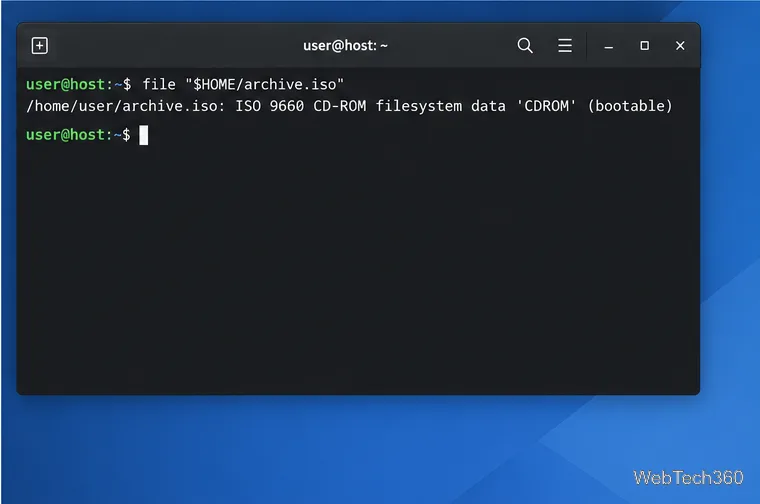
A normal ISO copy is convenient for a readable data disc. Audio CDs have separate tracks and should be ripped with software designed for audio extraction. For a scratched disc or a CD-R that produces read errors, GNU's ddrescue documentation notes cases where ddrescue can recover more reliably than plain dd. Keep its mapfile if you use it so a recovery can resume. In all cases, keep the original disc until you have checked the image and stored another copy somewhere safe.
Learn how to recover lost partitions and files with TestDisk and PhotoRec. Protect the source drive, scan safely, and save recovered data to another disk.
Scan QR codes on Linux with CoBang using a webcam or image file. See installation options, setup steps, and fixes for Flatpak camera access.
Change webcam settings on Linux with Cameractrls: tune exposure, color, flicker reduction, and other supported controls, then check compatible video modes.
Install PhpStorm on Linux with JetBrains Toolbox or the standalone tar.gz archive, plus Snap and Arch AUR options. Java is already bundled.
Create a separate XFCE 4 panel for each display, assign the second panel to the right output, position and size it, and add the launchers and status items you need.
Download Cisco Packet Tracer 9.0.1 for Ubuntu 64-bit, install the DEB package with APT, accept the license in Terminal, and sign in to start a lab.
Remove a photo background on Linux with GIMP: trace a subject, delete the selected background, keep transparency, and export a reusable PNG.
Create a CD-ROM ISO on Linux with GNOME Disks or dd. Identify the optical drive, monitor the copy, verify the image, and know when a damaged or audio disc needs another tool.
Download FlightGear for free from the official site. Compare Windows, macOS, and Linux packages, install the data files, and start your first flight.
Open Google Tasks in a browser, add a Chrome shortcut or app-style launch, and manage dated to-dos through Calendar and Gmail.