How to Recover Lost Partitions and Hard Disk Data Safely
Learn how to recover lost partitions and files with TestDisk and PhotoRec. Protect the source drive, scan safely, and save recovered data to another disk.
CoBang lets you scan a QR code on a Linux desktop with a webcam or an image file. Install it from Flathub with Flatpak, open the app, choose camera or image mode, and read the decoded result in the app. If your webcam is unavailable, check the desktop’s camera permission portal or try the package supplied for your distribution.
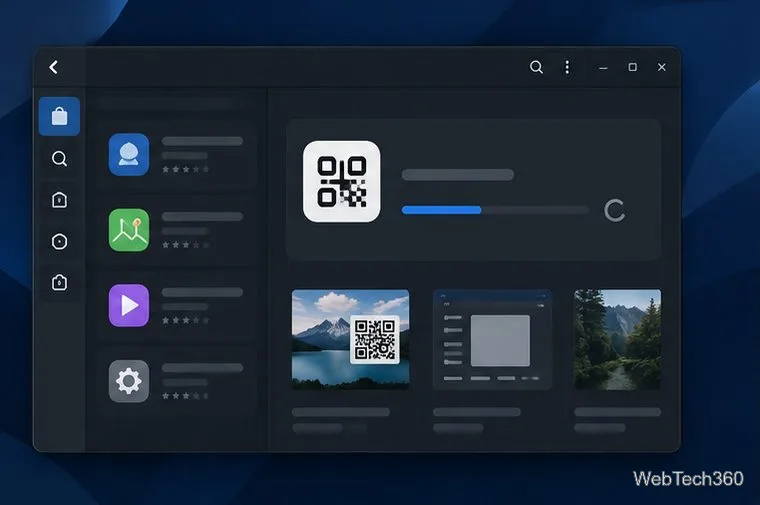
CoBang is a native Linux QR and barcode scanner. Its maintainer lists Ubuntu packages through a PPA, Arch Linux through the AUR, Fedora through COPR, and Flatpak through Flathub. The maintainer notes that the Flathub release can lag behind traditional distro packages. For most users, Flatpak is a convenient route across distributions; if you prefer your distro’s package manager, follow the maintainer’s current instructions for your specific release.
If Flatpak is already installed and Flathub is configured, open a terminal and run:
flatpak install flathub vn.hoabinh.quan.CoBangConfirm the install prompt. If Flatpak reports that it cannot find the Flathub remote, add the official repository and retry:
flatpak remote-add --if-not-exists flathub https://dl.flathub.org/repo/flathub.flatpakrepo
flatpak install flathub vn.hoabinh.quan.CoBang
Flatpak setup varies by distribution, so use Flathub’s setup instructions to install Flatpak and enable Flathub for Ubuntu, Fedora, Arch, Linux Mint, or another supported distro. When prompted, review the app and runtime details before confirming.
Ubuntu and derivatives can use the maintainer’s PPA; the project notes that CoBang version 1 and later require a distribution as new as Ubuntu 24.10. The maintainer also provides an AUR route for Arch and a COPR route for Fedora. Package availability and commands can change, so consult the current CoBang installation notes before adding a repository or building an AUR package. Avoid copying an old package command if it does not match your release.

flatpak run vn.hoabinh.quan.CoBang.

Use a clear, uncropped image with good contrast. If the code is embedded in a screenshot, crop away unrelated content only if the complete QR square remains intact. A distorted, tiny, low-contrast, or partially covered code may not decode.
Flatpak runs apps in a sandbox. The CoBang maintainer says sandboxed webcam access uses xdg-desktop-portal; camera visibility can depend on the portal support in your desktop environment. Check your desktop’s privacy or camera settings, close other camera apps, and restart CoBang after changing permissions. Also confirm the camera is visible to the operating system and that your session has a working portal service.
If the camera still does not appear, try the distro package route described by the project. CoBang accesses V4L2 devices directly when it runs outside the Flatpak sandbox, while the Flatpak build uses the portal. This is a useful troubleshooting difference, not a guarantee that changing package format will fix every camera or driver issue.
For a quick alternative when a camera is not available, use image mode with a QR screenshot or photo. The project’s official repository and Flathub listing provide current project and package details.
Learn how to recover lost partitions and files with TestDisk and PhotoRec. Protect the source drive, scan safely, and save recovered data to another disk.
Scan QR codes on Linux with CoBang using a webcam or image file. See installation options, setup steps, and fixes for Flatpak camera access.
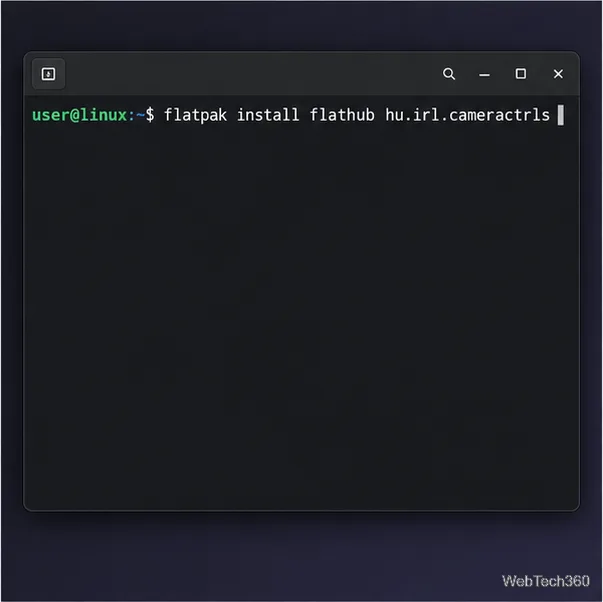
Change webcam settings on Linux with Cameractrls: tune exposure, color, flicker reduction, and other supported controls, then check compatible video modes.
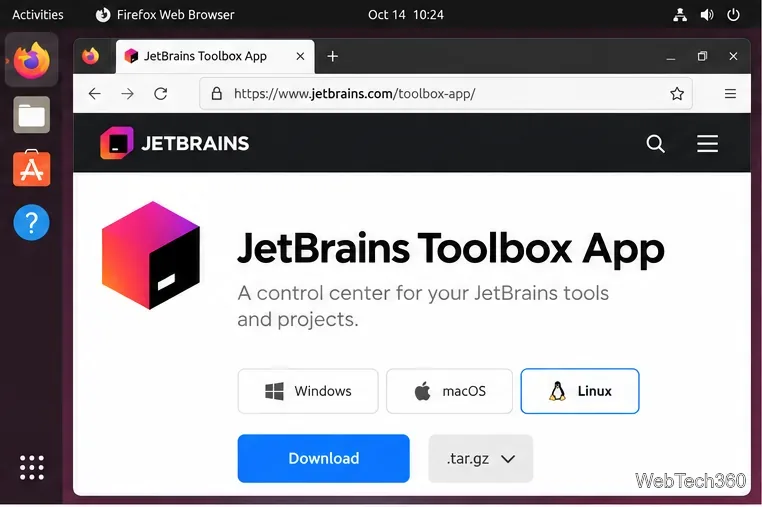
Install PhpStorm on Linux with JetBrains Toolbox or the standalone tar.gz archive, plus Snap and Arch AUR options. Java is already bundled.
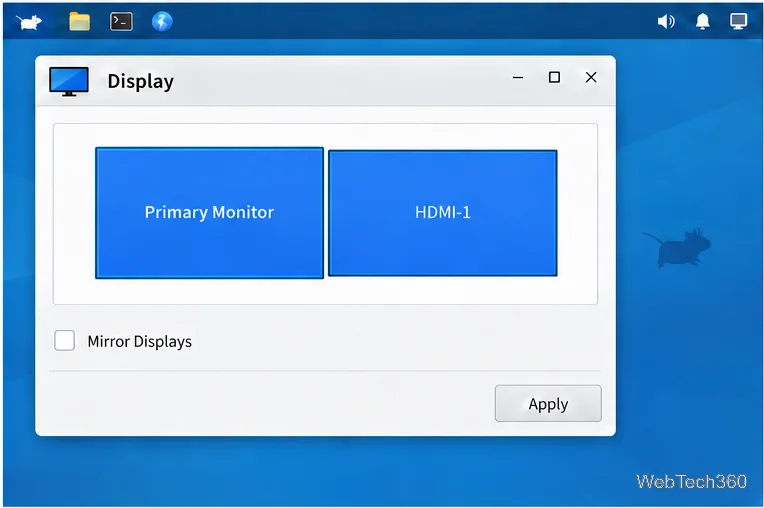
Create a separate XFCE 4 panel for each display, assign the second panel to the right output, position and size it, and add the launchers and status items you need.
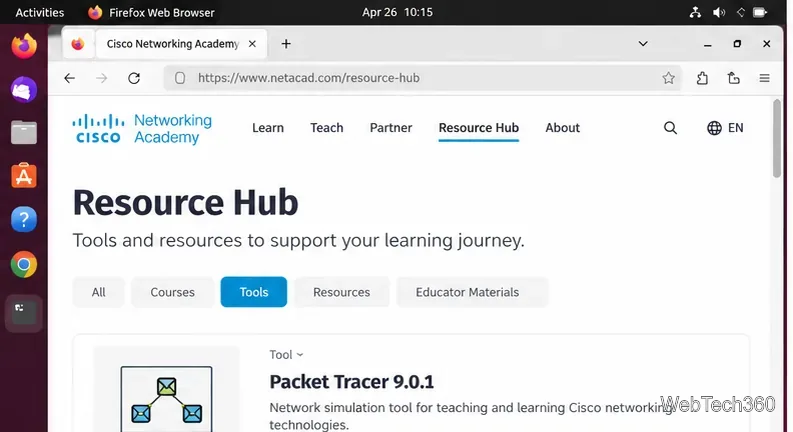
Download Cisco Packet Tracer 9.0.1 for Ubuntu 64-bit, install the DEB package with APT, accept the license in Terminal, and sign in to start a lab.
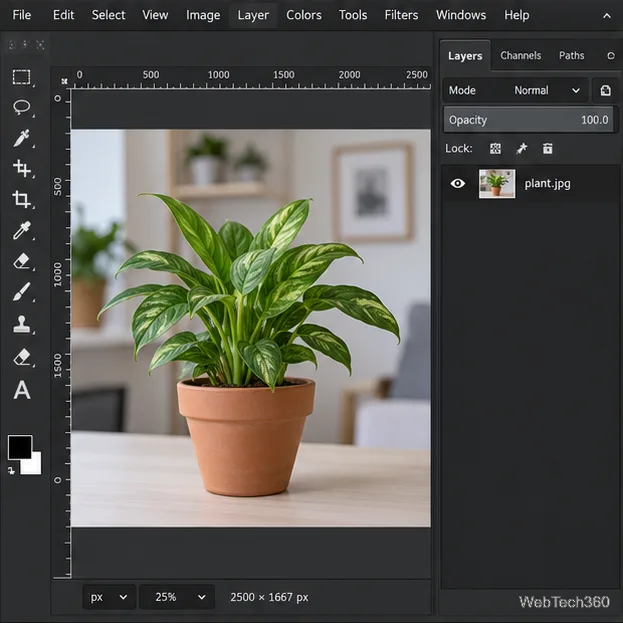
Remove a photo background on Linux with GIMP: trace a subject, delete the selected background, keep transparency, and export a reusable PNG.
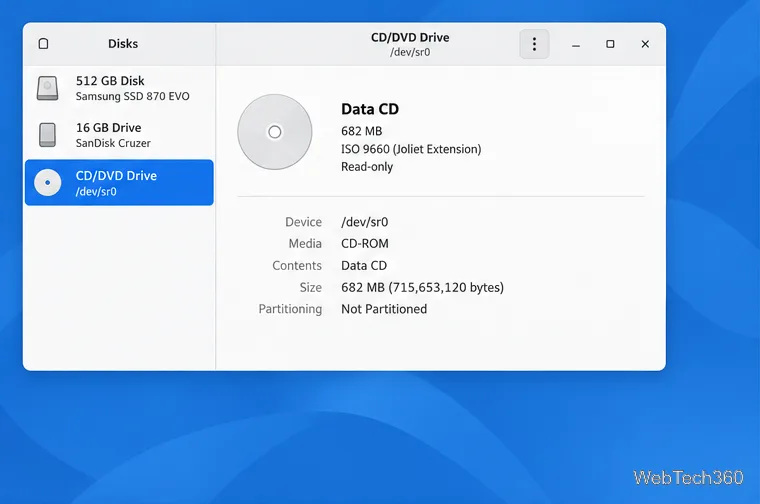
Create a CD-ROM ISO on Linux with GNOME Disks or dd. Identify the optical drive, monitor the copy, verify the image, and know when a damaged or audio disc needs another tool.
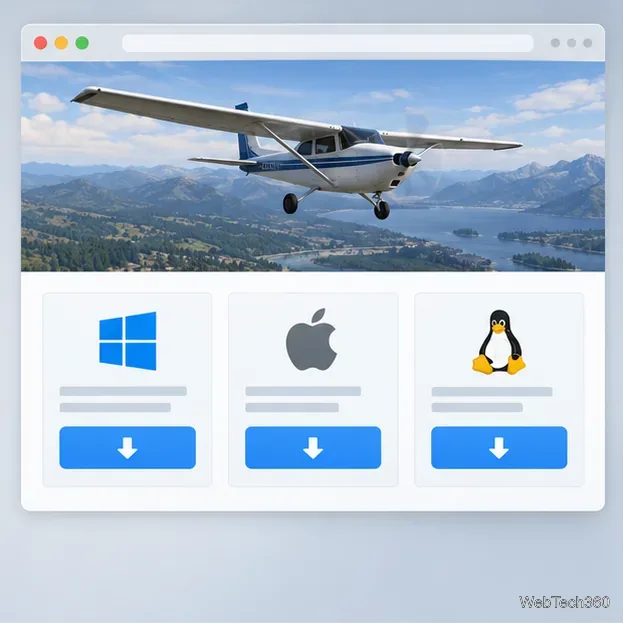
Download FlightGear for free from the official site. Compare Windows, macOS, and Linux packages, install the data files, and start your first flight.
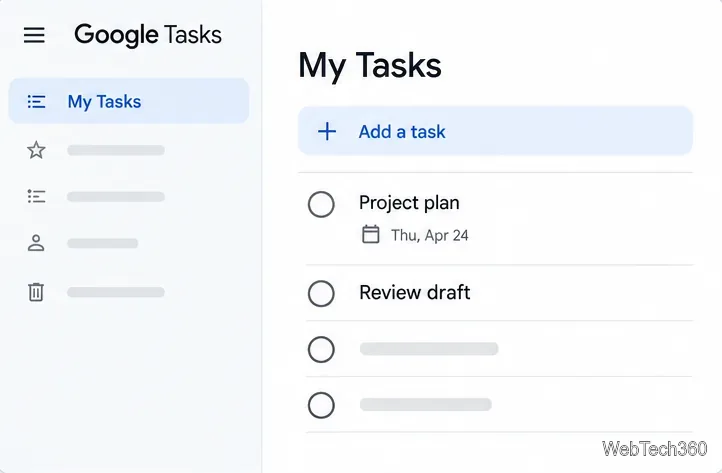
Open Google Tasks in a browser, add a Chrome shortcut or app-style launch, and manage dated to-dos through Calendar and Gmail.