How to Screenshot on Mac: A Comprehensive Guide

Learn how to screenshot on Mac with shortcuts for the full screen, an area, or a window, plus the Screenshot app, clipboard, editing, and save-location tips.
For a quick one-off conversion, Online Audio Converter is the simplest pick. CloudConvert is another browser option with a published free allowance. If you want to keep recordings on your computer, use Audacity or fre:ac; FFmpeg is best for repeatable command-line jobs. All five can convert WAV to MP3 on Windows or macOS, though the first two upload files to an online service.
WAV is commonly used for uncompressed audio, while MP3 is a lossy format that trades some audio information for smaller files. Converting does not improve the source or make the result lossless, so keep the original WAV when quality matters.

| Converter | Works on | Best for | Free-use note |
|---|---|---|---|
| Online Audio Converter | Browser on Windows or macOS | Fast, occasional conversions | Free tier with published limits. |
| CloudConvert | Browser on Windows or macOS | Cloud-based conversion with a free daily allowance | Free tier with daily and file-size caps. |
| Audacity | Windows and macOS | Editing audio before export | Free desktop app. |
| fre:ac | Windows and macOS | Local batch conversion | Free desktop app. |
| FFmpeg | Windows and macOS builds | Scripts and repeatable conversions | Free; build options vary. |
Online plan limits can change. Check the provider’s current pricing page before converting a large batch. For confidential recordings, choose a local program such as Audacity, fre:ac, or FFmpeg instead of uploading the file.
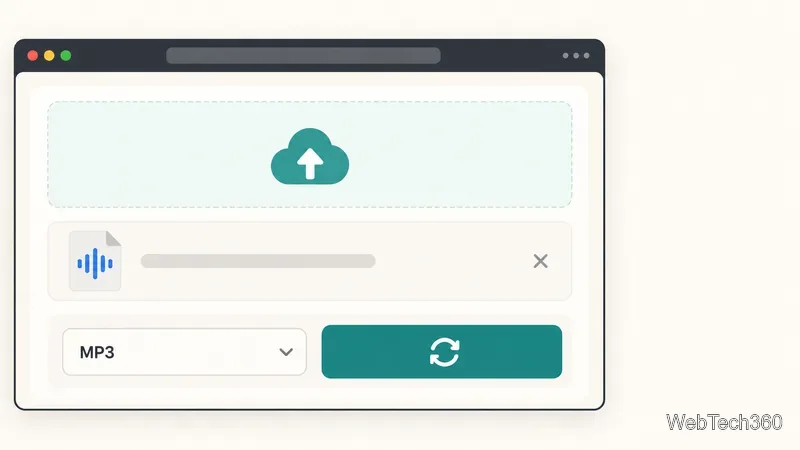
This free browser app needs no installation and supports WAV-to-MP3 conversion with adjustable quality, bitrate, frequency, and channel count. It also offers batch conversion and can package results in a ZIP. The free tier currently lists 70 files per day and a 4 GB maximum file size. The provider says uploads are deleted a few hours after processing, but use local software for sensitive recordings.
Open the converter, add the WAV, choose MP3 and a quality setting, convert, then download the result. Check the current free-plan limits before processing a large batch.
CloudConvert handles WAV-to-MP3 conversion in a browser. Its free plan lists 10 credits per day, a 1 GB maximum file, and a five-minute maximum processing time. Select WAV and MP3, add the source file, convert, and download. Check CloudConvert’s current pricing because these allowances can change.
Audacity suits users who want to trim, edit, or normalize audio before export. It runs on Windows and macOS, and current versions include MP3 export, so the separate LAME step described in older guides is no longer needed. Import the WAV, make edits, then choose File > Export Audio. Name the file, choose MP3, and set the bitrate. Audacity suggests 128 kbps for speech or 256 kbps for music when no destination requirements are given; export mono sources as mono. See the official export guide.
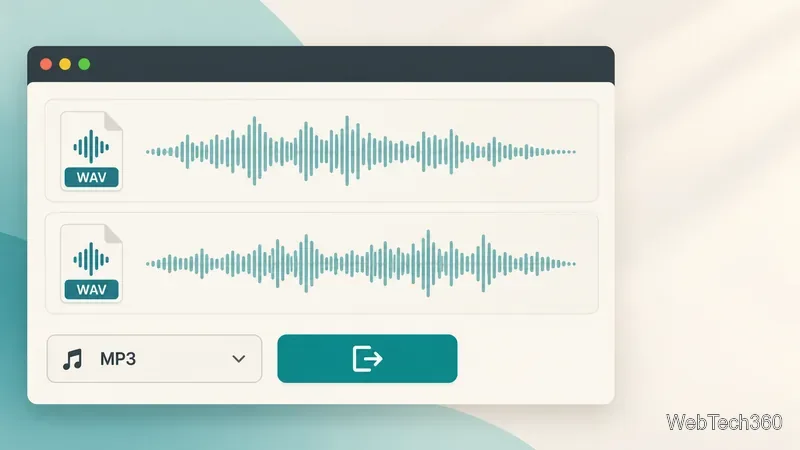
fre:ac is a free multi-format converter for local and batch jobs. It supports WAV and MP3 and provides Windows and macOS downloads. Add WAV files, choose MP3 and an output folder, then start conversion. The official page lists fre:ac 1.1.7, including a macOS 11-or-later build for Intel and Apple Silicon. Get it from the fre:ac downloads page.
FFmpeg is a free command-line option for repeatable jobs. Builds vary, so use one that includes libmp3lame. This command makes a variable-bitrate MP3:
ffmpeg -i "input.wav" -codec:a libmp3lame -q:a 2 "output.mp3"
Replace the file names with your paths. -q:a 2 requests high-quality variable-bitrate encoding. If FFmpeg reports an unknown libmp3lame encoder, install a build that includes it or use Audacity or fre:ac. See FFmpeg’s MP3 encoding guide and codec documentation.
Follow the destination’s audio requirements. If it provides none, 128 kbps is a practical starting point for speech and 256 kbps for music. Higher bitrates make larger files, but cannot restore details lost during conversion. Keep the source’s sample rate and channel layout where possible. Before sharing the MP3, check its start, end, and channel balance; keep the WAV master if you may edit it again.
Learn how to screenshot on Mac with shortcuts for the full screen, an area, or a window, plus the Screenshot app, clipboard, editing, and save-location tips.
Combine multiple images into a single PDF on macOS using Finder or Preview. Control page order, avoid cropping, and fix missing pages without extra software.
Learn how to show FPS on a Mac with Steam’s performance overlay or Apple’s Metal Performance HUD, plus fixes when the counter does not appear.
Use Option–Command–Esc to force quit an unresponsive Mac app, or close it from the Apple menu, Dock, Activity Monitor, or Terminal.
Set up Split View, resize or replace a pane, use Mission Control, and learn when desktop window tiling is a better fit on your Mac.
Learn how to remove EXIF data from photos on macOS, hide location in Photos, clean exported JPEG copies with ExifTool, and verify the result.
Sync two folders on a Mac with SyncTwoFolders, choose a one-way or two-way update, and preview changes before files are replaced or removed.
Back up a Tumblr blog on your Mac with Tumblr’s web export. Download and unpack the ZIP, keep its posts and media safe, and know what the archive leaves out.
Use Google Maps on your Mac in Safari or Chrome, find places and routes, switch map layers, and add a Safari web app to your Dock on macOS Sonoma 14 or later.
Compare five free WAV-to-MP3 converters for Windows and macOS, including online file limits, local batch tools, and practical export settings.







