How to Screenshot on Mac: A Comprehensive Guide

Learn how to screenshot on Mac with shortcuts for the full screen, an area, or a window, plus the Screenshot app, clipboard, editing, and save-location tips.
On a Mac, use Tumblr’s built-in web export to download a blog backup as a ZIP, then unpack it in Finder. Tumblr’s current guide documents this Settings workflow; the old Tumblr Backup Mac app mentioned in older directions is not the current documented method. Exports can only be started and downloaded on Tumblr’s website, not in its apps.
This is a content archive, not a complete account snapshot or one-click restore. Check the exclusions before relying on it as your only copy.
Go to Tumblr on your Mac and sign in to the account that can access the blog. Tumblr says that starting and downloading an export are web-only features, so the Tumblr mobile or desktop app is not a substitute for this process.

Choose Settings from the left side of the dashboard. In the right sidebar, select the specific blog you want to export. Tumblr handles each blog separately, including primary and secondary blogs, so repeat the process for every blog you want to keep.
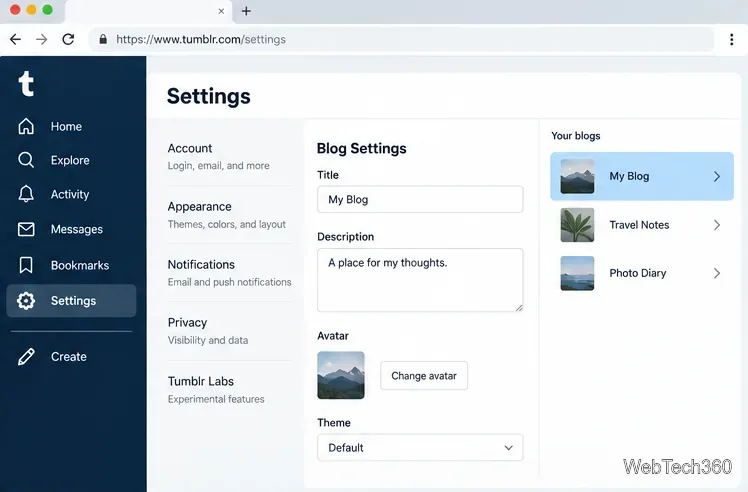
Scroll through that blog’s settings to Export. Select the button labeled with the blog’s name, such as Export [blog name]. The exact label includes your blog name, and the control appears on the web settings page.
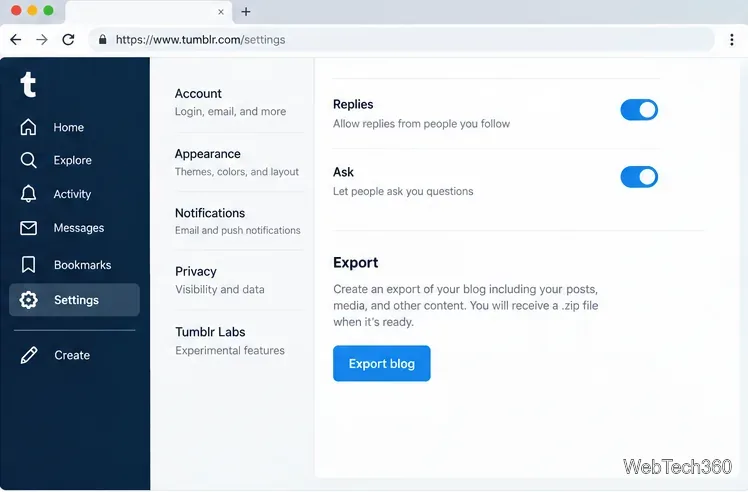
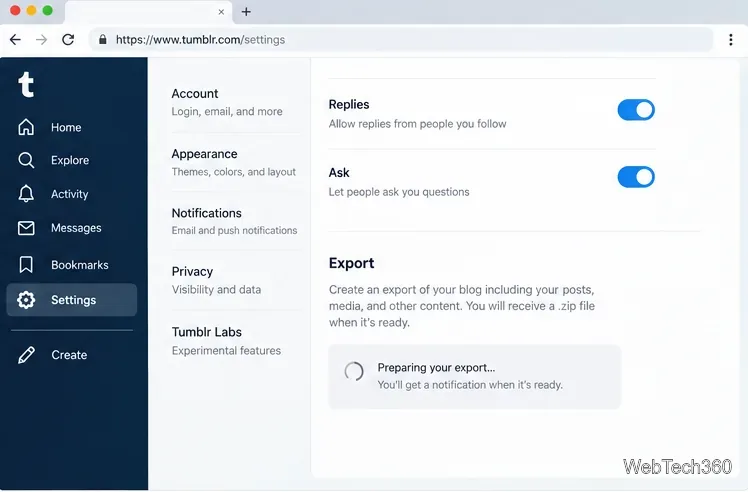
After you start the export, Tumblr displays a processing message. The archive may take time to prepare; the help page does not promise a fixed completion time. Check the same Export section again later. Tumblr also emails you when the backup is ready. For a group blog, only admins receive that completion notice.
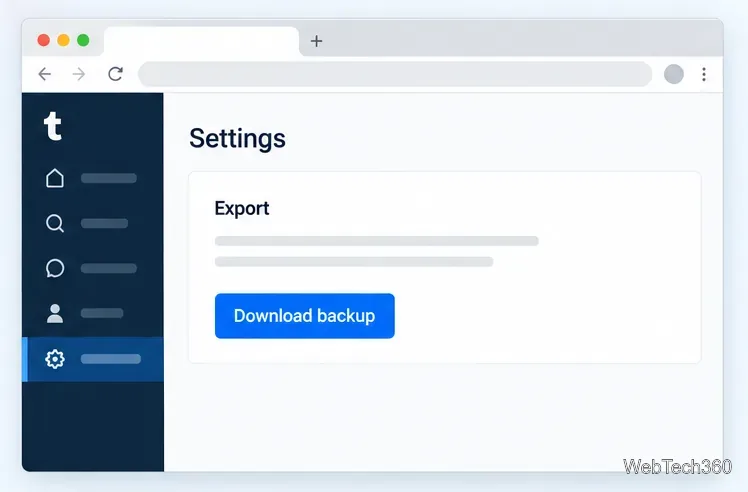
When processing finishes, the status message is replaced by Download backup. Click it to download the ZIP. Do this promptly: Tumblr says completed blog backups are retained for three days and limits each blog to four exports per month.
In Safari, open the Downloads list near the top-right of the browser. Use the magnifying-glass control beside the file to reveal it in Finder; the download location can differ if you changed Safari’s settings. In another browser, use its downloads list to locate the ZIP. Make sure your Mac has enough free space for both the compressed archive and its extracted contents.
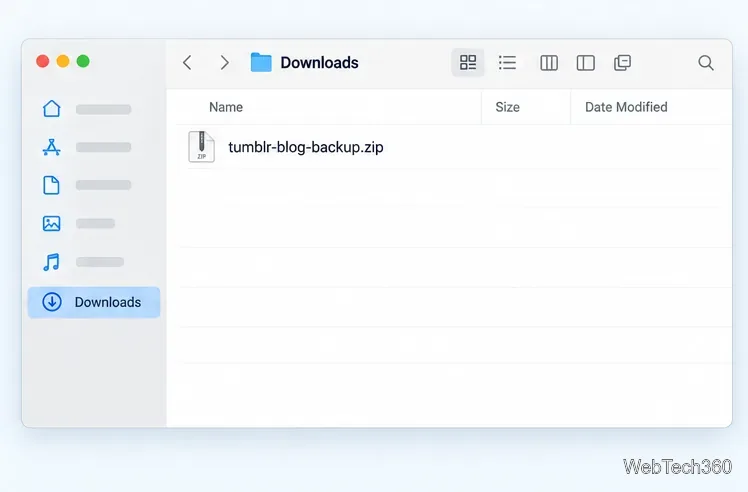
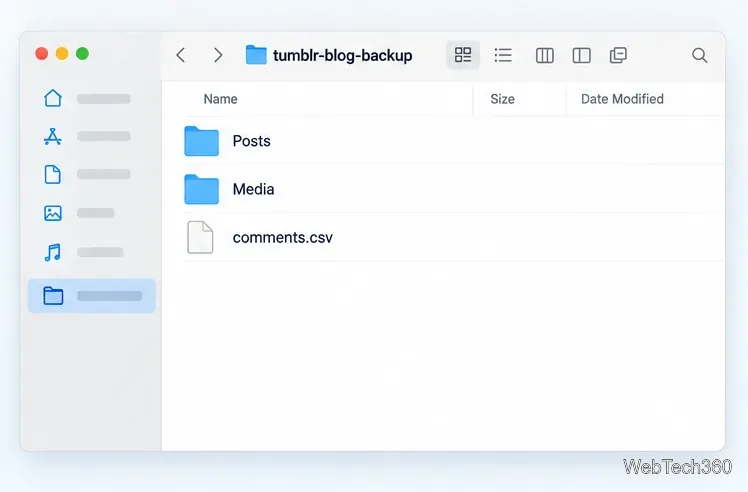
Double-click the ZIP in Finder to expand it. Safari may unzip downloaded archives automatically; if the ZIP remains, Finder can expand it with a double-click. Open a few files to confirm that the archive is readable before relying on it.
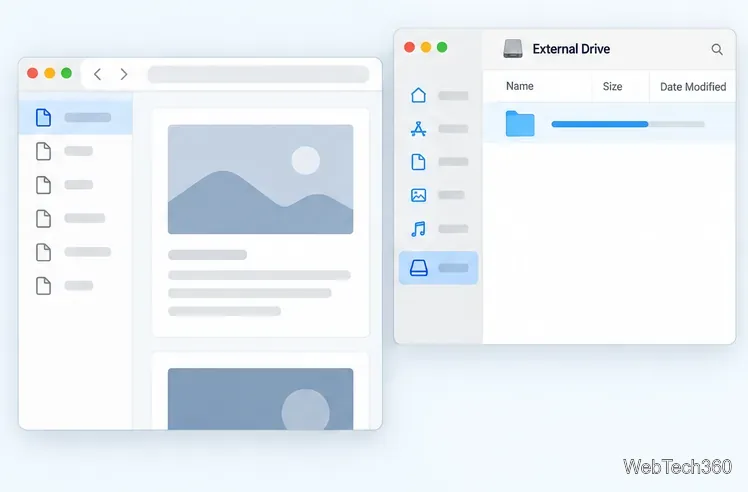
Copy the ZIP and the extracted folder to a second private location, such as an encrypted external drive or a secure cloud storage folder. The export can contain drafts, private posts, flagged posts, hidden posts, and message content, so protect it like personal data. Keep the original ZIP as well as the expanded files until you have confirmed the copy opens correctly.
Tumblr’s export guide says a blog backup may contain these items:
| Archive item | What to expect |
|---|---|
| Posts folder | An HTML file for each post, including reblogs, drafts, private posts, flagged posts, and other hidden posts. |
| Media folder | Images, videos, and other uploaded media, kept in the formats you uploaded. |
| Comments CSV | A CSV file containing your blog’s comments. |
| HTML files | HTML representations of your blog posts and messaging conversations. |
There are important exclusions. Liked posts are not included, and Tumblr does not offer this export as a PDF or another format beyond the files listed in its guide. Treat it as a local content archive rather than a full visual copy of your live theme. Tumblr also says it is not currently possible to import content from one Tumblr blog into another, so do not assume this ZIP can be restored to Tumblr as-is.
Make sure you are using Tumblr in a browser, open the correct blog’s settings, and scroll to the Export section. If you have already made four exports for that blog during the month, the monthly limit may be the reason you cannot create another. If the backup is processing, wait for the completion email or revisit the settings page. For details on the current export contents and retention rules, consult Tumblr’s Export Your Blog guide. For Mac ZIP handling, see Apple’s instructions to zip and unzip files and Safari’s download guide.
Learn how to screenshot on Mac with shortcuts for the full screen, an area, or a window, plus the Screenshot app, clipboard, editing, and save-location tips.
Combine multiple images into a single PDF on macOS using Finder or Preview. Control page order, avoid cropping, and fix missing pages without extra software.
Learn how to show FPS on a Mac with Steam’s performance overlay or Apple’s Metal Performance HUD, plus fixes when the counter does not appear.
Use Option–Command–Esc to force quit an unresponsive Mac app, or close it from the Apple menu, Dock, Activity Monitor, or Terminal.
Set up Split View, resize or replace a pane, use Mission Control, and learn when desktop window tiling is a better fit on your Mac.
Learn how to remove EXIF data from photos on macOS, hide location in Photos, clean exported JPEG copies with ExifTool, and verify the result.
Sync two folders on a Mac with SyncTwoFolders, choose a one-way or two-way update, and preview changes before files are replaced or removed.
Back up a Tumblr blog on your Mac with Tumblr’s web export. Download and unpack the ZIP, keep its posts and media safe, and know what the archive leaves out.
Use Google Maps on your Mac in Safari or Chrome, find places and routes, switch map layers, and add a Safari web app to your Dock on macOS Sonoma 14 or later.
Compare five free WAV-to-MP3 converters for Windows and macOS, including online file limits, local batch tools, and practical export settings.







