How to Screenshot on Mac: A Comprehensive Guide

Learn how to screenshot on Mac with shortcuts for the full screen, an area, or a window, plus the Screenshot app, clipboard, editing, and save-location tips.
To remove EXIF data from a photo on macOS, use Photos’ Hide Location command if you only need to remove its location, or clean an exported copy with ExifTool if you want to remove broader metadata. Photos does not provide a one-click command to erase every EXIF field. Working on a copy keeps your library original available while you check what the cleaned file still contains.
EXIF can include GPS coordinates, capture date and time, camera and lens details, and sometimes a device serial number. IPTC and XMP metadata may also hold a photographer name, copyright notice, caption, or editing-software details. People often use “EXIF” to mean all of these embedded fields, but removal depends on the image format and the tool.
In Photos, select the picture and choose File > Export > Export Unmodified Original. Choose a separate folder, such as “Photos to Clean.” This exports the imported file in its original format rather than editing the item inside your Photos library. Keep the library original as your backup.
If you need the edited appearance rather than the camera original, choose File > Export > Export Photos, select JPEG, and choose the size and quality you want. This creates a rendered JPEG export, so it may change the image encoding. Apple documents both export paths in its Photos export guide.

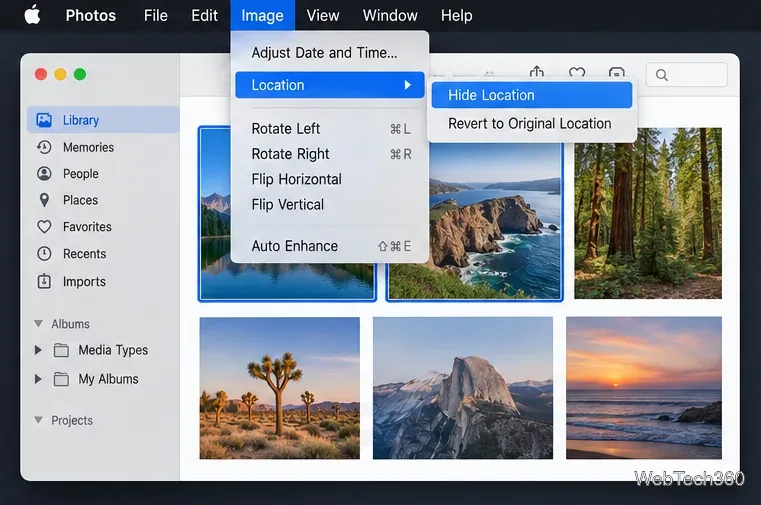
Select one or more photos, then choose Image > Location > Hide Location. Apple says you can restore the original location from the same menu. This action is useful when GPS privacy is your only concern, but it does not erase camera, date, lens, or other metadata. If you export an unmodified original for sharing, treat it as a fresh source and verify the exported file separately.
ExifTool is a command-line utility that reads and writes image metadata. If you use Homebrew, install it with the command below. Otherwise, download the macOS package from the official ExifTool installation page.
brew install exiftoolIn Terminal, move to the folder containing your exported JPEG, then run:
exiftool -a -G1 -s photo.jpgReplace photo.jpg with your file’s name or path. The command displays the metadata ExifTool finds; -a includes duplicate tags, -G1 shows each tag’s group, and -s uses tag names. Look for GPS fields, Make, Model, DateTimeOriginal, serial numbers, and IPTC or XMP entries. A blank or absent field is not the same as a full audit of every possible data block.
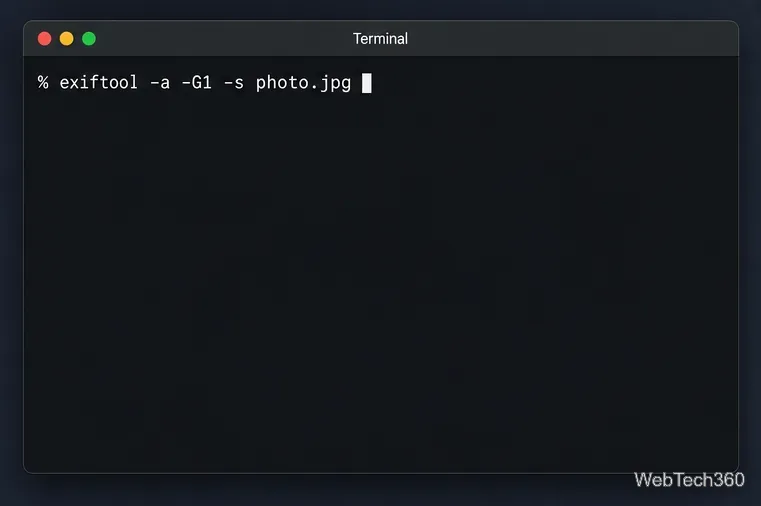
For a JPEG, run this command in the same folder as the source image:
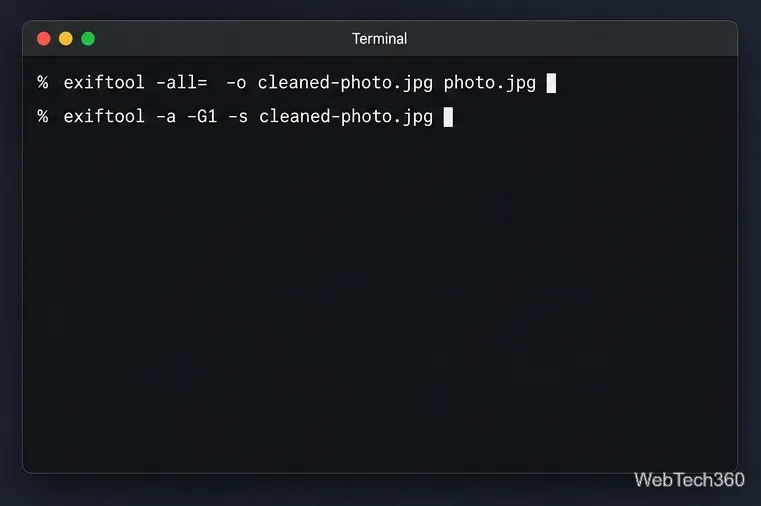
exiftool -all= -o cleaned-photo.jpg photo.jpg-all= asks ExifTool to delete writable metadata tags, while -o writes to a new output file. Your source remains untouched, and ExifTool will not overwrite an existing output file. Pick a different output name if cleaned-photo.jpg already exists.
To process a folder of JPG files into a separate destination folder, use:
mkdir -p "$HOME/Desktop/Cleaned"
exiftool -ext jpg -all= -o "$HOME/Desktop/Cleaned/" "$HOME/Desktop/Photos-to-clean/"
This example selects files with the .jpg extension in one folder. For .jpeg, HEIC, or other formats, check ExifTool’s format-specific notes before batch processing; its FAQ warns against indiscriminately removing metadata from RAW files and notes that color-space information can affect how JPEGs render. Removing an embedded ICC profile may change color appearance. If preserving color is important, follow the FAQ’s JPEG-safe procedure, which retains color-related data and therefore does not produce a literally tag-free file.
Finally, inspect the output rather than the original:
exiftool -a -G1 -s cleaned-photo.jpgCheck whether the sensitive fields you identified are still present. ExifTool removes writable tags it supports, but its documentation does not promise that every non-image data block can be removed from every format. Finder dates, filenames, and clues visible in the pixels are separate from embedded EXIF. Keep the original until you have checked the cleaned copy and confirmed it still looks right.
Learn how to screenshot on Mac with shortcuts for the full screen, an area, or a window, plus the Screenshot app, clipboard, editing, and save-location tips.
Combine multiple images into a single PDF on macOS using Finder or Preview. Control page order, avoid cropping, and fix missing pages without extra software.
Learn how to show FPS on a Mac with Steam’s performance overlay or Apple’s Metal Performance HUD, plus fixes when the counter does not appear.
Use Option–Command–Esc to force quit an unresponsive Mac app, or close it from the Apple menu, Dock, Activity Monitor, or Terminal.
Set up Split View, resize or replace a pane, use Mission Control, and learn when desktop window tiling is a better fit on your Mac.
Learn how to remove EXIF data from photos on macOS, hide location in Photos, clean exported JPEG copies with ExifTool, and verify the result.
Sync two folders on a Mac with SyncTwoFolders, choose a one-way or two-way update, and preview changes before files are replaced or removed.
Back up a Tumblr blog on your Mac with Tumblr’s web export. Download and unpack the ZIP, keep its posts and media safe, and know what the archive leaves out.
Use Google Maps on your Mac in Safari or Chrome, find places and routes, switch map layers, and add a Safari web app to your Dock on macOS Sonoma 14 or later.
Compare five free WAV-to-MP3 converters for Windows and macOS, including online file limits, local batch tools, and practical export settings.







