How to Screenshot on Mac: A Comprehensive Guide

Learn how to screenshot on Mac with shortcuts for the full screen, an area, or a window, plus the Screenshot app, clipboard, editing, and save-location tips.
To sync two folders on a Mac, compare them in a folder-sync utility, choose which direction changes should flow, preview the proposed operations, and then run the sync. SyncTwoFolders includes a simulation step, but its developer warns that a sync can replace older files and remove some files. Treat it as a file-transfer tool, not a versioned backup. The current developer page lists a three-day trial and a suggested €9 retail price, with separate builds for Apple silicon and Intel Macs.
Decide which folder is the starting point. Use one-way sync when one folder is the master; use two-way only when edits may come from either location. Keep an independent copy of important files, and confirm the folders are different and contain no unresolved same-name conflicts.

In Finder, open both folders and check their paths and contents. Connect an external drive before opening the app. Avoid selecting the same folder twice or a folder and its own parent, which can make results unpredictable. For the first run, remove temporary files you do not want copied.
Download from the developer’s SyncTwoFolders page. It lists a Mac ARM build for macOS 11 or later and an Intel build for macOS 10.14 or later, both marked notarized. Choose the matching build and follow its installation instructions. The app is shareware with a three-day trial and suggested €9 price; check the current license terms.
Set the source to the folder whose contents should drive a one-way update and the target to the destination. Recheck both paths before choosing a mode. Use one-way sync when changes should flow only from source to target; choose reciprocal sync only if both folders can change. A replace-style mode can remove target-only items. Check the in-app help tags; options and labels may vary by version.
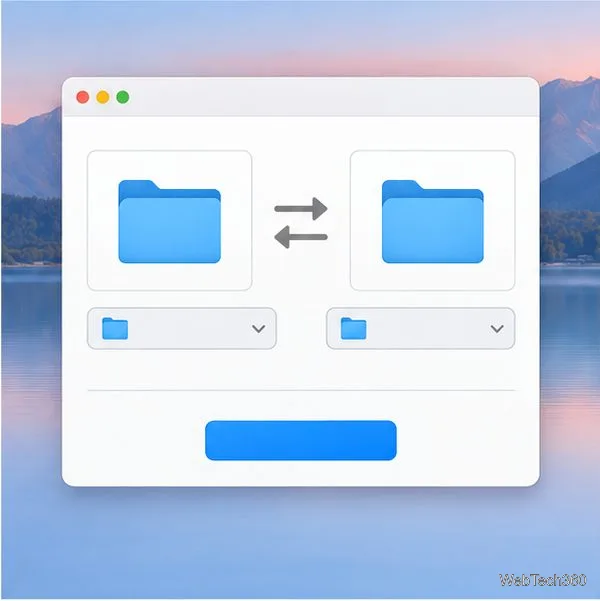
Choose Simulation before applying changes. The developer says the preview shows planned work without replacing or removing files. Check for unexpected deletions, overwrites, duplicate names, or wrong paths. If the app lists individual operations with checkboxes, deselect unwanted items. If anything is unclear, stop and recheck the paths and mode.
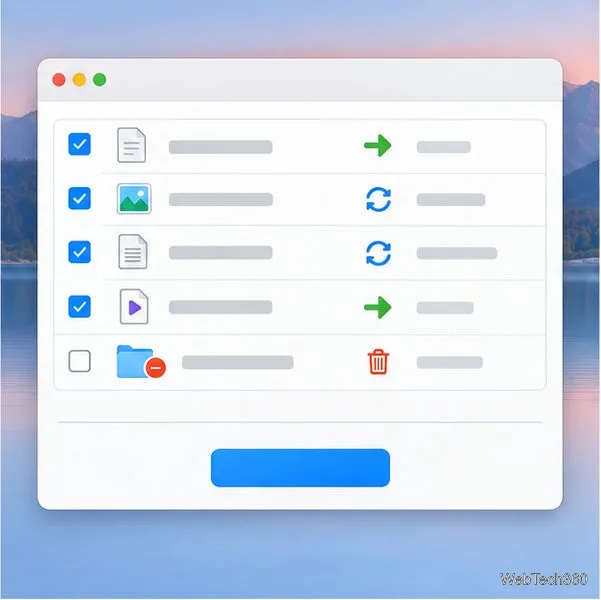
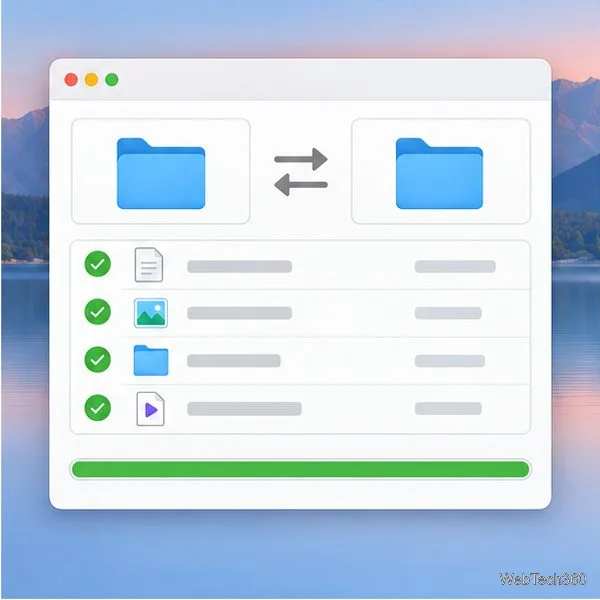
Proceed only when the preview matches your intent. Keep both locations available until the run ends, then review the log. In Finder, confirm several destination files, including a changed file and one in a subfolder. For a new setup, test with disposable folders to see how the mode handles additions, edits, and removals.
| Your goal | Mode behavior to look for | Check before running |
|---|---|---|
| Update a copy from one master folder | One-way updates from source to target | Whether older target files can be replaced |
| Work from either folder | Two-way or reciprocal comparison | How conflicting edits and deletions are handled |
| Make the target match the source | A replace or mirror-style operation | Whether target-only files will be removed |
These descriptions explain the intent, not a promise about the exact wording in every release. Follow the in-app help for the selected option. The official page warns that older files may be replaced and, in some cases, files may be removed; a simulation is the safest way to catch an unexpected result.
If you want files across Apple devices, store them in iCloud Drive and turn on Sync this Mac; Desktop & Documents can be added too. Changes and deletions can propagate to your other devices, so cloud sync is not an independent backup. See Apple’s iCloud Drive setup instructions and its guide to syncing Desktop and Documents.
For recovery or a full Mac backup, set up Time Machine with a separate disk. Apple says it keeps hourly, daily, and weekly backups. Read Apple’s Time Machine setup guide.
No. The developer lists shareware, a three-day trial, and a suggested €9 price. Check the official page for current terms.
Finder can merge some same-name folders once, but it does not provide recurring comparisons for arbitrary folder pairs. Use iCloud Drive for cloud access, Time Machine for backups, or a sync utility for a deliberate folder-to-folder run.
Learn how to screenshot on Mac with shortcuts for the full screen, an area, or a window, plus the Screenshot app, clipboard, editing, and save-location tips.
Combine multiple images into a single PDF on macOS using Finder or Preview. Control page order, avoid cropping, and fix missing pages without extra software.
Learn how to show FPS on a Mac with Steam’s performance overlay or Apple’s Metal Performance HUD, plus fixes when the counter does not appear.
Use Option–Command–Esc to force quit an unresponsive Mac app, or close it from the Apple menu, Dock, Activity Monitor, or Terminal.
Set up Split View, resize or replace a pane, use Mission Control, and learn when desktop window tiling is a better fit on your Mac.
Learn how to remove EXIF data from photos on macOS, hide location in Photos, clean exported JPEG copies with ExifTool, and verify the result.
Sync two folders on a Mac with SyncTwoFolders, choose a one-way or two-way update, and preview changes before files are replaced or removed.
Back up a Tumblr blog on your Mac with Tumblr’s web export. Download and unpack the ZIP, keep its posts and media safe, and know what the archive leaves out.
Use Google Maps on your Mac in Safari or Chrome, find places and routes, switch map layers, and add a Safari web app to your Dock on macOS Sonoma 14 or later.
Compare five free WAV-to-MP3 converters for Windows and macOS, including online file limits, local batch tools, and practical export settings.







