How to Screenshot on Mac: A Comprehensive Guide

Learn how to screenshot on Mac with shortcuts for the full screen, an area, or a window, plus the Screenshot app, clipboard, editing, and save-location tips.
To view FPS (frames per second) on a Mac, start with the performance counter built into your game or Steam. For Metal-based apps, Apple also provides the Metal Performance HUD, which can show frame rate, GPU time, and frame intervals while an app is running. The best method depends on how you launch the game and whether you need a simple FPS number or more detailed diagnostics.
Steam's in-game Performance Monitor is the most convenient starting point for compatible games launched through Steam. Valve updated its older FPS counter with a configurable performance display. Some advanced CPU and GPU metrics are primarily supported on Windows, so expect fewer data fields on macOS.

If nothing appears, check the game's individual overlay setting under Library > [game] > Properties > General, then make sure the game supports Steam's overlay. You can normally open the Steam overlay with Shift + Tab, but that shortcut is not required to keep an enabled FPS readout on screen. See Valve's Performance Monitor guide and Steam Overlay troubleshooting for the current settings and limitations.
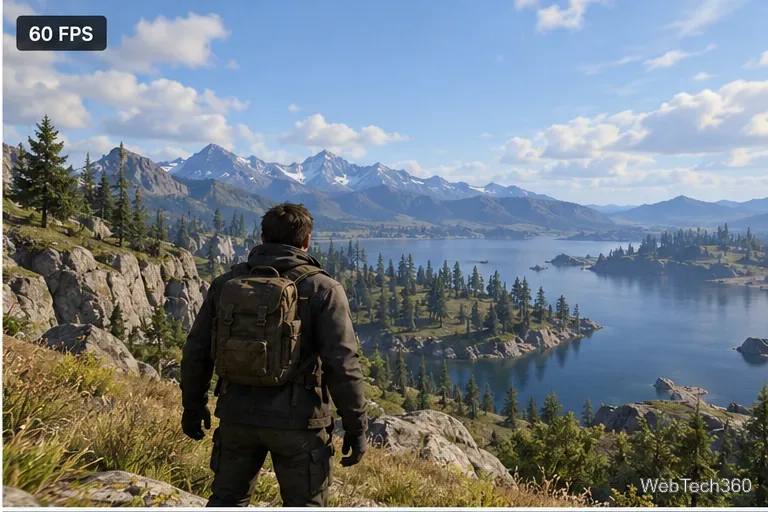
If your Mac game or application uses Apple's Metal graphics API, the Metal Performance HUD is another option. Unlike Steam's overlay, it is a graphics diagnostic tool rather than a universal FPS counter. It will not necessarily work with applications that use a different rendering system or do not expose a compatible Metal layer.
Apple documents the environment variable MTL_HUD_ENABLED=1 for enabling the HUD. On versions of macOS that support the open command's --env option, open Terminal and launch a compatible app with this pattern:
open /Applications/MyGame.app --env MTL_HUD_ENABLED=1Replace MyGame.app with the actual application bundle path. Quit the game first so it starts a new process with the setting. Entering MTL_HUD_ENABLED=1 by itself does not launch a game, and the setting is not a general macOS FPS toggle. Apple's macOS 26 release notes show this launch pattern; behavior and available options can vary on older systems.
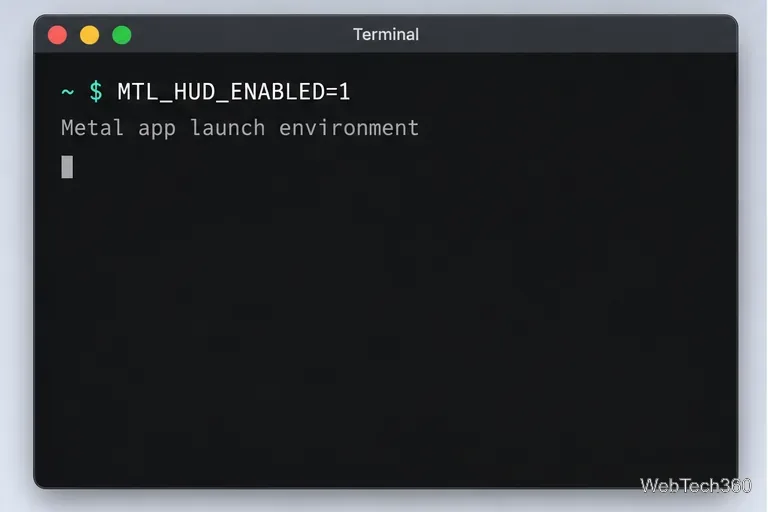
If you are testing a Metal project in Xcode, use the built-in diagnostics setting instead:
Xcode will enable the HUD for that run scheme. For per-frame console statistics, Apple says to also select Log Graphics Overview. The official Metal Performance HUD documentation explains both options.
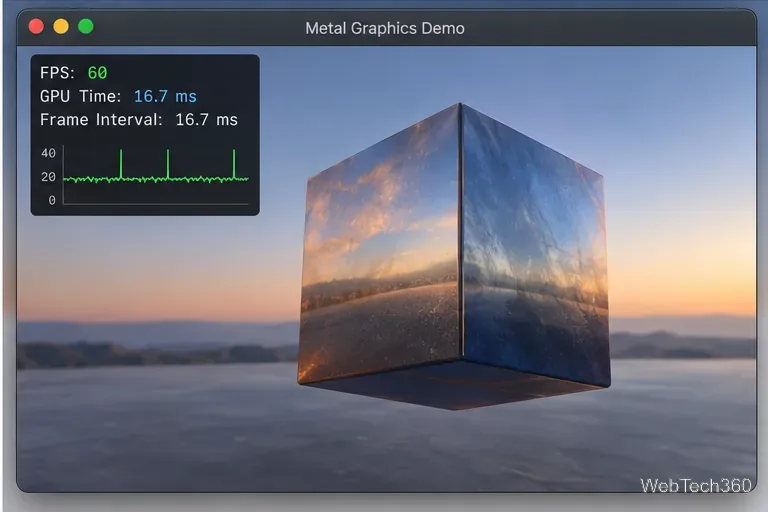
FPS indicates how many frames an application renders each second. Higher is not automatically better if frame delivery is uneven or the display cannot show every frame. The Metal HUD also reports frame interval (time between frames) and GPU time, which are useful when a game feels choppy despite an acceptable average FPS.
These are mathematical reference values, not promises about what any Mac can achieve. A consistent frame rate usually feels smoother than a higher average interrupted by sharp frame-time spikes. Apple's HUD customization guide explains how to adjust metrics, position, and graphs.
Older macOS instructions recommend downloading Additional Tools for Xcode, opening Quartz Debug, and choosing Window > FrameMeter. That was the approach in earlier versions of this guide. Apple still provides a developer downloads entry point, but the availability and compatibility of a particular Quartz Debug build should not be assumed on a current Mac. We could not verify FrameMeter as a supported, current macOS workflow, so the Steam and Metal methods above are safer starting points.
For a quick gaming check, use Steam's FPS readout when available. Choose Apple's Metal Performance HUD when you need frame-time context or are diagnosing a Metal app. Neither overlay should be treated as a benchmark result without consistent test conditions.
Learn how to screenshot on Mac with shortcuts for the full screen, an area, or a window, plus the Screenshot app, clipboard, editing, and save-location tips.
Combine multiple images into a single PDF on macOS using Finder or Preview. Control page order, avoid cropping, and fix missing pages without extra software.
Learn how to show FPS on a Mac with Steam’s performance overlay or Apple’s Metal Performance HUD, plus fixes when the counter does not appear.
Use Option–Command–Esc to force quit an unresponsive Mac app, or close it from the Apple menu, Dock, Activity Monitor, or Terminal.
Set up Split View, resize or replace a pane, use Mission Control, and learn when desktop window tiling is a better fit on your Mac.
Learn how to remove EXIF data from photos on macOS, hide location in Photos, clean exported JPEG copies with ExifTool, and verify the result.
Sync two folders on a Mac with SyncTwoFolders, choose a one-way or two-way update, and preview changes before files are replaced or removed.
Back up a Tumblr blog on your Mac with Tumblr’s web export. Download and unpack the ZIP, keep its posts and media safe, and know what the archive leaves out.
Use Google Maps on your Mac in Safari or Chrome, find places and routes, switch map layers, and add a Safari web app to your Dock on macOS Sonoma 14 or later.
Compare five free WAV-to-MP3 converters for Windows and macOS, including online file limits, local batch tools, and practical export settings.







