How to Screenshot on Mac: A Comprehensive Guide

Learn how to screenshot on Mac with shortcuts for the full screen, an area, or a window, plus the Screenshot app, clipboard, editing, and save-location tips.
To force quit an app on a Mac, press Option–Command–Esc, select the unresponsive app, and click Force Quit. This closes the app, not the entire Mac. Any changes the app has not saved may be lost, so try a normal quit first if the app still responds.
A normal quit gives an app a chance to save changes and close files cleanly. If you can still use the app, save your work and press Command–Q or choose Quit from the app’s menu in the menu bar. Use Force Quit when that does not work or the app is clearly stuck. Apple notes that an unresponsive app may lose unsaved changes when it is forced to close; see Apple’s force-quit instructions.
This is usually the quickest way to force quit a frozen Mac app.

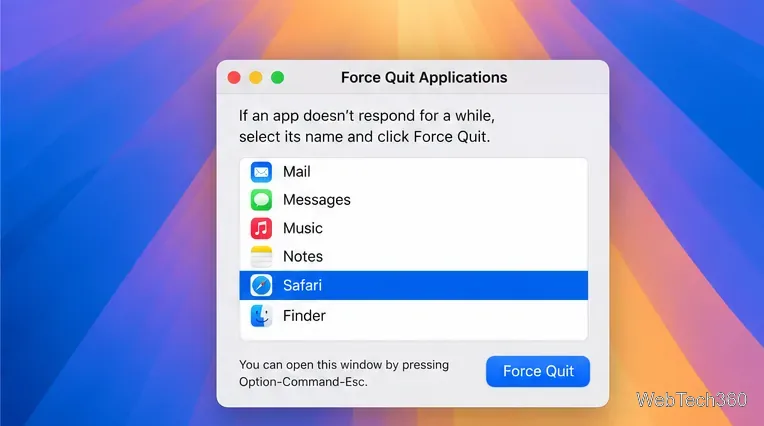
If the frozen app is Finder, select Finder in the list and choose Relaunch. Finder is part of macOS and normally stays open, so relaunching it restores the desktop and file windows.
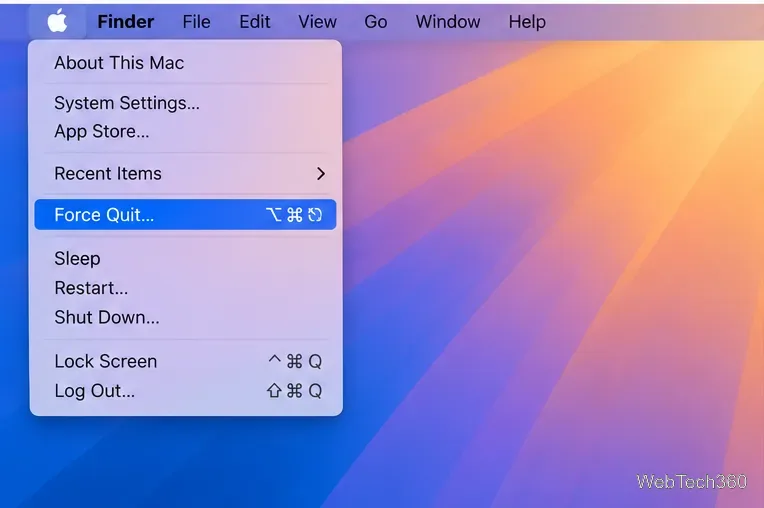
Use this route if you prefer the menu or do not remember the shortcut.
If the app appears in your Dock, its shortcut menu can close it directly.
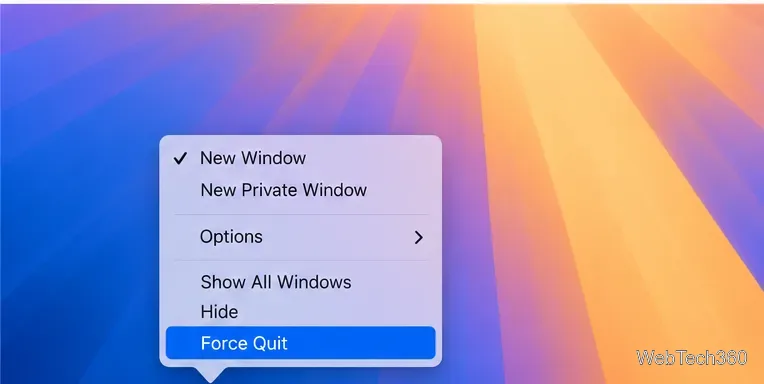
Apple’s Dock guide lists Control-clicking an unresponsive app and choosing Force Quit as the direct method.
Activity Monitor is useful when you want to locate a specific app or process. It also shows which processes macOS marks as unresponsive.
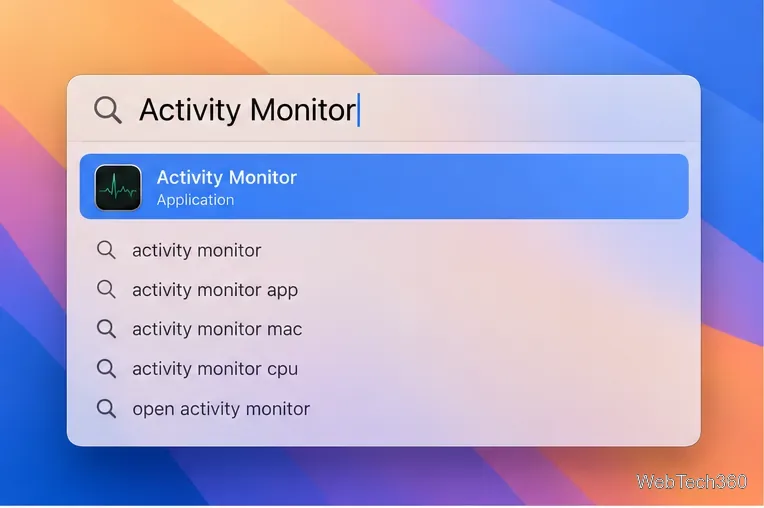
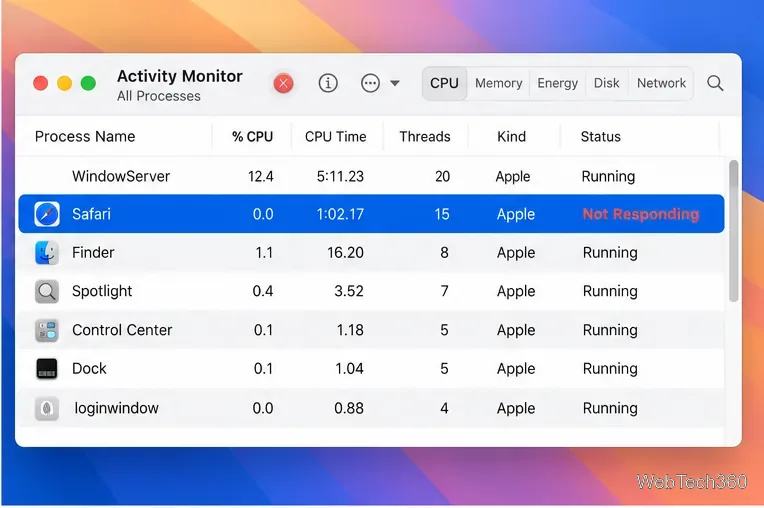
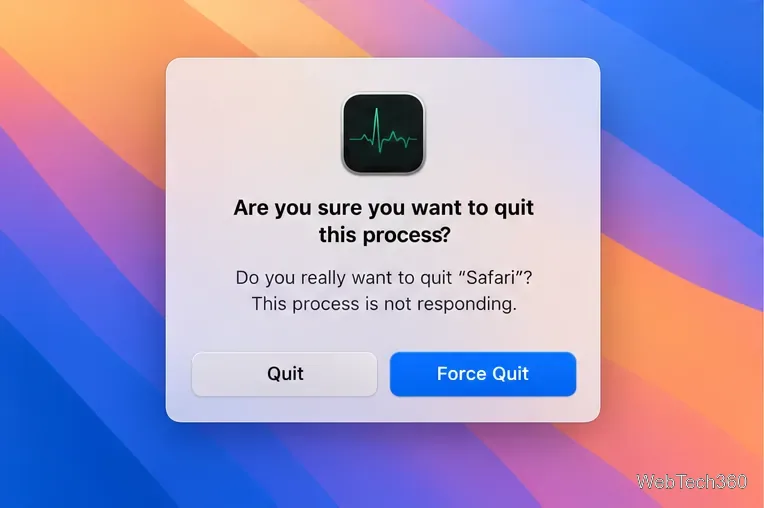
Force Quit ends the process immediately. If that process has open files, unsaved data may be lost, and other apps that depend on it may be affected. Apple’s Activity Monitor guide also notes that quitting a process owned by another user may require an administrator password.
Terminal is an advanced option because commands target process names rather than app windows. Use it only when you know which process you mean; for most people, the graphical Force Quit window or Activity Monitor is easier to verify.
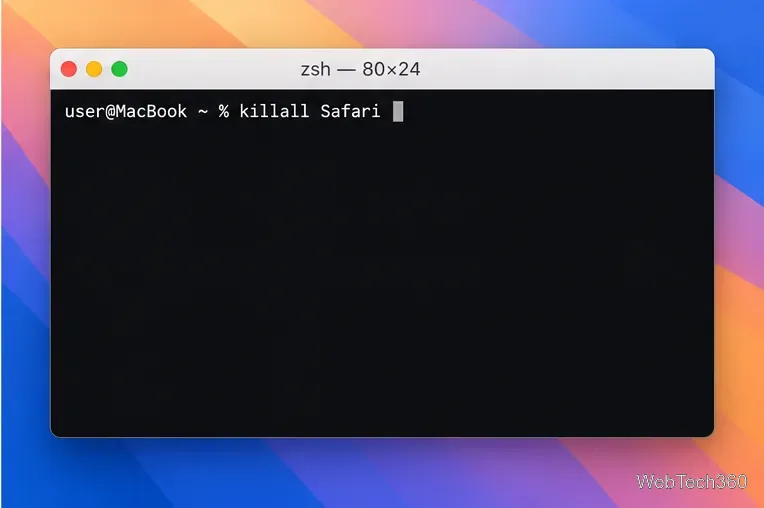
killall Safari as an example, replacing Safari with the exact process name, then press Return.killall sends a termination signal to matching processes. It may not close an app that cannot respond to that signal, and a name can match more than one process. If you are unsure, do not add commands such as sudo or target a macOS service; use Activity Monitor and select the app by name.
Force Quit closes one app. If the pointer, keyboard, and Force Quit window all stop responding, wait briefly to see whether macOS recovers. If you can interact with the Apple menu, choose Restart. If the Mac will not restart, press and hold its power button for up to 10 seconds until it turns off. On a Mac laptop with Touch ID, hold the Touch ID/power button. Then press and release the power button to start the Mac again. This forced shutdown can also discard unsaved work.
After reopening it, check for an app update and confirm that it supports your macOS version. Try opening a different file in the app; the original file may be the problem. If the freezing began after connecting a printer, drive, or other accessory, disconnect it and test again. Restarting the Mac may help, but repeated freezes can point to an app, plug-in, file, or hardware issue. Apple’s troubleshooting guide for apps that freeze covers these next steps.
Learn how to screenshot on Mac with shortcuts for the full screen, an area, or a window, plus the Screenshot app, clipboard, editing, and save-location tips.
Combine multiple images into a single PDF on macOS using Finder or Preview. Control page order, avoid cropping, and fix missing pages without extra software.
Learn how to show FPS on a Mac with Steam’s performance overlay or Apple’s Metal Performance HUD, plus fixes when the counter does not appear.
Use Option–Command–Esc to force quit an unresponsive Mac app, or close it from the Apple menu, Dock, Activity Monitor, or Terminal.
Set up Split View, resize or replace a pane, use Mission Control, and learn when desktop window tiling is a better fit on your Mac.
Learn how to remove EXIF data from photos on macOS, hide location in Photos, clean exported JPEG copies with ExifTool, and verify the result.
Sync two folders on a Mac with SyncTwoFolders, choose a one-way or two-way update, and preview changes before files are replaced or removed.
Back up a Tumblr blog on your Mac with Tumblr’s web export. Download and unpack the ZIP, keep its posts and media safe, and know what the archive leaves out.
Use Google Maps on your Mac in Safari or Chrome, find places and routes, switch map layers, and add a Safari web app to your Dock on macOS Sonoma 14 or later.
Compare five free WAV-to-MP3 converters for Windows and macOS, including online file limits, local batch tools, and practical export settings.







