How to Screenshot on Mac: A Comprehensive Guide

Learn how to screenshot on Mac with shortcuts for the full screen, an area, or a window, plus the Screenshot app, clipboard, editing, and save-location tips.
To use Google Maps on a Mac desktop, open Google Maps in a web browser. You can search places, explore map layers, get directions, and print or share a route without installing the old third-party Mac app described in earlier versions of this article. If you use macOS Sonoma 14 or later, Safari can also save the Maps page as a web app in your Dock.

In Safari, Chrome, or another current browser, go to google.com/maps. Enter a business, address, landmark, or city in the search box, then press Return. Select a result to open its information card; depending on the place, it may show an address, hours, website, photos, and actions such as Directions or Save.
Move around the map by dragging it. Use the plus and minus controls, a mouse scroll wheel, or trackpad gestures to zoom. You can search without signing in. Signing in to a Google Account is useful when you want to save places and access those saved places on other devices; Google explains how saved places work in its Google Maps saved places guide.
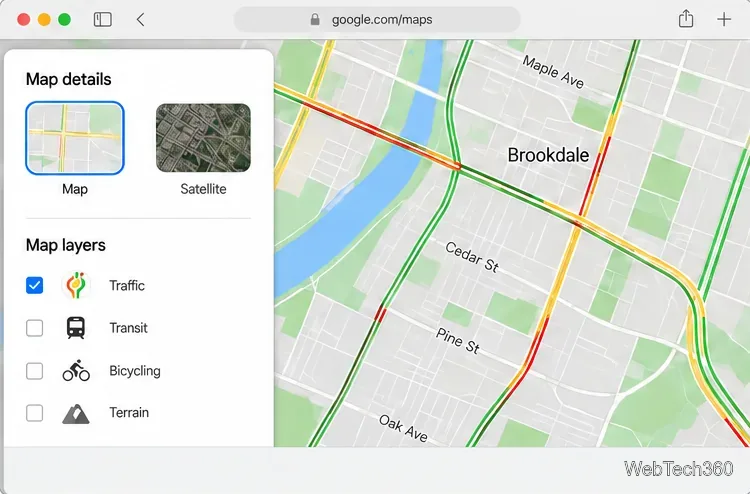
Use the Layers control to switch between the standard map and satellite imagery. On desktop, Google Maps also offers map details such as traffic, transit, biking, or terrain where supported. The available layers can depend on the location and the data Google has for it, so a layer may not appear everywhere. Google’s computer guide to Maps layers describes the current controls.
Traffic is useful for checking congestion before you leave, while satellite view can help you recognize buildings and landmarks. Treat the map as a planning aid: road conditions and business details can change, so confirm time-sensitive information with the relevant local source.
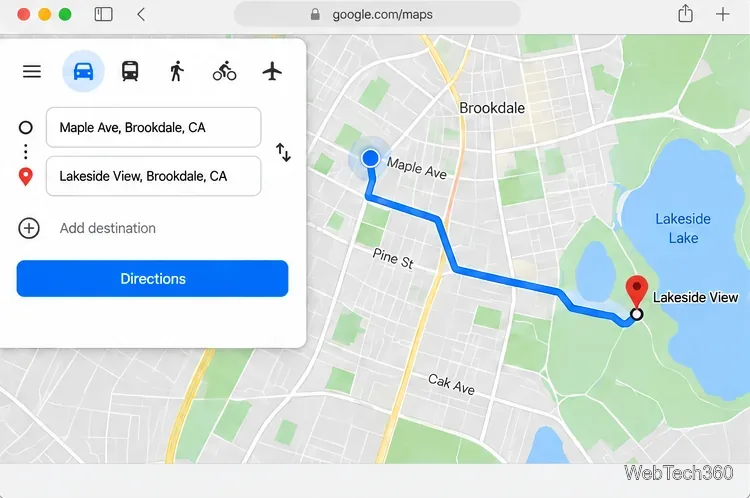
Select Directions, enter a starting point and destination, and choose a travel mode shown for that trip. Google Maps may offer driving, transit, walking, or biking routes depending on the locations. Select a route to see it highlighted on the map. If you need a different starting point, replace the default location instead of assuming the directions begin where your Mac is.
To print, choose a route and use the print control. Google’s desktop instructions let you choose whether the printout includes the map or text only. To share, open the Maps menu and choose the map-sharing option to copy a link. The steps and available route choices are detailed in Google’s directions, sharing, and printing help.
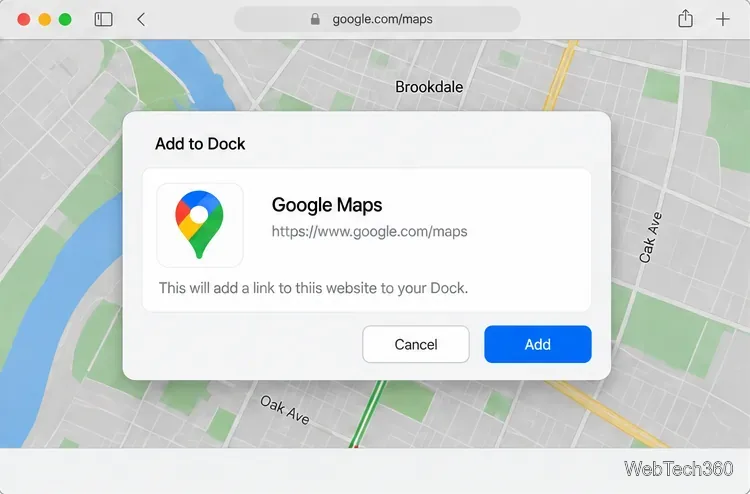
Open Google Maps in Safari. Choose File > Add to Dock, or use Safari’s Share button and choose Add to Dock. Give the web app a name, such as “Google Maps,” and select Add. Apple says the web app is saved in the Applications folder in your home folder and can also be opened from the Dock or Spotlight. See Apple’s guide to Safari web apps on Mac.
This creates a convenient, app-like way to open the website; it does not turn Google Maps into a separate native Mac mapping service. Safari web apps keep website data separate from Safari, so you may need to sign in again or adjust a permission in the web app. If you do not see Add to Dock, check your macOS version. On older macOS releases, bookmark Maps and keep your browser in the Dock instead.
In Chrome, open Google Maps and check the browser menu for Cast, save, and share > Install page as app, or look for an Install icon in the address bar. Chrome shows this option only for websites it supports as web apps. Follow the on-screen instructions if it appears; otherwise, bookmark Maps for quick access. Google documents this flow in its Chrome web apps help.
Google Maps on the desktop is a browser-based service, so an internet connection is needed to load current map data and routes. Google’s instructions for downloading offline areas cover its mobile apps; do not rely on downloading an offline map from the Mac desktop site. See Google’s offline maps guidance for supported mobile devices and regional limits.
The older instructions for a separate “GoogleMaps” utility, Mac OS X 10.4, and Safari 4 WebKit describe a historical third-party tool. They are not the current setup requirements for using Google Maps on a Mac. For today’s desktop use, open the official Maps website in your browser, then add a Safari web app to the Dock if your Mac supports it.
Learn how to screenshot on Mac with shortcuts for the full screen, an area, or a window, plus the Screenshot app, clipboard, editing, and save-location tips.
Combine multiple images into a single PDF on macOS using Finder or Preview. Control page order, avoid cropping, and fix missing pages without extra software.
Learn how to show FPS on a Mac with Steam’s performance overlay or Apple’s Metal Performance HUD, plus fixes when the counter does not appear.
Use Option–Command–Esc to force quit an unresponsive Mac app, or close it from the Apple menu, Dock, Activity Monitor, or Terminal.
Set up Split View, resize or replace a pane, use Mission Control, and learn when desktop window tiling is a better fit on your Mac.
Learn how to remove EXIF data from photos on macOS, hide location in Photos, clean exported JPEG copies with ExifTool, and verify the result.
Sync two folders on a Mac with SyncTwoFolders, choose a one-way or two-way update, and preview changes before files are replaced or removed.
Back up a Tumblr blog on your Mac with Tumblr’s web export. Download and unpack the ZIP, keep its posts and media safe, and know what the archive leaves out.
Use Google Maps on your Mac in Safari or Chrome, find places and routes, switch map layers, and add a Safari web app to your Dock on macOS Sonoma 14 or later.
Compare five free WAV-to-MP3 converters for Windows and macOS, including online file limits, local batch tools, and practical export settings.







