How to Move a Picture in Microsoft Word
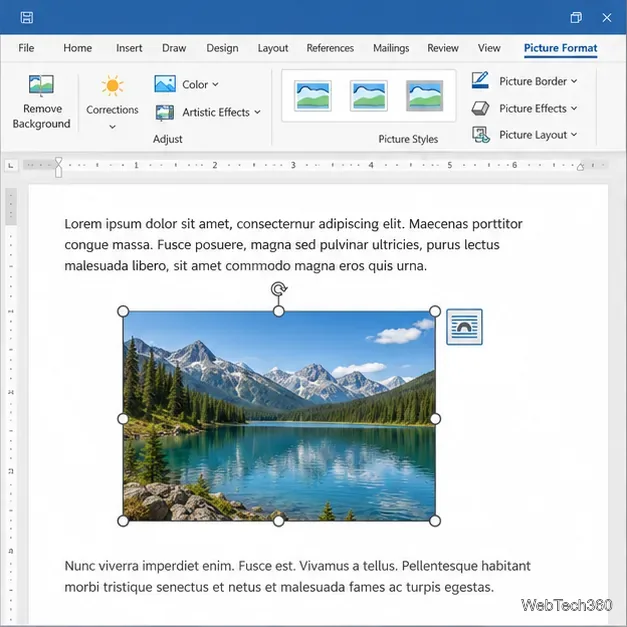
Learn how to drag a picture in Word, choose text wrapping, keep it with a paragraph or fix it on the page, and troubleshoot images that will not move.
To change gridline height and width in Word 2010, open Page Layout > Arrange > Align > Grid Settings. In the Drawing Grid dialog, use Vertical every and Horizontal every to control how frequently drawing gridlines appear. To change the underlying distance between grid divisions, adjust Horizontal spacing and Vertical spacing instead. The drawing grid is an on-screen guide for positioning shapes, pictures, and other objects.
These options do not change table row heights, column widths, text spacing, or printed rules. Word uses the term “gridlines” for both the drawing grid and table cell guides, so first make sure you are editing the right one.
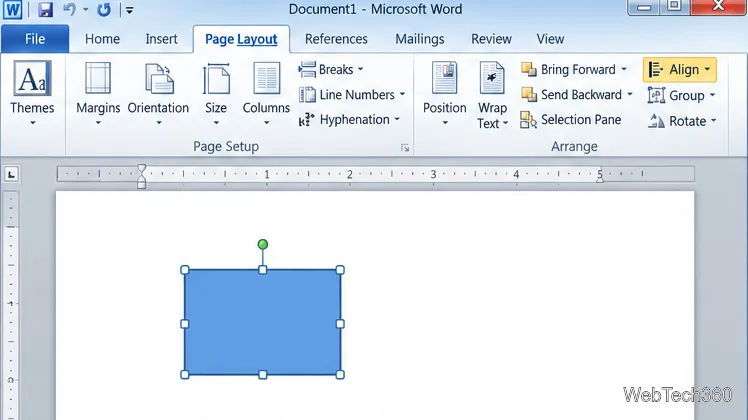
The drawing grid is the page-wide graph-paper guide used to position floating objects such as shapes, text boxes, and pictures. Changing its interval can help you place or align those objects more precisely.
Table gridlines are the faint cell boundaries Word can show when a table has no visible borders. They have their own View Gridlines control and are not affected by Drawing Grid settings. Microsoft also notes that Word’s drawing gridlines are only a visual reference and cannot be printed. If you need visible lines on paper, add table borders or draw actual lines; changing the on-screen grid will not print it.
Open the document and click Page Layout. At the right end of the ribbon, find the Arrange group. The Align menu is where Word 2010 keeps the drawing-grid controls. If the ribbon is narrow, maximize the Word window so the group is easier to locate.
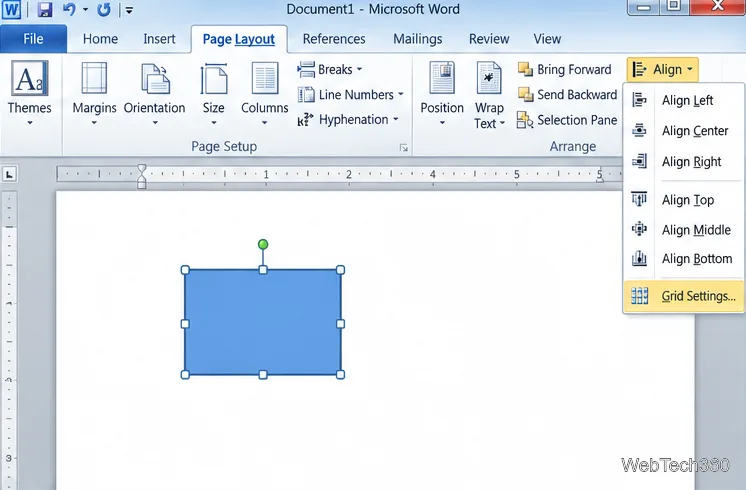
Click Align, then choose Grid Settings near the bottom of the menu. The Drawing Grid dialog opens. If a shape or picture is selected, you can also use its contextual Drawing Tools > Format > Arrange > Align > Grid Settings path. Microsoft’s Word 2010 guidance lists the Page Layout path for opening the grid interval settings.
The dialog has two related controls, and they do different jobs:
For example, if the grid looks too crowded, raise the relevant “every” value to display fewer guide lines while leaving the underlying spacing alone. If objects need finer placement increments, reduce the spacing value instead. The separate Grid origin controls change where the grid starts relative to the page margins; leave them unchanged unless you have a specific reason to move the grid.
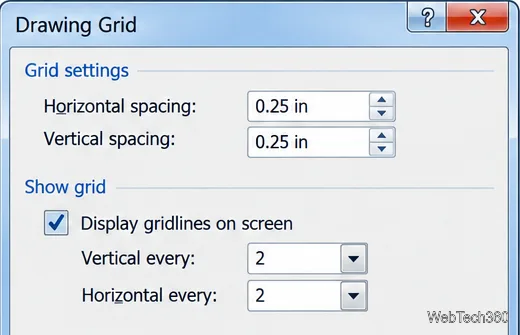
Confirm that Display gridlines on screen is checked, then click OK. The document view updates to show the grid using your chosen settings. In Word 2010, you can also toggle drawing gridlines from View > Gridlines without reopening the dialog. If you use Word 2010 Starter and do not see a View tab, Microsoft’s community guidance places the toggle under Page Layout > Arrange > Align > View Gridlines.
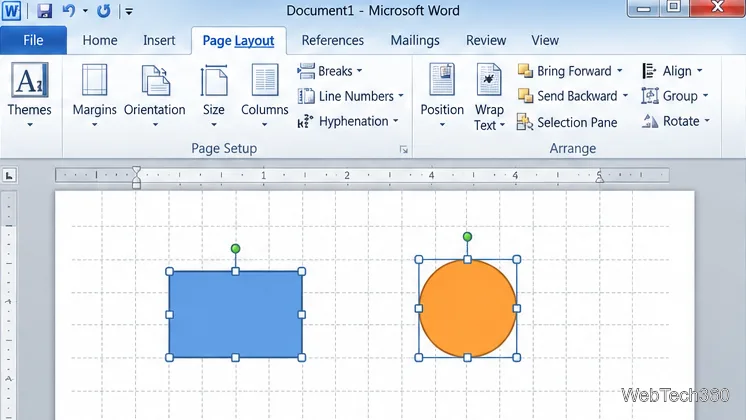
Visible gridline frequency and object snapping are separate settings. In the Drawing Grid dialog, review Snap objects to grid when the gridlines are not displayed if objects still align to an invisible grid. Snap objects to other objects can also make a shape line up with nearby objects as you drag it. These options affect object placement; they do not determine whether the grid is visible. Microsoft’s current Word instructions likewise list grid spacing and snap-to behavior as separate controls.
Click inside the table, open Table Tools > Layout, and select View Gridlines. That command displays cell boundaries when table borders are hidden. It does not change the page-wide drawing grid. Table gridlines are nonprinting guides; add borders if the table lines need to appear in a printed document.
Learn how to drag a picture in Word, choose text wrapping, keep it with a paragraph or fix it on the page, and troubleshoot images that will not move.
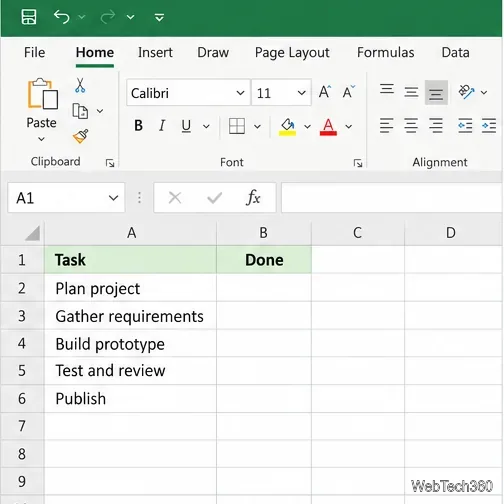
Learn how to insert a checkbox in Excel with the in-cell tool, count checked items with formulas, or add a linked Form Control in older desktop versions.
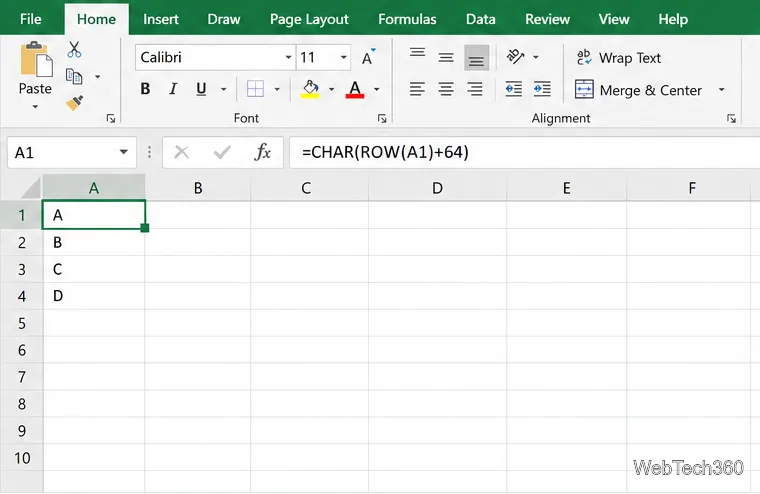
Generate A to Z, lowercase letters, or labels beyond Z in Excel with a fill-handle formula, SEQUENCE, or a reusable custom list.
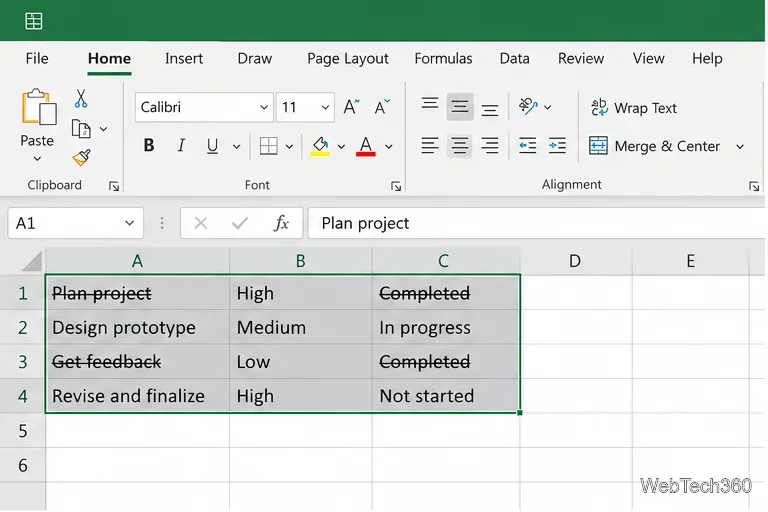
Learn how to strikethrough in Excel on Windows, Mac, and the web, format part of a cell, and remove the line without deleting its value.
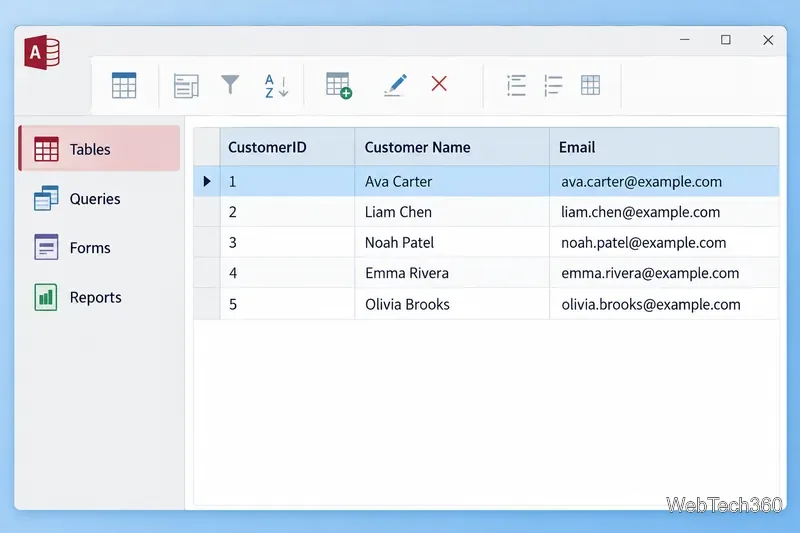
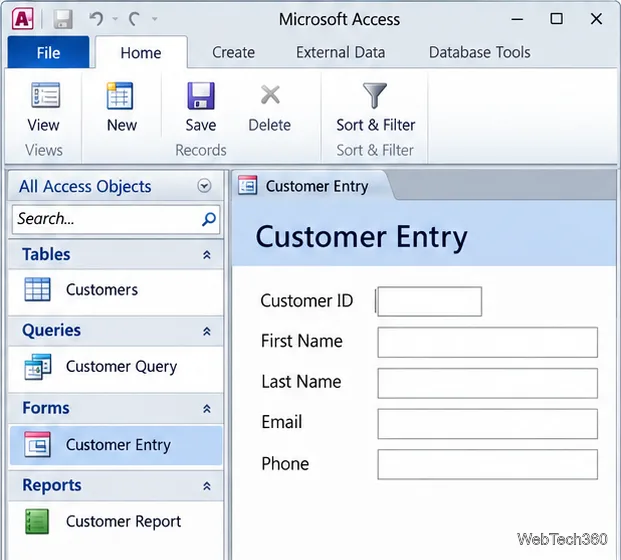
Microsoft Access is a Windows database app for storing related records, building queries, creating data-entry forms, and generating reports. Learn how it works and when it fits.
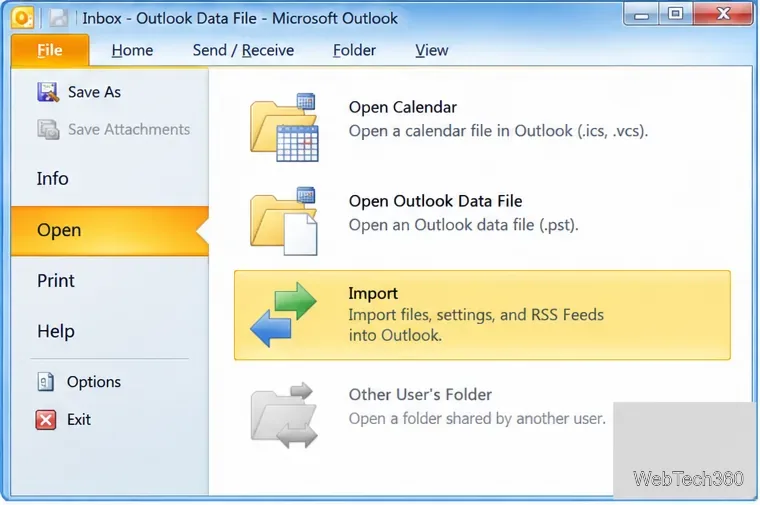
Learn how to import a PST into Outlook 2010 or export mail, contacts, calendar, and tasks. Follow the correct menus and avoid missing folders or duplicates.
Learn how to adjust gridline height and width in Word 2010, change visible line frequency, and set the underlying horizontal and vertical drawing-grid spacing.
Recover a forgotten Outlook PST password with Kernel’s current steps, including how to identify the right file, make a backup, and check the tool’s limits.
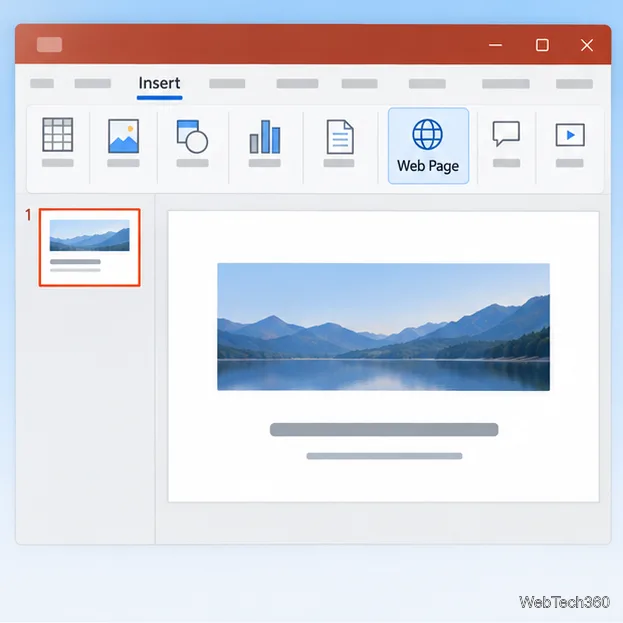
Use the LiveWeb add-in to place a website on a PowerPoint slide, set its size and refresh behavior, and check compatibility before presenting.
Set an Access 2010 database application to open directly to a data-entry form, hide object lists, limit menus, and check the setup before sharing.