How to Move a Picture in Microsoft Word
To move a picture freely in Microsoft Word, select it, open Layout Options, choose a wrapping style such as Square, then drag the picture to its new location. Pictures are inserted as In Line with Text by default, so Word treats them like large characters in a paragraph; change the layout first if you want to position one independently.

Choose how the picture should sit in the document

Select the picture and click the Layout Options button beside it. You can also use Picture Format > Wrap Text. The exact ribbon arrangement can vary by Word version and window size.

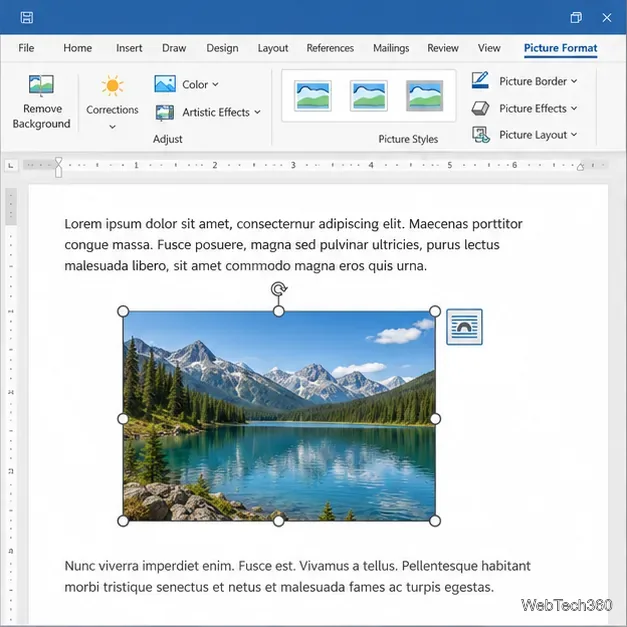
A selected picture in Word with the Layout Options button beside its upper-right edge.
Select the picture to reveal its Layout Options control.

Word offers two useful positioning behaviors:
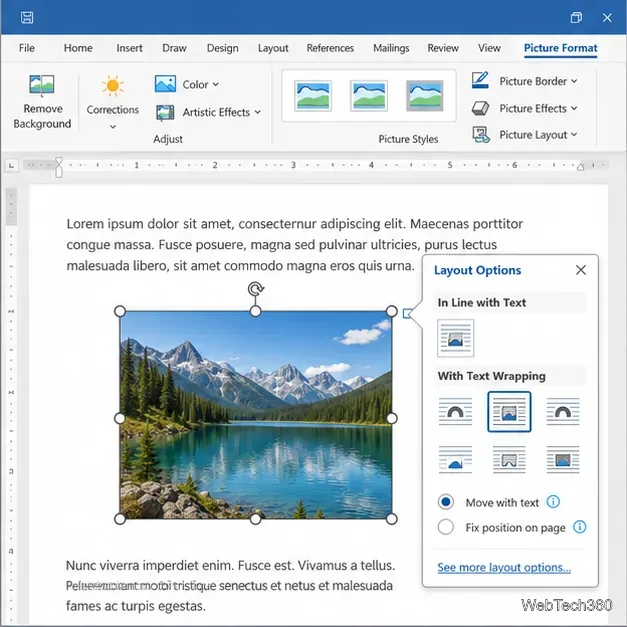
  • In Line with Text: The picture occupies a spot in a paragraph and moves with that text. Use this when the image should stay in reading order, such as a report figure or a picture between paragraphs. It is not freely draggable around the page.
  • With Text Wrapping: The picture becomes a floating object, so you can drag it while text flows around it. Square is a good starting choice for a picture beside paragraphs. Tight or Through can let text follow a more detailed outline; Top and Bottom keeps text above and below. Behind Text and In Front of Text place the picture behind or over text and can obscure it.
Word Layout Options popover showing In Line with Text and wrapping choices, with Square selected.
Choose a wrapping style such as Square to make the picture draggable.

Move a picture with the mouse

  1. Click the picture. If the Layout Options button appears, select it.
  2. Under With Text Wrapping, choose Square, Tight, Through, or another suitable option.
  3. Click the picture again, then drag it to the desired place on the page. Watch the text as you move it; Word adjusts the flow around the picture.
  4. Release the mouse button when the placement looks right. If needed, use the arrow keys after selecting the picture for smaller adjustments.

Changing the wrap style may shift nearby paragraphs because Word is making room for a floating object. If you want a picture to remain attached to a particular paragraph as the document changes, use Move with text. For a layout that should stay at the same page location while surrounding text changes, use Fix position on page.
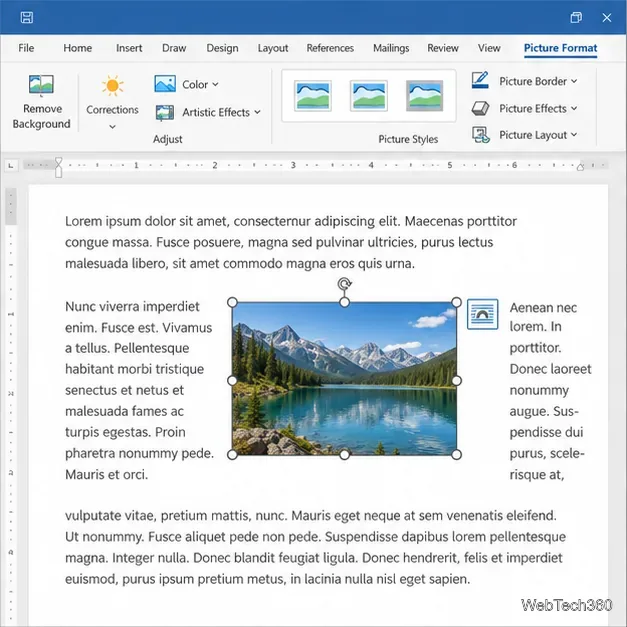
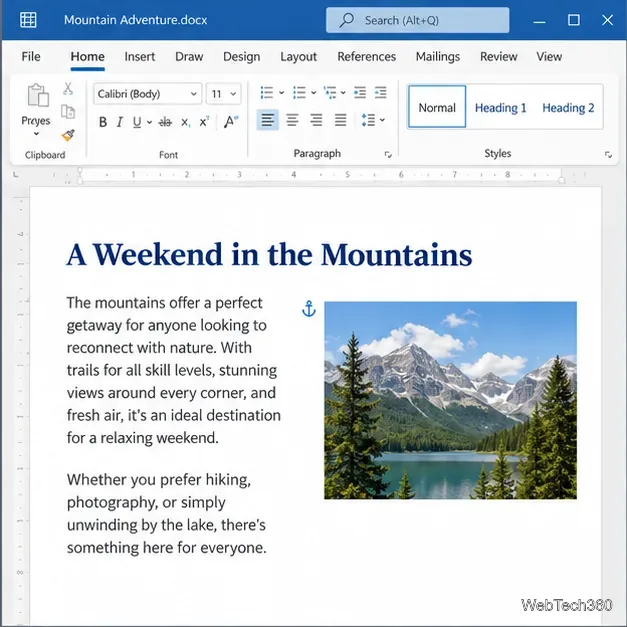
A landscape picture selected between Word paragraphs, with text flowing around its sides.
With Square wrapping, nearby text flows beside the picture.
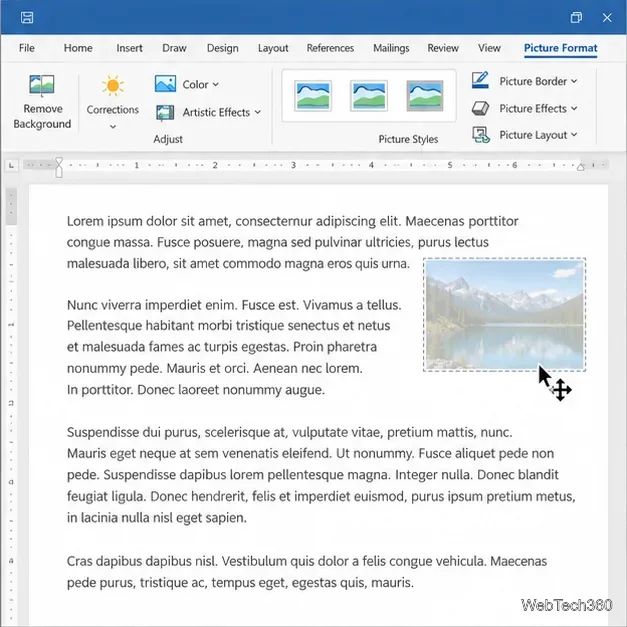
A selected picture being dragged across a Word page, with a four-headed move cursor and surrounding paragraphs.
Drag the wrapped picture to its new position.

Keep the picture with text or pin it to the page

Wrapping controls how text flows; the positioning option controls what happens when text is added or removed. Select the picture, open Layout Options or go to Picture Format > Wrap Text, then choose the behavior you need:

  • Move with text keeps the picture anchored to its paragraph. Adding content before that paragraph can move both the anchor and picture down the page.
  • Fix position on page keeps the picture at its current page position as text changes. Text may move around it, so review the surrounding layout after edits.

The setting may be available directly in the Layout Options panel or through More Layout Options, depending on your Word version.
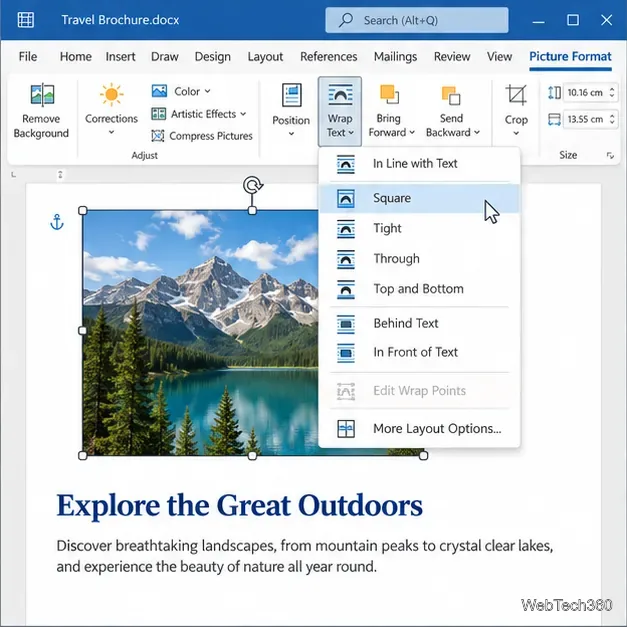
Microsoft Word Picture Format ribbon with the Wrap Text menu open and multiple wrapping choices.
The Wrap Text menu is another route to picture layout settings.
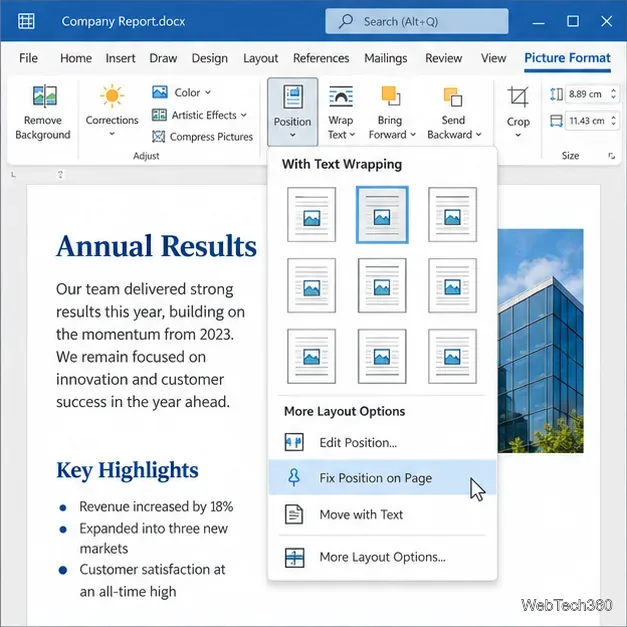
Word Position menu with Fix Position on Page and Move with Text choices visible.
Choose Move with Text or Fix Position on Page to control anchoring.

Move a picture to an exact location

For more controlled placement, select the image and open Picture Format > Position. Choose one of Word’s preset positions, or select More Layout Options to adjust the position relative to the page, margin, column, or paragraph. These controls are useful for forms, newsletters, and pages where a picture needs consistent alignment.

Use the position controls alongside a wrapping option. If a picture remains inline, its location is governed by the text paragraph, so page-position presets and free dragging may not behave as expected.
Picture Format ribbon showing the Position controls for positioning an image relative to text.
Open Position for preset placements and detailed layout controls.

If the picture will not move or is hard to select

  • It moves the text instead: It is probably still In Line with Text. Change to a wrapping option first.
  • You cannot click the picture: Another object may cover it. Open Home > Select > Selection Pane (or the equivalent Select control in your version), then select the picture from the object list.
  • The picture jumps after editing: Check whether it is set to Move with Text or Fix Position on Page. Also check its anchor paragraph and the selected wrapping style.
  • Text overlaps or becomes difficult to read: Avoid Behind Text or In Front of Text unless that layering is intentional. Try Square or Top and Bottom instead.
  • You use Word for the web: The available controls can differ from desktop Word. Microsoft notes that some pictures with wrapping or a fixed page position inserted in desktop Word cannot be moved in Word for the web; open the document in the desktop app to change those objects.
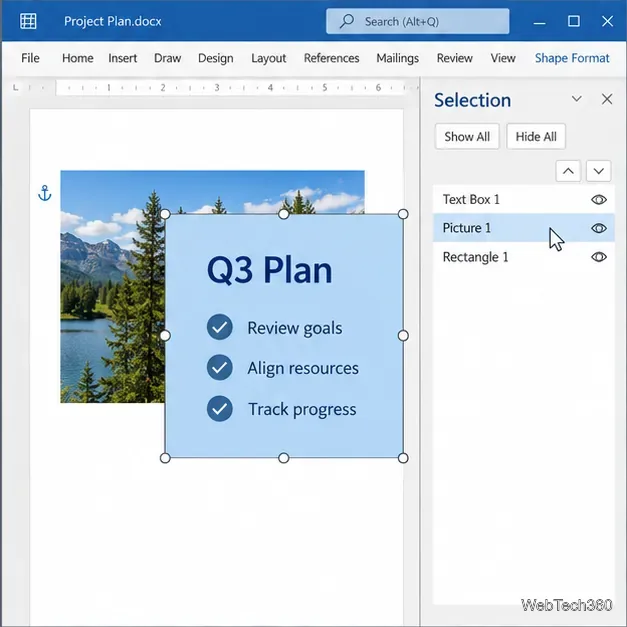
Microsoft Word Selection pane listing document objects, including Picture 1, so a covered image can be selected.
Use the Selection pane when another object makes the picture difficult to click.

Insert a picture before positioning it

To add a new image, place the cursor where it belongs, choose Insert > Pictures, and select the file or image source available in your version of Word. Word may insert it inline by default. After insertion, select it and set the wrapping and anchoring behavior before dragging. This avoids repeatedly rearranging paragraphs while you experiment with placement.

For the current controls and platform notes, see Microsoft’s guides to wrapping text and moving pictures in Word and wrapping text around a picture.

Leave a Comment

How to Move a Picture in Microsoft Word

How to Move a Picture in Microsoft Word

Learn how to drag a picture in Word, choose text wrapping, keep it with a paragraph or fix it on the page, and troubleshoot images that will not move.

How to Insert a Checkbox in Excel: Two Easy Methods

How to Insert a Checkbox in Excel: Two Easy Methods

Learn how to insert a checkbox in Excel with the in-cell tool, count checked items with formulas, or add a linked Form Control in older desktop versions.

How to Autofill Letters in Excel: A to Z and Beyond

How to Autofill Letters in Excel: A to Z and Beyond

Generate A to Z, lowercase letters, or labels beyond Z in Excel with a fill-handle formula, SEQUENCE, or a reusable custom list.

How to Strikethrough in Excel: Shortcuts and Step-by-Step Methods

How to Strikethrough in Excel: Shortcuts and Step-by-Step Methods

Learn how to strikethrough in Excel on Windows, Mac, and the web, format part of a cell, and remove the line without deleting its value.

What Is Microsoft Access? How Its Database Tools Work

What Is Microsoft Access? How Its Database Tools Work

Microsoft Access is a Windows database app for storing related records, building queries, creating data-entry forms, and generating reports. Learn how it works and when it fits.

Office Outlook 2010 Import and Export: Move Data with a PST

Office Outlook 2010 Import and Export: Move Data with a PST

Learn how to import a PST into Outlook 2010 or export mail, contacts, calendar, and tasks. Follow the correct menus and avoid missing folders or duplicates.

Change Gridline Height and Width in Word 2010

Change Gridline Height and Width in Word 2010

Learn how to adjust gridline height and width in Word 2010, change visible line frequency, and set the underlying horizontal and vertical drawing-grid spacing.

Recover an Outlook PST Password with Nucleus Kernel

Recover an Outlook PST Password with Nucleus Kernel

Recover a forgotten Outlook PST password with Kernel’s current steps, including how to identify the right file, make a backup, and check the tool’s limits.

How to Insert a Live Web Page in a PowerPoint Slide

How to Insert a Live Web Page in a PowerPoint Slide

Use the LiveWeb add-in to place a website on a PowerPoint slide, set its size and refresh behavior, and check compatibility before presenting.

How to Make an Access 2010 Database Open to a Form

How to Make an Access 2010 Database Open to a Form

Set an Access 2010 database application to open directly to a data-entry form, hide object lists, limit menus, and check the setup before sharing.