How to Move a Picture in Microsoft Word
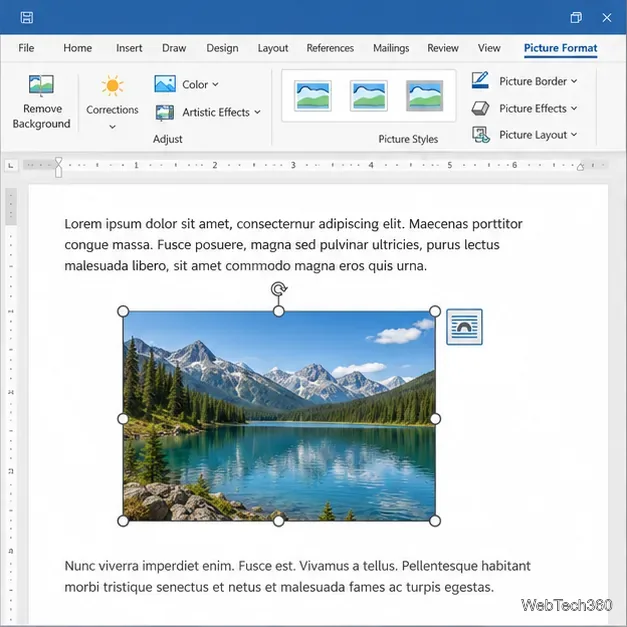
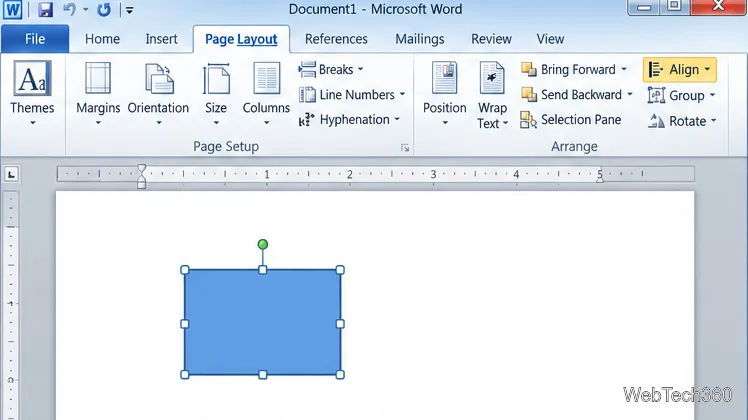
Learn how to drag a picture in Word, choose text wrapping, keep it with a paragraph or fix it on the page, and troubleshoot images that will not move.
To make Access 2010 feel like a simple application, choose a form as its startup screen. Hide the Navigation Pane and limit built-in menus only if users do not need those database objects. These settings simplify the interface; they do not secure the file or its data. They also do not package the database as a separate program; they configure how this Access database opens.
The steps assume your database already contains a form. If not, create and save one before changing startup options.
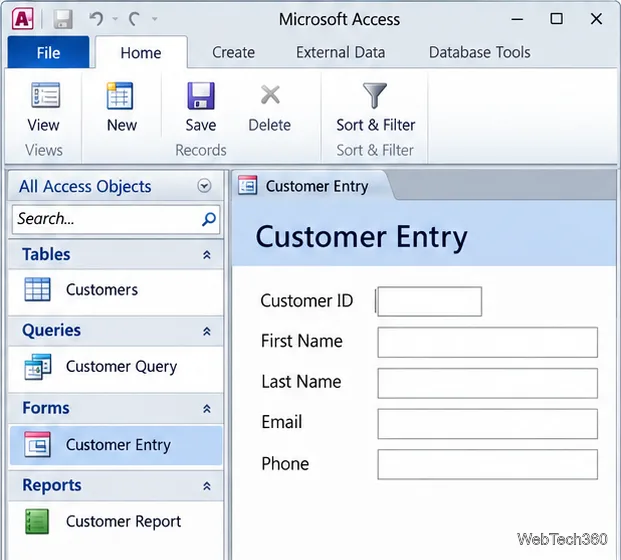
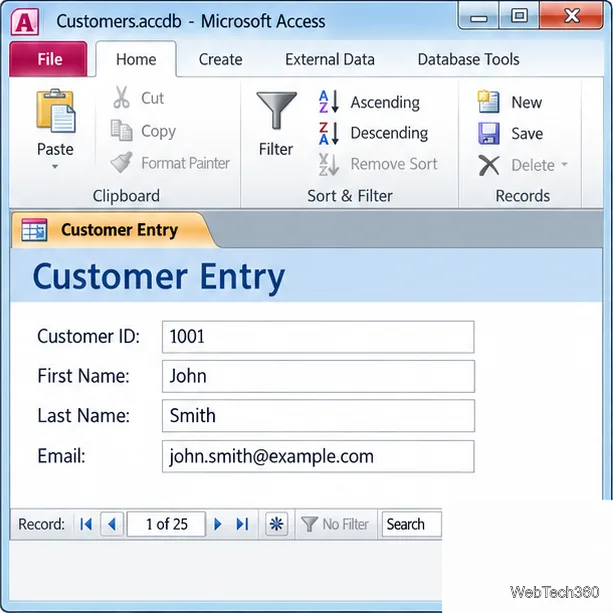
Open the database and select the table or query that contains the fields. Click Create > Form for a quick form, or choose Form Wizard when you want to select fields and layout. Save the form with a clear name, such as Customer Entry. The quick Form tool includes all fields from its source, while the wizard lets you omit fields users do not need.
Open the form in Form view and confirm its record source supports the task. Some queries are read-only and will not accept new records. See Microsoft’s Form Wizard instructions and guidance on form record sources.
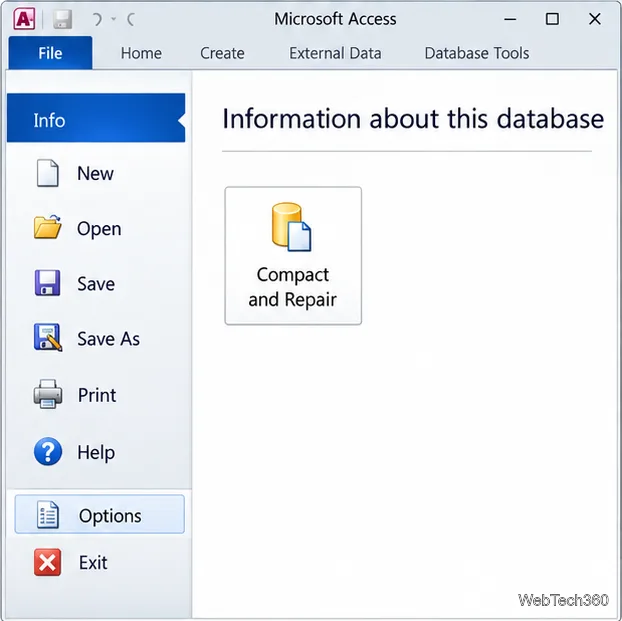
Click File > Options, then select Current Database. These settings apply to the database that is open.
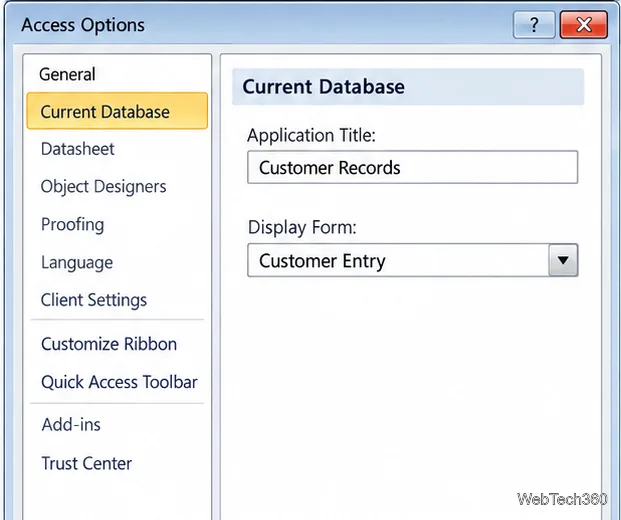
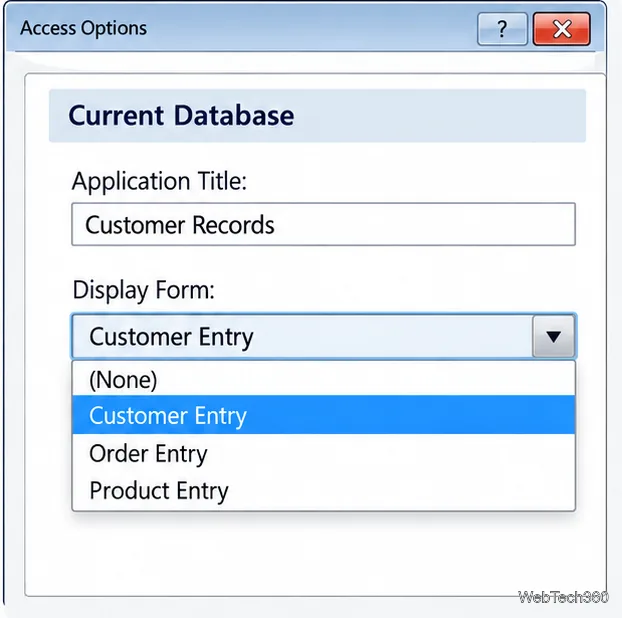
Under Application Options, optionally enter a name in Application Title. In Display Form, choose the saved form to open at startup. Leave it as (None) if Access should open without a form. The title changes the window title; it does not rename the database file.
If the form is missing from the list, save it and confirm it belongs to this database. Microsoft documents the Display Form setting in its default-form instructions.
Under Navigation, clear Display Navigation Pane if users should not browse tables, queries, reports, and other forms. Keep it selected if they need those objects. If you hide the pane but users need several forms, create a navigation form or switchboard with buttons first. See Microsoft’s Navigation Pane guidance.
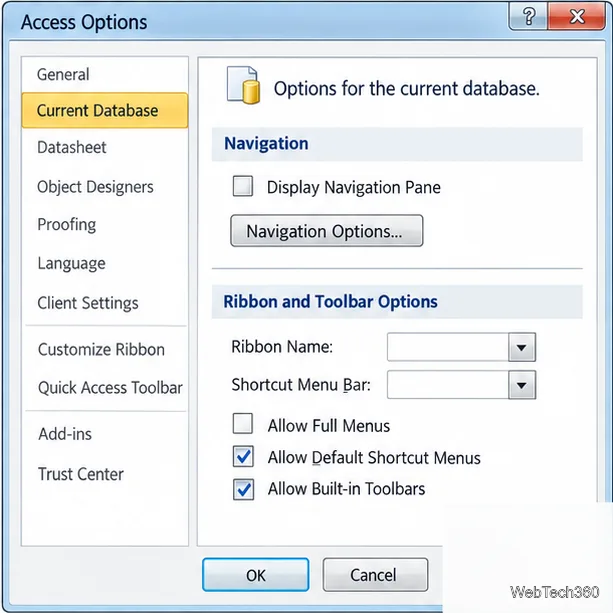
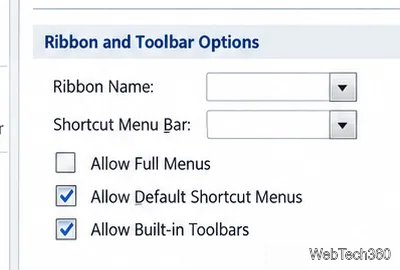
Under Ribbon and Toolbar Options, clear Allow Full Menus to limit the default Ribbon tabs. Leave it enabled if users need the full Ribbon or File menu. Check Microsoft’s Current Database options reference before changing other controls.
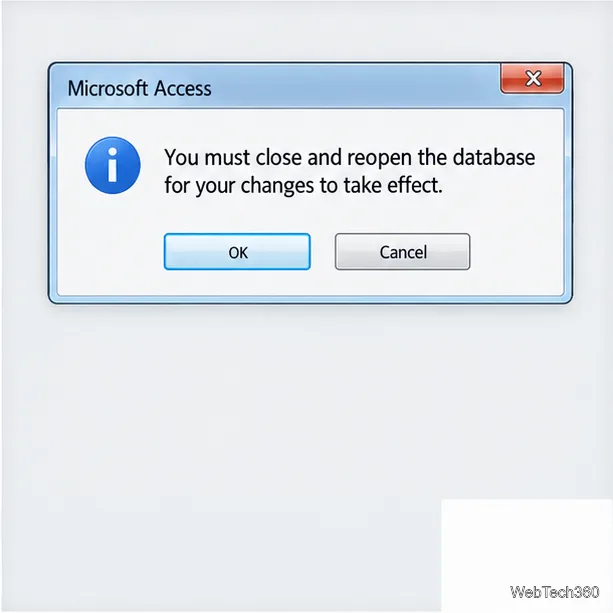
Click OK. If Access prompts you to close and reopen the database, save open work and accept. Close the database, then open it again normally so the startup settings take effect. This is the point to confirm that the file opens to the form rather than the Navigation Pane.
Confirm that the startup form opens, displays existing records, and allows record navigation. Test adding a record if users need that action. The form’s Allow Additions property must permit new records; keep Data Entry set to No to show existing records as well as a new-record option. Setting Data Entry to Yes opens only a blank record. See Microsoft’s Allow Additions and Data Entry references.
Hidden panes and limited menus are usability settings, not access controls. Holding Shift while opening the database bypasses many startup options, including Display Form and Navigation Pane. Do not rely on these settings to protect confidential data. See Microsoft’s startup-bypass documentation.
For a more controlled distribution, review Microsoft’s guidance on deploying an Access application, including Access Runtime, and protect the database file and back-end data separately. Office 2010 support ended October 13, 2020, so it no longer receives security updates or technical support. See the Office 2010 support notice.
Learn how to drag a picture in Word, choose text wrapping, keep it with a paragraph or fix it on the page, and troubleshoot images that will not move.
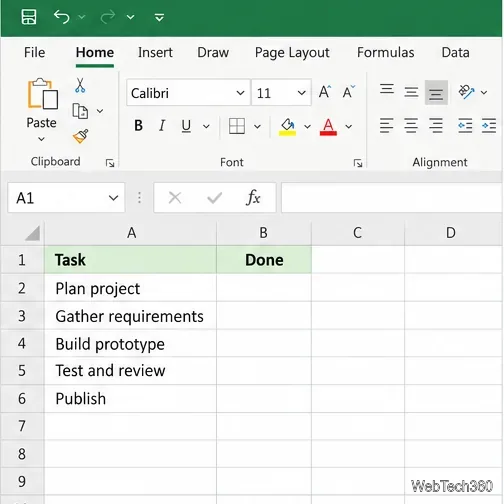
Learn how to insert a checkbox in Excel with the in-cell tool, count checked items with formulas, or add a linked Form Control in older desktop versions.
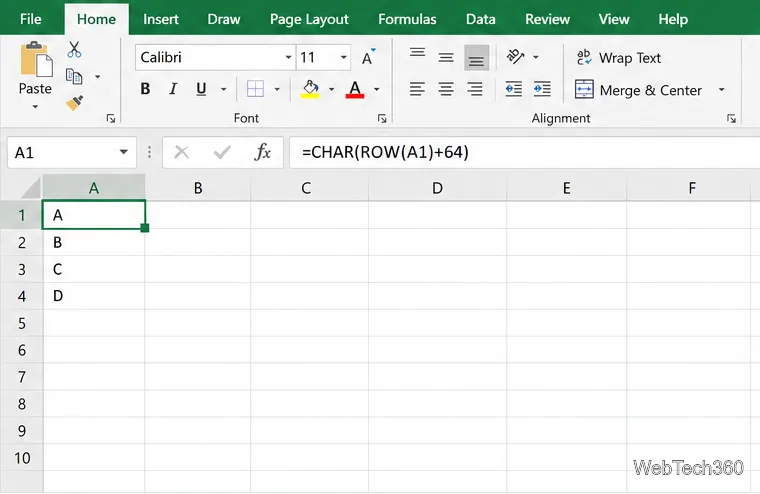
Generate A to Z, lowercase letters, or labels beyond Z in Excel with a fill-handle formula, SEQUENCE, or a reusable custom list.
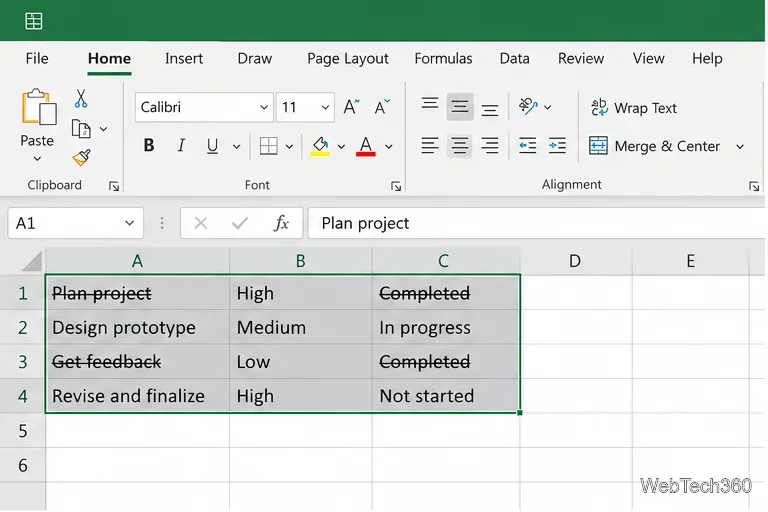
Learn how to strikethrough in Excel on Windows, Mac, and the web, format part of a cell, and remove the line without deleting its value.
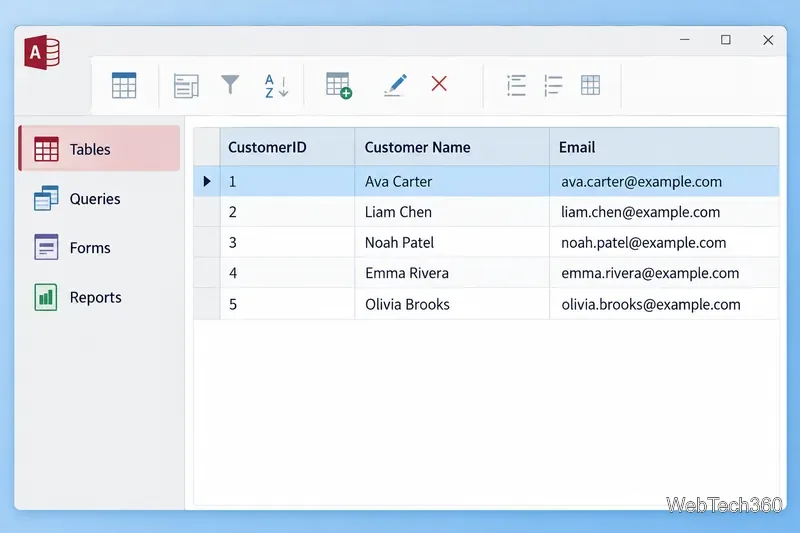
Microsoft Access is a Windows database app for storing related records, building queries, creating data-entry forms, and generating reports. Learn how it works and when it fits.
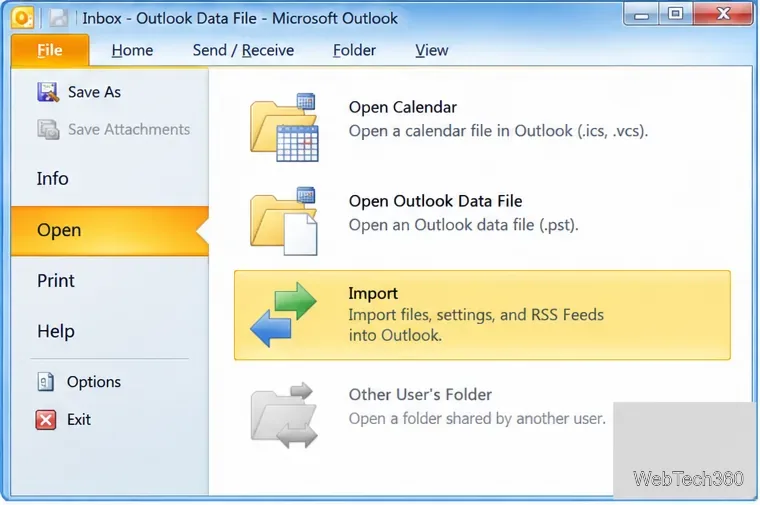
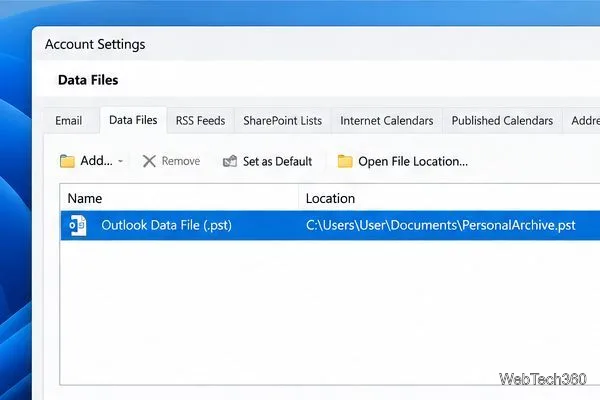
Learn how to import a PST into Outlook 2010 or export mail, contacts, calendar, and tasks. Follow the correct menus and avoid missing folders or duplicates.
Learn how to adjust gridline height and width in Word 2010, change visible line frequency, and set the underlying horizontal and vertical drawing-grid spacing.
Recover a forgotten Outlook PST password with Kernel’s current steps, including how to identify the right file, make a backup, and check the tool’s limits.
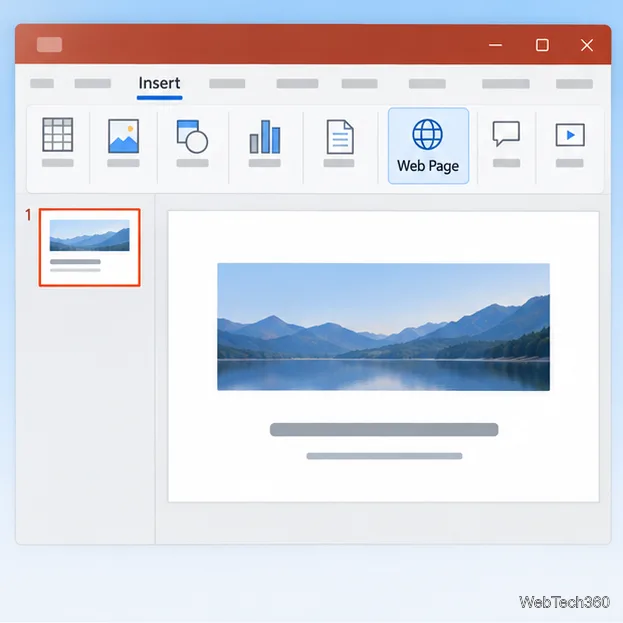
Use the LiveWeb add-in to place a website on a PowerPoint slide, set its size and refresh behavior, and check compatibility before presenting.
Set an Access 2010 database application to open directly to a data-entry form, hide object lists, limit menus, and check the setup before sharing.