How to Move a Picture in Microsoft Word
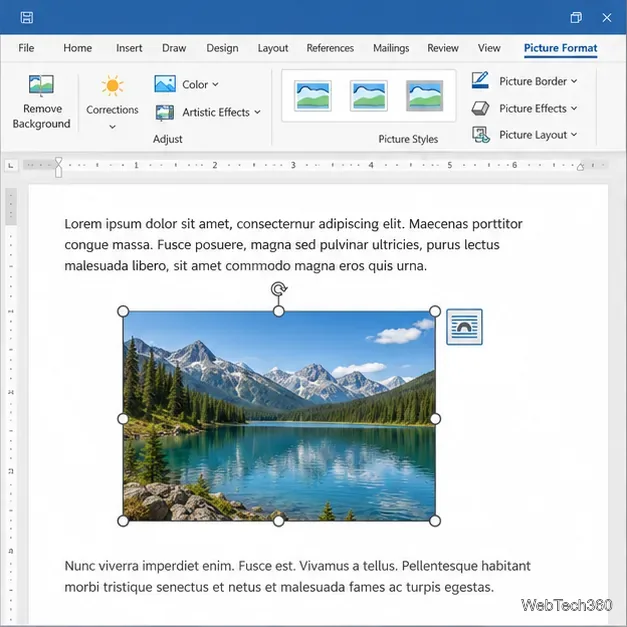
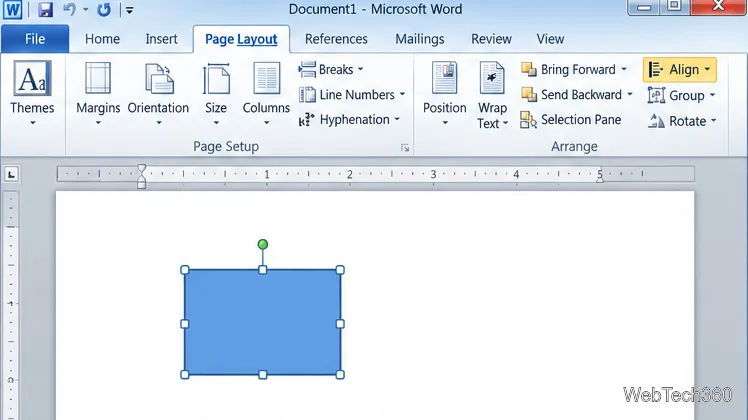
Learn how to drag a picture in Word, choose text wrapping, keep it with a paragraph or fix it on the page, and troubleshoot images that will not move.
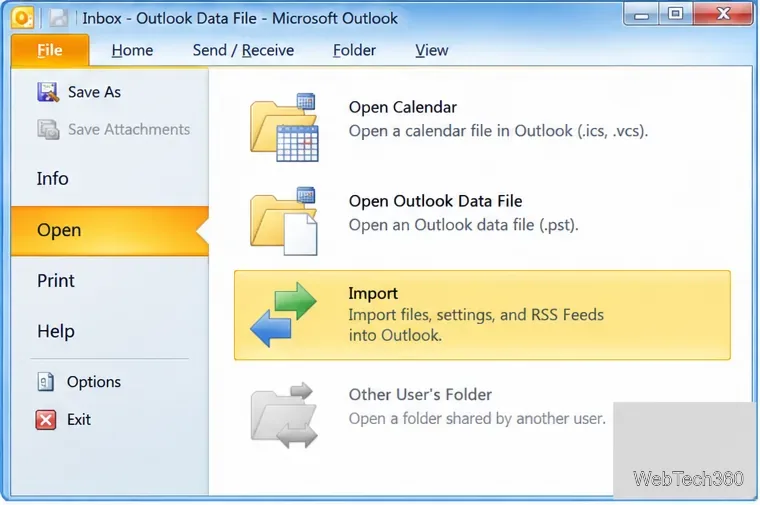
To move Outlook 2003, 2007, or 2010 data into Outlook 2010, import an Outlook Data File (.pst). To create a copy of your Outlook 2010 mail and other selected items, export them to a PST. The menus differ: import starts at File > Open > Import, while export is under File > Options > Advanced > Export. These steps are for classic Outlook 2010; newer releases use different menus. Microsoft’s Outlook 2010 migration guide shows the version-specific import path.
A PST can store selected mail and attachments, contacts, calendar items, tasks, and folder structure. Exporting makes a copy; it does not remove the source items. Use it to move selected data between Outlook profiles or keep a periodic mailbox-data backup.
A PST is not a full profile backup: it omits rules, blocked senders, folder views, permissions, AutoArchive settings, and account credentials or server settings. In Cached Exchange Mode, an export may include only items in the local cache, so confirm the history you need has synchronized. Microsoft’s PST export guidance explains these limits.
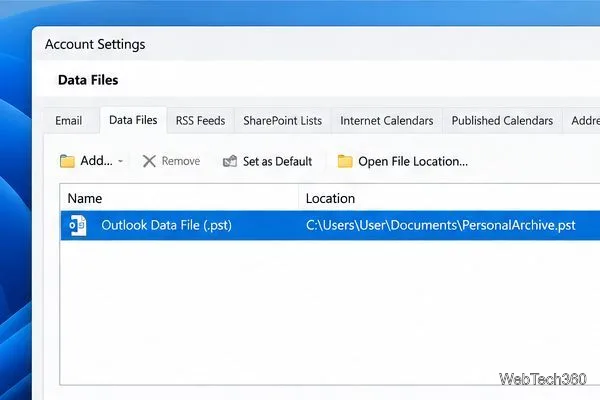
To browse a PST without merging it into the current mailbox, choose File > Open > Open Outlook Data File. Outlook displays it as a separate folder tree. Use Import when you want copies placed in a destination mailbox.
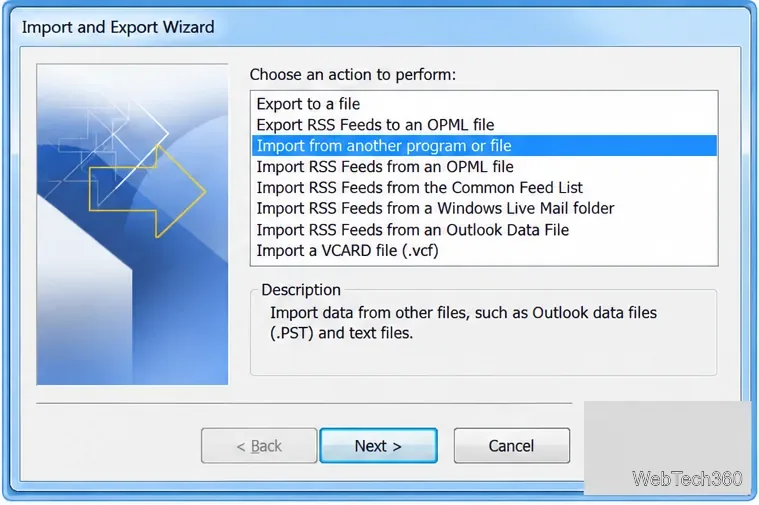
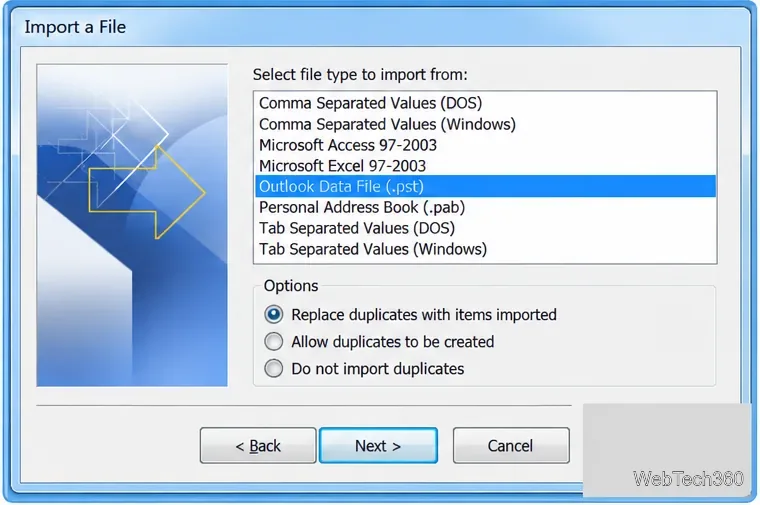
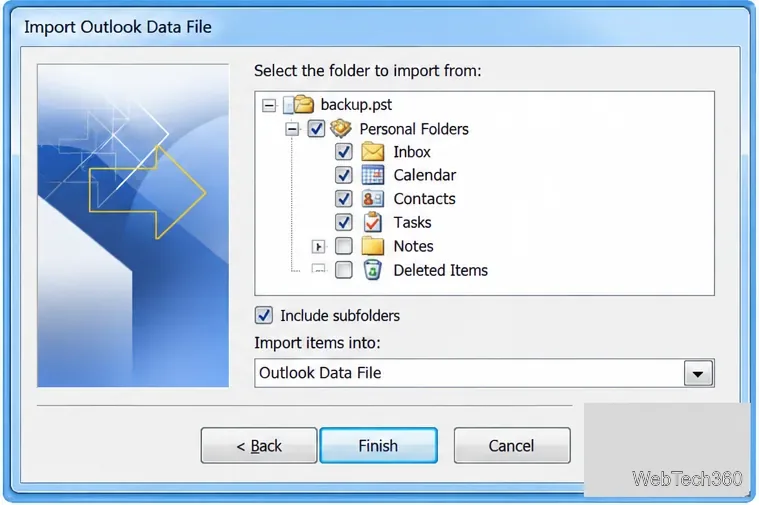
If the PST is password-protected, enter its password when Outlook asks. Wait for the import to finish, then check the destination folders and a few items. For only a handful of messages or contacts, open the PST and drag them into Outlook instead of importing the whole file.
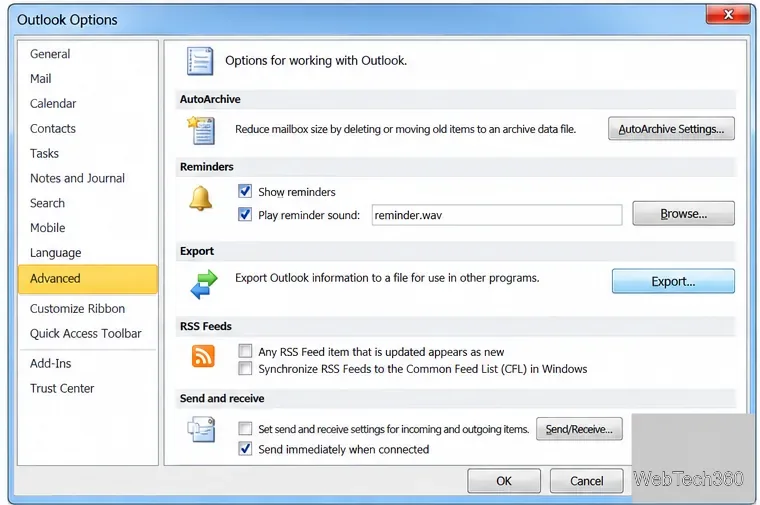
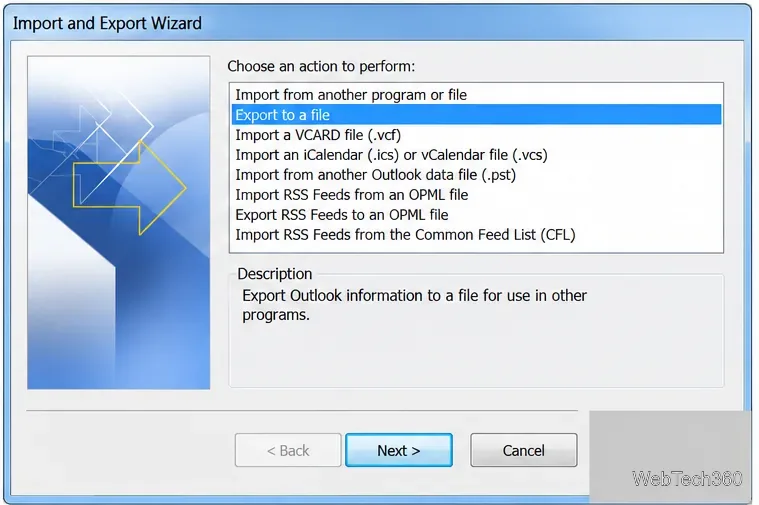
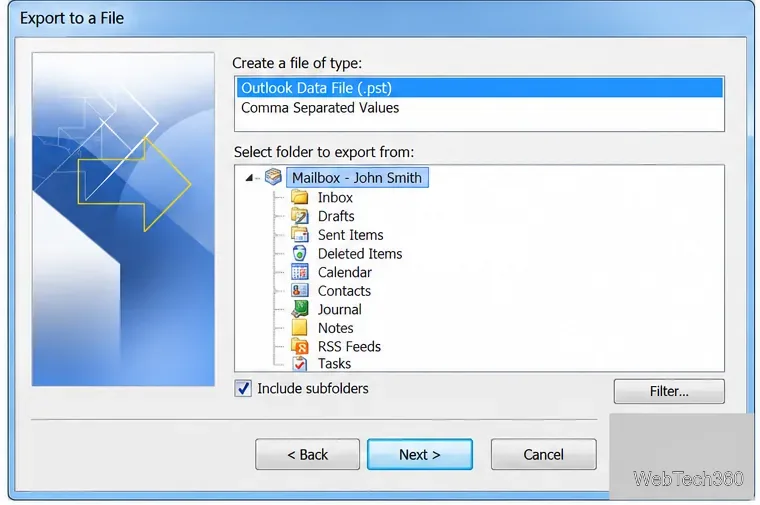
Outlook-backup.pst, and click Finish. Use a new filename for each backup. If you select an existing PST, choose how to handle items already there. A password is optional; if set, enter and verify it when prompted, then store it securely. Outlook asks for it when the file is opened.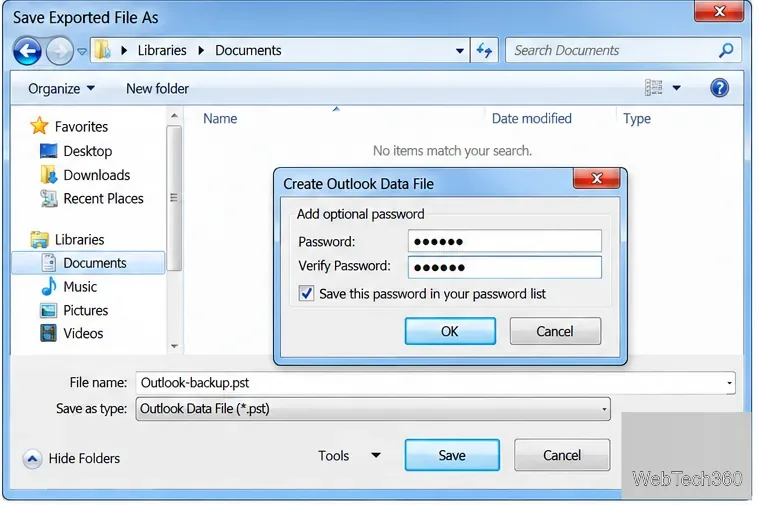
Wait for the export to finish before copying the PST. Save it to a local drive rather than an active OneDrive sync folder; Microsoft warns that OneDrive does not sync open PST files reliably. Then copy the finished file to separate storage for another backup.
When moving computers, remember that the PST carries selected items, not account setup; add the email account to the destination profile separately. Microsoft’s transfer guide explains PST and OST files. For current import guidance, see Microsoft’s PST import instructions.
Learn how to drag a picture in Word, choose text wrapping, keep it with a paragraph or fix it on the page, and troubleshoot images that will not move.
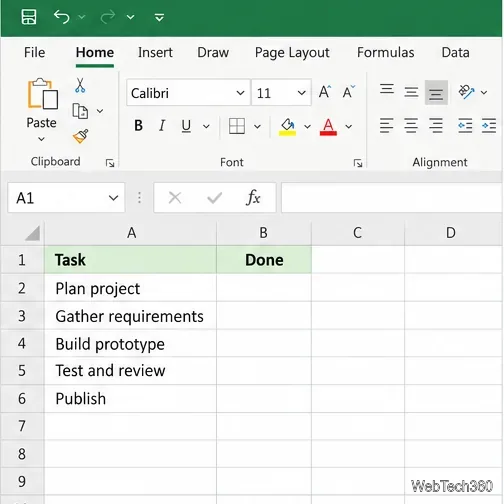
Learn how to insert a checkbox in Excel with the in-cell tool, count checked items with formulas, or add a linked Form Control in older desktop versions.
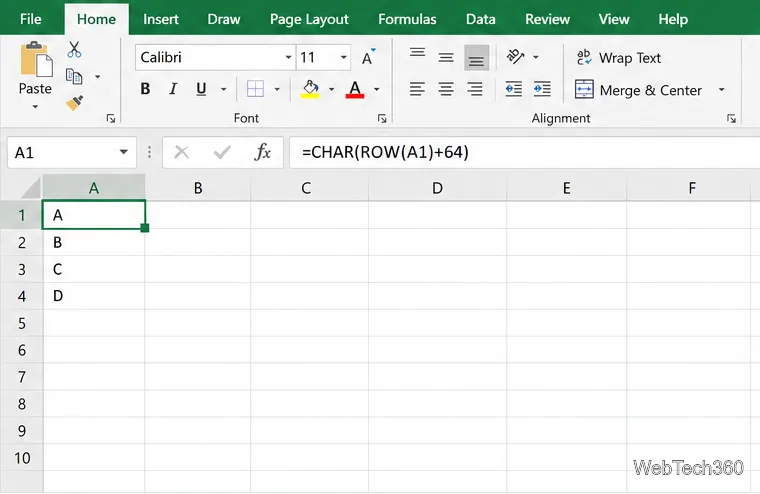
Generate A to Z, lowercase letters, or labels beyond Z in Excel with a fill-handle formula, SEQUENCE, or a reusable custom list.
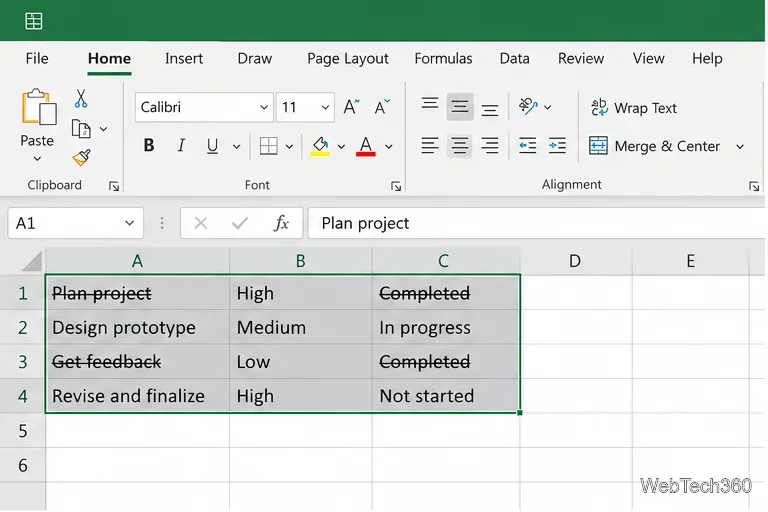
Learn how to strikethrough in Excel on Windows, Mac, and the web, format part of a cell, and remove the line without deleting its value.
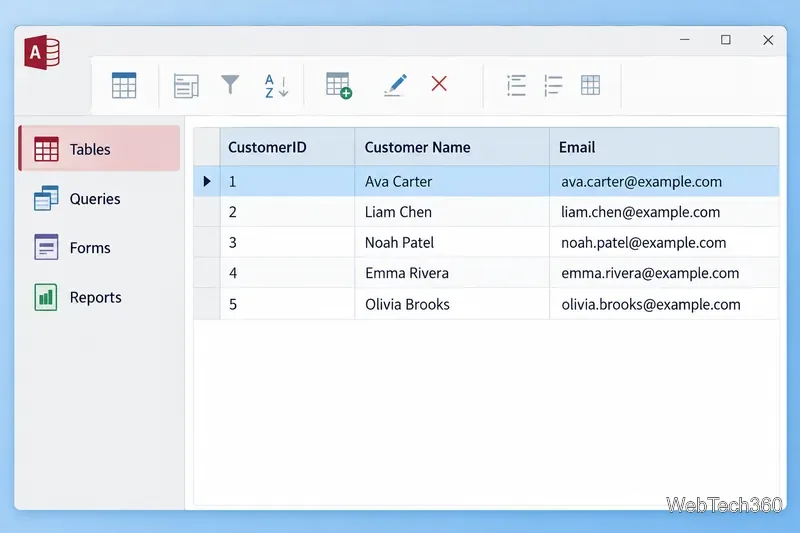
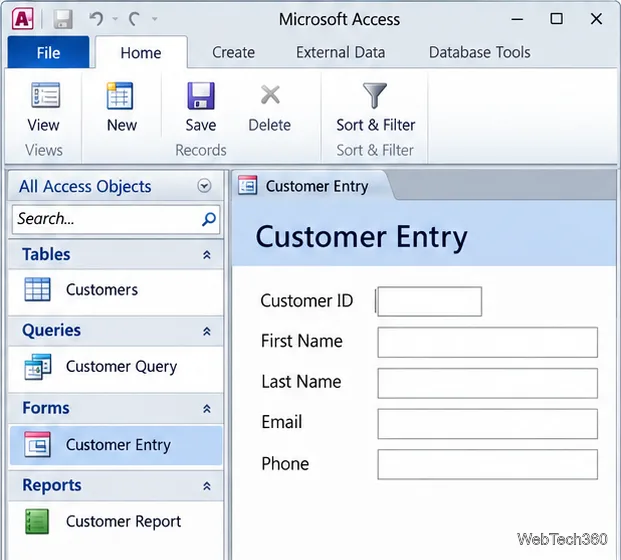
Microsoft Access is a Windows database app for storing related records, building queries, creating data-entry forms, and generating reports. Learn how it works and when it fits.
Learn how to import a PST into Outlook 2010 or export mail, contacts, calendar, and tasks. Follow the correct menus and avoid missing folders or duplicates.
Learn how to adjust gridline height and width in Word 2010, change visible line frequency, and set the underlying horizontal and vertical drawing-grid spacing.
Recover a forgotten Outlook PST password with Kernel’s current steps, including how to identify the right file, make a backup, and check the tool’s limits.
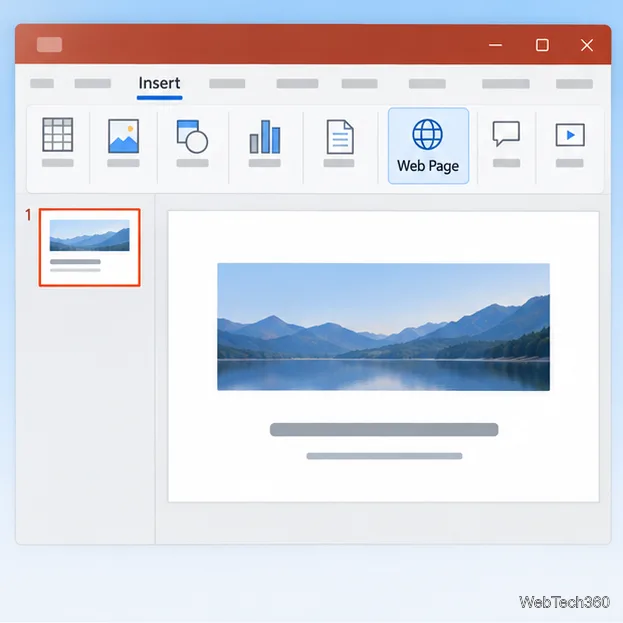
Use the LiveWeb add-in to place a website on a PowerPoint slide, set its size and refresh behavior, and check compatibility before presenting.
Set an Access 2010 database application to open directly to a data-entry form, hide object lists, limit menus, and check the setup before sharing.