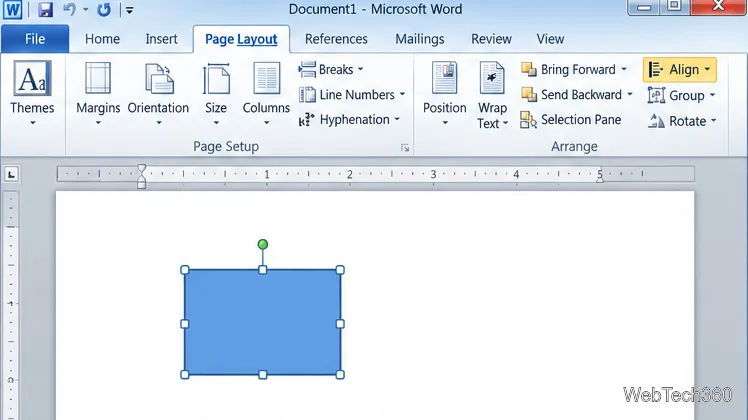
How to Move a Picture in Microsoft Word
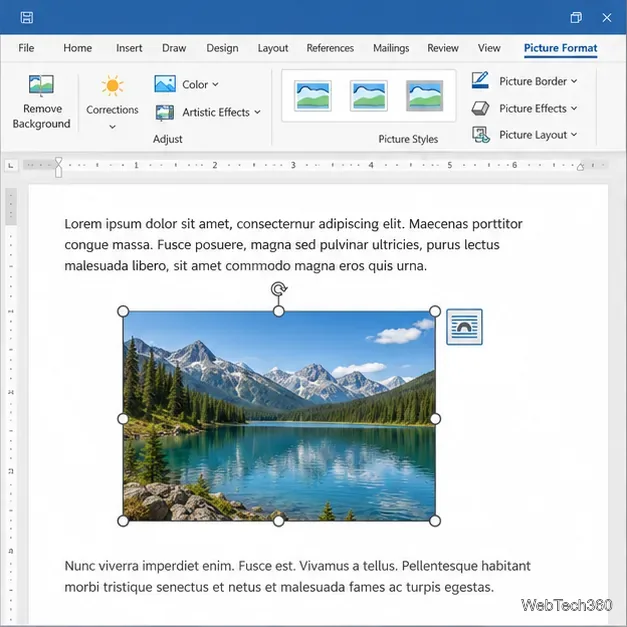
Learn how to drag a picture in Word, choose text wrapping, keep it with a paragraph or fix it on the page, and troubleshoot images that will not move.
Excel can fill numbers, dates, and familiar built-in series, but a single typed letter is usually copied rather than continued as A, B, C. To autofill letters in Excel, enter a formula that converts a number into a letter, then use the fill handle. For a one-time alphabet column, this works in older desktop versions too. If you need labels after Z or want to reuse the sequence, use one of the options below.
Start in cell A1 so the row reference in the formula matches the first position in the sequence. Keep the cells below it empty if you want the letters to fill into a clear column.
=CHAR(ROW(A1)+64), and press Enter. ROW(A1) returns 1; adding 64 gives the character code 65, which CHAR returns as A.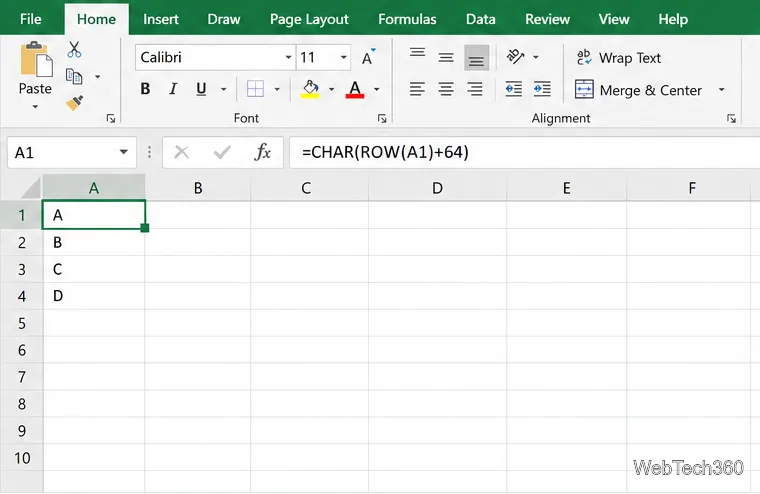
For lowercase letters, use =CHAR(ROW(A1)+96) in A1 and fill through row 26. The codes used here cover the standard English alphabet; they do not create accented letters or a custom alphabet.
If your Excel version supports dynamic arrays, enter =CHAR(SEQUENCE(26,,65)) in A1 and press Enter. SEQUENCE returns the numbers 65 through 90, and CHAR converts them to A through Z. Excel places the results in the cells below automatically, so you do not have to drag the fill handle. The lowercase version is =CHAR(SEQUENCE(26,,97)).
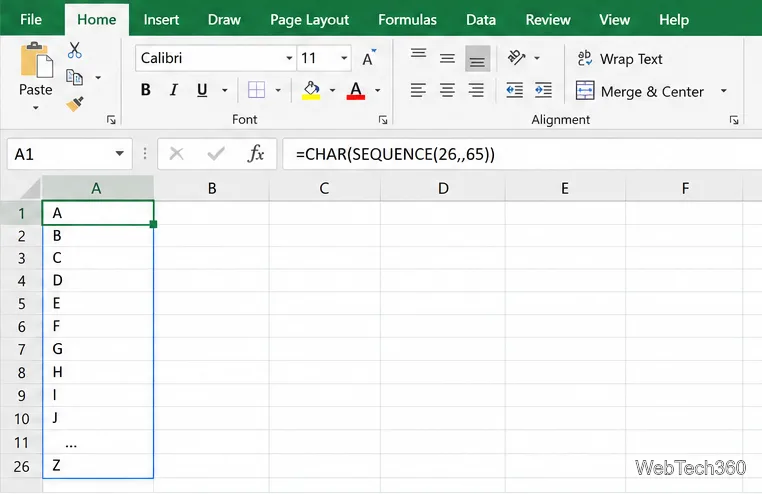
Leave the output range below A1 empty before entering the formula. If another value blocks the spill range, Excel shows a #SPILL! error. Microsoft lists SEQUENCE for Microsoft 365, Excel 2021, and Excel 2024; it is not listed for Excel 2019 or Excel 2016. If you have an older version, use the fill-handle formula instead.
CHAR follows character codes, so it will not wrap from Z to AA. For an Excel-style column-label sequence, enter this formula in A1:
=SUBSTITUTE(ADDRESS(1,ROW(A1),4),"1","")
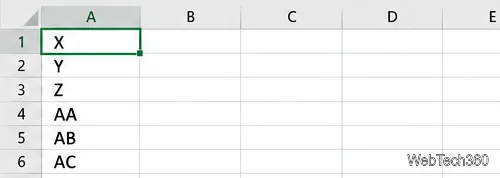
Fill the formula down through row 702. ROW(A1) supplies the column number to ADDRESS; the formula returns a reference such as A1 or AA1, and SUBSTITUTE removes the row number. The results run A, B, …, Z, AA, AB, and continue through ZZ. This is useful for labels that should follow the same pattern as Excel column headings. If you need only A to Z, the shorter CHAR formula is easier to maintain.
If you repeat this task often in Excel for Windows, you can add A through Z as a custom list. First enter the letters in order in a worksheet range and select that range. Open File > Options > Advanced > General > Edit Custom Lists. In the Custom Lists dialog, confirm the selected cell range and choose Import, then click OK to close the dialogs.
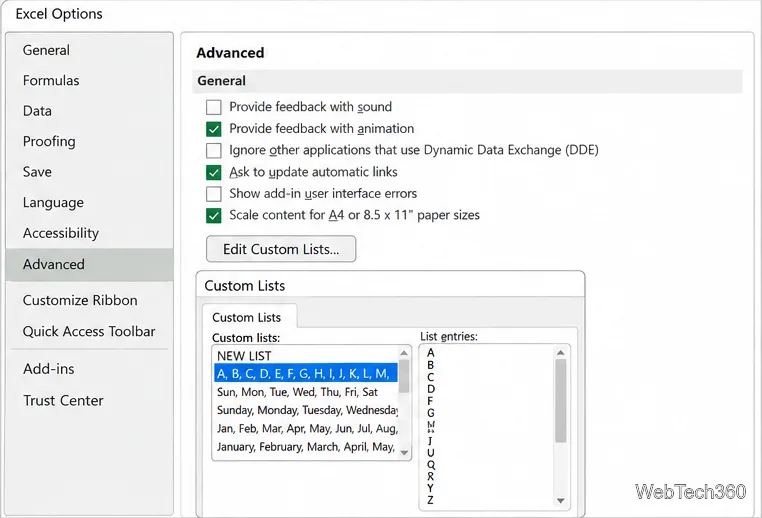
After the list is added, type A in a cell and drag its fill handle to continue the alphabet. Custom lists are stored with the Excel installation, so a list added on your computer might not be available for Fill on a colleague’s computer. For a shared workbook, keep a visible A–Z reference range or use a formula so the sequence travels with the file. Microsoft also notes that lists stored in a workbook are not automatically available to the Fill command on another computer.
CHAR formula has moved beyond code 90. Stop at row 26 or switch to the ADDRESS formula for labels after Z.#SPILL! appears: Clear the cells below the SEQUENCE formula so Excel has room for all 26 results.| Need | Use |
|---|---|
| A–Z or a–z in any supported version | CHAR with ROW, then drag the fill handle |
| A–Z in one step | CHAR(SEQUENCE(...)) in Microsoft 365, Excel 2021, or Excel 2024 |
| Labels beyond Z | ADDRESS with ROW and SUBSTITUTE |
| Repeat the same list on one computer | Create a custom list in Excel for Windows |
Learn how to drag a picture in Word, choose text wrapping, keep it with a paragraph or fix it on the page, and troubleshoot images that will not move.
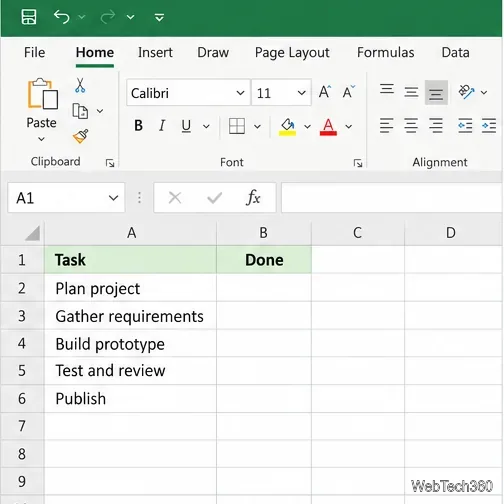
Learn how to insert a checkbox in Excel with the in-cell tool, count checked items with formulas, or add a linked Form Control in older desktop versions.
Generate A to Z, lowercase letters, or labels beyond Z in Excel with a fill-handle formula, SEQUENCE, or a reusable custom list.
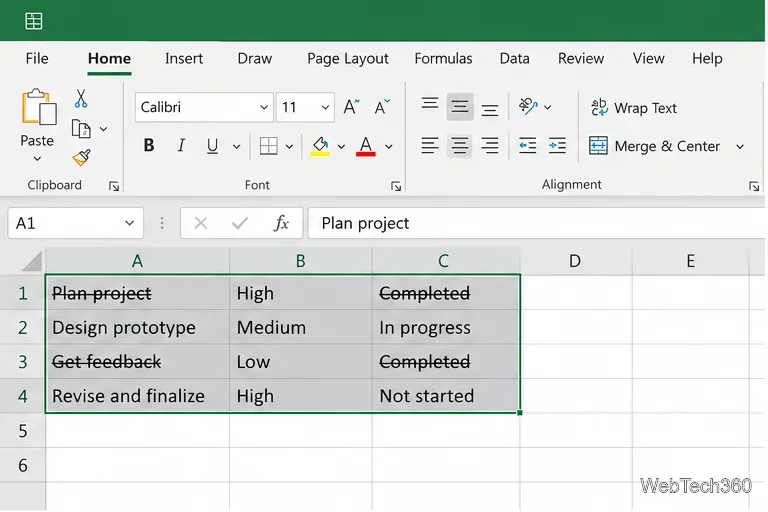
Learn how to strikethrough in Excel on Windows, Mac, and the web, format part of a cell, and remove the line without deleting its value.
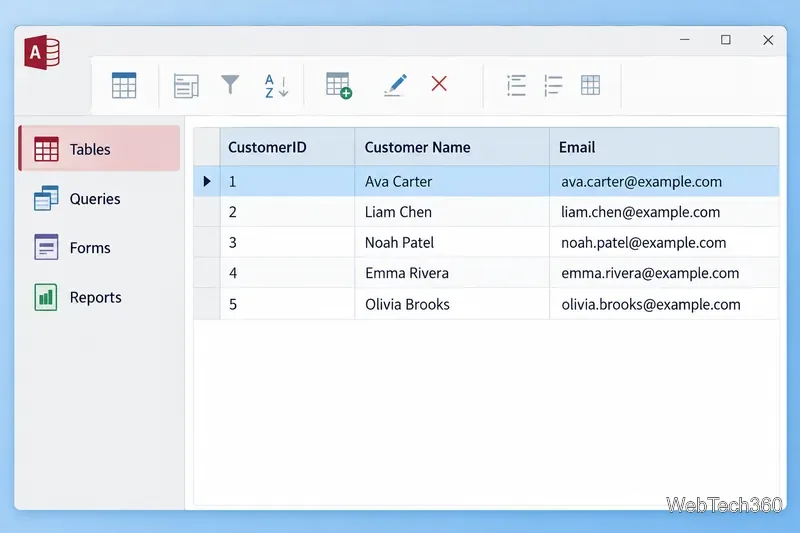
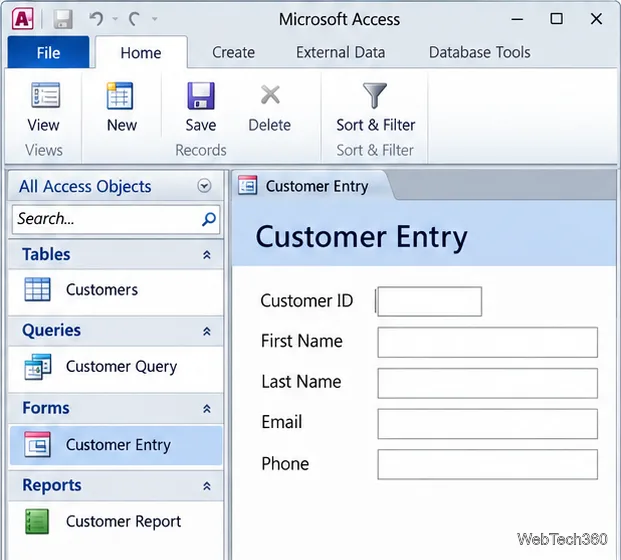
Microsoft Access is a Windows database app for storing related records, building queries, creating data-entry forms, and generating reports. Learn how it works and when it fits.
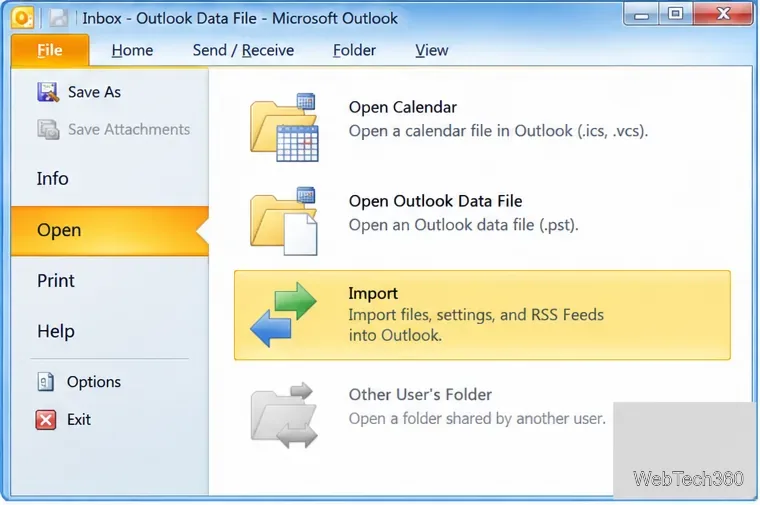
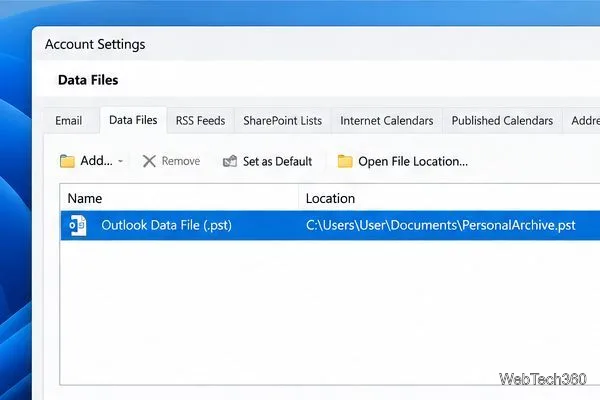
Learn how to import a PST into Outlook 2010 or export mail, contacts, calendar, and tasks. Follow the correct menus and avoid missing folders or duplicates.
Learn how to adjust gridline height and width in Word 2010, change visible line frequency, and set the underlying horizontal and vertical drawing-grid spacing.
Recover a forgotten Outlook PST password with Kernel’s current steps, including how to identify the right file, make a backup, and check the tool’s limits.
Use the LiveWeb add-in to place a website on a PowerPoint slide, set its size and refresh behavior, and check compatibility before presenting.
Set an Access 2010 database application to open directly to a data-entry form, hide object lists, limit menus, and check the setup before sharing.