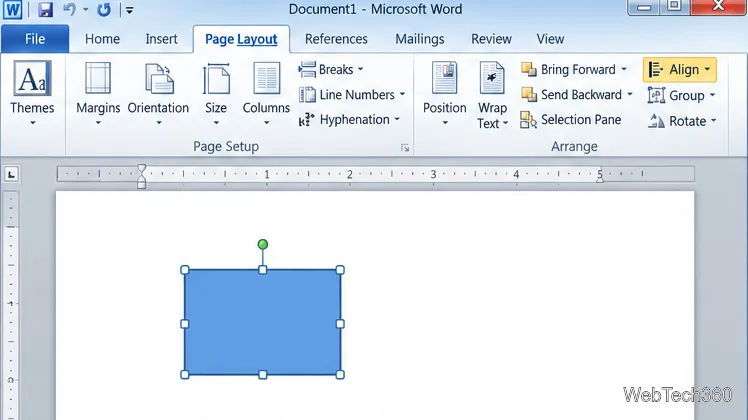
How to Move a Picture in Microsoft Word
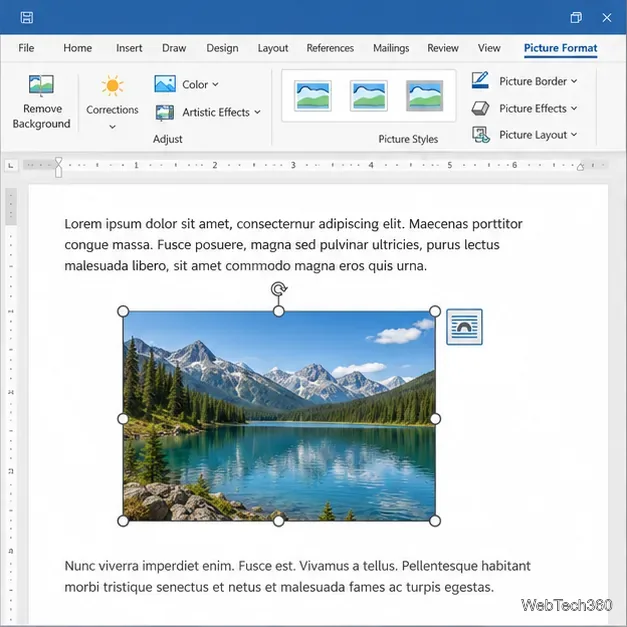
Learn how to drag a picture in Word, choose text wrapping, keep it with a paragraph or fix it on the page, and troubleshoot images that will not move.
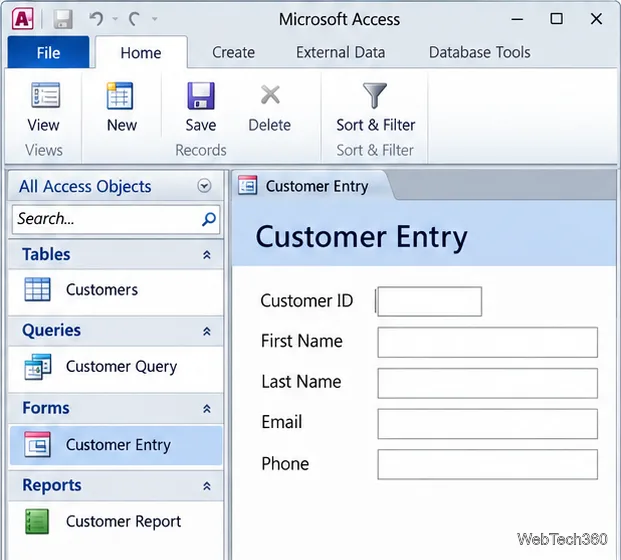
Microsoft Access is a Windows desktop database program for organizing related information and building small database applications. It stores records in tables, connects related tables, and lets you work with the data through queries, forms, and reports. Access is useful when a spreadsheet is no longer enough, but it is not a browser-based or Mac-native database.
Access is a relational database management system and an application-building tool. A typical database uses an .accdb file that can hold data tables plus queries, forms, reports, macros, and code modules. Access can also link to data stored elsewhere, including SQL Server. Microsoft explains the core objects in its Access database basics guide.
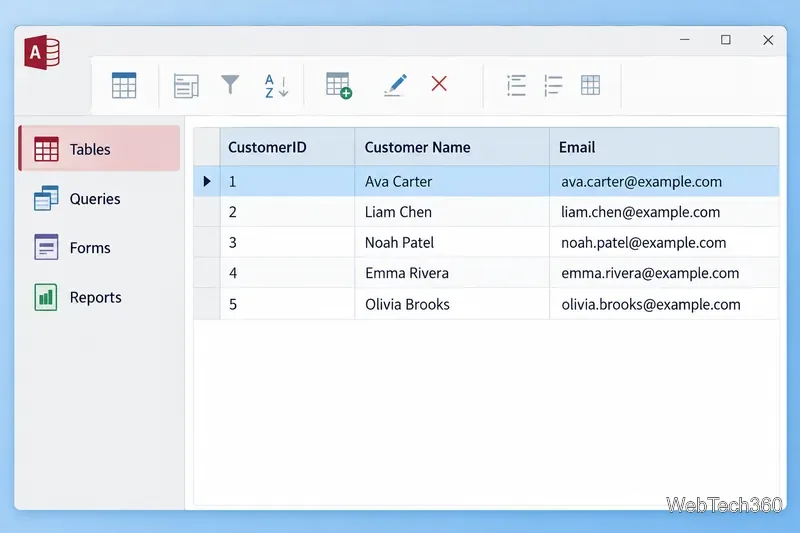
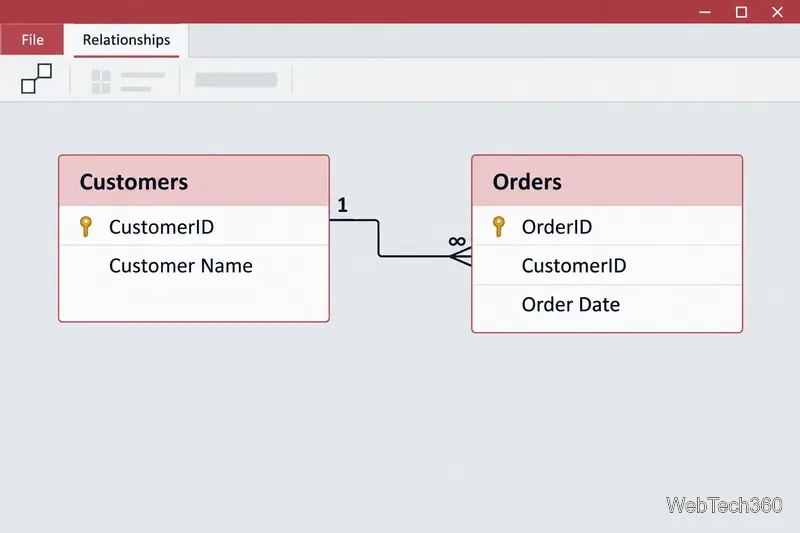
Each table stores one kind of information. Columns are fields; rows are records. In an order database, one table might contain customers and another their orders. A unique CustomerID identifies each customer, and the same ID in the Orders table connects each order to its customer. This keeps names and addresses from being copied into every order record. Relationships can also enforce data rules. See Microsoft’s guide to Access tables and relationships.
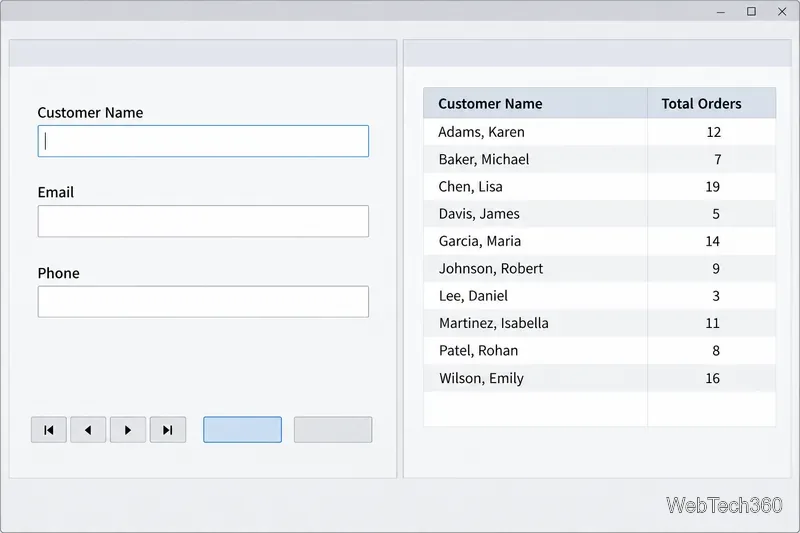
Access has a visual query designer and supports SQL for people who want to write queries. Macros automate common actions; VBA can add more customized behavior. You can begin with a blank database or a template, then adapt its tables and interface.
A repair shop could track customers, work orders, and parts in separate tables. Staff enter requests on a form; a query finds jobs still marked open; a report summarizes completed work by week. The same customer record can connect to many orders without repeated copies of the customer’s contact details.
Access can import or export Excel data and connect to some external sources. Use Excel for a straightforward list or calculations; Access is more helpful when you need related tables and repeatable data-entry workflows. Microsoft’s Access-versus-Excel guide outlines the difference.
Access can work well for a small team that needs structured records, custom forms, and reports on Windows computers. It is also useful for prototyping a database application or maintaining an existing Access system. Microsoft lists Access as a PC-only product; availability depends on the Microsoft 365 or Office license, and it is not generally a free standalone app. Check the current Access product page for licensing details.
.accdb file with a password, but this format does not provide Access user-level security. For sensitive data or per-user permissions, use a database server such as SQL Server and configure security there. Microsoft details user-level security in current Access formats.Choose Access when you want a Windows desktop tool that combines a relational database with forms and reports, and your sharing and data needs are modest. Choose Excel for simple lists and calculations. If users need browser or mobile access, fine-grained permissions, or growth beyond Access’s file-based limits, consider a web-first application or server database. Access can still serve as the front end for SQL Server, so a larger data layer does not always require replacing every form or report.
Learn how to drag a picture in Word, choose text wrapping, keep it with a paragraph or fix it on the page, and troubleshoot images that will not move.
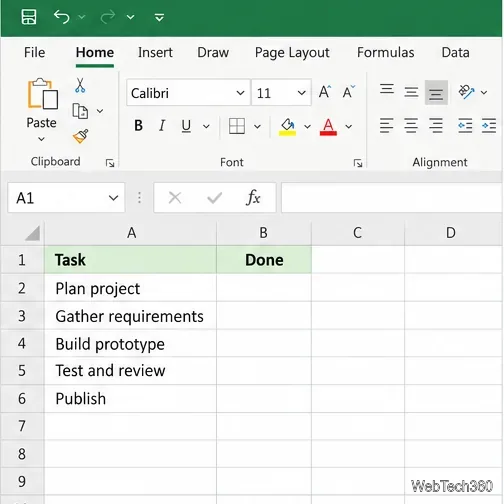
Learn how to insert a checkbox in Excel with the in-cell tool, count checked items with formulas, or add a linked Form Control in older desktop versions.
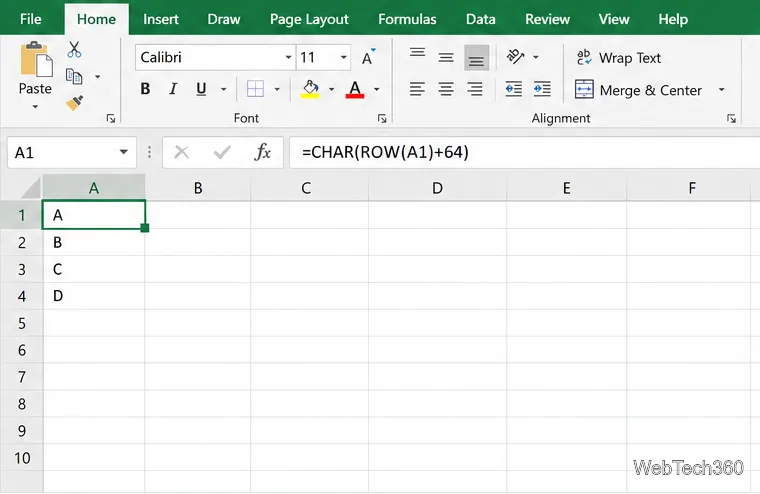
Generate A to Z, lowercase letters, or labels beyond Z in Excel with a fill-handle formula, SEQUENCE, or a reusable custom list.
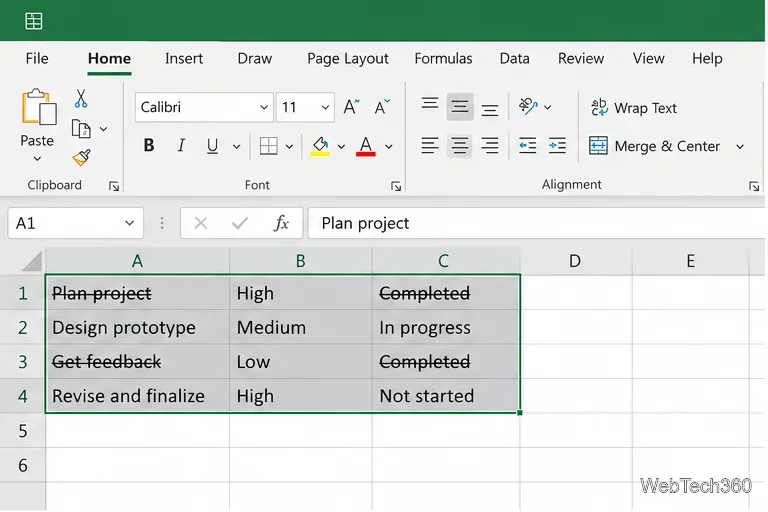
Learn how to strikethrough in Excel on Windows, Mac, and the web, format part of a cell, and remove the line without deleting its value.
Microsoft Access is a Windows database app for storing related records, building queries, creating data-entry forms, and generating reports. Learn how it works and when it fits.
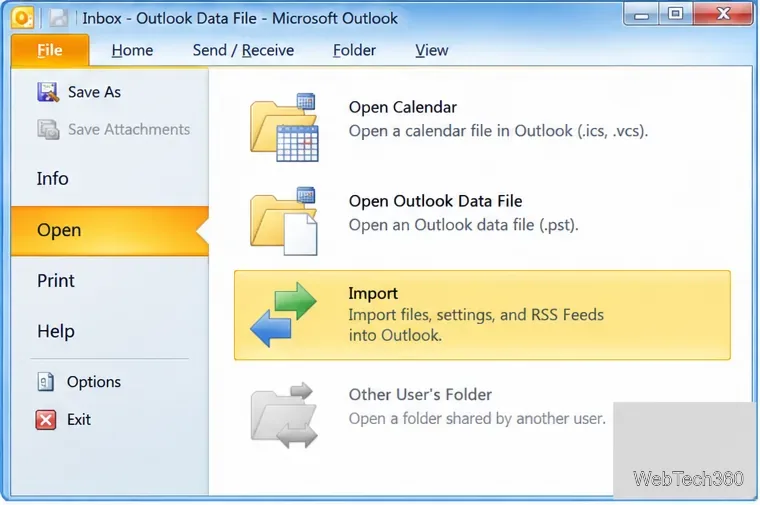
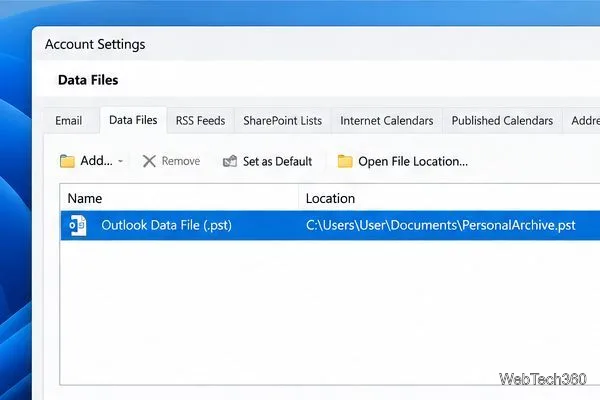
Learn how to import a PST into Outlook 2010 or export mail, contacts, calendar, and tasks. Follow the correct menus and avoid missing folders or duplicates.
Learn how to adjust gridline height and width in Word 2010, change visible line frequency, and set the underlying horizontal and vertical drawing-grid spacing.
Recover a forgotten Outlook PST password with Kernel’s current steps, including how to identify the right file, make a backup, and check the tool’s limits.
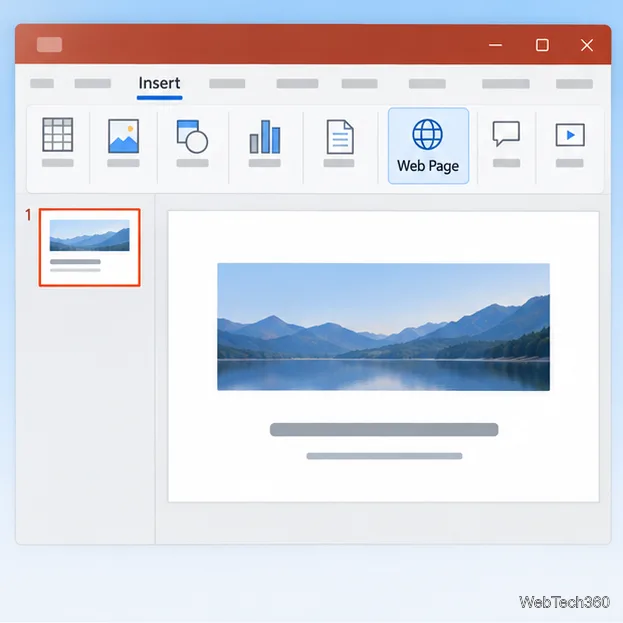
Use the LiveWeb add-in to place a website on a PowerPoint slide, set its size and refresh behavior, and check compatibility before presenting.
Set an Access 2010 database application to open directly to a data-entry form, hide object lists, limit menus, and check the setup before sharing.