How to Move a Picture in Microsoft Word
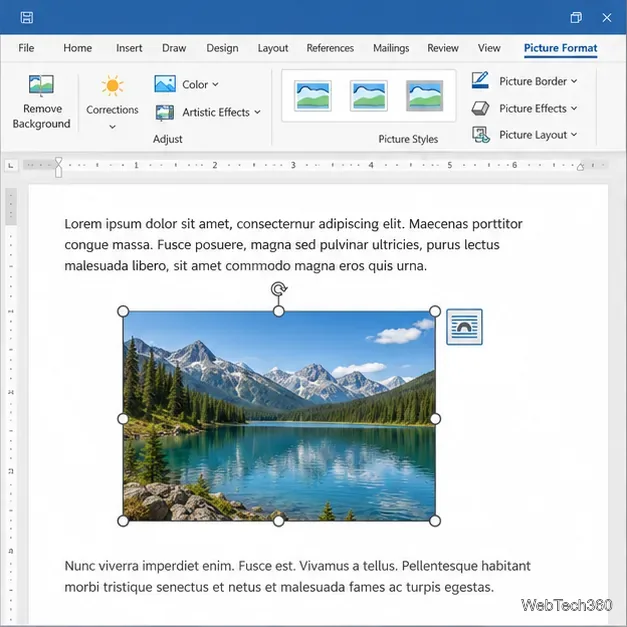
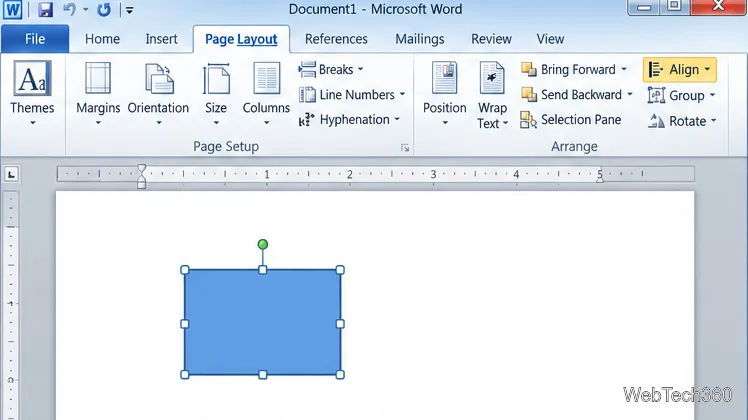
Learn how to drag a picture in Word, choose text wrapping, keep it with a paragraph or fix it on the page, and troubleshoot images that will not move.
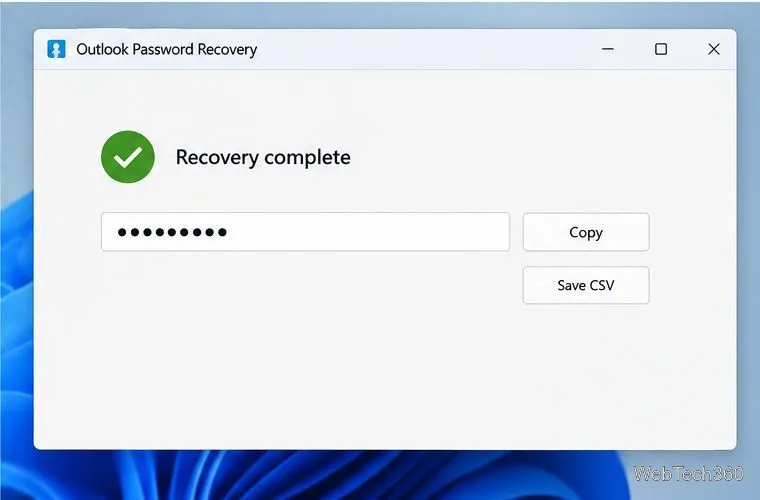
If you forgot the password for a PST file that belongs to you or that you are authorized to access, Microsoft’s built-in Outlook support cannot retrieve it. The current Kernel Outlook Password Recovery utility from Nucleus advertises a way to recover or remove a PST password. Its basic workflow is to add the file, run recovery, and review the result. Make a backup first, and remember that the utility’s features and compatibility are the vendor’s claims, not an independent test.
This guide covers Outlook data files with the .pst extension. It does not reset your Microsoft, Outlook.com, or work email account password. The screenshots below are explanatory mockups; the installed interface and wording may differ by version.
In classic Outlook for Windows, open File > Account Settings > Account Settings, then select the Data Files tab. Check the file name and the Location column to find the data file Outlook is asking you to open. If the extension is .ost, this PST password process does not apply: Microsoft says an Offline Outlook Data File (.ost) cannot have a password set on it. If Outlook is asking for your email account sign-in, use your organization’s or email provider’s account recovery process instead.
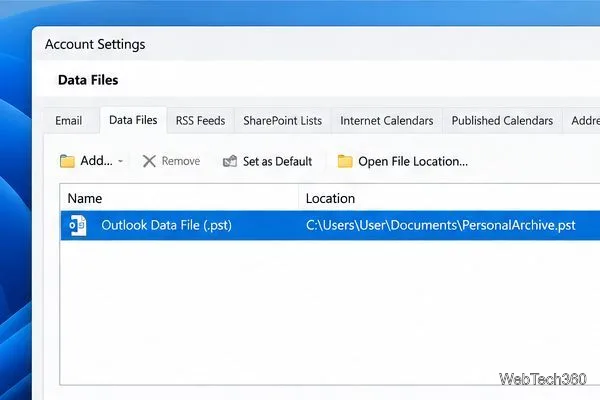
Also check that Caps Lock is off before trying a password you may have saved. Outlook data file passwords are case-sensitive. Microsoft’s instructions explain how to change a known PST password, but state that Microsoft cannot retrieve a forgotten one.
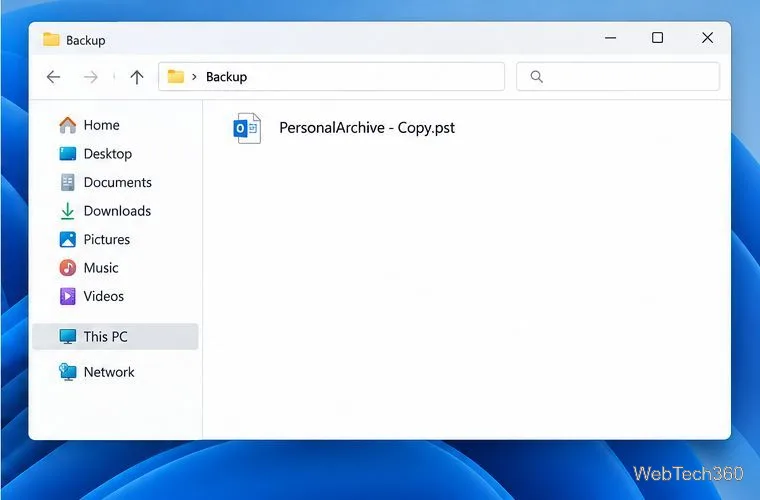
Close Outlook, then copy the PST in File Explorer to a separate folder or external drive. Keep the original untouched and use the copy for recovery. A PST can contain years of email, contacts, calendar entries, and tasks, so this extra copy gives you a fallback if you select the wrong file or the recovery process does not work as expected.
Nucleus currently calls the product Kernel Outlook Password Recovery. Its product page lists version 25.0, released in May 2025, and says the free option supports PST files up to 500 MB; an upgrade is offered for unlimited PSTs. The vendor lists support for current and older Outlook and Windows versions, but check its current compatibility details for your specific computer before installing. Download only from the official Kernel product page.
.pst file. If you have several data files, use the path you confirmed in Outlook rather than guessing from the name.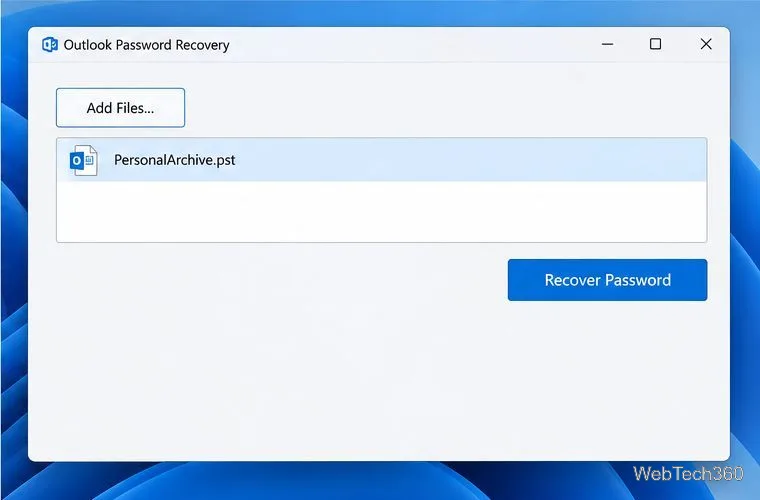
After confirming that the copy opens, you can return to the original workflow. To set a new password in classic Outlook, use File > Account Settings > Account Settings > Data Files > Settings > Change Password. Microsoft’s current instructions cover this process for Outlook for Microsoft 365, Outlook 2024, 2021, 2019, and 2016.
A PST password should not be treated as strong encryption. Microsoft’s PST format documentation explains that the password is not used as the key that encrypts the file’s contents; it acts as an access prompt in software that enforces it. If the archive contains sensitive information, protect the Windows account and device with appropriate access controls and disk encryption instead of relying on the PST password alone.
The free tool’s listed 500 MB limit may matter for large archives. If the file is larger, check the vendor’s current terms before proceeding. Kernel’s own FAQ says its password utility does not repair a corrupt PST, so a damaged-file error requires a separate repair or backup-recovery path. Stop if the selected file is not yours to access or you cannot confirm which archive Outlook is opening.
Learn how to drag a picture in Word, choose text wrapping, keep it with a paragraph or fix it on the page, and troubleshoot images that will not move.
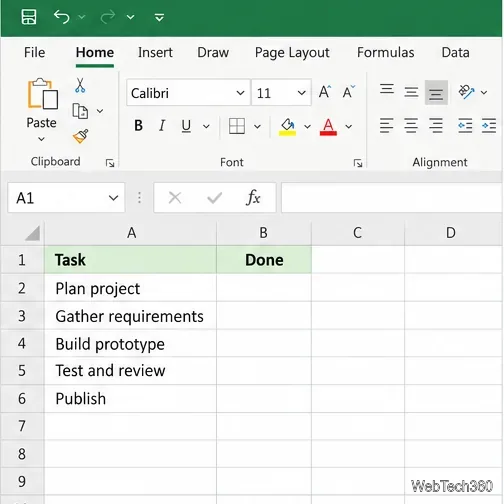
Learn how to insert a checkbox in Excel with the in-cell tool, count checked items with formulas, or add a linked Form Control in older desktop versions.
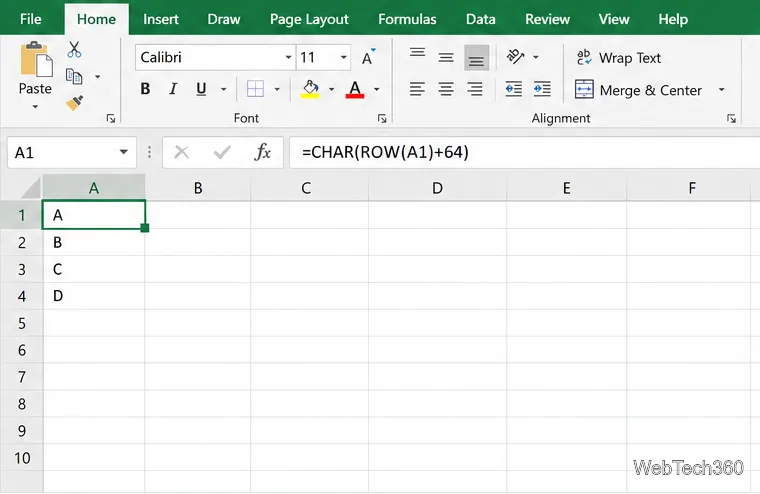
Generate A to Z, lowercase letters, or labels beyond Z in Excel with a fill-handle formula, SEQUENCE, or a reusable custom list.
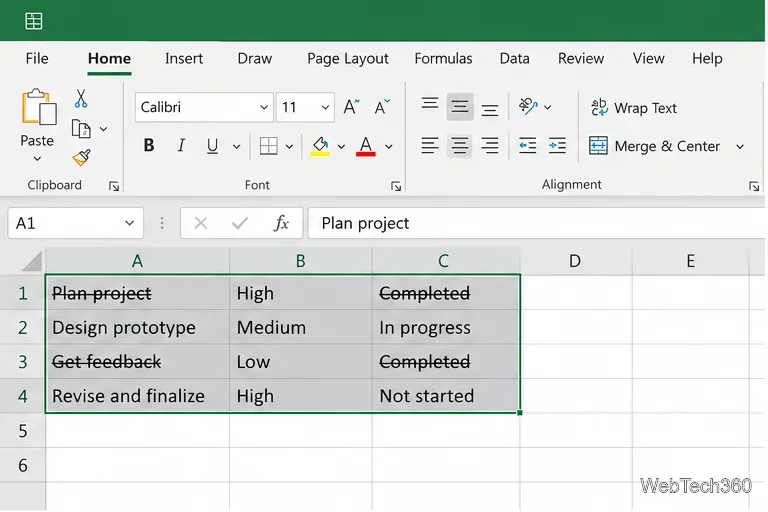
Learn how to strikethrough in Excel on Windows, Mac, and the web, format part of a cell, and remove the line without deleting its value.
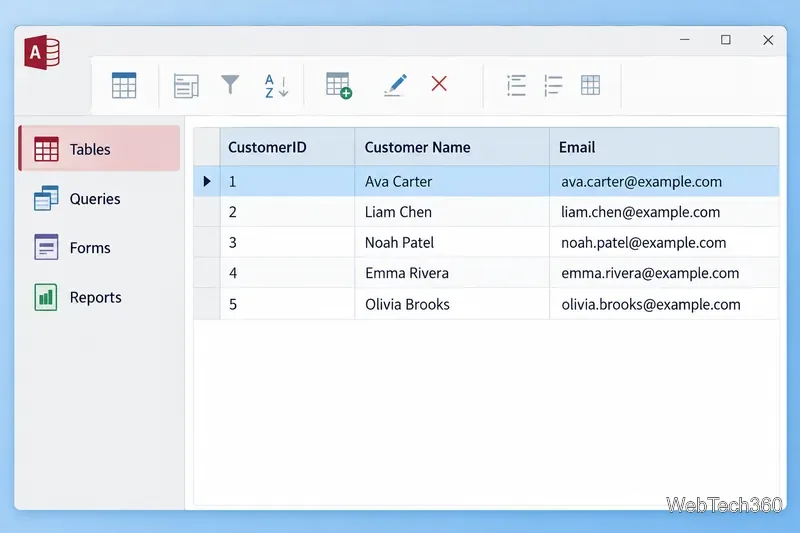
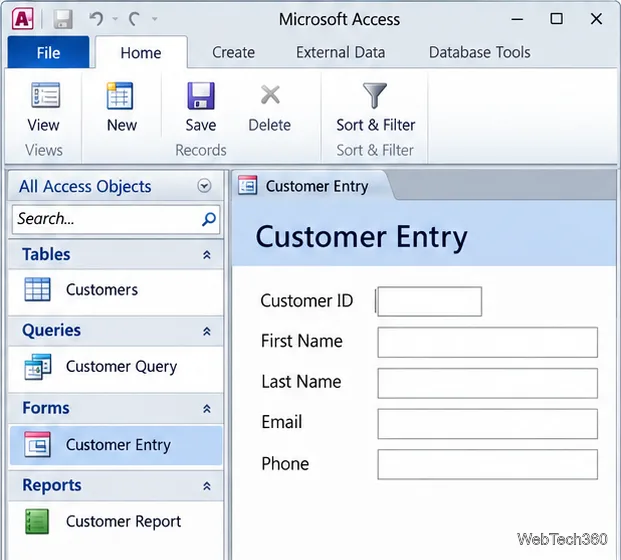
Microsoft Access is a Windows database app for storing related records, building queries, creating data-entry forms, and generating reports. Learn how it works and when it fits.
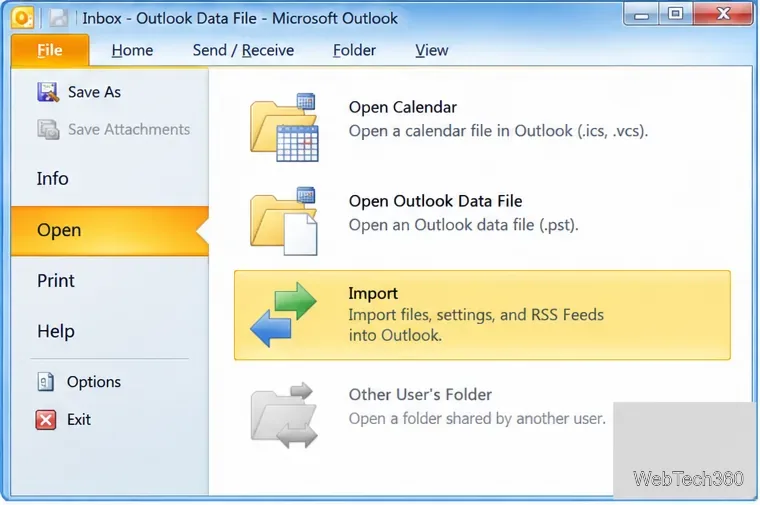
Learn how to import a PST into Outlook 2010 or export mail, contacts, calendar, and tasks. Follow the correct menus and avoid missing folders or duplicates.
Learn how to adjust gridline height and width in Word 2010, change visible line frequency, and set the underlying horizontal and vertical drawing-grid spacing.
Recover a forgotten Outlook PST password with Kernel’s current steps, including how to identify the right file, make a backup, and check the tool’s limits.
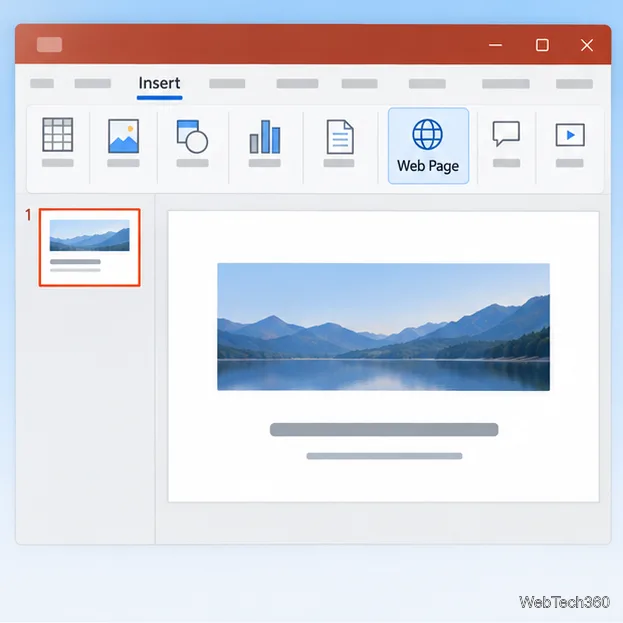
Use the LiveWeb add-in to place a website on a PowerPoint slide, set its size and refresh behavior, and check compatibility before presenting.
Set an Access 2010 database application to open directly to a data-entry form, hide object lists, limit menus, and check the setup before sharing.