How to Insert a Live Web Page in a PowerPoint Slide

Yes. PowerPoint can display a live webpage inside a slide with the LiveWeb add-in. It places a browser area on the slide, and its refresh feature can update the page when the slide is visited during a show. This is different from a screenshot, which stays static, or a hyperlink, which opens a page outside the slide.

There is an important compatibility caveat. Microsoft’s current support page points to LiveWeb and lists PowerPoint 2016 through Microsoft 365, but the add-in maker’s own download page lists installers through PowerPoint 2016 and its FAQ says LiveWeb does not work on Mac. Treat newer Windows builds as something to test on the actual presentation computer before relying on it.

Before you start

  • Use the PowerPoint desktop app on Windows. The LiveWeb FAQ says it does not work on Mac or in PowerPoint Viewer.
  • Keep the add-in installed on every computer that will run the slide show. LiveWeb’s author says the real-time update component requires the add-in at presentation time.
  • Choose a page the presentation computer can reach. A network connection is needed, and pages that require sign-in or block older embedded browser controls may not display correctly.
  • Download the installer only from the LiveWeb developer’s page. Do not weaken Office security settings or apply old registry workarounds just to force the control to load.

How to insert a live webpage in PowerPoint

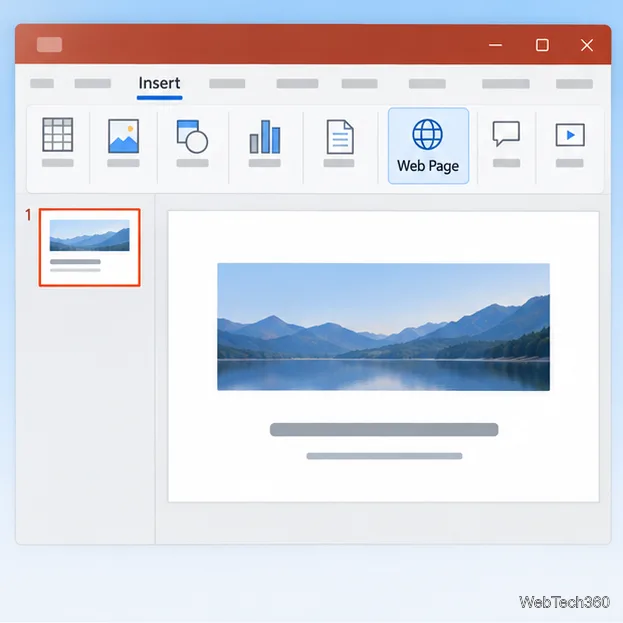
  1. Install LiveWeb and open your presentation. Follow the installer instructions on the developer’s page, then launch PowerPoint. Open the deck and select the slide where the webpage should appear. The add-in’s older interface adds a Web Page command under the Insert tab.
    PowerPoint editing window with the Insert tab selected and a Web Page command highlighted in the ribbon
    Workflow illustration: the LiveWeb Web Page command is available from PowerPoint’s Insert tab after the add-in is installed.
  2. Start the wizard and enter the address. Choose Insert > Web Page. In the LiveWeb wizard, enter the full URL, including https://, then choose Next. Add one address for a single page. Confirm the same address opens on the computer that will present the deck.
    LiveWeb wizard with https://example.com entered in the webpage address field and Next and Cancel buttons
    Workflow illustration: enter the complete address of the webpage you want to show.
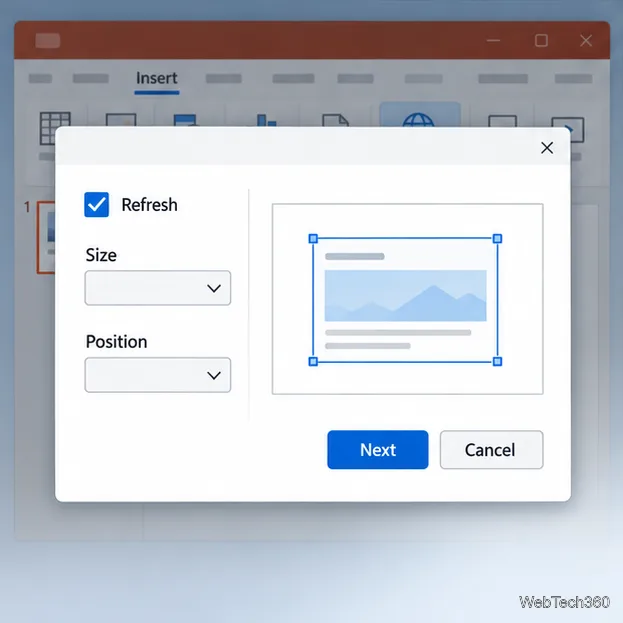
  3. Choose the refresh behavior. If the wizard offers an option to refresh the webpage automatically, turn it on when you want the page refreshed as the slide is visited. This does not make the deck self-contained: the display still depends on the add-in, the website, and an available connection. For a page that should remain unchanged, leave automatic refresh off if the wizard allows it.
    LiveWeb wizard options showing a refresh checkbox and controls for webpage size and position on the slide
    Workflow illustration: choose whether to refresh the page and set its size and position on the slide.
  4. Set the size and position. Use the wizard’s percentage and placement controls to decide how much of the slide the webpage should cover and where it should sit. A partial-width page can leave room for a heading or notes; a full-slide placement is useful for a demonstration. Review the preview or placement diagram if your version provides one, then continue through the final wizard screen.
  5. Run the slide show and test the result. Start Slide Show from the selected slide and check that the page loads, text is readable, and any controls you need respond. Repeat the test on the computer and network you will use in the room. Do not assume that a successful edit on one machine guarantees playback on another.
    PowerPoint slide show displaying a webpage within the slide frame, with webpage content visible in a browser-like panel
    Workflow illustration: check how the embedded webpage appears while the slide show is running.

If the Web Page command is missing or the page is blank

Close and reopen PowerPoint after installation, then check the add-in’s installation instructions and your organization’s add-in policy. Microsoft notes that security settings or administrator policies can prevent add-ins from loading. If LiveWeb reports that it cannot insert the browser control, or the page renders incorrectly, stop there and use a fallback instead of changing registry or Trust Center settings. LiveWeb’s FAQ documents browser-control compatibility issues in older PowerPoint releases, and many modern sites may not support that legacy rendering environment.

If you only need the audience to visit a page, add a hyperlink to text, a shape, or a picture with Insert > Link. That opens the website separately when selected, rather than embedding it. If the page must remain visible inside the slide and LiveWeb is unreliable, use a screenshot for a fixed view or a screen recording for motion, then add a link to the live page for follow-up. Microsoft’s instructions for adding a webpage hyperlink explain the standard link workflow.

Sources

Leave a Comment

How to Move a Picture in Microsoft Word
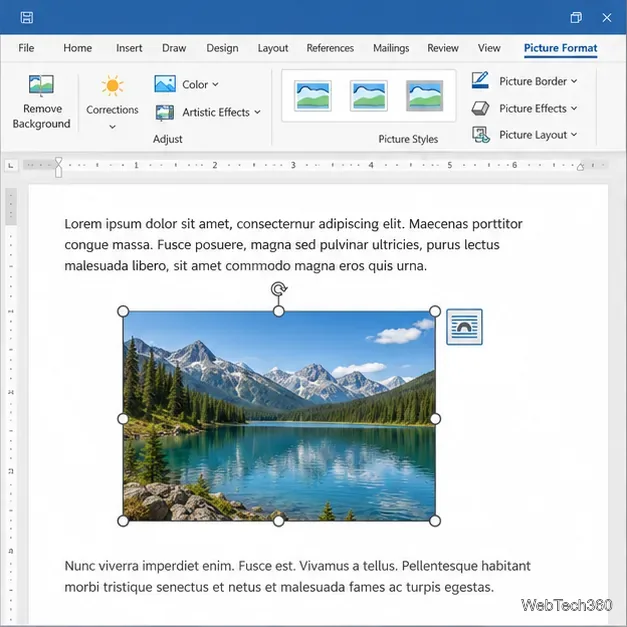
How to Move a Picture in Microsoft Word

Learn how to drag a picture in Word, choose text wrapping, keep it with a paragraph or fix it on the page, and troubleshoot images that will not move.

How to Insert a Checkbox in Excel: Two Easy Methods

How to Insert a Checkbox in Excel: Two Easy Methods

Learn how to insert a checkbox in Excel with the in-cell tool, count checked items with formulas, or add a linked Form Control in older desktop versions.

How to Autofill Letters in Excel: A to Z and Beyond

How to Autofill Letters in Excel: A to Z and Beyond

Generate A to Z, lowercase letters, or labels beyond Z in Excel with a fill-handle formula, SEQUENCE, or a reusable custom list.

How to Strikethrough in Excel: Shortcuts and Step-by-Step Methods

How to Strikethrough in Excel: Shortcuts and Step-by-Step Methods

Learn how to strikethrough in Excel on Windows, Mac, and the web, format part of a cell, and remove the line without deleting its value.

What Is Microsoft Access? How Its Database Tools Work

What Is Microsoft Access? How Its Database Tools Work

Microsoft Access is a Windows database app for storing related records, building queries, creating data-entry forms, and generating reports. Learn how it works and when it fits.

Office Outlook 2010 Import and Export: Move Data with a PST

Office Outlook 2010 Import and Export: Move Data with a PST

Learn how to import a PST into Outlook 2010 or export mail, contacts, calendar, and tasks. Follow the correct menus and avoid missing folders or duplicates.

Change Gridline Height and Width in Word 2010

Change Gridline Height and Width in Word 2010

Learn how to adjust gridline height and width in Word 2010, change visible line frequency, and set the underlying horizontal and vertical drawing-grid spacing.

Recover an Outlook PST Password with Nucleus Kernel

Recover an Outlook PST Password with Nucleus Kernel

Recover a forgotten Outlook PST password with Kernel’s current steps, including how to identify the right file, make a backup, and check the tool’s limits.

How to Insert a Live Web Page in a PowerPoint Slide

How to Insert a Live Web Page in a PowerPoint Slide

Use the LiveWeb add-in to place a website on a PowerPoint slide, set its size and refresh behavior, and check compatibility before presenting.

How to Make an Access 2010 Database Open to a Form

How to Make an Access 2010 Database Open to a Form

Set an Access 2010 database application to open directly to a data-entry form, hide object lists, limit menus, and check the setup before sharing.